

When it comes to transferring files on your Windows system, TeraCopy is a name that stands out. It’s a powerful file copying and transferring utility that takes your file transfer experience to the next level. With its focus on speed, reliability, and a user-friendly interface, TeraCopy streamlines the process of copying and moving files, making it an essential tool for both casual users and professionals.
What is TeraCopy?
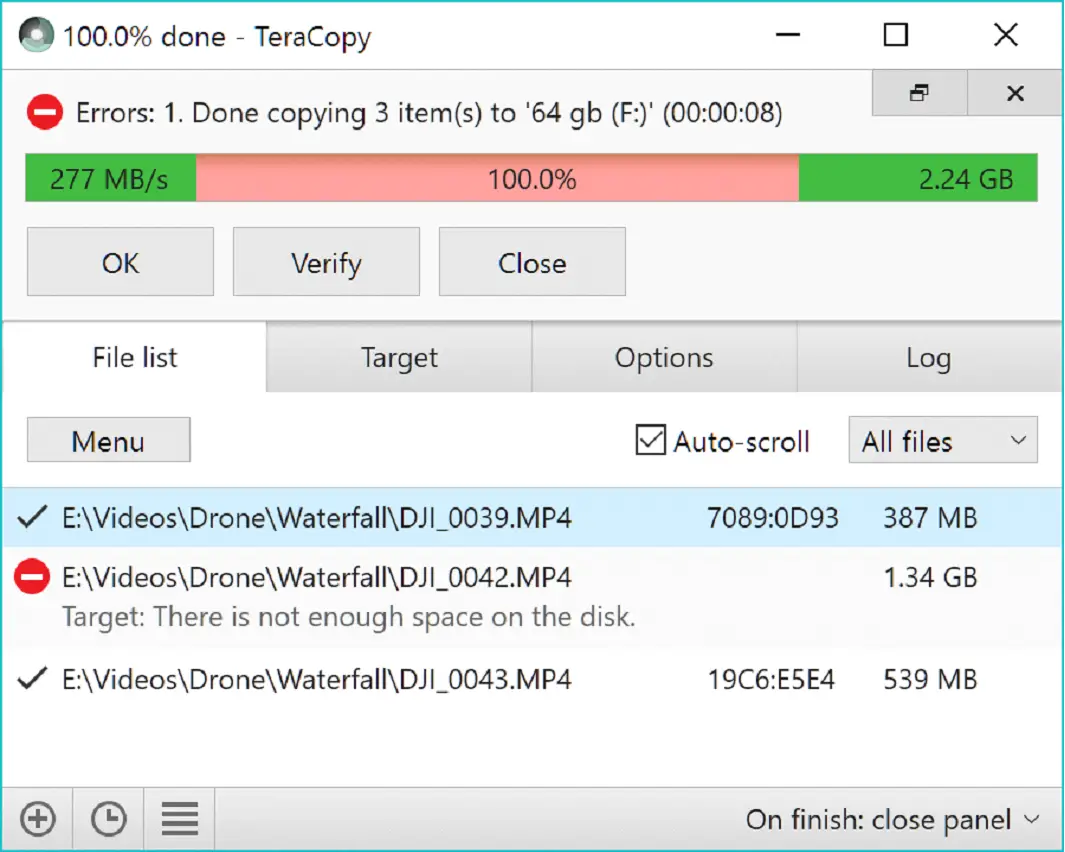
TeraCopy is a dedicated file transfer utility for Windows that replaces or augments the default Explorer copy dialog. It’s built to deliver blazing-fast transfers, reduce interruptions with robust error handling, and add fine-grained control over your copy or move operations. Whether you’re moving a few photos or migrating a multi-gigabyte project, TeraCopy keeps transfers smooth and transparent.
Why Would a Beginner Use TeraCopy?
Windows Explorer does a decent job, but TeraCopy offers noticeable quality-of-life improvements. You can pause and resume busy transfers, verify file integrity with hash-based checks, and see clear progress stats and logs. If a file causes an error, TeraCopy can retry or skip it without stopping the entire queue—perfect when you’re moving hundreds or thousands of files. If you ever want more choices, tools like FastCopy and Copy Handler are solid alternatives you can compare with.
Main Features of TeraCopy
- Blazing-Fast Transfers – Optimized engine to copy or move large batches quickly.
- Reliability & Error Recovery – Retries, skips, or queues problematic files without halting the process.
- Pause & Resume – Put transfers on hold and continue anytime.
- File Verification – Optional post-copy checks to ensure destination files match the source.
- Windows Explorer Integration – Right-click menus and the option to make TeraCopy the default copy handler.
- Clear Interface & Logs – Real-time progress, speed graphs, errors, and a detailed activity log.
If you like an Explorer-style feel with added controls, you might also explore NiceCopier or UltraCopier—both free tools that extend the file copying experience on Windows.
How to Use TeraCopy
TeraCopy is beginner-friendly. Here’s a simple flow you can follow:
Step 1. Download and install TeraCopy (link below), then launch it once to apply defaults.
Step 2. (Optional) In settings, set TeraCopy as the default copy handler so Explorer sends copy/move jobs to TeraCopy automatically.
Step 3. In File Explorer, select files or folders and press Ctrl+C (copy) or Ctrl+X (cut), then navigate to the destination and press Ctrl+V. TeraCopy will take over.
Step 4. Use Pause if you need system resources temporarily, and Resume to continue when ready.
Step 5. Enable Verify after the transfer to run integrity checks for peace of mind (useful for backups and critical files).
Step 6. If errors appear, review the log, choose Retry for transient issues, or Skip to complete the rest of the queue.
Safe Use Tips for Beginners
- Verify important copies—especially archives, installers, and work projects.
- Avoid simultaneous heavy transfers on the same drive; queues finish faster and safer when not competing for I/O.
- Prefer wired connections for large network copies; Wi-Fi hiccups can cause stalls or retries.
- Keep enough free space on the destination and ensure you have permission to write there.
- Skim the log after big jobs to confirm all files completed as expected.
When TeraCopy Can Help You
- Large backups to external HDDs/SSDs where reliability and verification matter.
- Project migrations with thousands of small files, where pause/resume and error handling save time.
- Cross-drive or NAS moves where network quirks benefit from retries and clean logging.
- Every day transfers when you want consistent speed and a better progress view than Explorer.
Download TeraCopy
You can download TeraCopy from its official website. For related tools and comparisons, you can also check our curated roundup of free file copy utilities for Windows.
Frequently Asked Questions About TeraCopy
Is TeraCopy free?
Yes, there’s a free version suitable for most users. A Pro version adds extras like favorites and more advanced features.
Does TeraCopy really make copying faster?
In many scenarios, yes. Its optimized engine and smart queueing help sustain higher speeds, especially with lots of files.
Can I pause and resume any transfer?
Generally, yes. If a device disconnects or a permission error occurs, you may need to fix the issue and then resume.
What does “Verify” do?
Verification compares source and destination using hashes to ensure the copied files are identical—great for backups or sensitive data.
Will it replace the Windows copy dialog?
Only if you enable it. You can keep Explorer’s default behavior or set TeraCopy as your primary copy/move handler.
Conclusion
TeraCopy is a powerful and user-friendly file copying and transferring utility that elevates your Windows workflow. With blazing-fast transfers, reliable error handling, pause/resume, verification, and clean Explorer integration, it delivers the speed, efficiency, and control most users want. If you move data regularly—or just want more confidence during big copies—install TeraCopy and enjoy swift, reliable file transfers on Windows.