

Windows PCs often face difficulties when deleting files due to several reasons. These may include file or folder corruption, virus or malware infections, or the file being used by another process. When trying to delete such files, users may encounter error messages like:
– “Access is denied.”
– “Sharing violation”
– “Source or destination file in use”
– “File in use by another program or user”
These messages indicate that the file is currently being accessed by another application or user, or the disk may be full or write-protected.
In this gearupwindows post, we will walk you through different methods to resolve file deletion issues on a Windows PC.
What is Wise Force Deleter?
Wise Force Deleter is a free and powerful tool designed to fix the issues mentioned above. This software helps you delete files that refuse to be removed using normal methods. It can bypass errors like:
– “Cannot delete file: Access is denied.”
– “There has been a sharing violation.”
– “The source or destination file may be in use.”
– “The file is in use by another program or user.”
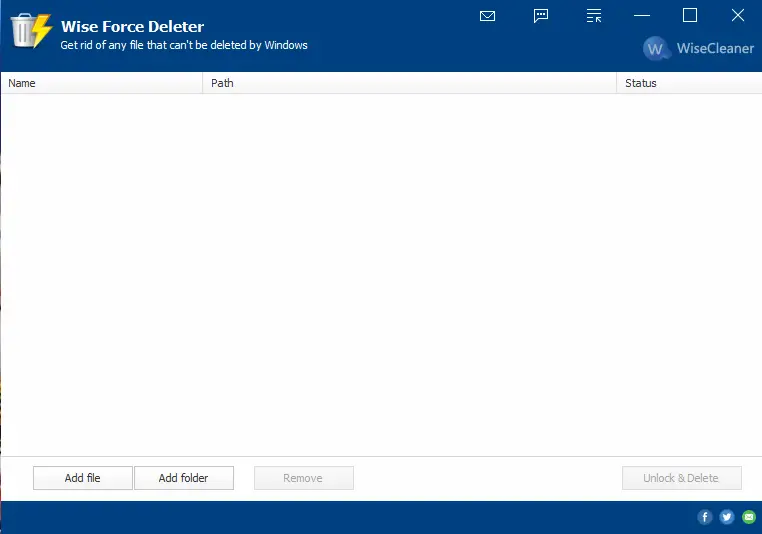
If you’re struggling to delete a file or folder in Windows due to access restrictions or other issues, Wise Force Deleter is a reliable and free solution. It helps unlock files and terminate the processes, preventing deletion—something not always possible with Windows’ built-in tools.
Once installed, Wise Force Deleter integrates into the right-click context menu of your Windows PC. This allows you to delete any file by simply right-clicking it and choosing the “Force Delete” option.
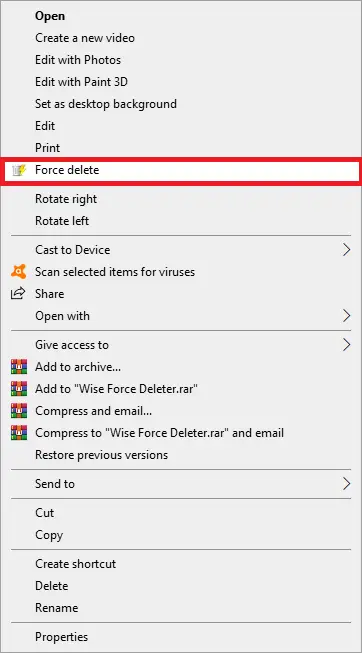
To delete a locked file on Windows 11 or 10:
Step 1. Right-click the file and choose the “Force Delete” option.
Step 2. The Wise Force Deleter window will appear.
Step 3. Click the Unlock & Delete button to remove the file instantly.
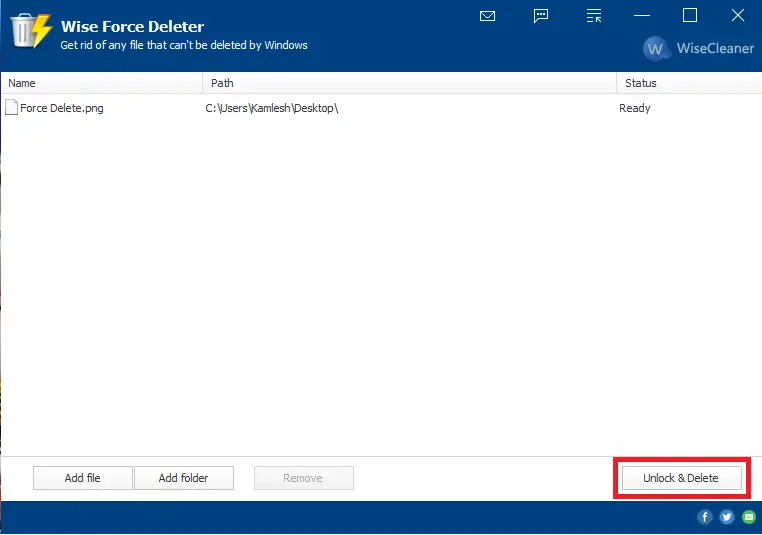
Wise Force Deleter also allows users to delete multiple files and folders simultaneously, making it ideal for those who work with large amounts of data. It removes files that can’t be deleted using the standard Windows method due to locked processes or permission issues.
The program also supports adding files manually using browse buttons, for those who prefer not to drag and drop. Its context menu integration makes it fast and convenient to use.
Note: Files and folders deleted using Wise Force Deleter are permanently removed and do not go to the Recycle Bin.
Wise Force Deleter is completely free for both personal and commercial use. It supports all major Windows versions, including Windows 11, 10, 8.1, 8, 7, Vista, and XP, and works on both 32-bit and 64-bit systems.
Download Wise Force Deleter
You can download the latest version of Wise Force Deleter from here (file size is under 2MB).
FAQs
Why does Windows show errors like “Access is denied” when deleting a file?
This usually happens when the file is locked by another process, is being used by a running application, or has corrupted permissions that prevent deletion.
What does “File in use by another program or user” mean?
It indicates the file is currently opened or accessed by an application or background service. Windows prevents deletion to avoid data corruption.
Can malware or viruses prevent file deletion?
Yes. Malware can lock or protect infected files to avoid removal, causing deletion errors.
Is Wise Force Deleter safe to use?
Yes. It is a free and trusted tool designed to unlock and remove stubborn files that Windows cannot delete normally.
Does Wise Force Deleter permanently delete files?
Yes. Files deleted through Wise Force Deleter do not go to the Recycle Bin and cannot be recovered easily.
Can I delete multiple locked files at once?
Yes. Wise Force Deleter supports batch deletion and can remove several locked files or folders simultaneously.
Why does Wise Force Deleter integrate into the right-click menu?
This integration makes the deletion process faster by allowing you to right-click any file and choose “Force Delete” instantly.
Is there any built-in Windows tool that can delete locked files?
Windows cannot always delete locked files because system processes may prevent it. Tools like Wise Force Deleter are designed to bypass such restrictions.
What are some alternatives to Wise Force Deleter?
Other tools like Unlocker and IObit Unlocker can also remove stubborn files if you want additional options.
Does Wise Force Deleter work on older Windows versions?
Yes. It supports Windows 11, 10, 8.1, 8, 7, Vista, and XP in both 32-bit and 64-bit versions.
Conclusion
In conclusion, if you’re facing error messages like “Access is denied” or “File in use by another program,” Wise Force Deleter offers a fast and effective solution. With features like context menu integration, process termination, and batch deletion, it’s a valuable tool for any Windows user. Just remember, deleted files do not go to the Recycle Bin. Other options like Unlocker and IObit Unlocker are also available if you’re looking for alternatives.
try using longpath tool, it is effective.
Just use longpath tool, it is effective.