

Autoruns is a Microsoft Sysinternals utility that reveals everything configured to launch with Windows—programs, services, drivers, browser helpers, scheduled tasks, shell extensions, and more. With it, you can spot unnecessary or suspicious entries, disable what you don’t need, and speed up boot time while reducing background load.
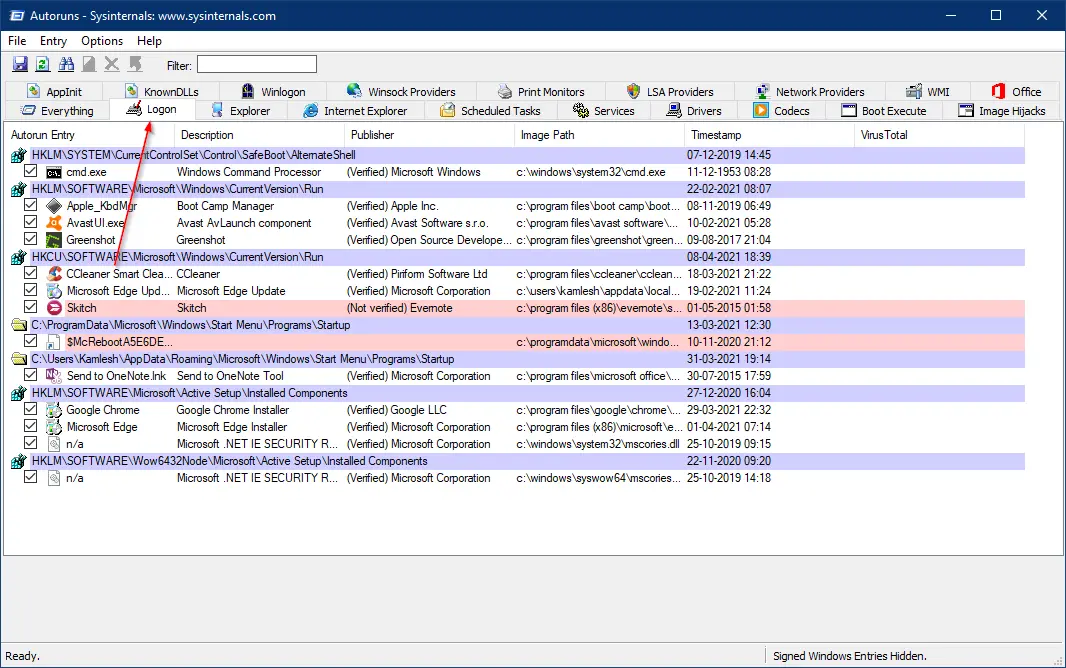
What is Autoruns?
Autoruns scans all known auto-start locations—Startup folder, Run/RunOnce registry keys, Services, Drivers, Scheduled Tasks, Explorer shell extensions, AppInit, Codecs, and more—and lists them in one place. Unlike the basic Startup tab in Task Manager, Autoruns exposes hidden and advanced spots too, so you can fully control what runs automatically.
Why Would a Beginner Use Autoruns?
- Speed up startups: Disable bloat that slows down boot and wastes RAM/CPU.
- Clean troubleshooting: Temporarily turn off items to isolate crashes or freezes.
- Security awareness: Spot unknown or unsigned programs that auto-run without you noticing.
If you just want to manage common startup apps, you can also use our simple guide: Enable or Disable Startup Programs in Windows 11. For startup folder tips, see How to Access the Windows 11 Startup Folder.
Main Features of Autoruns
- Complete startup inventory across dozens of auto-start locations.
- Enable/disable entries with a checkbox; delete if you’re certain.
- Verify code signatures and flag suspicious items; optional VirusTotal lookups.
- Filter views like Logon, Services, Scheduled Tasks, Drivers, Explorer, or Everything.
- Jump to location (Registry/File) and search online for unknown entries.
How to Use Autoruns
Step 1. Download Autoruns from the official Microsoft page and extract it. If you need help with archives, see How to Zip and Unzip Files on Windows 11.
Step 2. Run as administrator. Open Autoruns64.exe (on 64-bit Windows) so it can enumerate all system locations.
Step 3. In the toolbar, open Options → Scan Options… and enable Verify code signatures. Optionally tick Check VirusTotal.com (accept the EULA) to see per-file reputation.
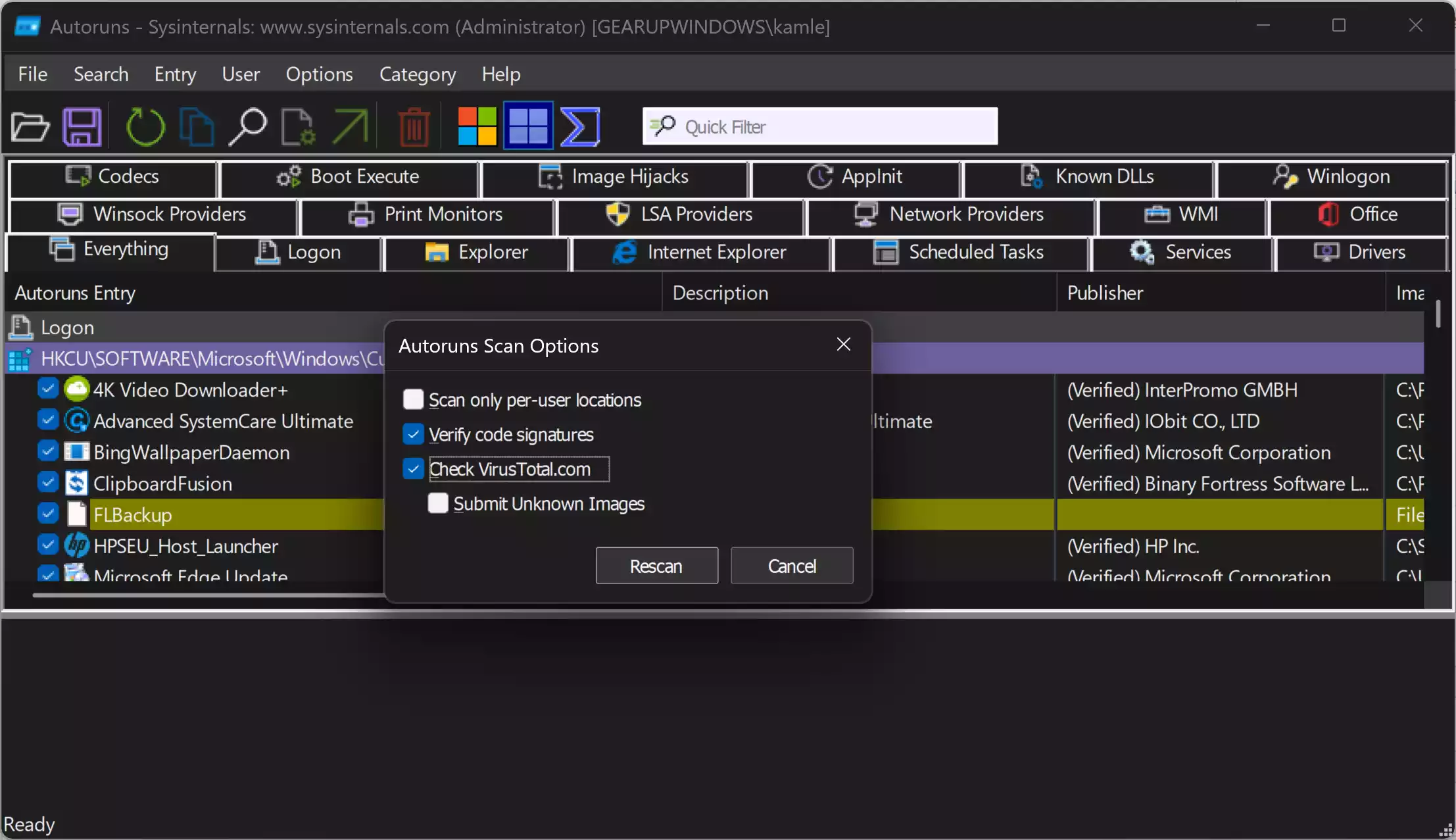
Step 4. Turn on Options → Hide Microsoft Entries to avoid disabling essential Windows components. This leaves mostly third-party items visible.
Step 5. Use the Logon tab to review typical startup apps. Uncheck entries to disable them (reversible). Right-click → Jump to Entry or Jump to Image to inspect registry/file paths.
Step 6. Review other tabs: Services, Scheduled Tasks, Drivers, and Explorer extensions. For service details, our guide helps: Open the Services applet in Windows 11. For automation basics, see Task Scheduler: A Comprehensive Guide.
Step 7. When you’re done, close Autoruns and restart Windows to test boot time and stability. If something breaks, re-open Autoruns and re-check the item you disabled.
Safe Use Tips for Beginners
- Prefer disable over delete: Uncheck to test impact; delete only when you’re sure.
- Hide Microsoft entries: Reduces the risk of turning off core Windows components.
- One change at a time: If an issue appears, you’ll know which entry caused it.
- Check signatures: Unsigned or unknown vendors deserve extra scrutiny.
- Keep notes: Take a screenshot before changes so you can revert easily.
When Autoruns Can Help You
- Slow boot after installing software: Disable new auto-start items to regain speed.
- Pop-ups or suspicious behavior: Find unknown entries and research them.
- Cleanup after app uninstalls: Remove leftovers that still auto-run.
You can also tidy obvious startup entries directly in Task Manager; see Remove invalid/unwanted entries from Task Manager’s Startup tab.
Download Autoruns
Get the latest build from Microsoft: Autoruns (Sysinternals). Download, extract, then run Autoruns64.exe as admin.
Frequently Asked Questions About Autoruns
Is Autoruns safe for Windows 11 and 10?
Yes. It’s a Microsoft Sysinternals tool. Use Hide Microsoft Entries and prefer to disable over delete to stay safe.
What’s the difference between disabling and deleting an entry?
Disabling is reversible—just re-check the box. Deleting removes the entry; only do this if you’re certain it’s unwanted.
Why don’t I see some startup items?
Run Autoruns as administrator. Also, check other tabs like Services, Scheduled Tasks, and Explorer—not everything appears under Logon.
Can I use Autoruns to remove malware?
Autoruns helps you find and disable persistent auto-starts, but you should also scan with reputable security tools. Use Verify code signatures and optional VirusTotal checks for quick reputation signals.
Task Manager already has a Startup tab. Why use Autoruns?
Task Manager shows common app startups. Autoruns exposes all auto-start points, including services, drivers, shell extensions, and scheduled tasks—useful for deeper cleanup and troubleshooting.
Will disabling services break things?
It can. Focus on third-party items and leave Microsoft entries hidden. If unsure, disable one item at a time and reboot to test. For service basics, see our Services guide.
Conclusion
Autoruns gives you full visibility and control over Windows auto-start behavior. Used carefully—with Hide Microsoft Entries, signature checks, and one-by-one changes—it’s an essential utility for speeding up startups, cleaning leftovers, and investigating suspicious activity. Pair it with our beginner how-tos for Startup apps, the Startup folder, Services, and Task Scheduler to keep your PC running fast and clean.