

If you regularly share your PC with your friends or family members and might want to restrict their access to some programs, then AskAdmin may be the correct choice. This application allows you to block programs, services, and files from other users on your PC.
AskAdmin for Windows 11/10
AskAdmin is a free and portable software that helps you block access to files and applications on your PC for other users. It has a straightforward user interface, using which you can block specific programs from being accessed by the users of a system.
How to Block Programs/Files Access to Other Users using AskAdmin?
To block programs or files’ access to other users using AskAdmin, do these steps:-
Step 1. First, download the AskAdmin software from its official website.
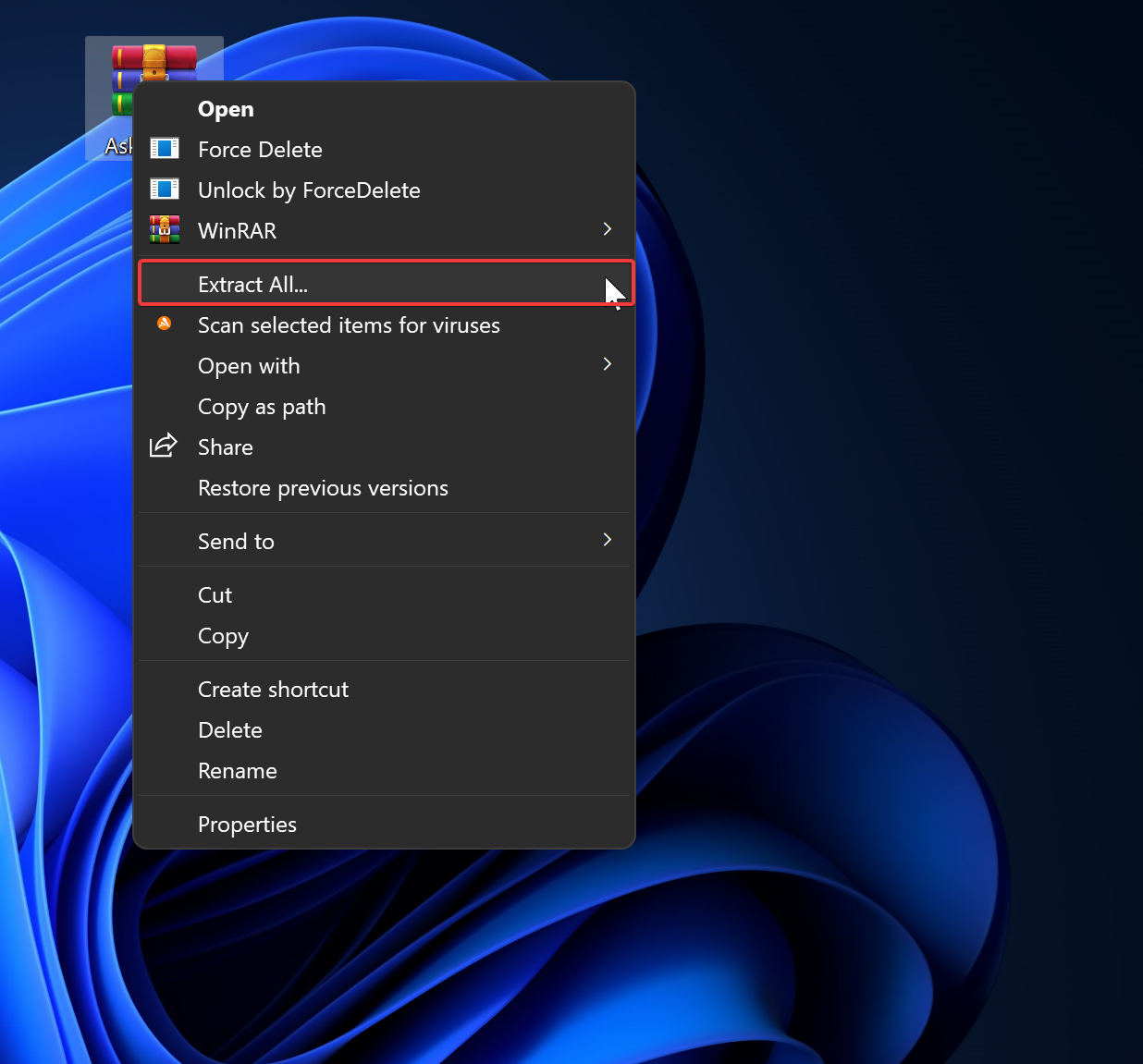
Step 2. After that, extract the downloaded ZIP file into a folder using any archiver tool (7-Zip guide).
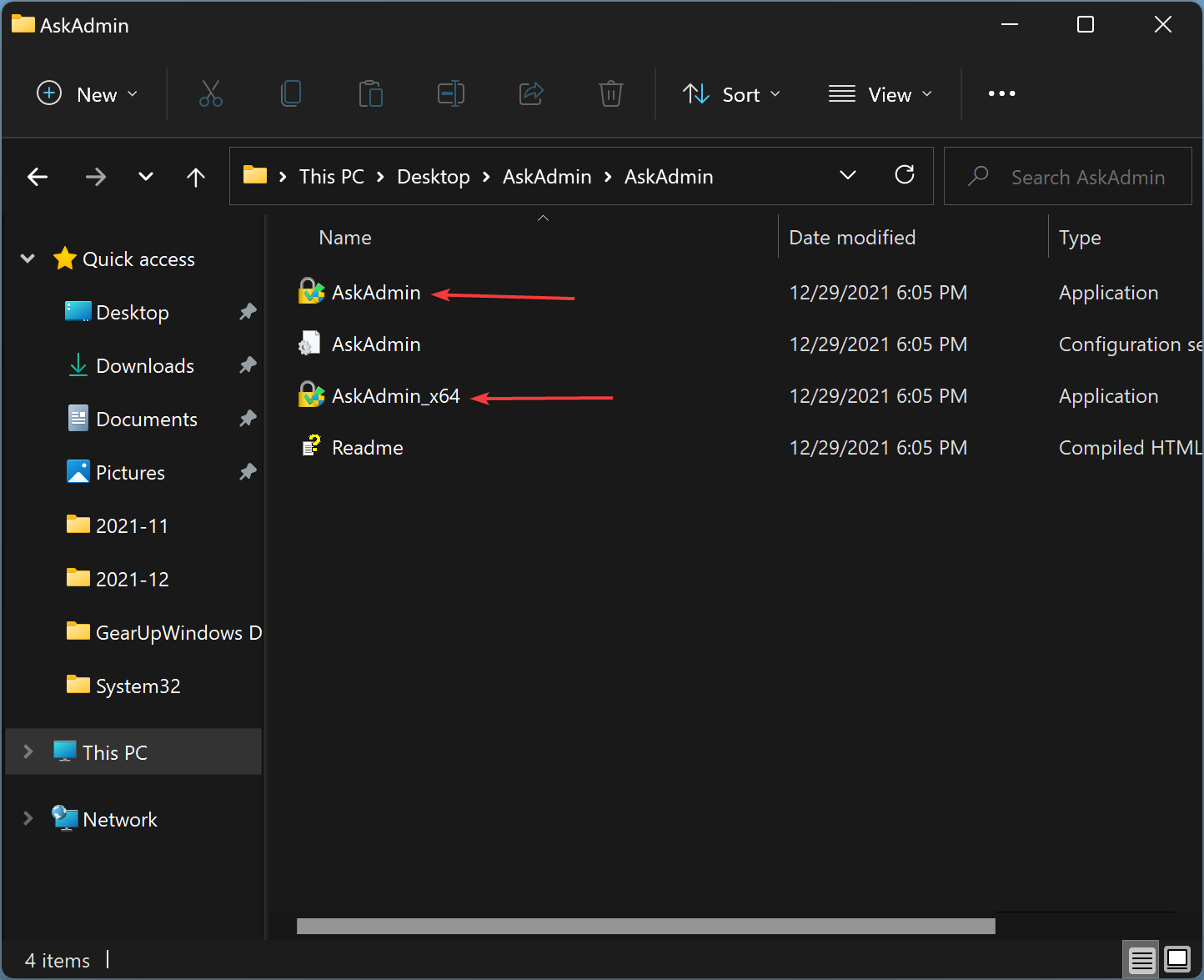
Step 3. In the AskAdmin folder, you will find two executable files: AskAdmin (for 32-bit) and AskAdmin_x64 (for 64-bit). Double-click on the correct file to launch it.
If UAC prompts, click the Yes button to continue.
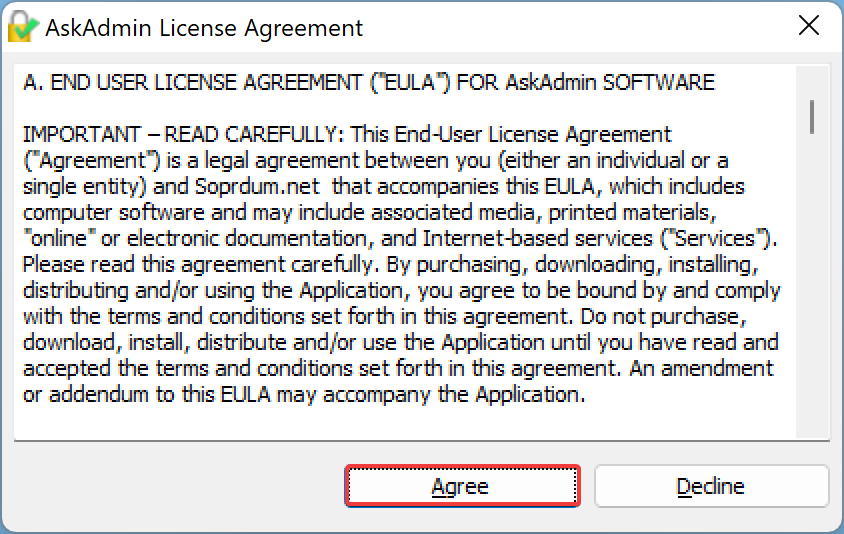
Step 4. Next, click on the Agree button when the “AskAdmin License Agreement” window opens.
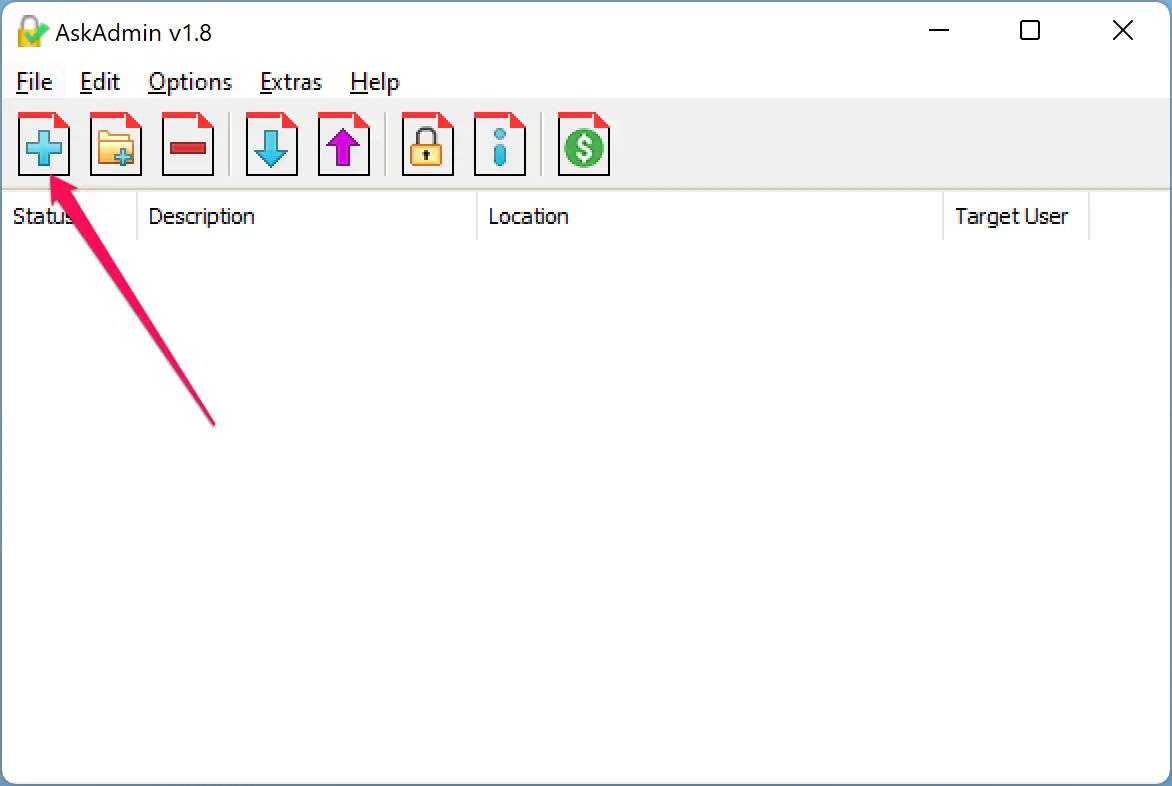
Step 5. To add a program to the block list to prevent users from accessing it, click on the Add File icon. If you want to block folder access, click on the Add Folder button instead.
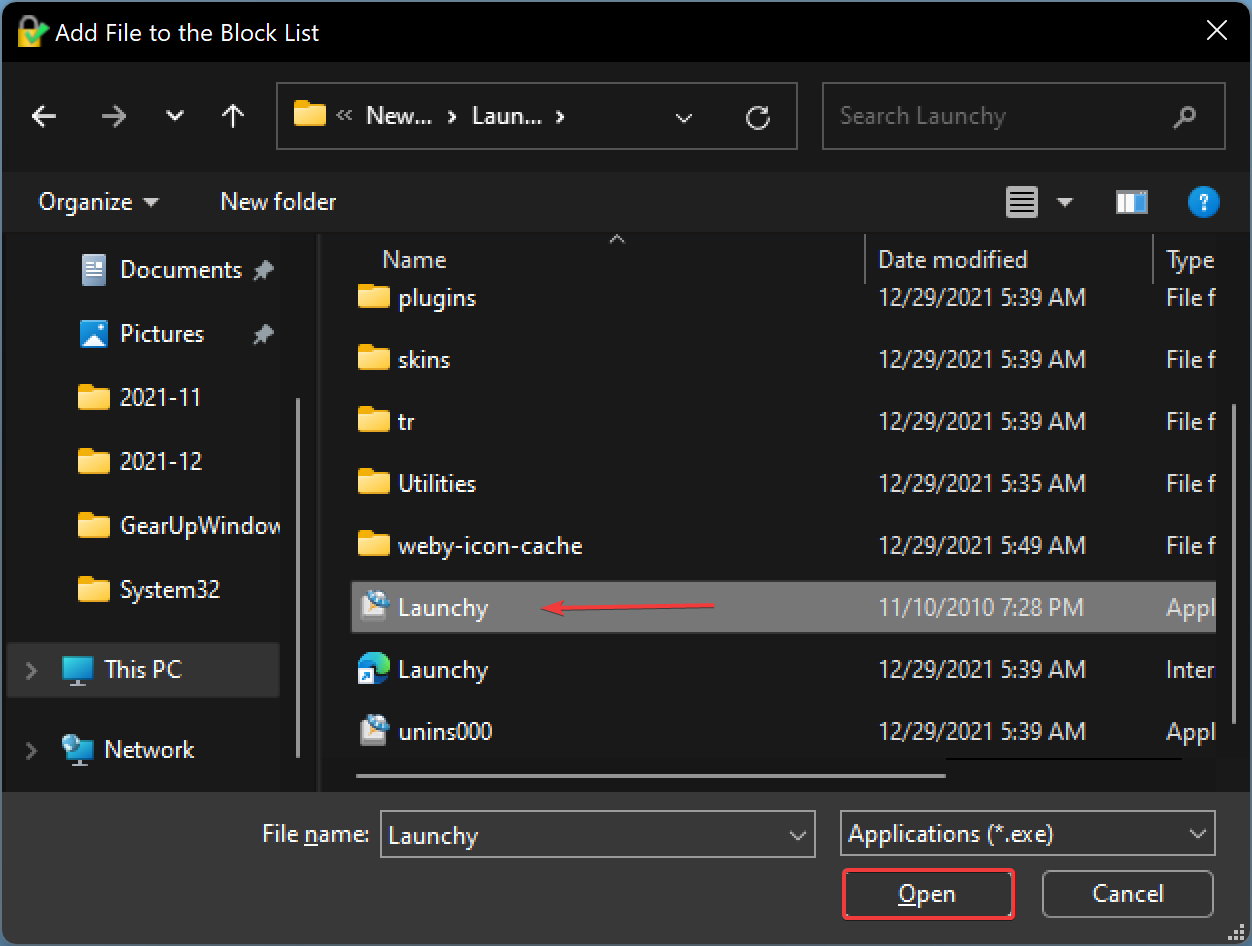
Step 6. Now, the File Explorer window will open. Select a program executable file that you want to block. Then, click the Open button.
Step 7. Once you add a program to the block list, you’ll be prompted to restart Windows Explorer to take the changes. Click the Yes button to continue.
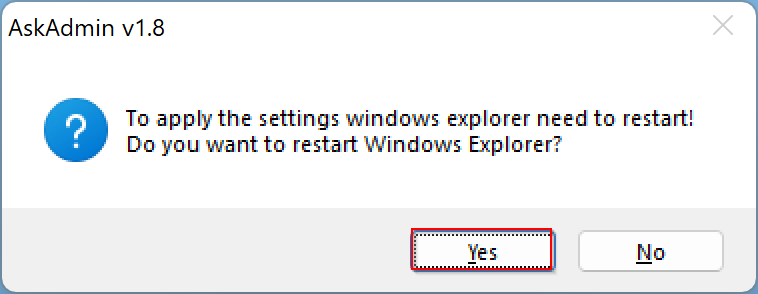
That’s it. You have successfully blocked a program for all users.
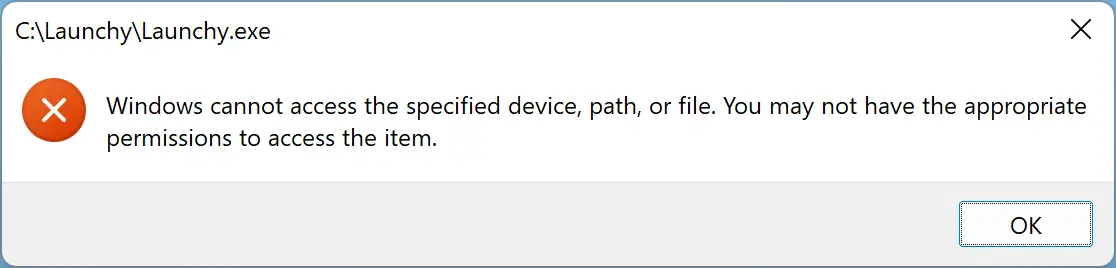
Now, whenever someone tries to open a blocked program on your computer, they will receive this message: “Windows cannot access the specified device, path, or file. You may not have the appropriate permissions to access the item.”
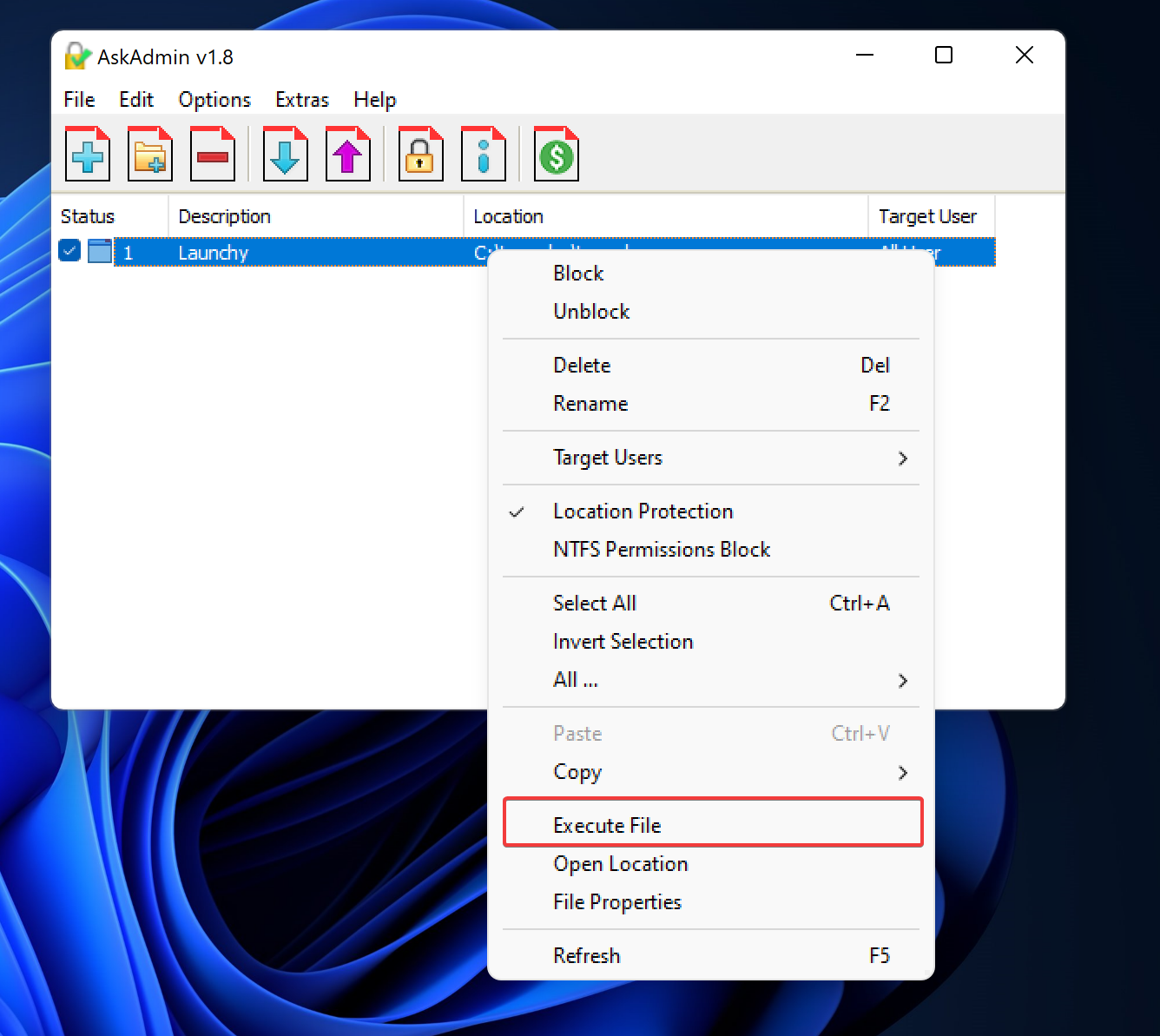
To run a program in the block list, launch AskAdmin and right-click on the software you wish to launch. After that, select the Execute File option in the context menu.
In the future, if you would like to remove a program from the block list, then select that app in AskAdmin and then click the Remove Selected button.
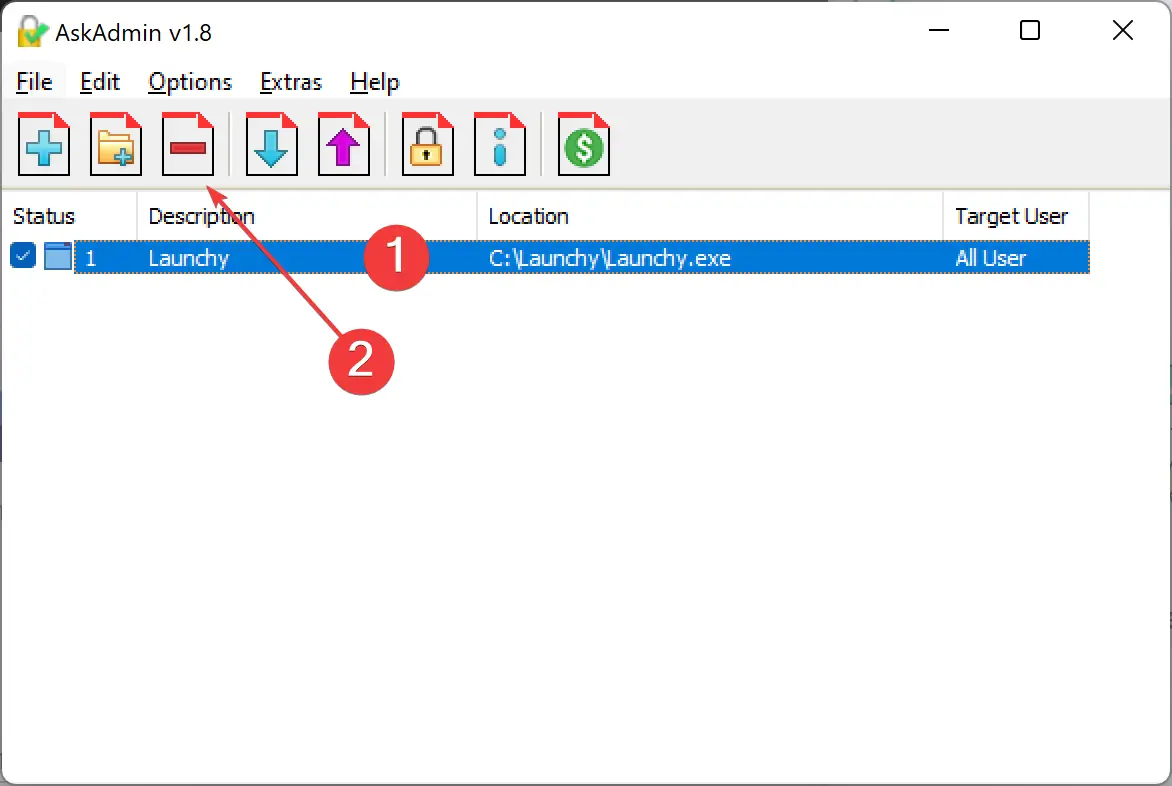
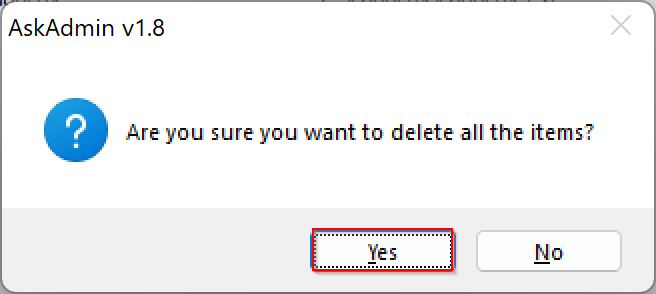
Click the Yes button when prompted.
The AskAdmin program allows you to set a password. However, this function is not available in the free version of this software. You need to purchase a license.
Related: Control USB access (free tools)
If your goal is to control USB usage and prevent data theft via removable drives, check our roundup of free USB port-locking tools for Windows.
Download AskAdmin
This free application is compatible with Windows 11, 10, 8.1, 8, 7, Vista, XP (both x86 and x64). You can download AskAdmin from here.
Frequently Asked Questions
Is AskAdmin portable?
Yes, AskAdmin is a portable program. You can extract it to a folder and run it without installation.
Does AskAdmin work on Windows 11 and Windows 10?
Yes, it supports Windows 11/10 and older versions, including Windows 8.1/8/7/Vista/XP (x86 and x64).
Can I block folders and services, not just EXE files?
Yes. Use Add Folder to block folders and the list interface to include services or additional items as needed.
How do I unblock or temporarily run a blocked app?
Open AskAdmin, select the item, and choose Remove Selected to unblock. To run an item once without unblocking, right-click it and choose Execute File.
Does the free version include password protection?
No. Password protection is a paid feature. The free edition focuses on blocking and unblocking access.
What if I only want to control web access (not apps)?
For lightweight website filtering, consider family-safe DNS tools. If you need app/folder restrictions, AskAdmin is the better fit.
Pros and Considerations
- Pros: Free, portable, easy to use; blocks apps, folders, and more; quick toggle via context menu.
- Considerations: No password protection in the free version; administrative rights required for changes.
Conclusion
In conclusion, if you want to restrict other users’ access to specific programs, AskAdmin is an excellent tool to use. With a simple interface and easy-to-follow steps, you can quickly block access to files or applications. By following the steps outlined above, you can download, extract, and use AskAdmin to block programs from being accessed by other users on your computer. While the free version does not include password protection, it remains a useful utility for managing access to programs on your PC.