

Keeping sensitive files and data secure is more important than ever. Whether it’s personal documents, financial records, or work files, leaving them unprotected can put you at risk of theft or unauthorized access. That’s where encryption tools come in. These programs lock your data with strong cryptography so that only you—or someone with the correct key—can access it. If you’re looking for a reliable solution without spending money, here are the best free encryption tools for Windows 11 and 10.
What is Encryption Software?
Encryption software is designed to protect your files, folders, or entire drives by converting data into an unreadable format. To unlock and read the files, you need a password, recovery key, or certificate. This ensures that even if your PC or USB drive is stolen, your data remains private.
Why Would a Beginner Use Encryption Tools?
Beginners often overlook local file protection, thinking antivirus or a strong password is enough. However, if someone gains access to your system, unencrypted files can be copied instantly. With an encryption tool, even if the files are stolen, they remain unreadable without the key. For anyone who stores tax records, ID scans, or work-related files on a PC, encryption is an easy extra layer of protection.
Main Features of Free Encryption Tools
- File and folder encryption with strong AES or similar standards
- Full-disk or partition encryption for complete drive protection
- Password, keyfile, or recovery phrase access
- Portable encryption for USB drives
- Integration with Windows Explorer for quick access
How to Use Encryption Software
After downloading and installing the tool, you typically create a vault or container and assign a strong password. You can then drag and drop files into the vault for encryption. Some tools also allow you to encrypt entire drives or USB sticks. Always remember your master password—without it, your data is practically impossible to recover.
Safe Use Tips for Beginners
- Always choose a strong, unique master password for your vault.
- Keep a secure backup of your recovery keys or certificates.
- Don’t encrypt your system drive unless you’re confident—you could lock yourself out.
- Use encryption alongside password managers and VPNs for layered security.
When Encryption Tools Can Help You
- When storing financial records, tax documents, or ID scans on your PC
- When traveling with sensitive files on a laptop or USB drive
- When sharing files securely with colleagues
- When you want to prevent unauthorized access to personal data
Best Free Encryption Tools for Windows 11/10
1. VeraCrypt
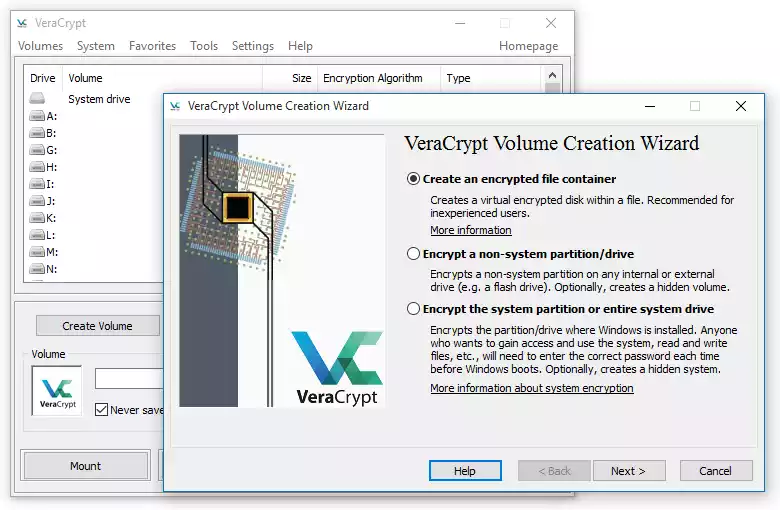
VeraCrypt is one of the most popular free encryption tools, often recommended as the successor to TrueCrypt. It allows you to create encrypted containers, encrypt entire drives, or even secure your system partition. VeraCrypt is open-source, reliable, and widely trusted for personal and professional use. While its interface looks technical, guides and tutorials make it manageable even for beginners.
2. AxCrypt Free
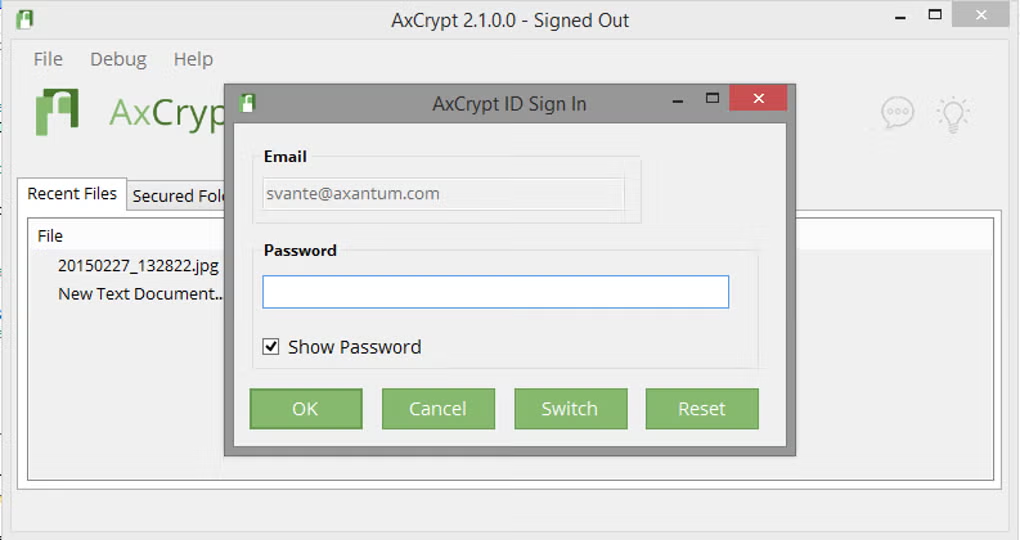
AxCrypt is a beginner-friendly tool designed for quick file encryption. With simple right-click integration into Windows Explorer, you can encrypt or decrypt files with a password in seconds. The free version covers basic encryption needs, though advanced sharing features are locked behind a premium. For individuals who just want quick, no-frills encryption, AxCrypt is ideal.
3. 7-Zip
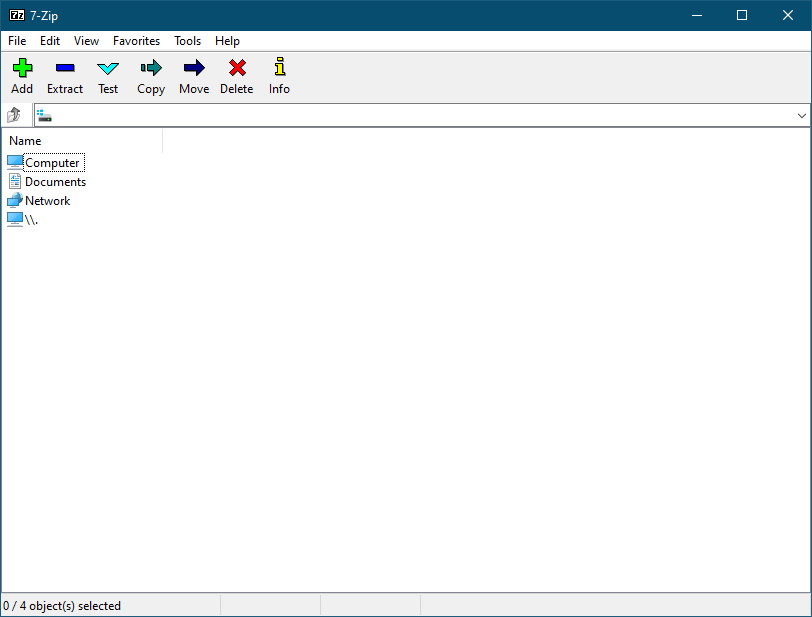
7-Zip is primarily known as a file compression tool, but it also offers strong AES-256 encryption for compressed archives. This makes it handy when you want to share files securely. By creating a password-protected .7z or .zip archive, you can keep your files safe during transfer or storage. While not a full-fledged encryption suite, it’s lightweight and widely used.
4. BitLocker (Windows Built-in)
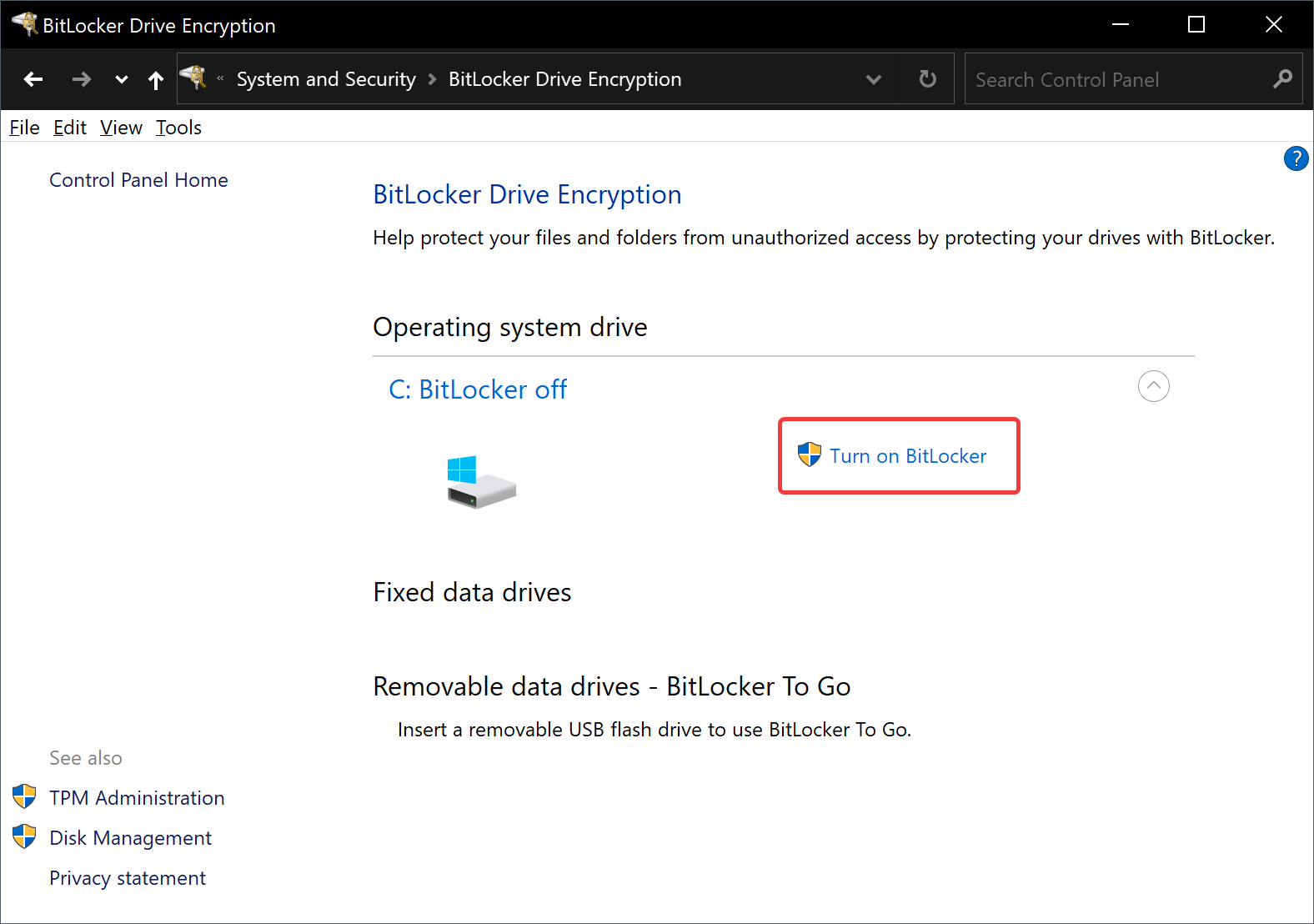
BitLocker comes built into Windows Professional and Enterprise editions, providing full-disk encryption for drives and USB sticks. It integrates seamlessly with the operating system and is simple to use. The main limitation is that it’s not available in Home editions. Still, if your version of Windows supports it, BitLocker is one of the easiest free solutions available.
Note: BitLocker is included with Windows Pro and Enterprise editions. You can enable BitLocker from Control Panel > System and Security > BitLocker Drive Encryption.
5. Cryptomator
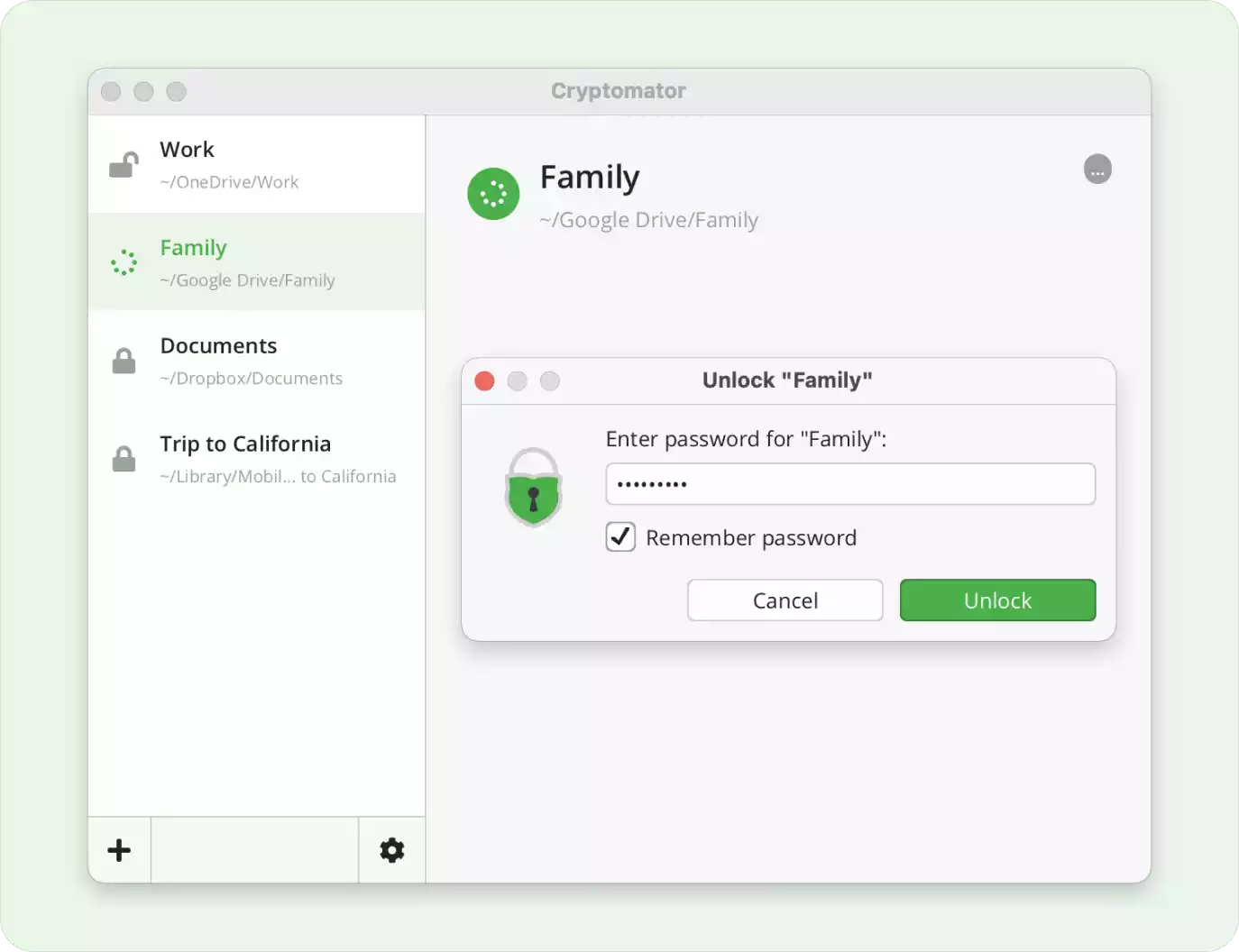
Cryptomator is an open-source encryption tool designed especially for cloud storage. It creates encrypted vaults that you can sync with OneDrive, Google Drive, or Dropbox. This ensures your cloud files remain private even if your provider’s servers are compromised. Beginners will appreciate its simple design and cross-platform support.
6. DiskCryptor
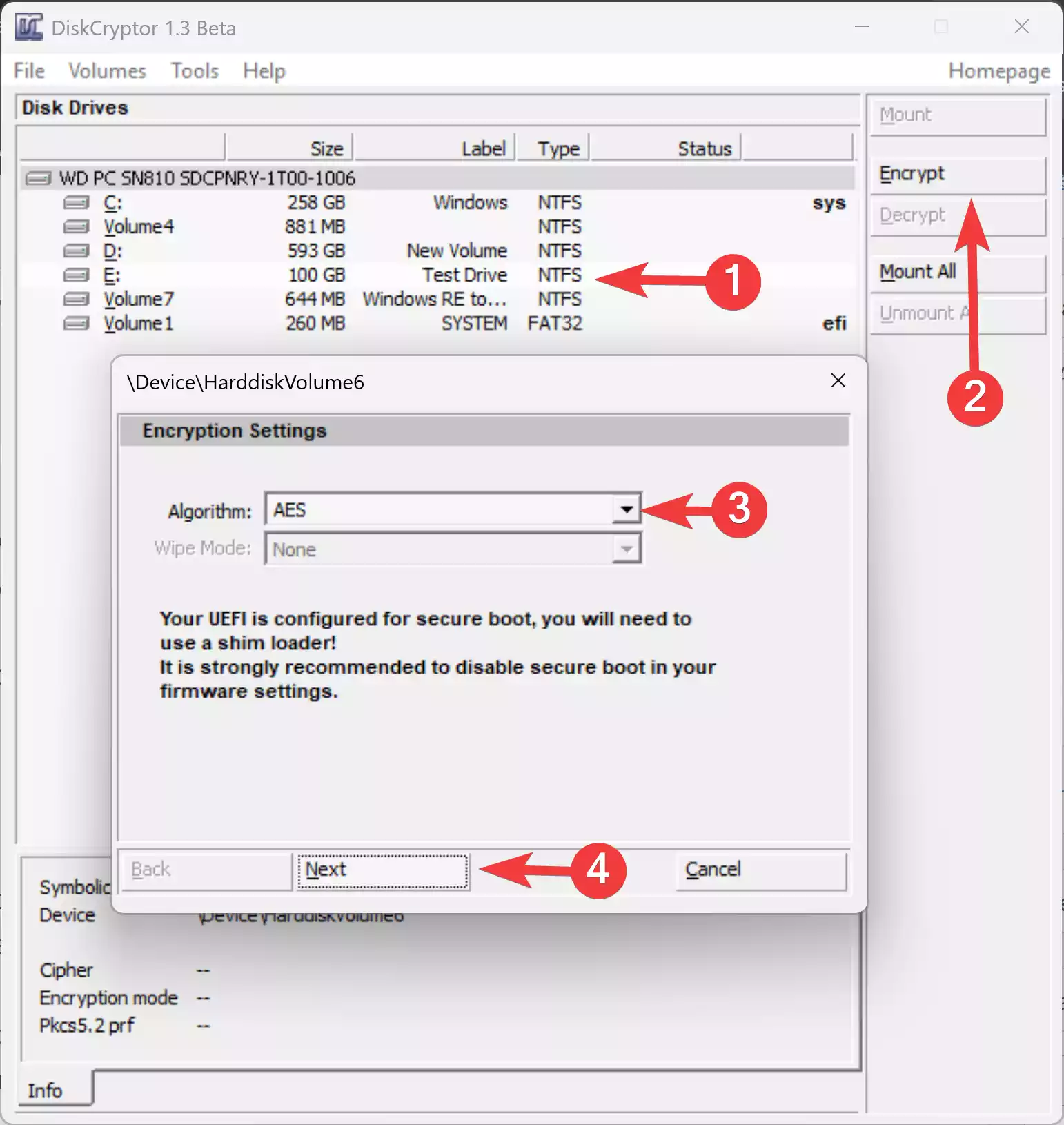
DiskCryptor is an open-source full-disk encryption tool designed for users who want to secure entire drives, partitions, or external disks without paying for premium software. It supports system-level encryption, meaning you can protect your Windows boot drive as well—though it requires careful setup and compatibility checks. DiskCryptor is lightweight, works well on older systems, and supports multiple encryption algorithms like AES and Serpent. The interface is simple, but beginners should proceed slowly because system encryption can affect bootloader behavior, especially on UEFI systems. For those who want a free and powerful alternative to proprietary disk encryption solutions, DiskCryptor remains a solid option.
Related Guides You May Find Useful
If you are interested in protecting online accounts, check out our guide to the best free password managers for Windows. For privacy beyond local files, you may also explore our list of the best free VPNs for Windows. Together with encryption, these tools form a strong security toolkit.
Frequently Asked Questions About Free Encryption Tools
Are free encryption tools safe?
Yes, reputable tools like VeraCrypt and Cryptomator use strong encryption algorithms. As long as you download from official sources and use a secure password, your data remains safe.
Can I encrypt my entire hard drive for free?
Yes. VeraCrypt and BitLocker both allow full-disk encryption. However, make sure to back up your files and recovery keys before enabling it.
What happens if I forget my encryption password?
Unfortunately, without the password or recovery key, encrypted files are unrecoverable. Always store your keys securely.
Can I encrypt files before uploading them to the cloud?
Yes. Tools like Cryptomator are designed for this purpose, ensuring your files remain private even if your cloud account is compromised.
Download the Best Free Encryption Tools
- VeraCrypt
- AxCrypt
- 7-Zip
- BitLocker (Built into Windows Pro & Enterprise editions – enable via Control Panel > System and Security > BitLocker Drive Encryption)
- Cryptomator
- DiskCryptor
Conclusion
Using a free encryption tool is one of the best ways to protect sensitive files on your Windows PC. Whether you want to secure a few documents with AxCrypt, encrypt your whole drive with VeraCrypt, or protect your cloud files with Cryptomator, there’s a tool that suits your needs. You may also find our guides on ChromePass and PasswordFox useful if you need to recover saved browser passwords before securing them with encryption.