

doPDF is a free PDF printer software that allows you to create PDF documents from any application with a print function. This means you can convert Word files, Excel spreadsheets, PowerPoint presentations, images, CAD drawings, or even web pages into PDFs in just a few clicks. Unlike online converters, doPDF works entirely offline, ensuring your files remain private and secure. If you regularly handle multiple documents, you may also want to check BulkPrinter, which lets you batch print PDFs and other files on Windows.
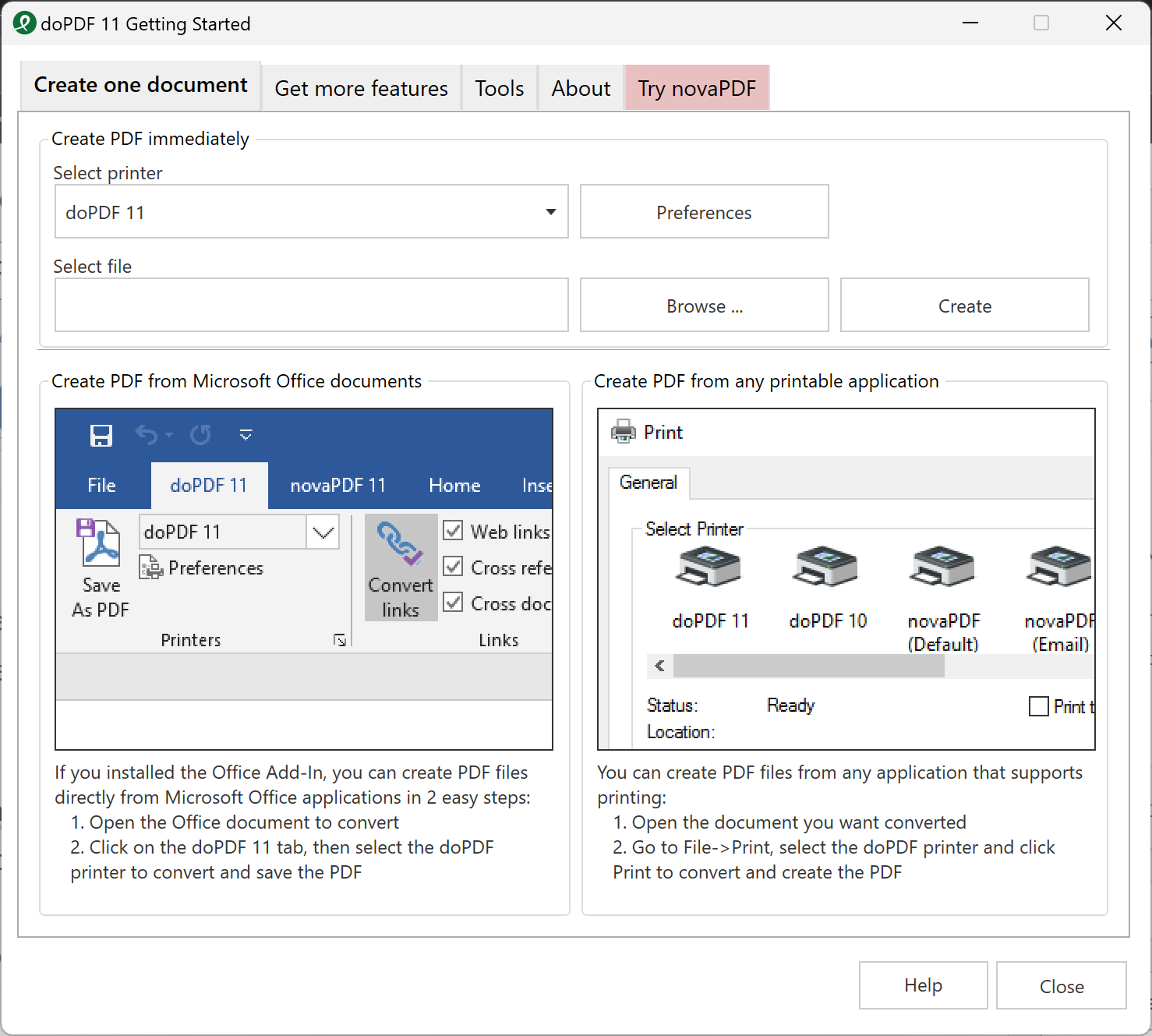
What is doPDF?
doPDF is a lightweight virtual printer developed by Softland. Once installed, it appears in your system’s printer list, allowing you to “print” any document to a PDF file. This makes it compatible with virtually any software that supports printing, from Microsoft Office and AutoCAD to image viewers and web browsers. Known for its simplicity, speed, and flexibility, doPDF supports a wide range of file types and provides customization options such as page size, resolution, compression, and password protection. Whether you are a student, office worker, or freelancer, doPDF makes PDF creation quick and hassle-free.
Why Choose doPDF Over Other PDF Creators?
While many PDF creators are available, doPDF stands out because it is completely free for both personal and commercial use and does not include ads, watermarks, or unnecessary bloatware. The program installs quickly, uses minimal system resources, and is compatible with all major Windows versions, including Windows 11 and 10. It’s also a great complement to the built-in Microsoft Print to PDF feature, offering extra customization options that Windows’ default tool doesn’t provide.
Key Features
- Convert any printable file to PDF using the standard Print command.
- Supports Microsoft Word, Excel, PowerPoint, AutoCAD, image formats, and more.
- Customizable page sizes and resolution from 72 to 2400 dpi.
- PDF compression options to manage file size and quality balance — for advanced control, see PDF Compressor Server.
- Password protection and encryption for secure document sharing.
- Clean, user-friendly interface with minimal learning curve.
- Lightweight software that doesn’t slow down your system.
- No watermarks or feature restrictions in the free version.
- Compatible with all major Windows versions.
How to Use doPDF
Using doPDF is as simple as printing a document. Here’s how:
Step 1. Download and install doPDF from its official website.
Step 2. Open the file you want to convert to PDF in its native application (for example, a Word file in Microsoft Word).
Step 3. Go to the Print option (usually found under File → Print).
Step 4. From the list of available printers, select “doPDF.”
Step 5. Click Print, and you’ll be prompted to choose the save location, file name, and optional settings like page size or resolution.
Step 6. Click OK, and your PDF will be created in the chosen location.
Common Use Cases
doPDF is versatile and can be used in various scenarios:
- Students — Save assignments, research papers, and lecture notes as PDFs for easy sharing and archiving.
- Businesses — Convert invoices, reports, and contracts to secure PDFs for distribution.
- Designers & Engineers — Save AutoCAD drawings or design drafts in PDF format for client reviews.
- Writers — Create final manuscript PDFs from Word or other writing tools for submission.
- General Users — Save web pages as PDFs for offline reading or reference — see our guide on File Converter for other quick format changes.
Download doPDF
You can download doPDF from its official website. The installer is small, and the setup process is quick. Once installed, you can start creating PDFs immediately from any program with printing capabilities.
Frequently Asked Questions
Is doPDF really free?
Yes. doPDF is completely free for personal and commercial use without feature limitations.
Does doPDF require an internet connection?
No. Once installed, doPDF works entirely offline, ensuring your documents remain private.
Can I edit PDFs created with doPDF?
No. doPDF is a PDF creator, not an editor. To edit PDFs, you can use tools such as free PDF editors.
Can I merge or split PDFs after creating them?
Yes, but you’ll need a separate tool. You can use PDFBinder to merge multiple PDFs into one or PDF Shaper to both split and merge PDFs easily.
What’s the difference between doPDF and novaPDF?
novaPDF is the premium version by the same developer, offering advanced features like watermarks, digital signatures, and PDF merging. doPDF focuses on essential PDF creation features.
Conclusion
doPDF is a lightweight, free, and efficient PDF printer for Windows that covers all your basic PDF creation needs. Whether you need to save Word documents, Excel spreadsheets, presentations, images, or web pages as PDFs, doPDF offers a simple, secure, and reliable solution. With its small footprint and wide compatibility, it’s a must-have utility for anyone working with digital documents on a Windows PC.