

Desktop Gadgets were introduced by Microsoft in Windows Vista and were obliterated in Windows 8. For the replacement of Gadgets, Microsoft has introduced Tiles and calls them Modern apps. If you are one of those who are missing a desktop gadget in Windows 10, you can follow this post to get the same.
Why do you need Desktop Gadgets and Sidebar for Windows 11, 10, or 8?
Desktop Gadgets and Sidebar were popular features in earlier versions of Windows, including Windows 7 and Windows Vista. They allowed users to add small, customizable applications or widgets to their desktops, such as a clock, weather updates, or a calendar. However, Microsoft removed these features from Windows 8 and later versions due to security concerns.
If you want to use desktop gadgets and the sidebar in Windows 11, 10, or 8, you will need to download third-party software. There are several freeware and shareware applications available online that offer similar features to the Windows 7 sidebar and gadgets. However, it is important to download such software from a reliable source and ensure that it does not contain any malware or viruses that could harm your computer. Additionally, it is worth noting that such third-party software may not be supported by Microsoft and may not receive regular updates, which could pose security risks.
Windows Desktop Gadgets
With the Windows Desktop Gadgets freeware application, you can get desktop gadgets in Windows 11/ 10 / 8 / 8.1.
How to Enable Desktop Gadgets and Sidebar in Windows 11/10?
Step 1. Download Windows Desktop Gadgets software and install it on your Windows 11/10/8 PC.
Step 2. Once installed on your Windows PC, right-click on the free space of the desktop and select Gadgets.
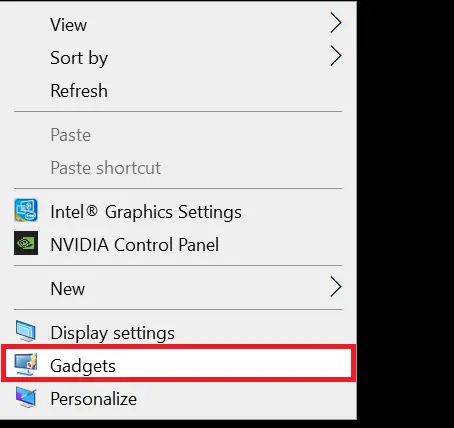 Step 3. Gadgets settings will be opened.
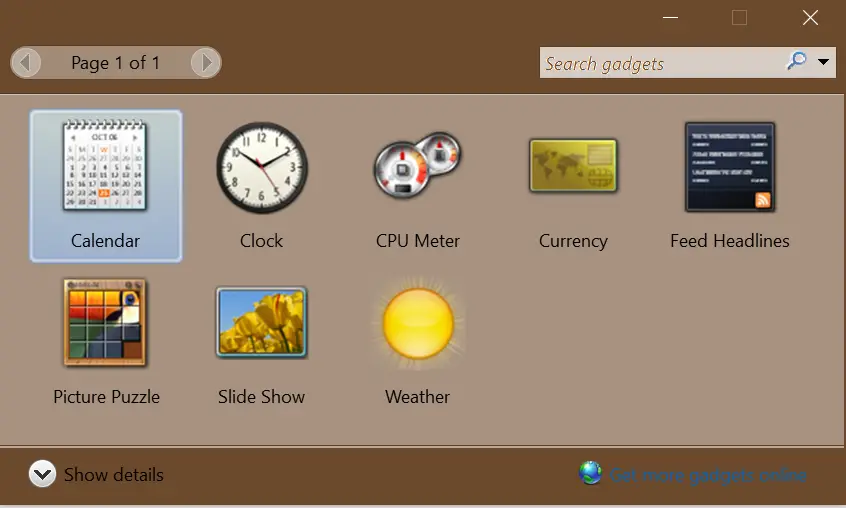
By default, 8 gadgets will be available: Calendar, Clock, CPU Meter, Currency, Picture Puzzle, Slide Show, and Weather. However, there is a link available on the program to get more gadgets online.
Step 4. To show any gadget on the Desktop Sidebar, double-click on the gadget. It will start showing as a sidebar.
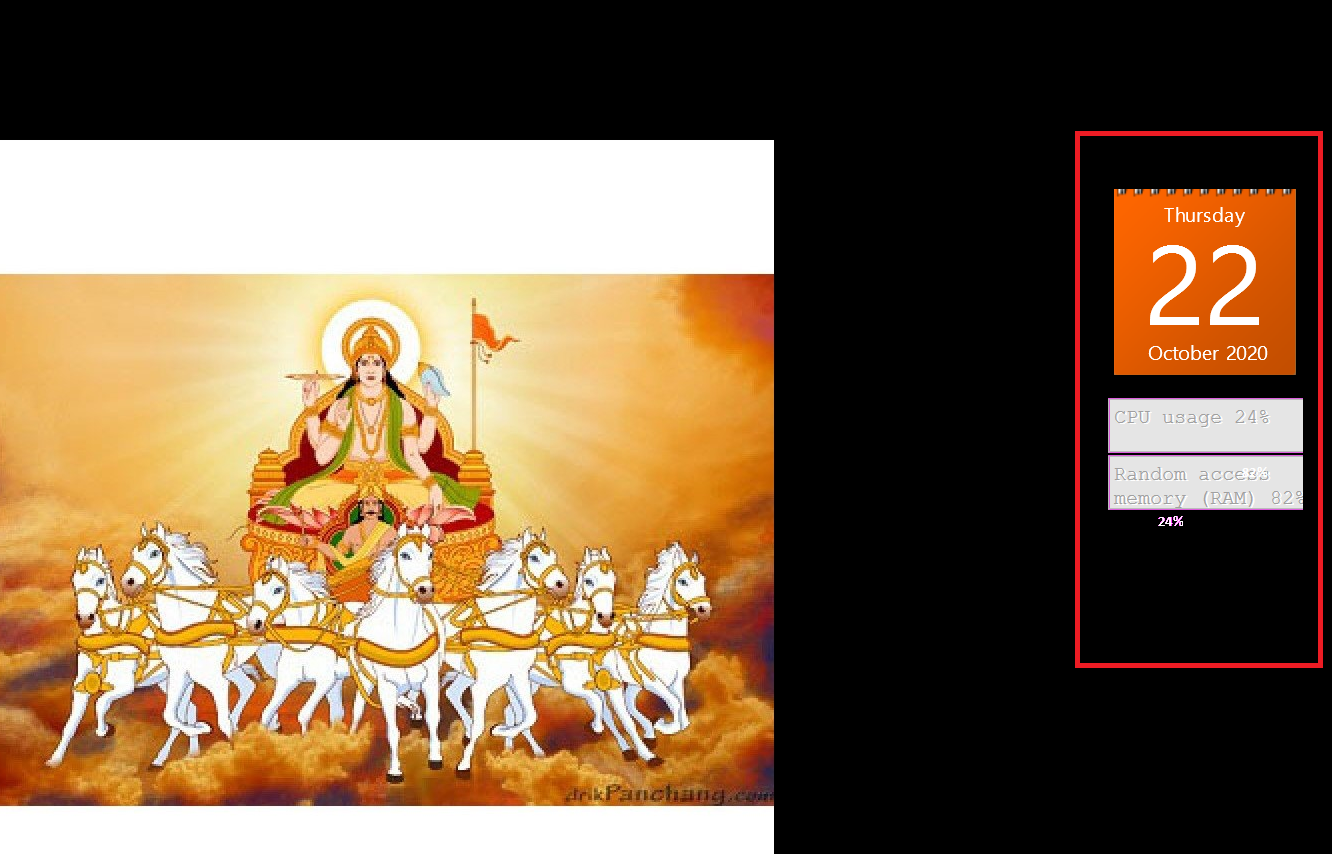 Quick Tips: To rearrange the sidebar gadgets, you can drag them to the desired location.
Download Windows Desktop Gadgets
You can download the Windows Desktop Gadgets from here.
FAQs
Are desktop gadgets safe to use on Windows 11/10?
Microsoft removed gadgets due to security risks, so you must rely on third-party tools. Safety depends on the source — always download from trusted developers and avoid unknown gadget packs.
Do these gadgets slow down the system?
Most gadgets use minimal resources. Heavy gadgets like CPU monitors or slideshows may use slightly more RAM, but overall system impact is low on modern PCs.
Can I add more gadgets beyond the default ones?
Yes. The software usually provides an option to download additional gadgets. Be sure to verify the authenticity of the source before installing them.
Will these gadgets work after Windows updates?
In most cases, yes. Major Windows feature updates may affect compatibility, but gadget applications are generally updated occasionally to restore support.
Is there an official Microsoft sidebar tool?
No. Microsoft discontinued gadgets and the sidebar after Windows 7. Only third-party freeware solutions can restore this functionality on Windows 11/10/8.
Can I reposition or remove gadgets from the desktop?
Absolutely. Gadgets can be dragged, repositioned, closed, or added to the sidebar at any time.
Conclusion
In conclusion, Desktop Gadgets and Sidebar were popular features in earlier versions of Windows, including Windows 7 and Windows Vista. Though Microsoft removed these features from Windows 8 and later versions due to security concerns, users can still get desktop gadgets in Windows 11, 10, or 8 by downloading third-party software like Windows Desktop Gadgets. However, it is important to download such software from a reliable source and ensure that it does not contain any malware or viruses that could harm your computer. With these tips, users can enjoy the benefits of customizable widgets and improve their desktop experience.
You might also be interested in creating multiple Taskbars on Windows 11/10/8/7.