

Windows 11 introduced several changes to the user interface, including a split right-click menu, which can be somewhat confusing for users accustomed to earlier versions of the operating system. However, there’s no need to be frustrated with the default options; you can take control of your Windows 11 experience with Nilesoft Shell. This open-source and freeware program empowers you to customize your right-click context menu, add new functionality, and streamline your file management tasks. For even deeper customization, you can also try Explorer Patcher, which restores the classic Windows 10 taskbar layout on Windows 11.
In this article, we will explore what Nilesoft Shell is, how to install and use it, and how to harness its full potential to enhance your Windows 11 experience.
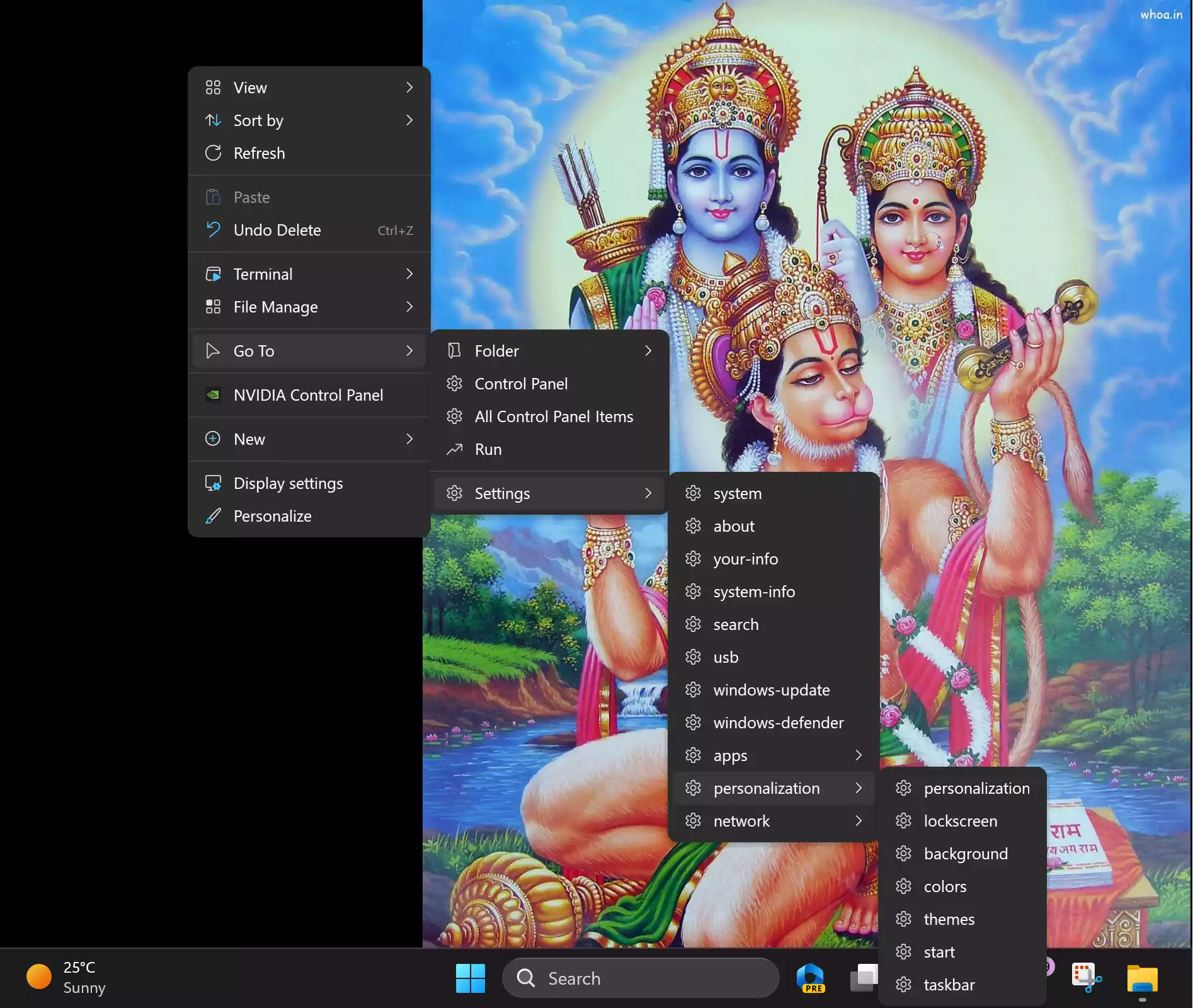
What is Nilesoft Shell?
Nilesoft Shell is a powerful tool designed to expand and enhance the right-click context menu in Windows 11. It acts as an add-on to Windows File Explorer, giving users the ability to modify, add, or remove items from the context menu, thus significantly improving its utility.
Getting Started with Nilesoft Shell
Getting started with Nilesoft Shell is a straightforward process. You have multiple options for installation:-
- Official Website: You can visit the official Nilesoft website to download the program.
- WingetUI: Alternatively, you can use WingetUI, the Windows package manager’s user interface, to search for Nilesoft Shell and install it.
For those comfortable with command-line interfaces, you can use the Windows Terminal or PowerShell with the following command:-
winget install nilesoft.shell
After the installation, it’s essential to launch Nilesoft Shell as an administrator. You can do this by right-clicking on its entry on the Start menu and selecting “Run as administrator.” This is crucial for making system-level changes to the context menu. If you’d like to keep your Windows setup lean while experimenting with customization, check out our Quick System Cleaner Checklist.
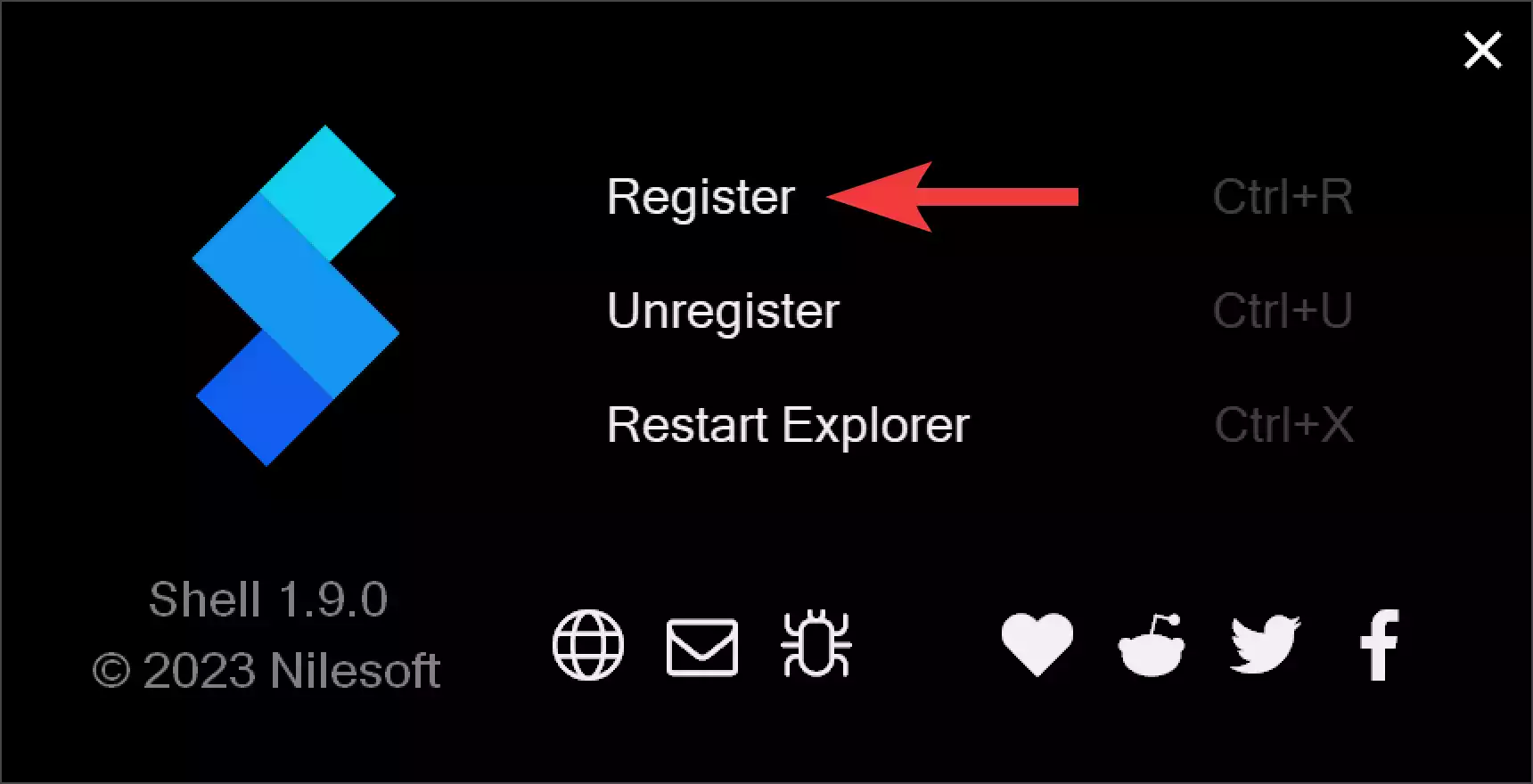
When you’re done, a window will appear. To add the Nilesoft Shell extension to your system, select “Register.” This will open a pop-up window; click OK to restart File Explorer.
Customizing Your Context Menu
Nilesoft Shell doesn’t stop at providing enhanced options; it goes a step further by allowing you to customize the context menu to meet your specific needs. Here’s how you can do it:-
- Edit Configuration File: The heart of Nilesoft Shell’s customization lies in the configuration file “shell.nss.” To access this file, right-click on the Taskbar while holding down the Shift key. In the context menu that appears, select “config.” This action will open Windows Notepad with the `shell.nss` file loaded.
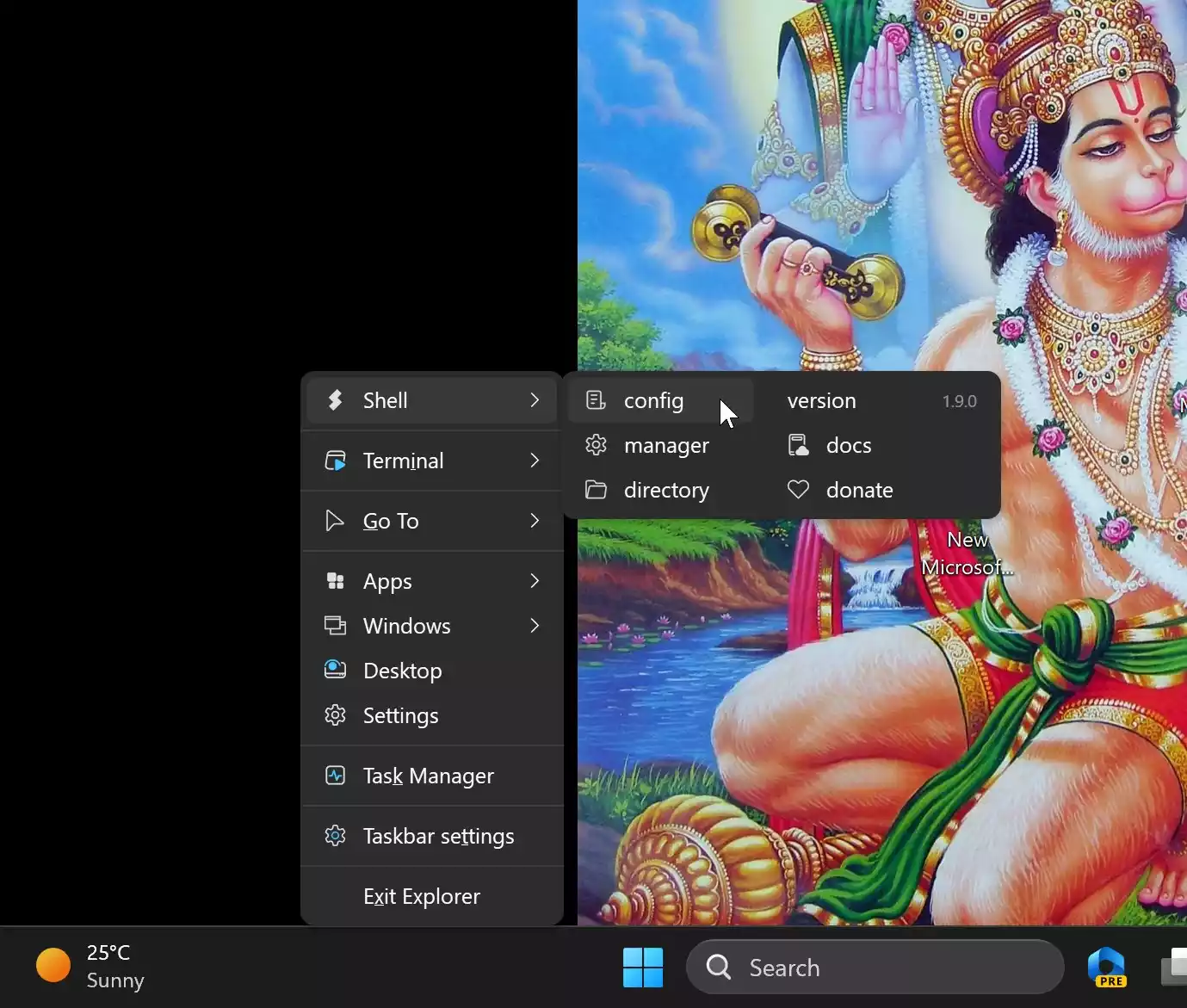
- Making Changes: In the `shell.nss` file, you can make changes to the context menu items. You can add new items, modify existing ones, and organize them to match your preferred workflow.
- Restart Explorer: Once you’ve made your changes, save the `shell.nss` file, and you will need to restart Windows Explorer to apply the modifications. To do this, click “Register” in the Nilesoft Shell window. This will restart the Windows Explorer process.
Benefits of Customization
Customizing your context menu with Nilesoft Shell offers several benefits:-
- Enhanced Productivity: By tailoring the right-click menu to your specific needs, you can save time and streamline your file management tasks.
- Efficiency: You can add shortcuts to frequently used applications or scripts, allowing you to access them quickly without navigating through multiple menus.
- Reduced Clutter: Remove unnecessary or redundant items from the context menu, decluttering your user experience and making it more user-friendly.
Beyond the context menu, tools like Taskbar Buddy can further improve productivity by helping you organize your taskbar efficiently
Conclusion
Windows 11 has brought about many changes to the operating system, and while some users may find the new right-click menu structure confusing, Nilesoft Shell provides a simple and effective solution. With this tool, you can regain control of your context menu, customize it to suit your workflow, and enjoy a more efficient and personalized Windows 11 experience.
If you want even more customization, you might also explore Explorer Patcher, which restores the classic Windows 10 taskbar style, or Taskbar Buddy to better organize your taskbar. And to keep your customized system running smoothly, don’t forget to check out our Quick System Cleaner Checklist.
By combining these free tools, you can unlock the full potential of your Windows 11 system and truly make it work the way you want.