

Have you ever wished you could make your desktop windows see-through for a cleaner and more modern look? That’s exactly what Glass2k does. This lightweight utility allows you to make any window transparent on Windows 11, 10, 8, or 7 using just keyboard shortcuts. It’s simple, effective, and doesn’t require installation.
What is Glass2k?
Glass2k is a tiny freeware program designed to let users control window transparency on Windows operating systems. Once launched, it quietly sits in the background and allows you to adjust the transparency of any active window using keyboard shortcuts like Ctrl + Shift + (1-9). Each number key corresponds to a different transparency level — from fully opaque (0%) to fully transparent (100%).
If you enjoy customizing the look and feel of your Windows interface, you may also like to explore how to make Windows transparent through different freeware tools.
Key Features of Glass2k
Despite being a tiny portable tool, Glass2k offers several handy features for personalization and productivity:
- Adjustable transparency: Use quick hotkeys to modify opacity in real time.
- Auto-load settings: Save transparency preferences for each window.
- Portable: No installation required — just run the EXE and go.
- Lightweight: Consumes almost no system resources.
- Simple interface: Easy-to-understand configuration panel for hotkey management.
Windows already includes some basic transparency features, but they’re quite limited. For comparison, you can check how to enable or disable transparency effects in Windows 11 to see the visual difference.
How to Use Glass2k
Using Glass2k is incredibly simple:
Step 1. Download the Glass2k executable file on your PC.
Step 2. Launch the executable file — no installation needed.
Step 3. Press Ctrl + Shift + (any number 1-9) to adjust the transparency level of the currently active window.
Step 4. Press Ctrl + Shift + 0 to reset transparency to normal.
You can also configure Glass2k to auto-start with Windows and remember your last transparency settings. For even more aesthetic tweaks, learn how to make your taskbar transparent for a consistent design style across your desktop.
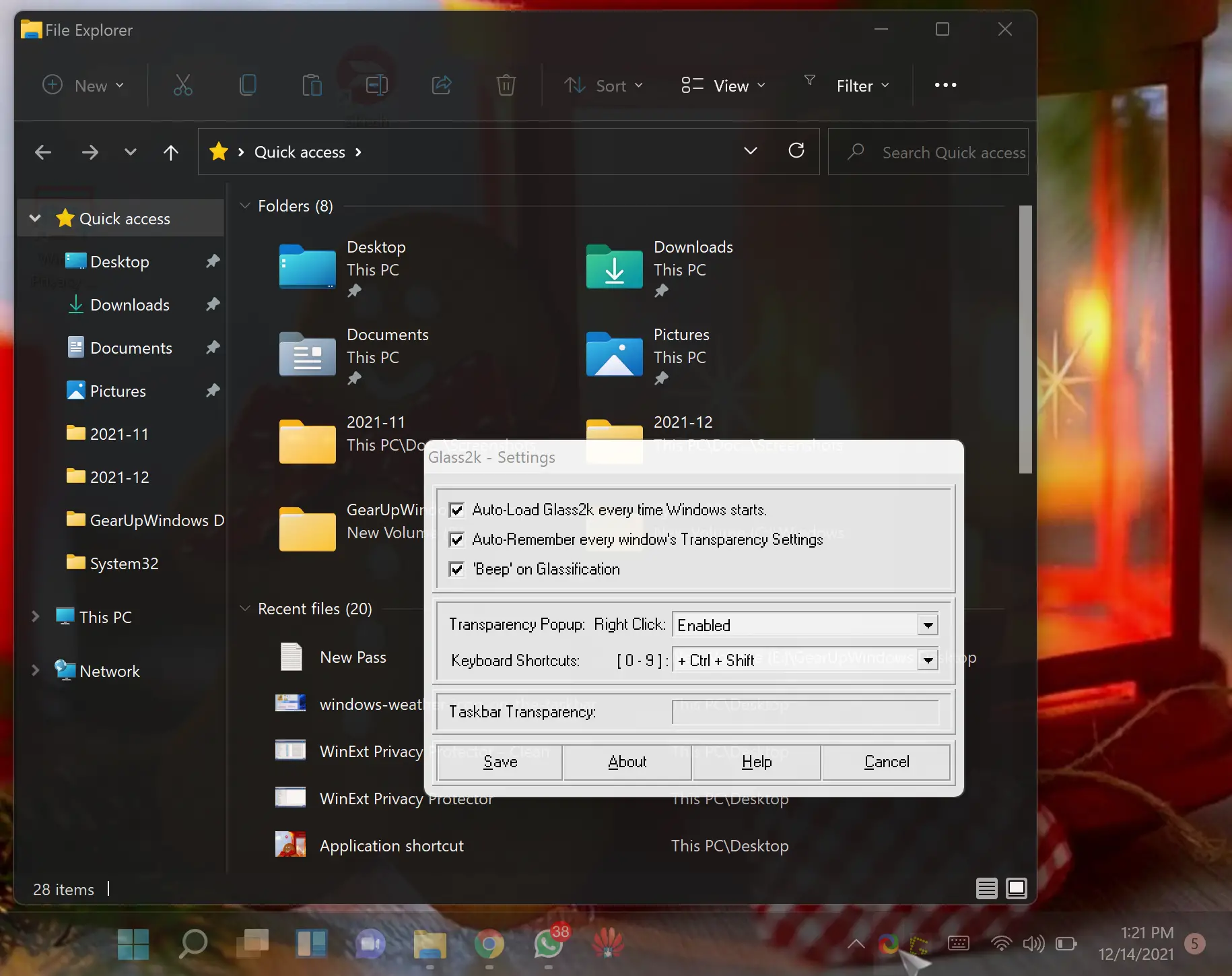
As mentioned earlier, once you launch Glass2k, it quietly sits in the system tray. Right-click on its icon and select Settings to configure it. You can set this tool to auto-load every time Windows starts, auto-remember every Windows’ Transparency Settings, and beep on glassification.
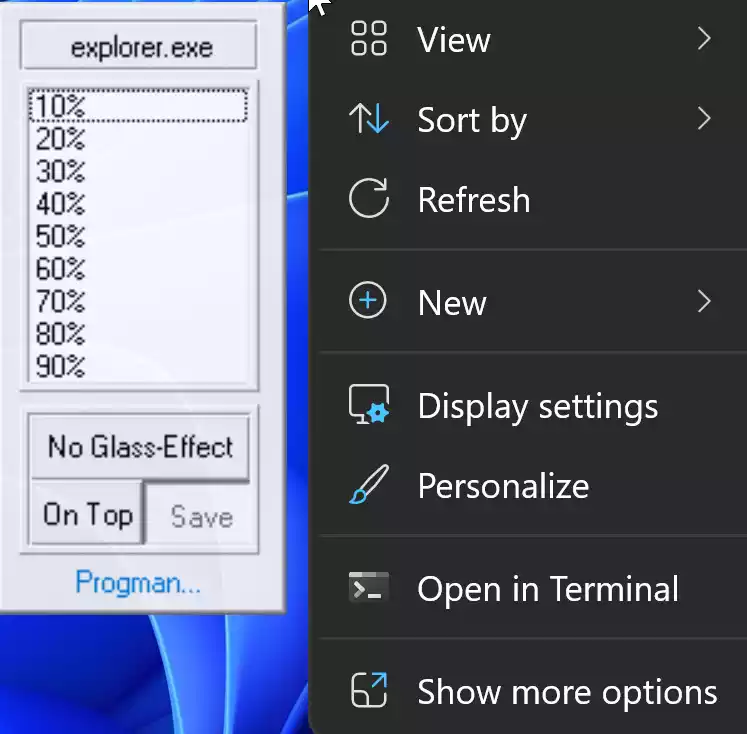
By default, the transparency pop-up is enabled when you right-click on any window. That means when you right-click on any window, the Glass2k transparency pop-up will open, and you can adjust transparency easily. Using the “Transparency Popup” drop-down, you can combine it with modifier keys.
This tool also allows users to change the transparency level of the Taskbar. Just drag the Taskbar Transparency slider to adjust how transparent your Windows taskbar appears.
Once you are happy with the configuration, click the Save button to apply the changes.
When Glass2k Can Help You
Glass2k is particularly useful for users who multitask frequently and want to keep an eye on multiple windows at once. For example, you can read a document while keeping a YouTube video visible behind it, or keep a transparent chat window floating above your browser. It’s also great for creating screenshots or video tutorials that showcase overlapping content neatly.
If you love desktop aesthetics, you can further personalize your system by customizing window borders and shadows or changing title bar text color for better visibility.
System Requirements
Glass2k works on:
- Windows 11, 10, 8, 7, Vista, XP
- Both 32-bit and 64-bit versions
- Requires no additional frameworks
Download Glass2k
Glass2k is a completely free and portable utility — no installation required. Simply download and run it directly. You can get the official version from chime.tv.
FAQs
Q: Is Glass2k safe to use?
Yes. Glass2k is lightweight and free from adware or malware. Just ensure you download it from a trusted website.
Q: Does it work on Windows 11?
Yes, Glass2k works on Windows 11, though transparency levels may vary slightly based on display settings.
Q: Can I set transparency for all windows at once?
No, Glass2k adjusts transparency on a per-window basis, giving you more control.
Conclusion
Glass2k remains one of the most underrated yet powerful freeware tools for customizing your Windows experience. Its simplicity, speed, and control make it perfect for anyone who wants a transparent and modern-looking desktop. Pair it with features like a fully transparent taskbar to achieve a sleek, minimal, and professional workspace aesthetic.