

Do you want to block certain websites but don’t want to install any extra software? Many parents and employers prefer built-in solutions to stop access to distracting or harmful websites. Fortunately, Windows and modern browsers like Chrome, Firefox, and Edge include features that allow you to block or restrict websites without using third-party tools. In this guide, we show different ways to block websites on Windows 11 and 10 without installing software.
Block Websites with the Windows Hosts File
The Windows hosts file lets you manually block websites by redirecting them to your own PC.
Step 1. Open Notepad as an administrator.
Step 2. Go to File → Open and browse to:
C:\Windows\System32\drivers\etc\hosts
Step 3. At the bottom of the file, add entries like:
127.0.0.1 facebook.com
127.0.0.1 www.facebook.com
Step 4. Save the file and restart your browser.
Tip: On Windows 11/10, you may need to take ownership of the hosts file before editing—use TakeOwnershipPro to gain write access, then reopen Notepad as administrator and save your changes.
Now, whenever someone tries to visit the blocked site, it won’t load.
Block Inappropriate Content in Google Chrome
Chrome has a built-in setting called SafeSearch to hide explicit content in Google Search.
Step 1. Open Chrome and go to Search Settings.
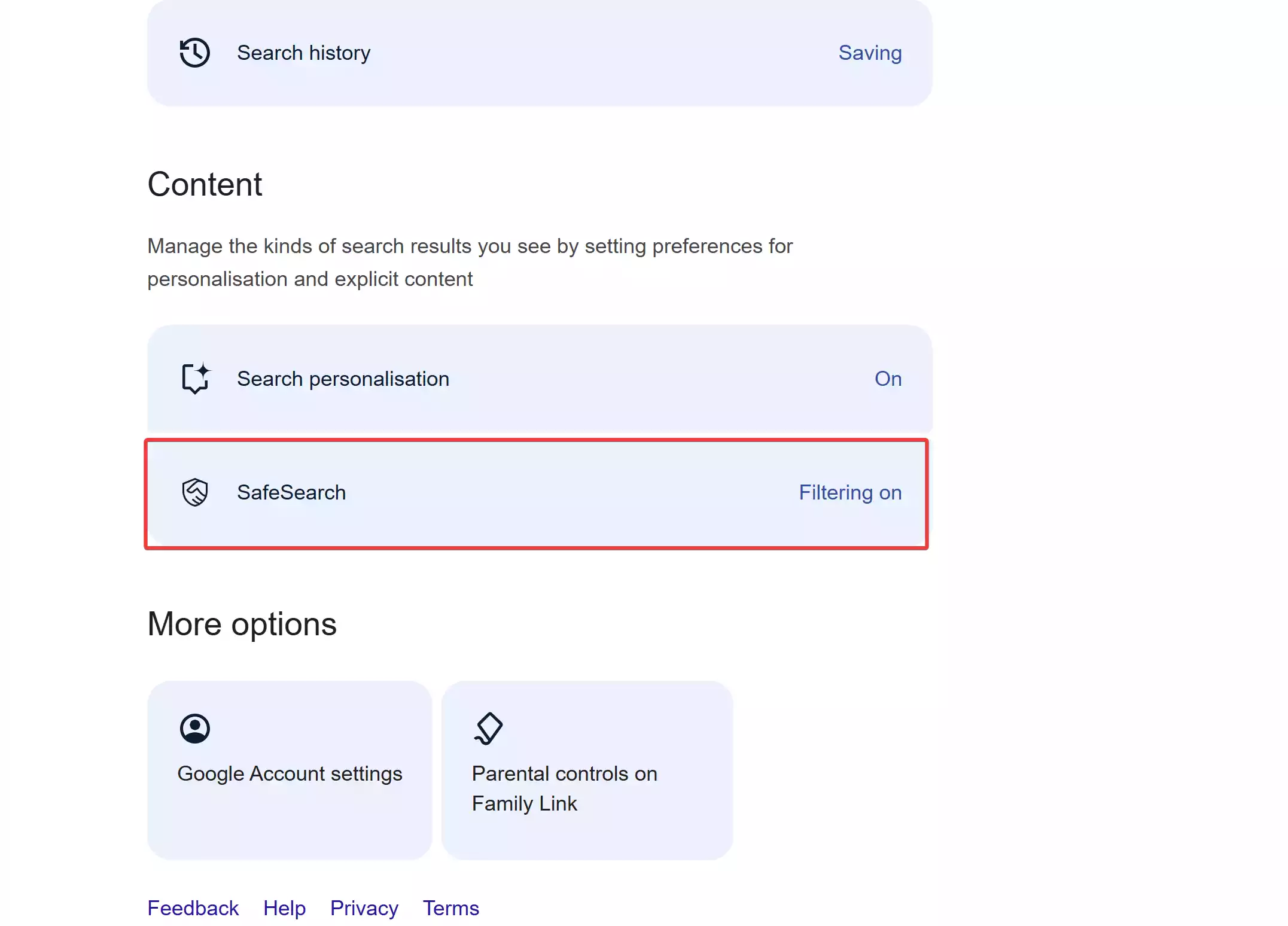
Step 2. Select the option “Filter.”

Step 3. Close the tab; the setting applies automatically.
Note: SafeSearch only filters Google Search results. It doesn’t block direct visits to a site or other search engines. For custom site blocking, you can use a free utility like URL Disabler.
Block Websites on Microsoft Edge with Family Safety
Microsoft Edge integrates with Windows Family Safety features.
Step 1. Open Windows Settings and go to Accounts → Family.

Step 2. Add a child account and sign in with their Microsoft account.
Step 3. Visit Microsoft Family Safety in your browser.
Step 4. Select your child’s profile → Content filters.
Step 5. Turn on Filter inappropriate websites and searches.
Step 6. Add websites you want to block or allow.
Note: Family Safety’s web and search filters apply inside Microsoft Edge and sync across devices signed in to the child account. Other browsers can be restricted separately or blocked for stricter control.
Block Websites in Firefox Using Parental Controls
If you prefer an in-browser solution, install a reputable site-blocking add-on from the official Firefox Add-ons website: open addons.mozilla.org, search for LeechBlock NG or Block Site, click Add to Firefox, then confirm. After installation, go to Menu (≡) → Add-ons and themes (about:addons) → Extensions, open the extension’s Options, and add the domains you want to block.
Important for hosts-file blocking in Firefox: If you plan to rely on the Windows hosts file, open Settings → General → Network Settings → Settings… and disable DNS over HTTPS; otherwise, Firefox may bypass system DNS and ignore hosts-file entries.
For a simpler option that works across browsers, try DNS Angel, which blocks adult content at the DNS level.
Safe Use Tips
Blocking websites is just one part of safe browsing. For complete protection:
- Keep your browsers and Windows updated.
- Enable SafeSearch in Chrome and Family Safety in Edge where appropriate.
- Use the hosts file for strict blocking of custom sites.
- Scan your PC regularly with free tools like Malwarebytes AdwCleaner, or Kaspersky Virus Removal Tool (KVRT).
Frequently Asked Questions
Can I block websites without installing any software?
Yes. You can use the Windows hosts file, Chrome SafeSearch, or Microsoft Family Safety to block or limit access without third-party software.
Which method is best for parents?
Microsoft Family Safety is the best option for parents using Edge since it syncs across devices and lets you manage allowed and blocked sites for child accounts.
Does Chrome have a built-in blocker?
Chrome doesn’t block individual sites natively, but SafeSearch hides adult content in Google results. For custom blocking, consider free tools like URL Disabler or use the hosts file.
Can Firefox block websites without an add-on?
Firefox doesn’t include built-in site blocking. It will honor system-level blocks like the hosts file (make sure DNS over HTTPS is disabled). For flexible rules and schedules, use add-ons such as LeechBlock NG.
Is editing the hosts file safe?
Yes, but run Notepad as an administrator and edit carefully. Incorrect entries can cause connection issues. If access is denied, take ownership with TakeOwnershipPro and save again.
Conclusion
Blocking websites without software is possible using built-in methods like the Windows hosts file, Chrome SafeSearch, and Microsoft Family Safety. These options are free and effective, especially for parents and workplaces. If you want a simpler one-click solution, URL Disabler and DNS Angel are excellent freeware tools that work across browsers. Pair these methods with free malware scanners such as Emsisoft Emergency Kit for complete peace of mind.