

ALT+F4 is an old yet valuable shortcut key available on Windows 11 that allows you to close open applications or documents on a Windows PC. Using this hotkey, you can quickly close active windows. If no windows are open or maximized on the Desktop, pressing ALT + F4 brings up the “Shut down” dialog.
This is especially helpful for users who frequently select an option other than shutdown in the ALT+F4 menu. For example, if you often use the “Sign out” option, you can replace the default “Shut down” action with “Sign out.” Once done, the next time you press the ALT+F4 hotkey, “Sign out” will be automatically selected. After pressing the ALT+F4 hotkey, just press the Enter key on your keyboard to sign out of your user account.
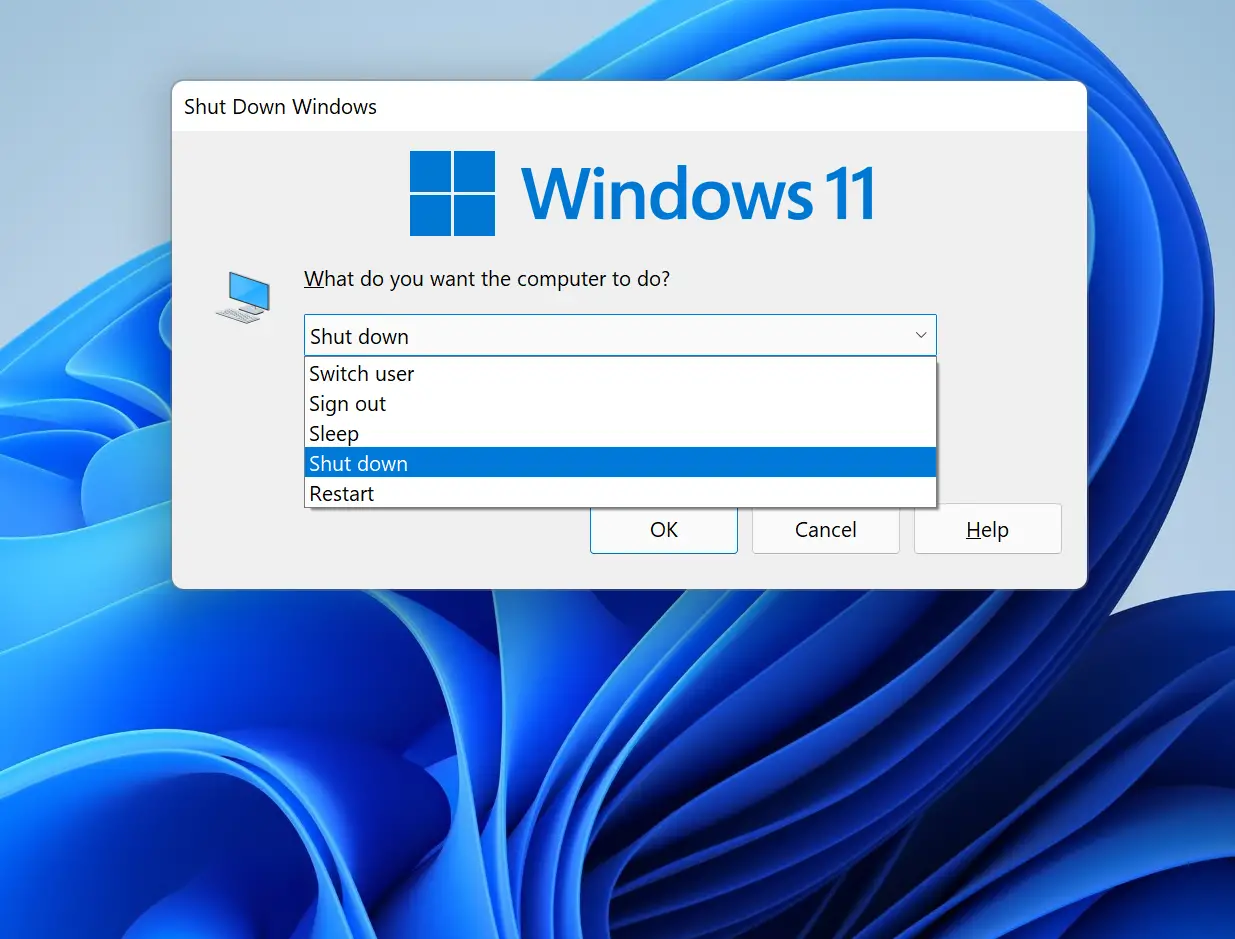
Clicking the drop-down menu, you can choose the following action for your computer:-
- Switch user
- Sign out
- Sleep
- Hibernate
- Shut down
- Restart
By default, the Shut down action is selected in the Shut Down Windows dialog. However, if needed, you can replace it with any other available action using the Registry Editor or Local Group Policy Editor.
In this gearupwindows article, we will guide you through replacing the default Shut Down action in the Shut Down Windows dialog using both methods.
How to Change or Replace the Default Action of the Shut Down Dialog (Alt+F4) in Windows 11 using Registry Editor?
Gentle Reminder: Unknowingly changing registry values may make your Windows PC non-operational; hence, we recommend taking a full backup of the registry and also creating a system restore point. If something goes wrong, you can revert your PC to its previous working state.
To change or replace the default action in the Shut Down Windows (Alt+F4), use the following steps:-
Step 1. First, open the Registry Editor.
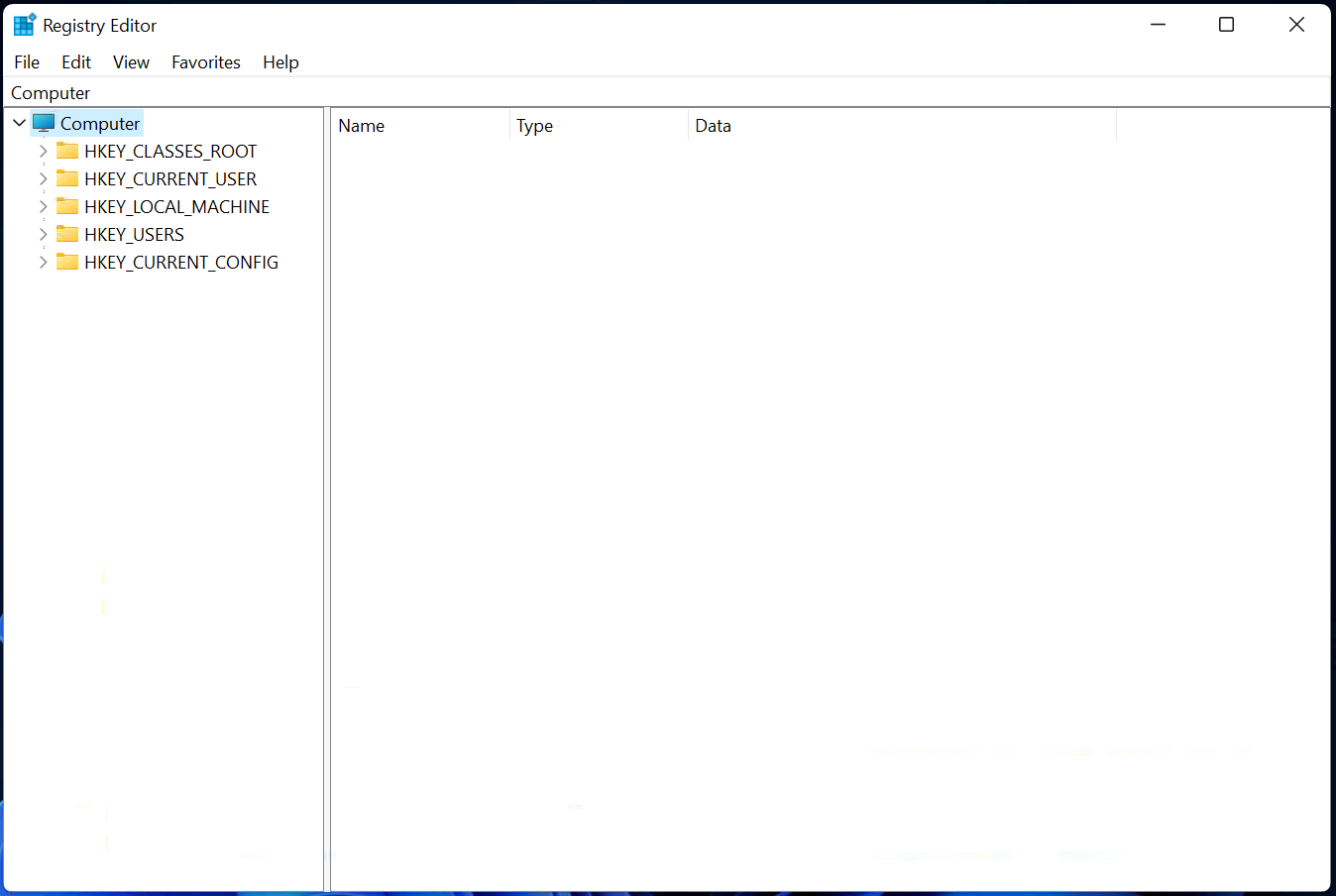
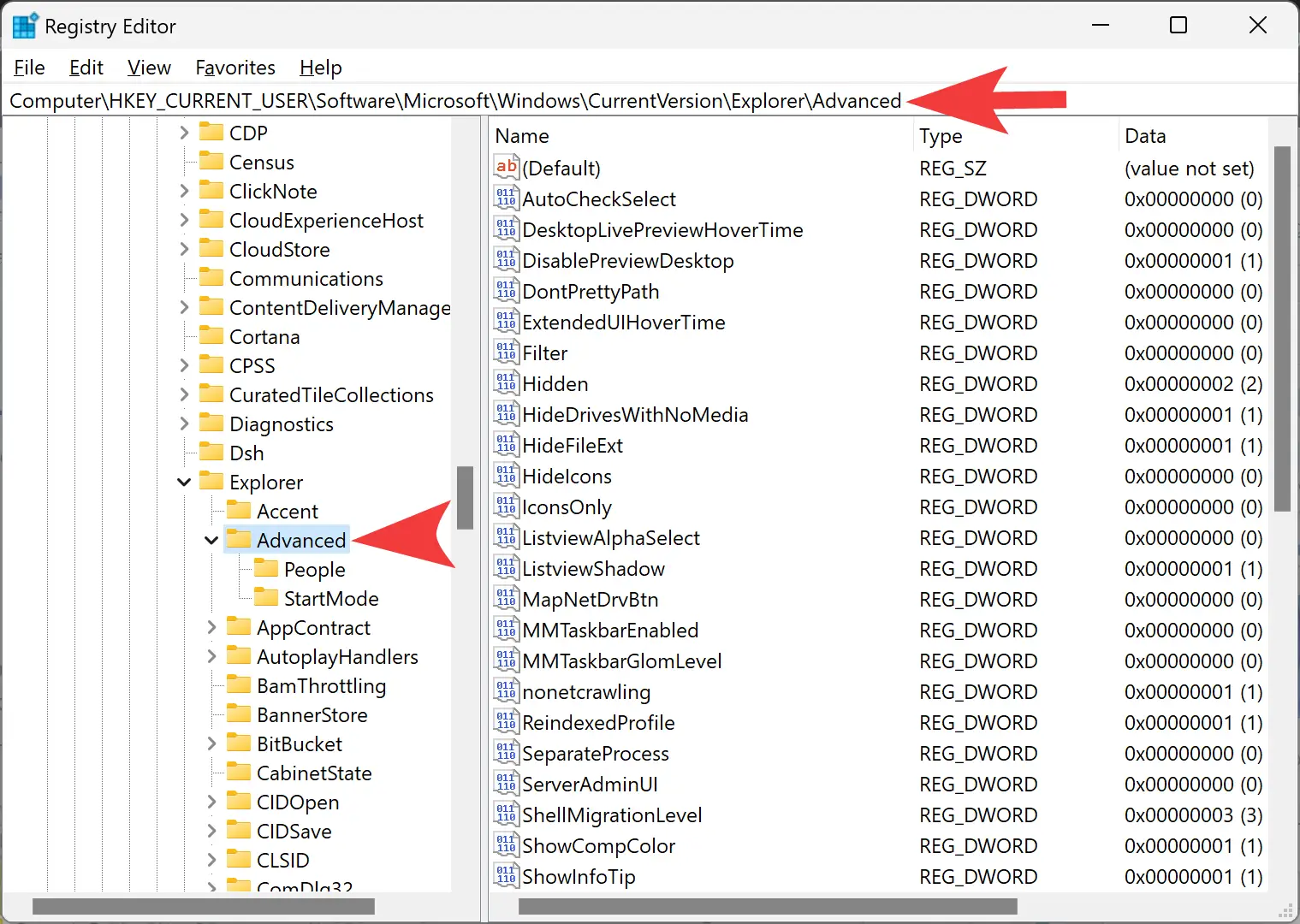
Step 2. When the Registry Editor window appears on your computer, navigate to the following key in the left side pane:-
HKEY_CURRENT_USER\Software\Microsoft\Windows\CurrentVersion\Explorer\Advanced
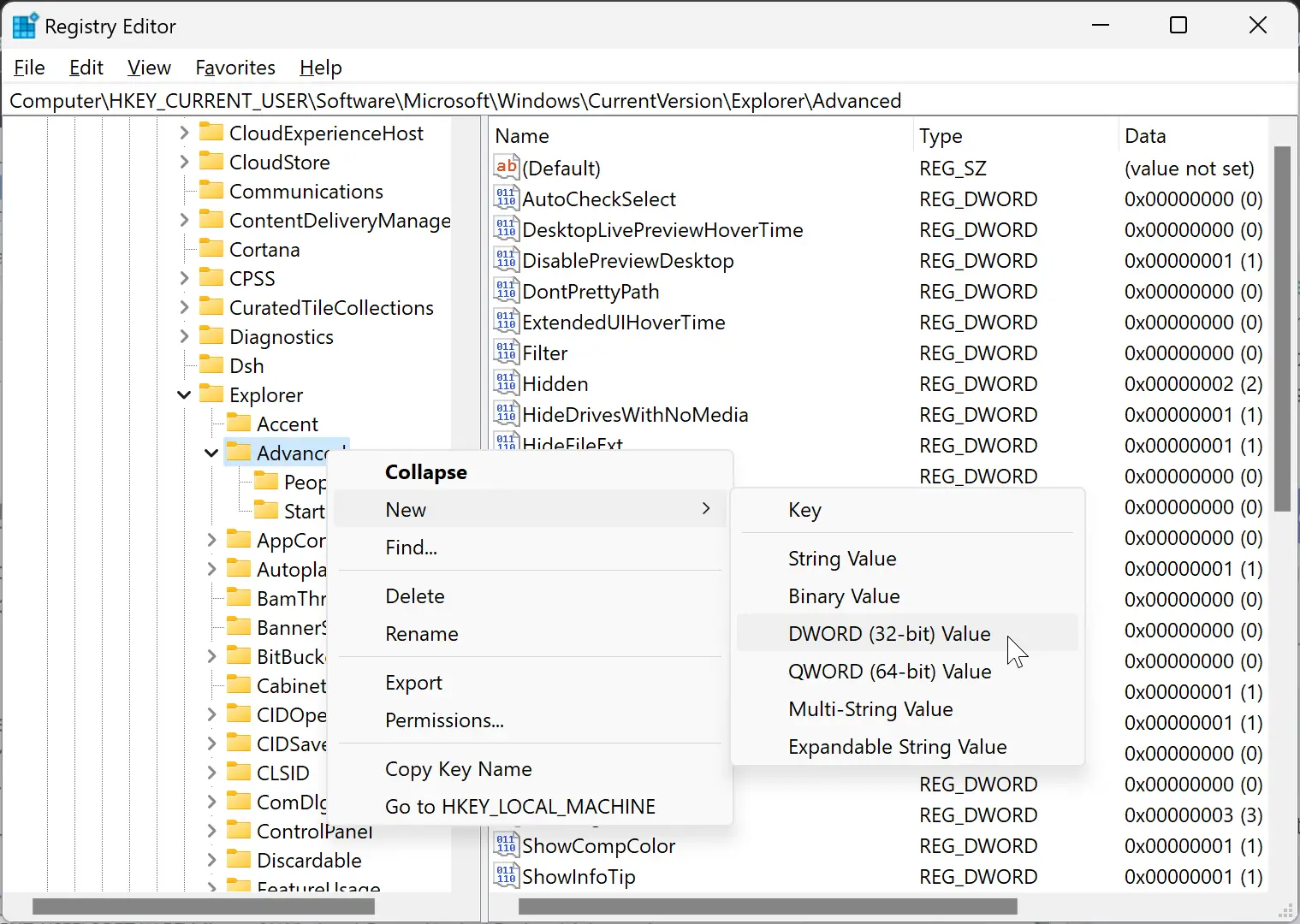
Step 3. Then, right-click on the Advanced folder and select New > DWORD (32-bit) Value option.
Step 4. Name the newly created REG_DWORD as Start_PowerButtonAction.
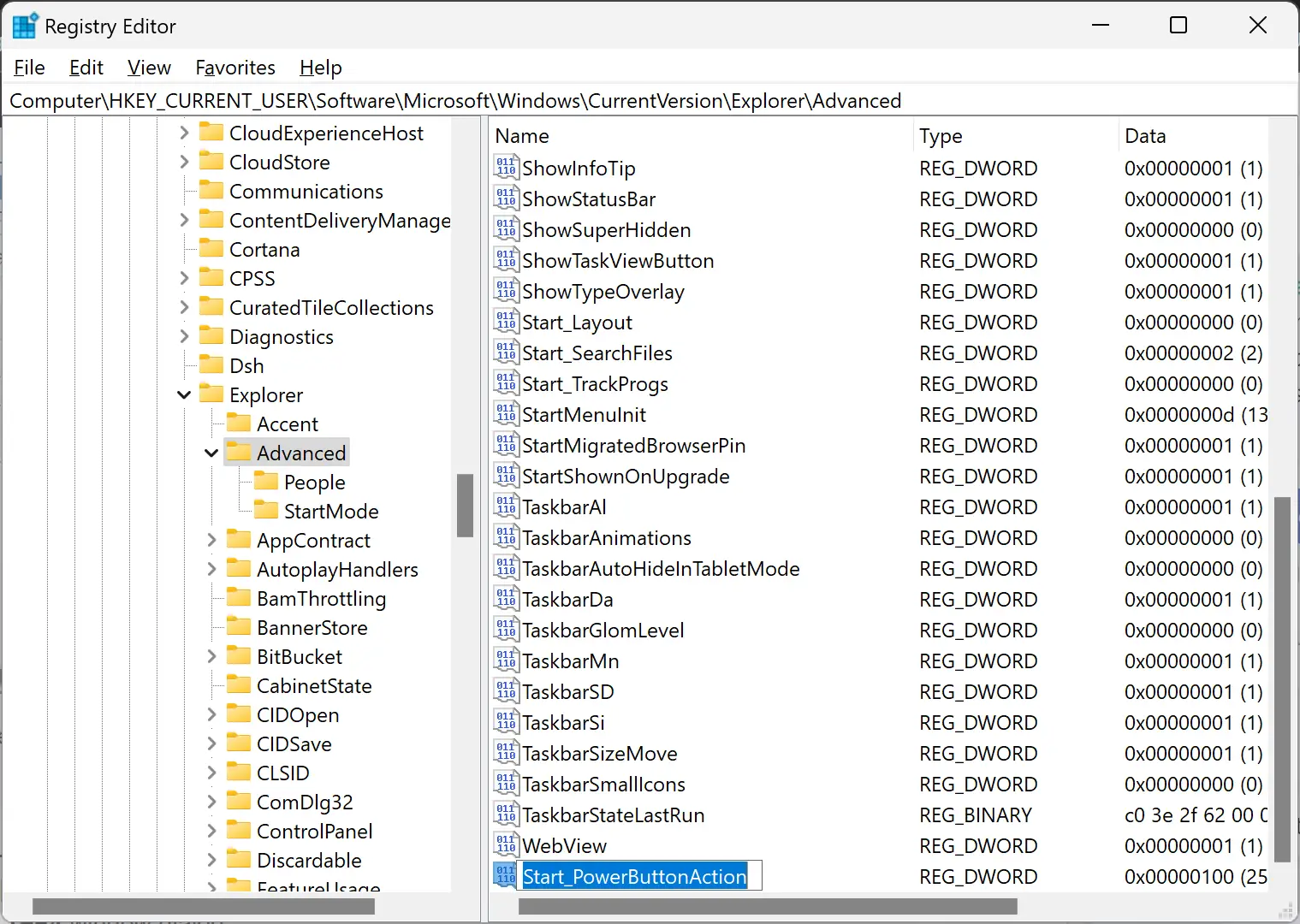
Step 5. Next, double-click on Start_PowerButtonAction. Select Base as Decimal. When you’re done, set any Value data from the following to make the default action for the ALT+F4 (Shut Down Windows) dialog:-
- 1 = Sign out
- 2 = Shut down
- 4 = Restart
- 16 = Sleep
- 64 = Hibernate
- 256 = Switch user
For example, to see Restart as the default action, set the Value data to 4.
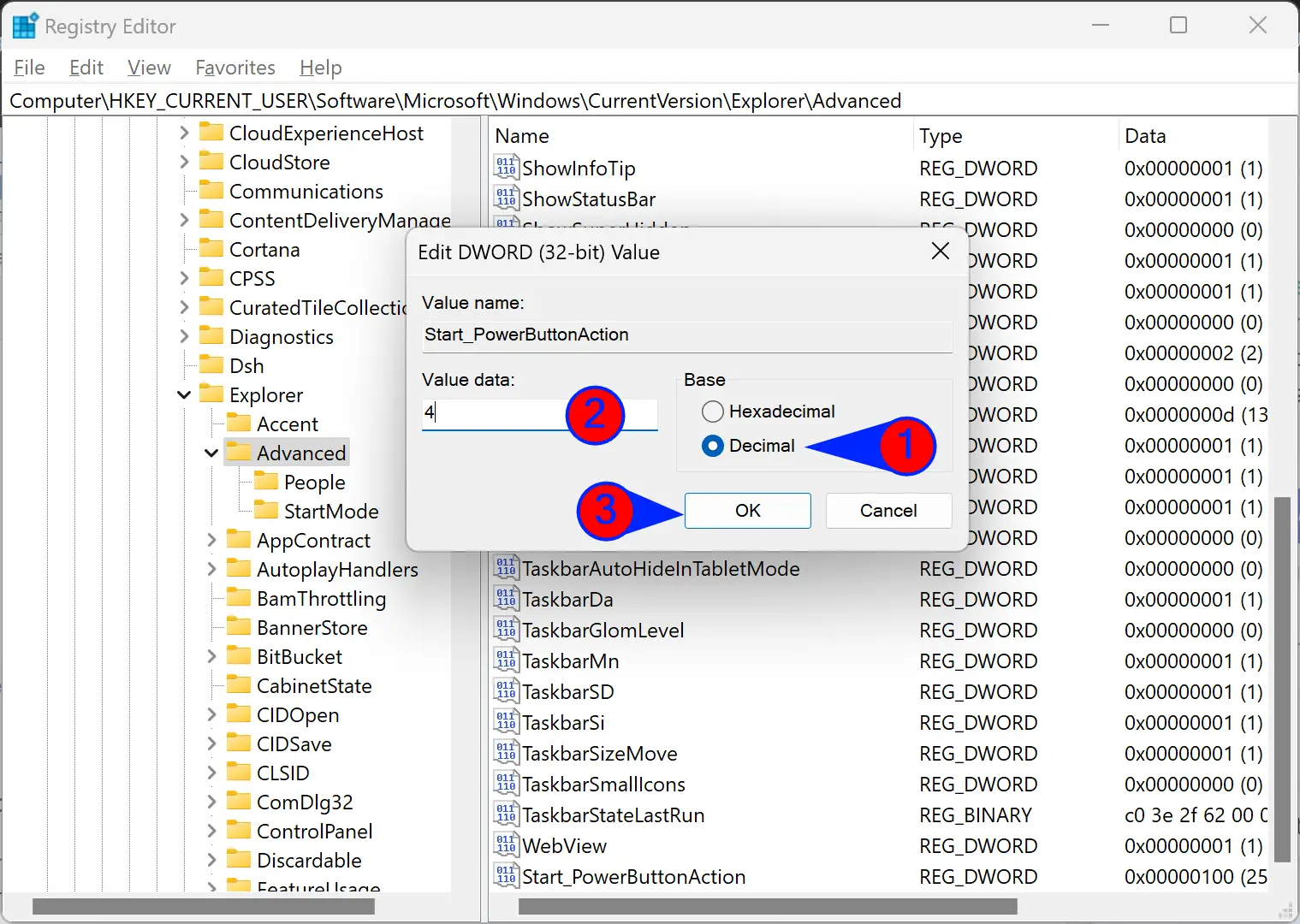
Step 6. Finally, click the OK button.
Once you complete the above steps, minimize all opened windows and press ALT+F4 (if your keyboard includes the Fn key, then your combination will be Fn+ALT+F4). You will see that the default action for the Shut Down Dialog (Alt+F4) has changed.
How to Change or Replace the Default Action of Shut Down Dialog (Alt+F4) using Local Group Policy Editor?
Quick Reminder: Local Group Policy Editor is not a part of the Windows 11 Home edition. Either enable the gpedit.msc on your PC or use the Registry Editor method.
To change or replace the default action of the Shut Down Dialog (Alt+F4) using Group Policy Editor, perform the following steps:-
Step 1. Open the Local Group Policy Editor.
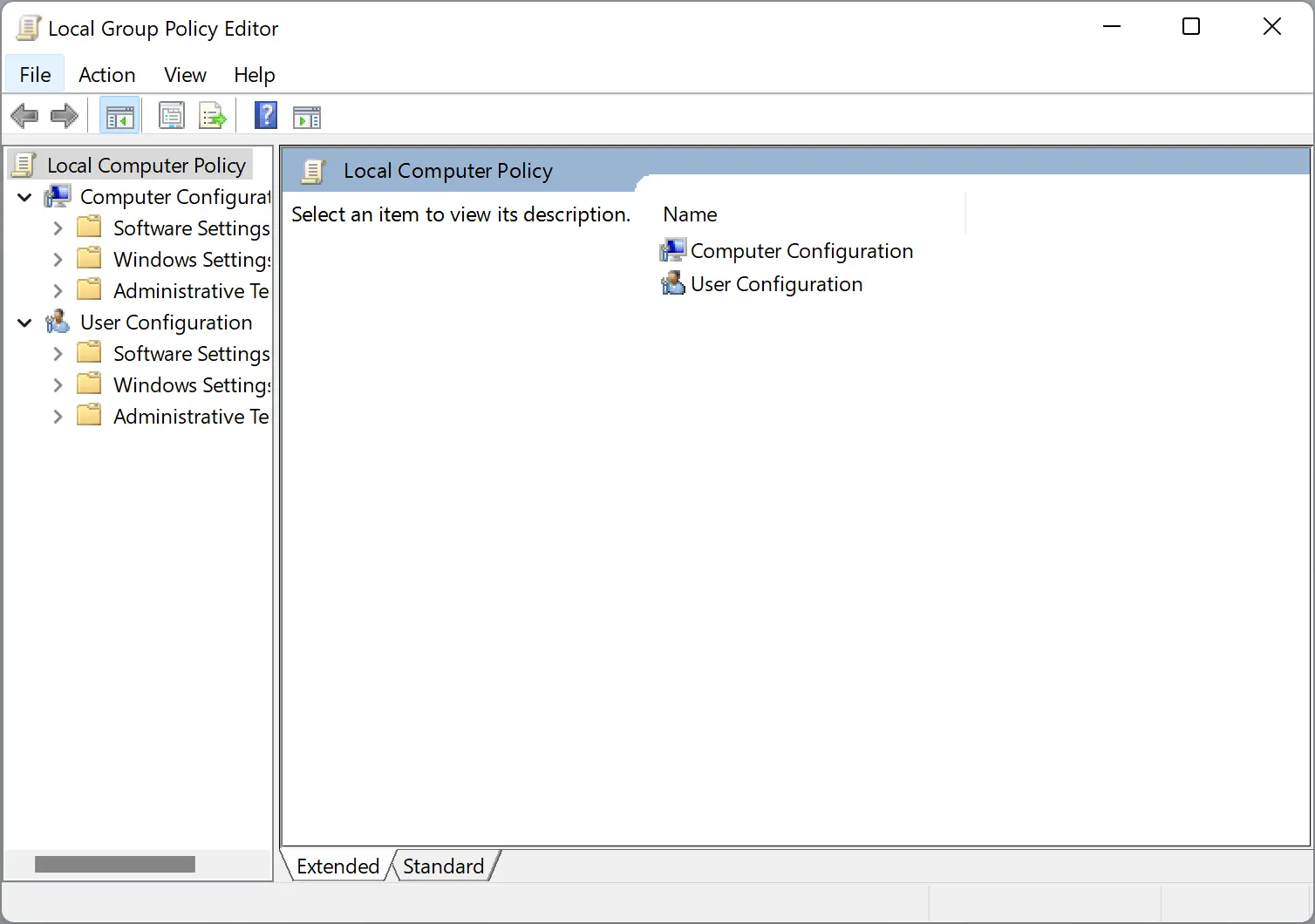
Step 2. When the Local Group Policy Editor window appears on your computer, navigate to the following path in the left sidebar:-
User Configuration > Administrative Templates > Start Menu and Taskbar
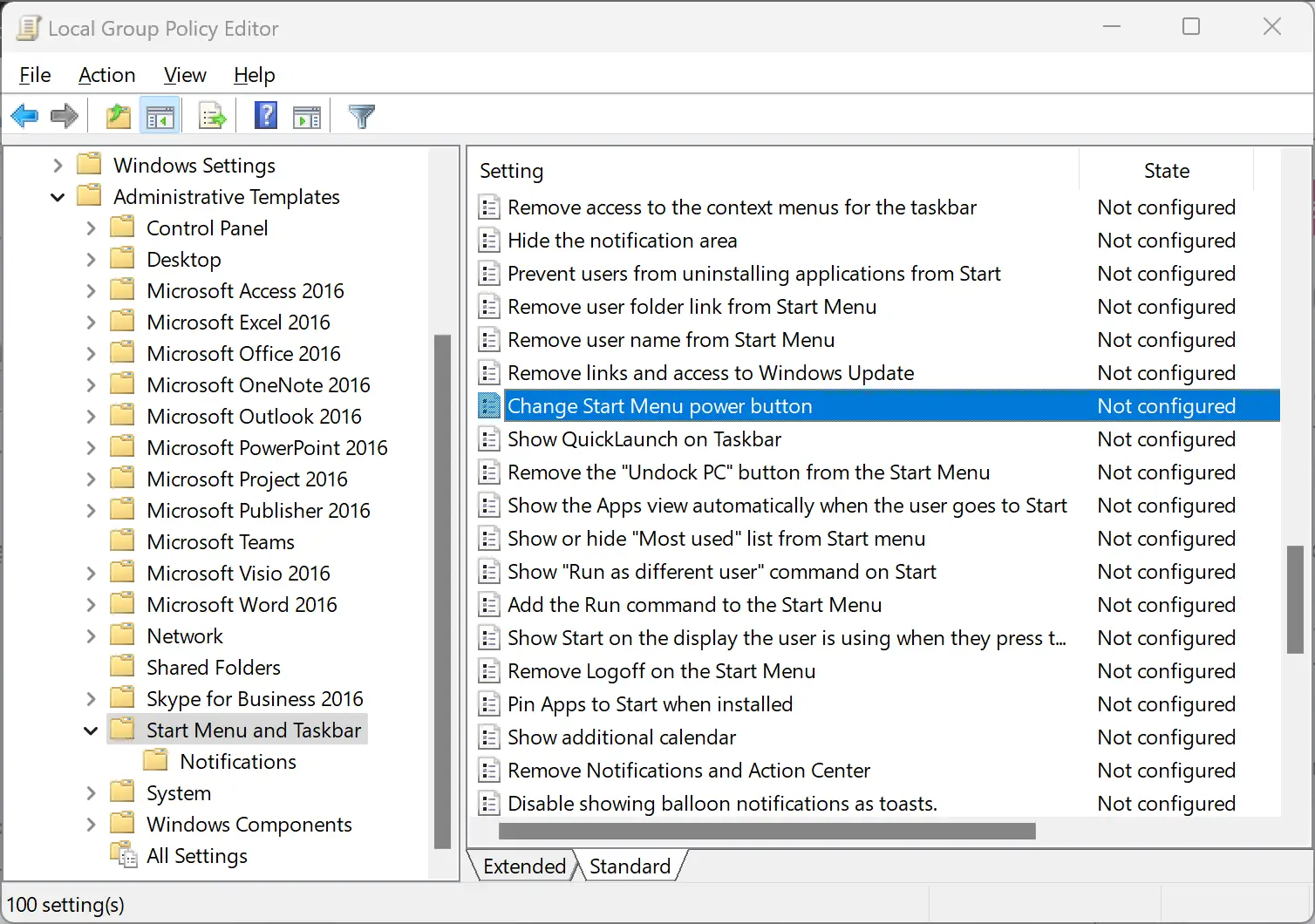
Step 3. On the right side of the “Start Menu and Taskbar” folder, find the policy name “Change Start Menu power button.”
Step 4. Then, double-click on the “Change Start Menu power button” to open it.
Step 5. After that, select the Enabled option.
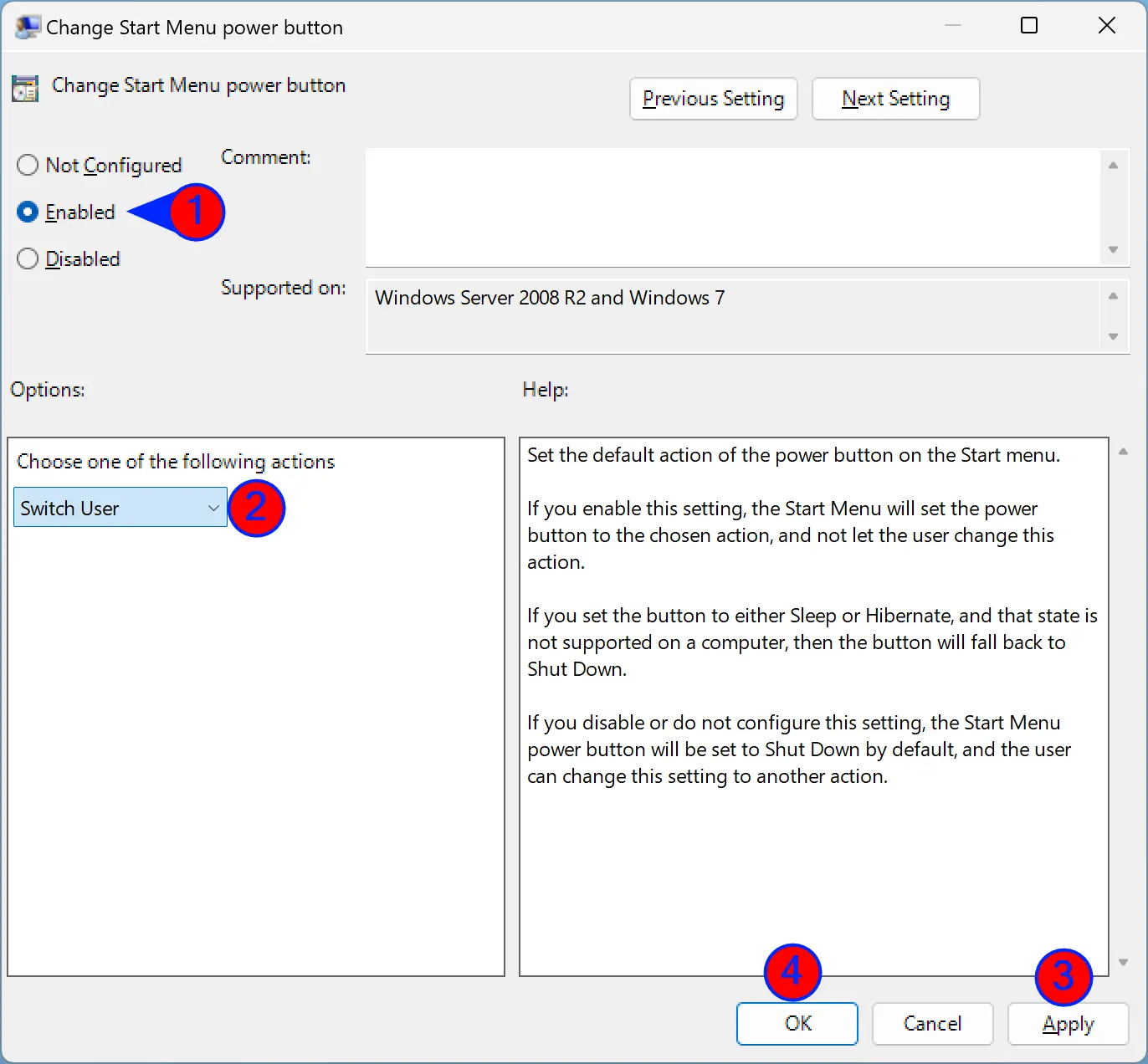
Step 6. Then, choose the desired action (Switch user, Sign out, Sleep, Hibernate, Shut down, or Restart) in the drop-down menu “Choose one of the following actions.”
Step 7. Next, click the Apply button.
Step 8. Then, hit the OK button.
Step 9. Finally, reboot your machine to see the changes.
That’s it.
Conclusion
In conclusion, while ALT+F4 may be an old shortcut key, it remains a valuable and frequently used function on Windows 11, allowing users to close open applications or bring up the “Shut down” dialog if no windows are open. Users can also replace the default “Shut down” action with other options like “Sign out” or “Restart” using either the Registry Editor or Local Group Policy Editor. However, users should be cautious when making changes to the registry values and create a backup or system restore point to avoid making their PC non-operational. With the steps provided, users can easily customize their default action of the Shut Down Dialog and make the most out of their Windows 11 experience.
This didn’t work for me. It’s locked on “Switch User” no matter what I do.
Dear Nick,
Ensure more than one user account in active on your PC, then only it will work.
Yes BUT in W11, the default, periodical drifts off to other options. So using this to “fix” it back to the default so far hasn’t stopped it from drifting. Not a biggie happens 3 maybe 4 times a month – and lasts for 4 to 6 ALT-F4 uses.
Any thoughts on ‘fixing’