

If you purchased a computer or laptop with an Intel processor and want to check whether it’s running smoothly, or if you recently bought one from a local vendor and wish to verify its authenticity, Intel has made that task simple. The Intel Processor Diagnostic Tool is an official utility designed for Windows systems that helps verify the integrity, performance, and health of your Intel CPU. Whether you’re troubleshooting system slowdowns or checking supported features, this tool is invaluable for any Intel user.
The Intel Processor Diagnostic Tool is compatible with Windows 10, Windows 8.1, Windows 8, Windows Server 2019, Windows Server 2016, Windows Server 2012 R2, and Windows Server 2012—supporting both 32-bit and 64-bit architectures. It’s a dedicated solution that evaluates your Intel processor’s functionality, ensuring that it’s performing as expected and that it’s a genuine Intel product.
What is the Intel Processor Diagnostic Tool?
The Intel Processor Diagnostic Tool is a free, official program developed by Intel to test only Intel processors. It cannot test processors made by other manufacturers. Once launched, the tool automatically verifies your processor’s brand, checks its operating frequency, runs several feature-specific tests, and performs a CPU stress test. During testing, you might experience temporary system slowdowns as the processor is fully utilized.
The tool performs essential diagnostic checks like brand identification, frequency verification, and functional integrity tests. You can also use third-party utilities such as CPU-Z to gather additional processor insights alongside Intel’s own diagnostic reports.
How Does the Intel Processor Diagnostic Tool Work?
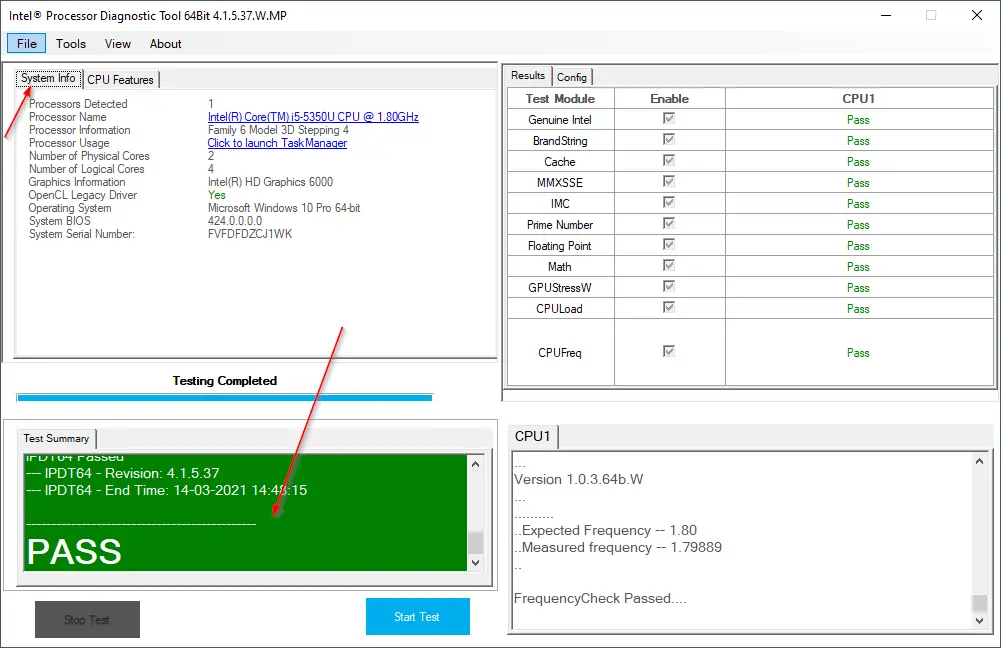
Once installed and launched, the Intel Processor Diagnostic Tool automatically tests your Intel CPU to ensure it’s working accurately. It’s easy to use—simply download and install the correct version for your system (32-bit or 64-bit) and follow the on-screen prompts. After running the test, results are displayed as either PASS or FAIL in the bottom-left corner of the tool interface. A “PASS” indicates your Intel processor is genuine and functioning properly.
For comprehensive hardware insights, you can also rely on tools like HWiNFO, which provides detailed information about your system’s CPU, GPU, memory, and sensors.
Key Features of the Intel Processor Diagnostic Tool
- Brand Verification: Confirms your CPU is a genuine Intel processor.
- Frequency Test: Verifies the processor’s operating speed matches its advertised specifications.
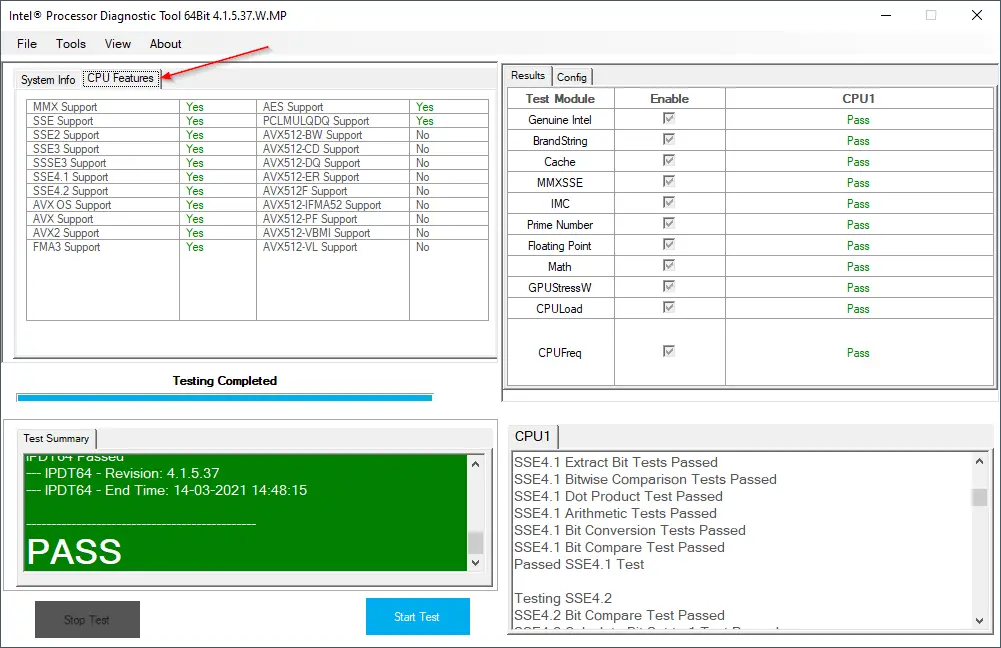
- Feature Validation: Tests CPU-specific functionalities such as cache, MMXSSE, IMC, floating point, and GPU stress.
- Stress Test: Simulates 100% CPU load to ensure system stability.
- Comprehensive Info: Displays physical and logical core counts, graphics info, BIOS version, and serial number.
If you notice irregularities or performance drops during these tests, you can further examine system health using tools like CrystalDiskInfo to assess your storage drives or Core Temp to monitor CPU temperatures during stress loads.
Burn-In and Extended Testing
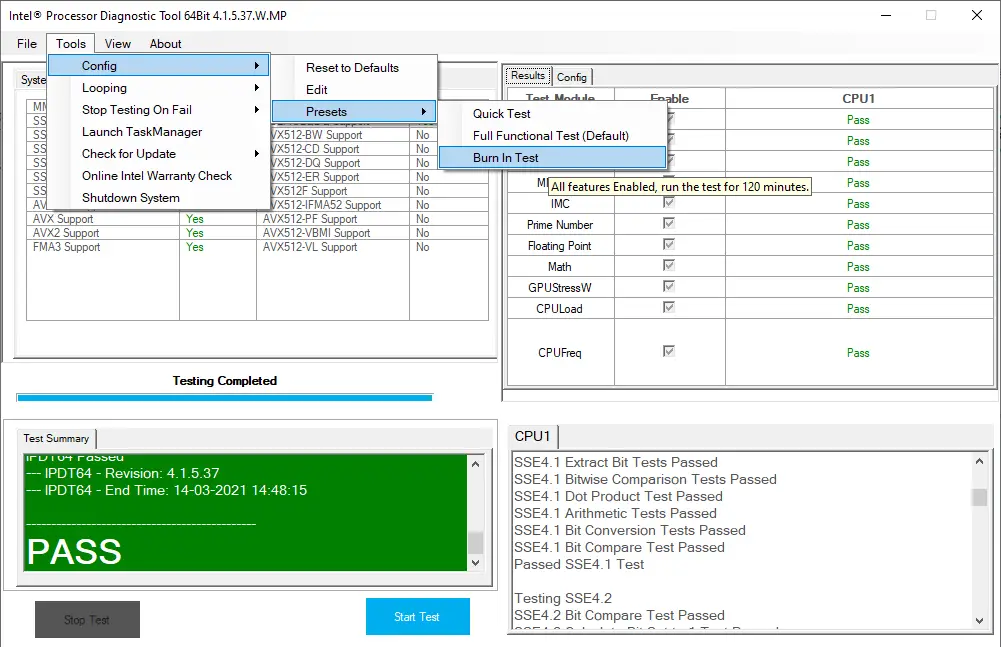
By default, the Intel Processor Diagnostic Tool completes its full testing cycle in approximately four minutes. For extended stress testing, users can activate the “Burn In Test” mode by navigating to Tools >> Config >> Presets >> Burn In Test. This mode continuously tests your processor over a longer duration, ideal for validating system stability under sustained high load conditions.
Conclusion
If you own an Intel processor-powered PC, the Intel Processor Diagnostic Tool is a must-have for ensuring your CPU’s health and authenticity. It’s an official, free, and easy-to-use application that validates your processor’s capabilities and performance. For broader system troubleshooting or offline recovery, you can complement it with Hiren’s BootCD PE, a complete rescue toolkit for advanced diagnostics and repair.
At the time of writing, Intel Processor Diagnostic Tool version 4.1.5.37 supports around 1078 Intel microprocessors, covering a wide range of generations and models. Whether you’re an enthusiast, technician, or everyday user, running this diagnostic periodically can help ensure your system’s long-term reliability.