

Your Phone app is now called Phone Link. It lets you view and send text messages, browse photos, and make or receive calls from your Windows 11 PC. This built-in app connects your Android phone wirelessly. However, not all Android phones support it. Currently, only Surface Duo and selected Samsung smartphones work.
To use Phone Link, both your PC and Android phone need Bluetooth and Wi-Fi. They also require active internet connections. To make or receive calls, the Bluetooth pairing must be in range.
How to Connect and Sync an Android Phone to a Windows 11 PC using the “Phone Link” App?
Follow these steps carefully:
Step 1. Download and install the Link to Windows app from Google Play on your Android phone.
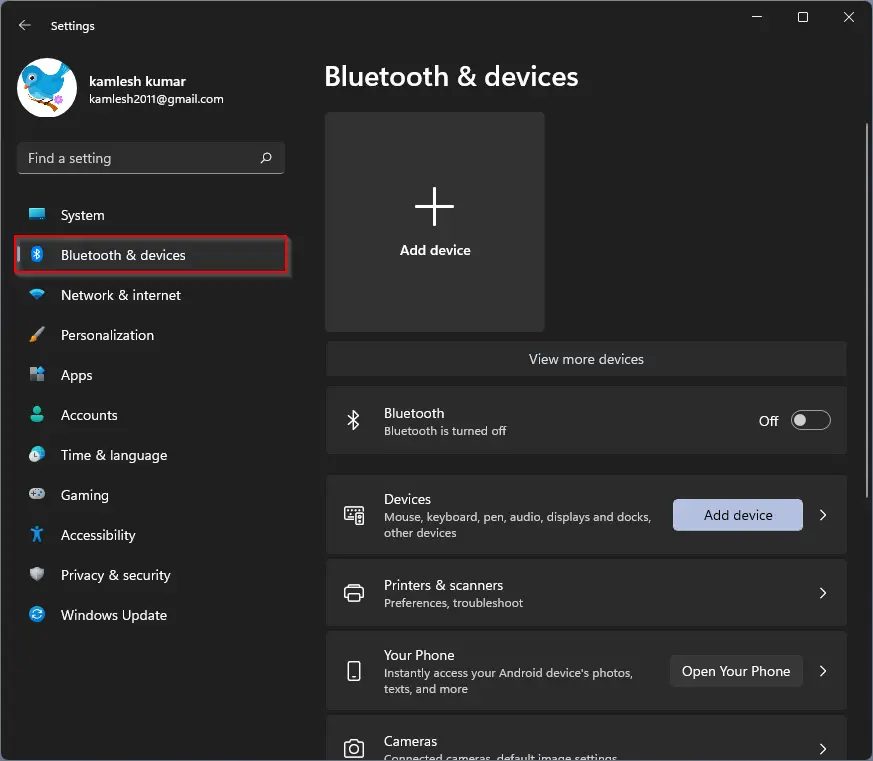
Step 2. Open the Settings app on your Windows 11 PC.
Step 3. Select Bluetooth & devices from the left panel in Settings.
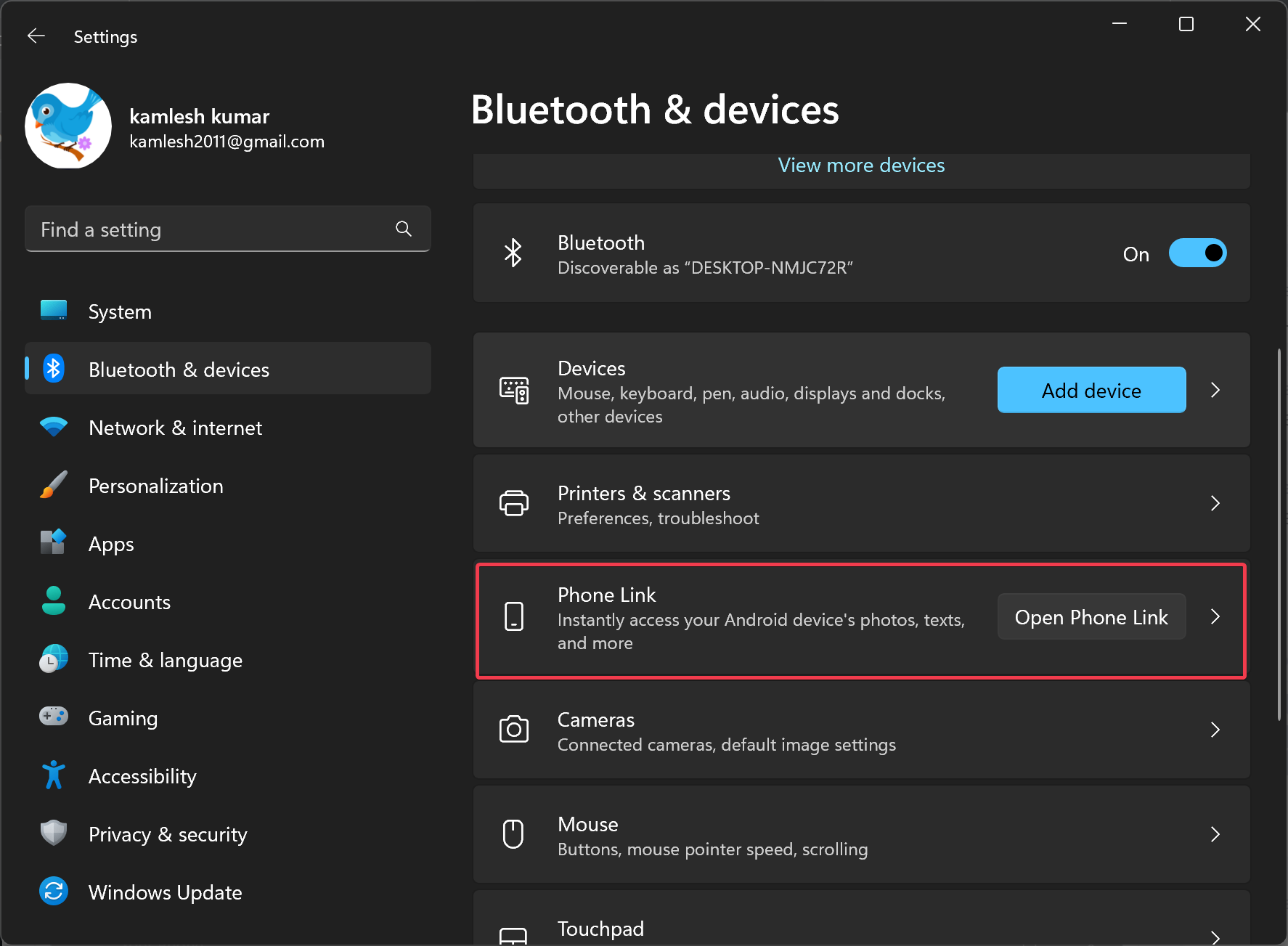
Step 4. On the right, click Open Phone Link beside Phone Link.
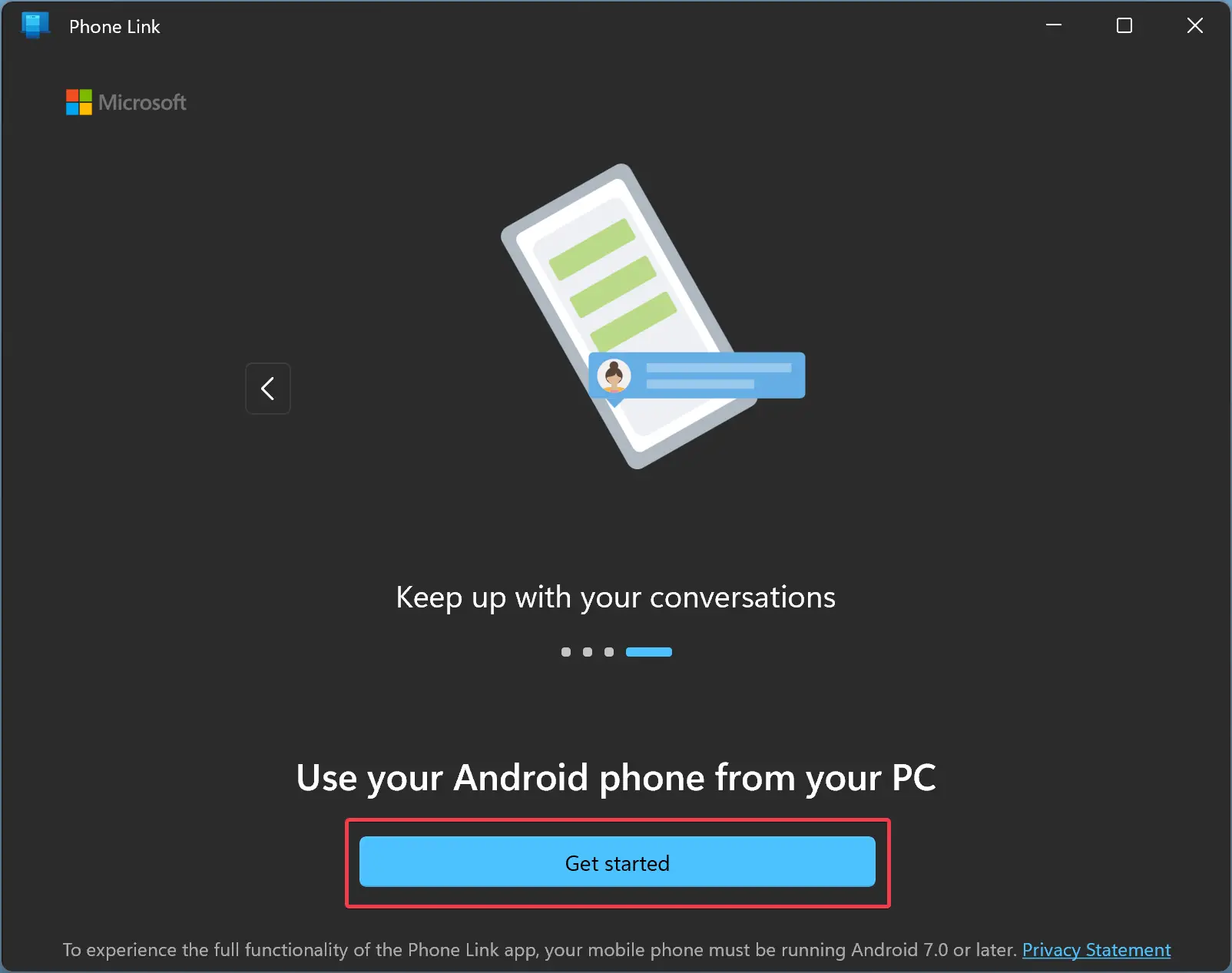
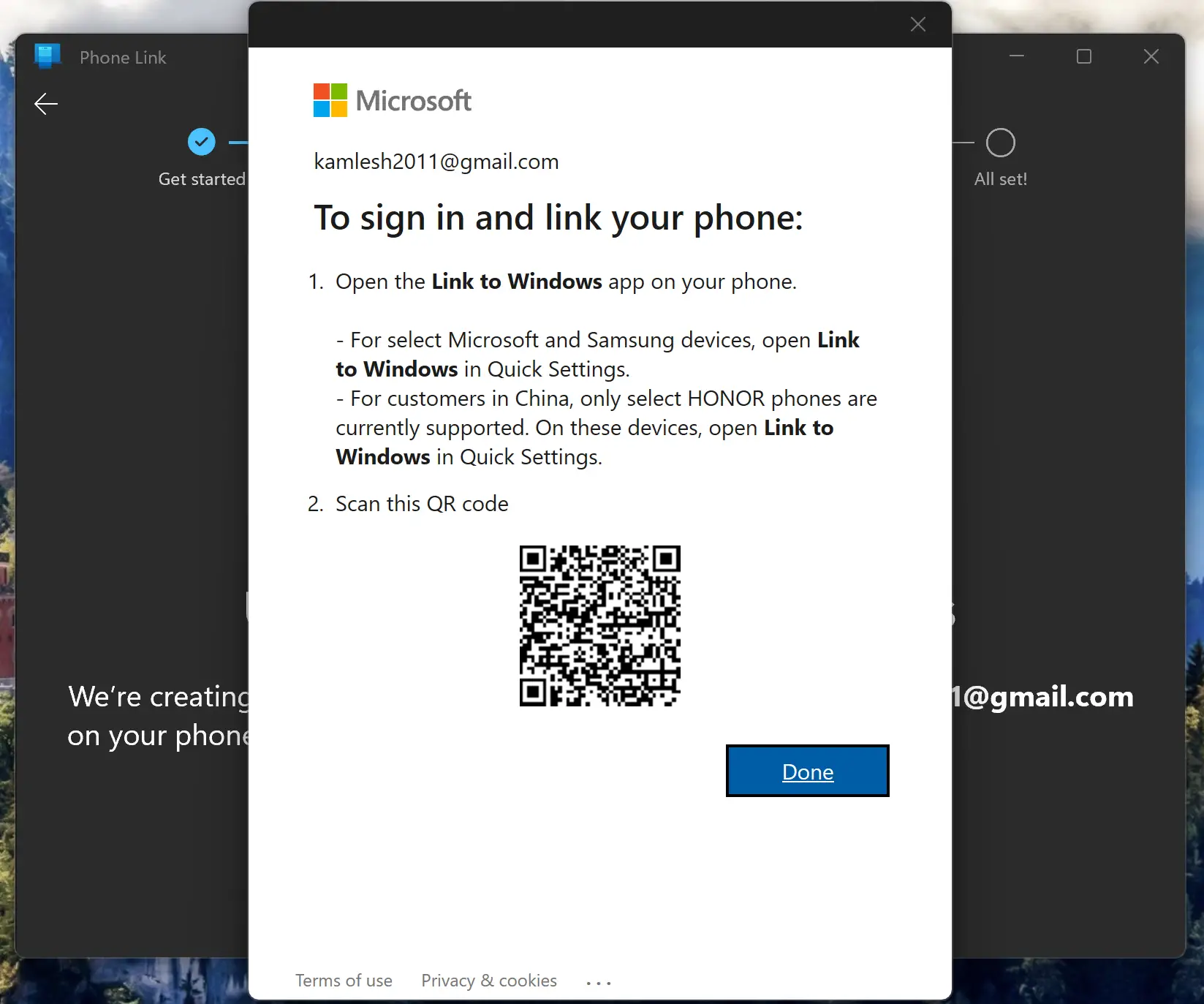
Step 5. When Phone Link opens, click Get Started.
Step 6. If prompted, click Sign in to your Microsoft account. If you’re already signed in, this step will be skipped.
Step 7. Check the box I have the Link to Windows app ready. Then click Pair with QR code.
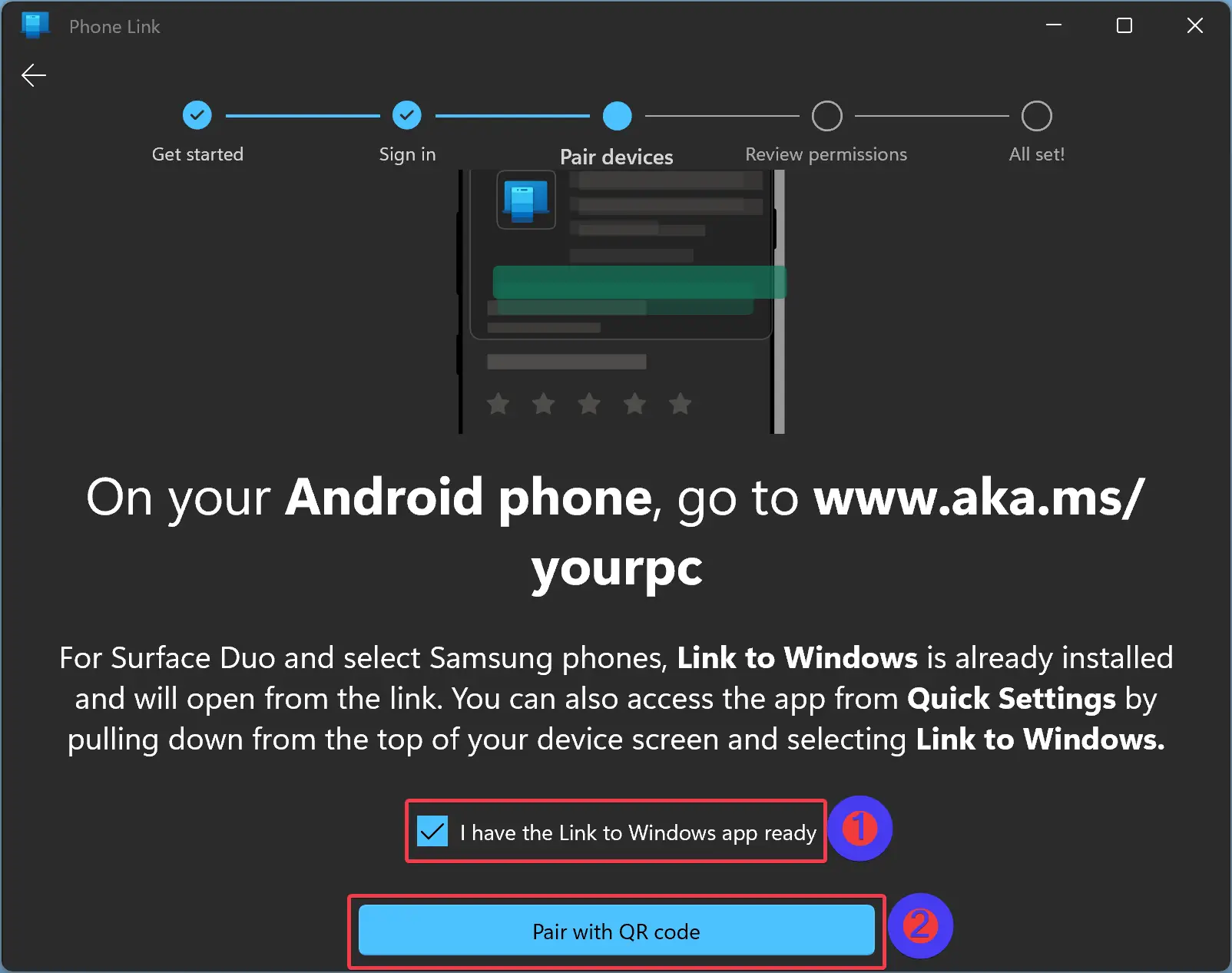
Step 8. A QR code appears on the Phone Link app.
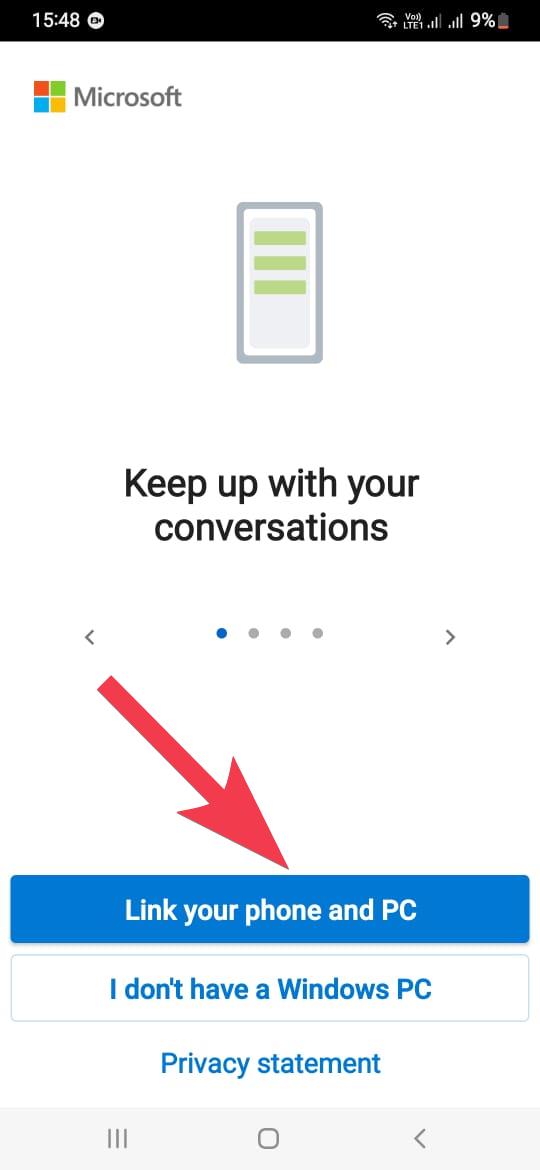
Step 9. Open the Link to Windows app on your phone and tap Link your phone and PC.
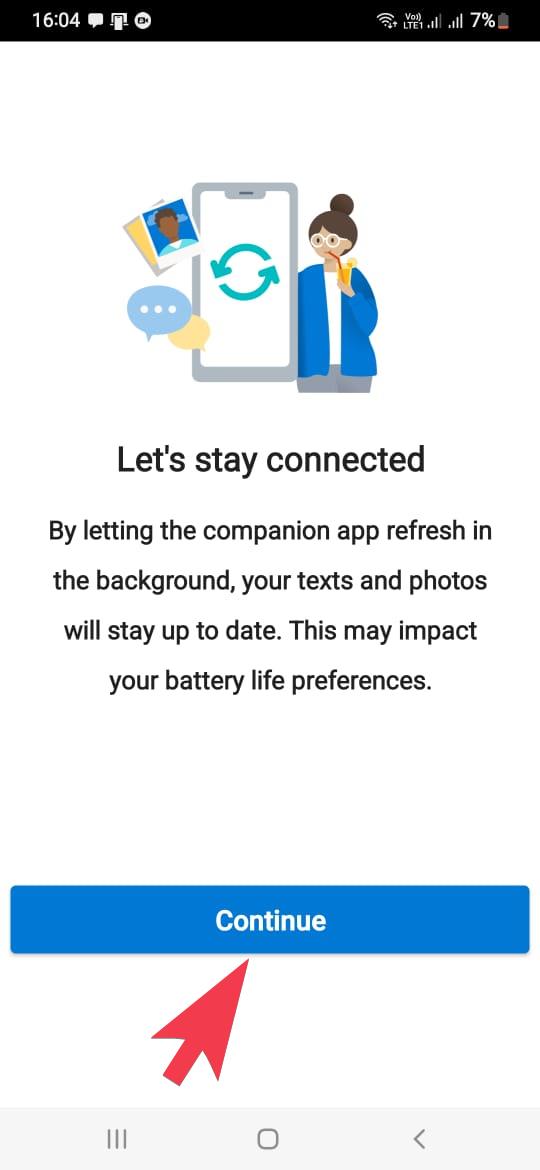
Step 10. Tap Continue.
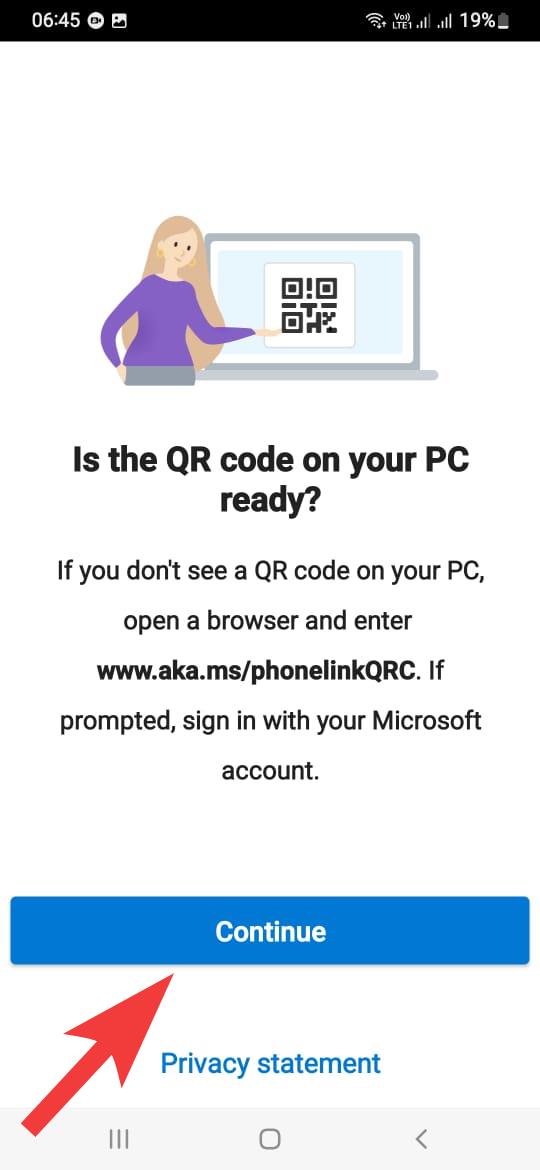
Step 11. When prompted, grant permissions and scan the QR code shown on your PC.
Step 12. Tap Continue again.
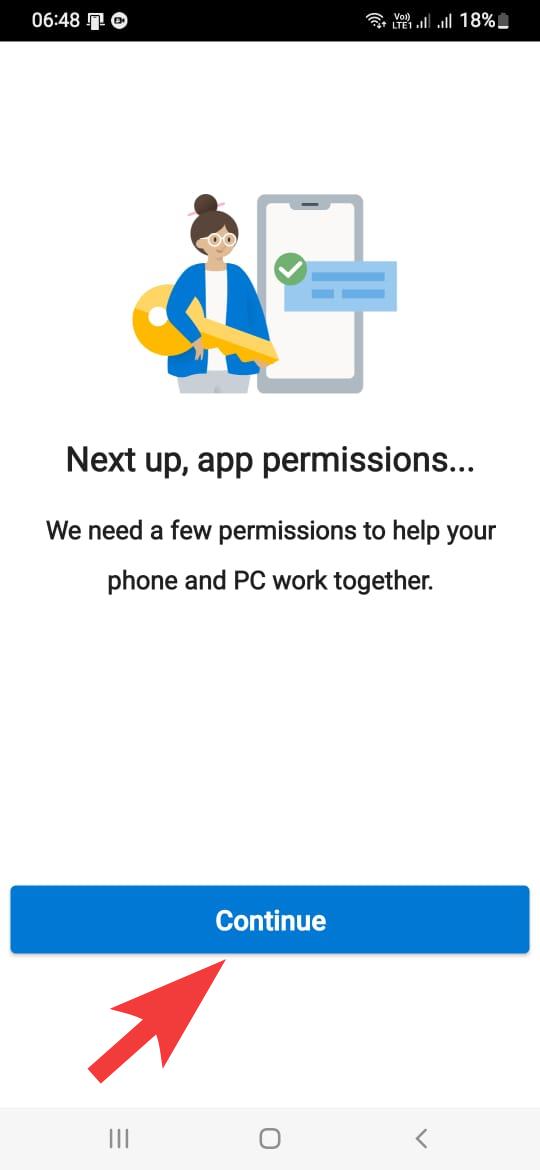
Step 13. Allow all required permissions on your phone.
Step 14. Tap Continue.
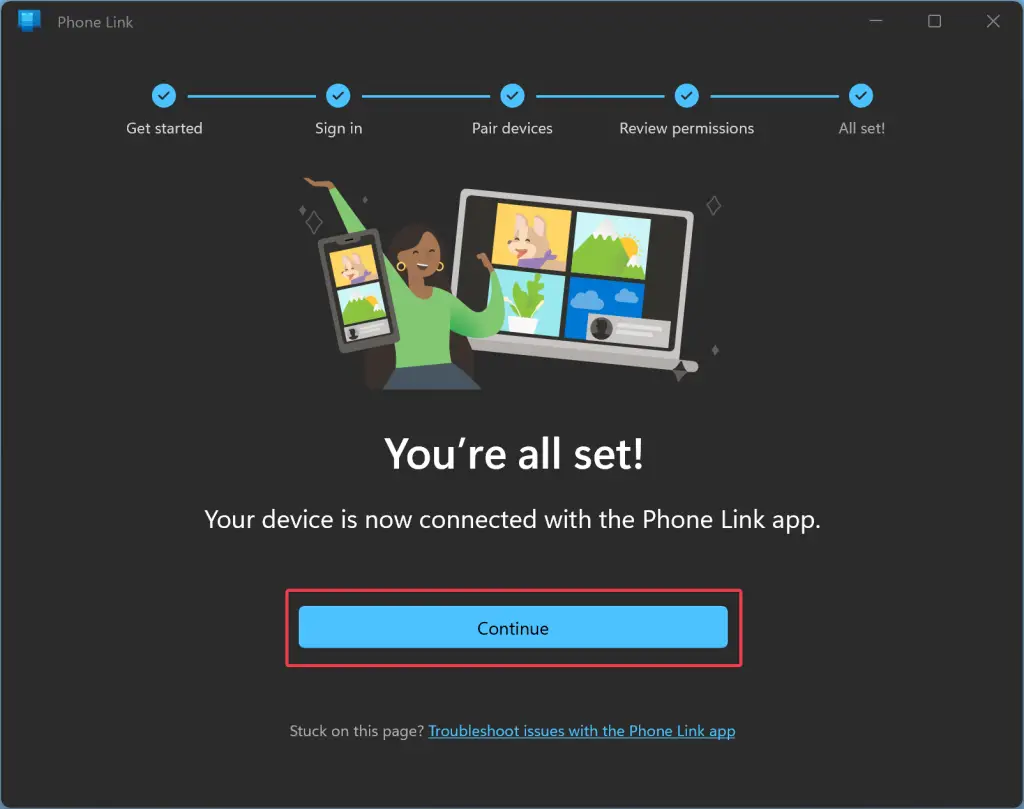
Step 15. Click Continue on your PC’s Phone Link app.
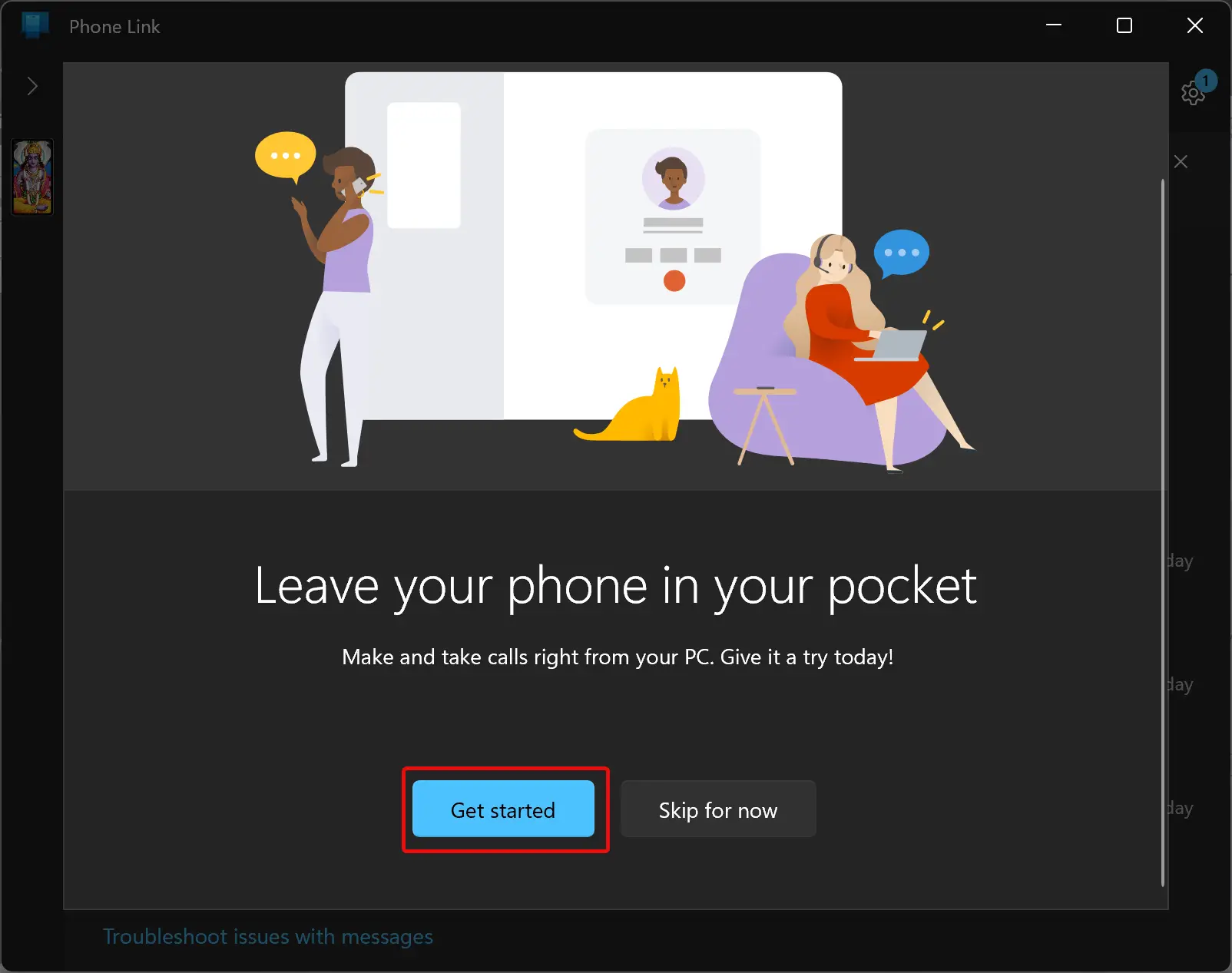
Step 16. Click Get started.
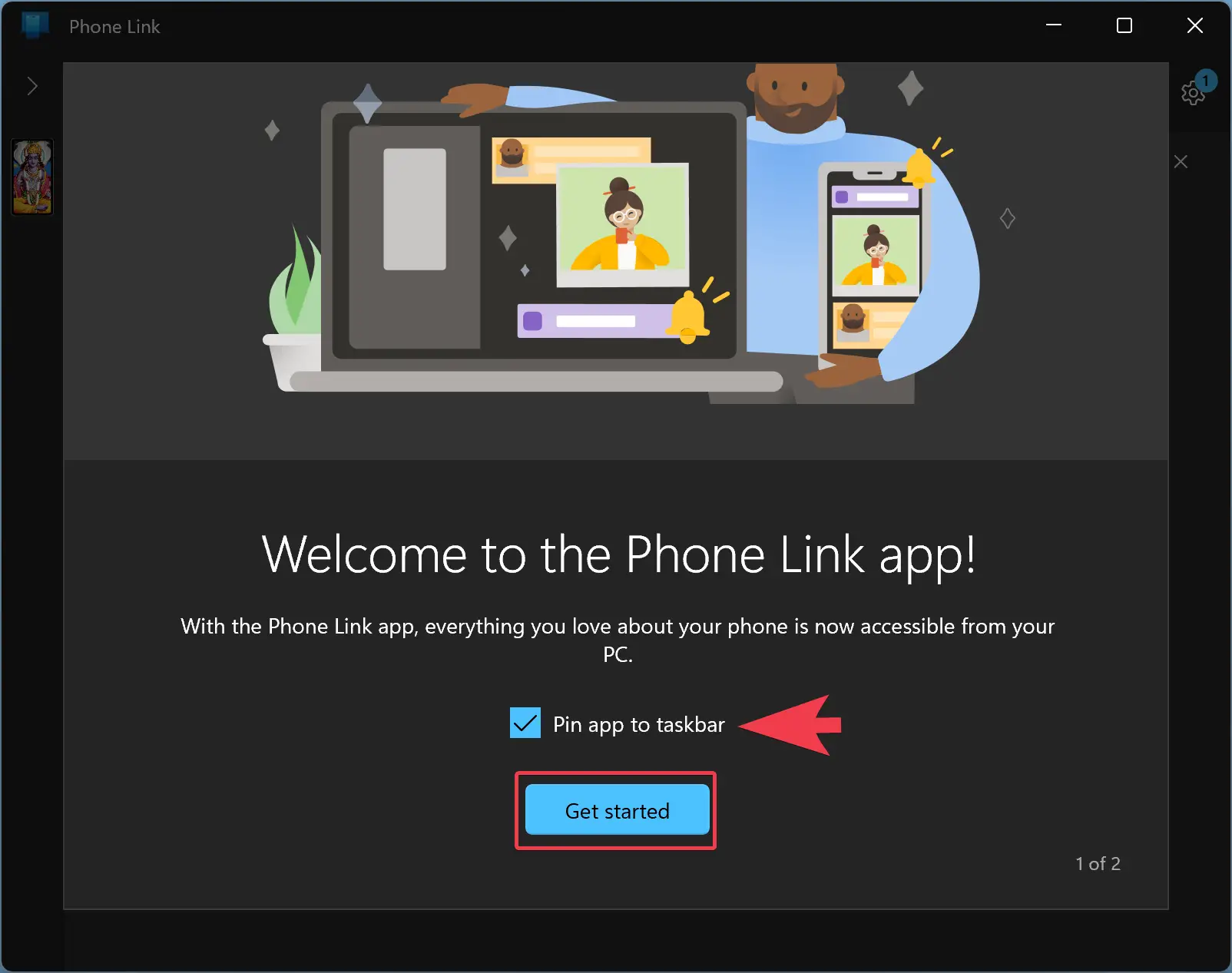
Step 17. Optional: Select Pin app to taskbar. Then click Get started.
Step 18. Your devices are linked and syncing. Phone Link will guide you through setup. Tap Send text messages, Make a call, or View my photos. Or choose Skip.
Step 19. To sync notifications and media, click Open settings on phone.
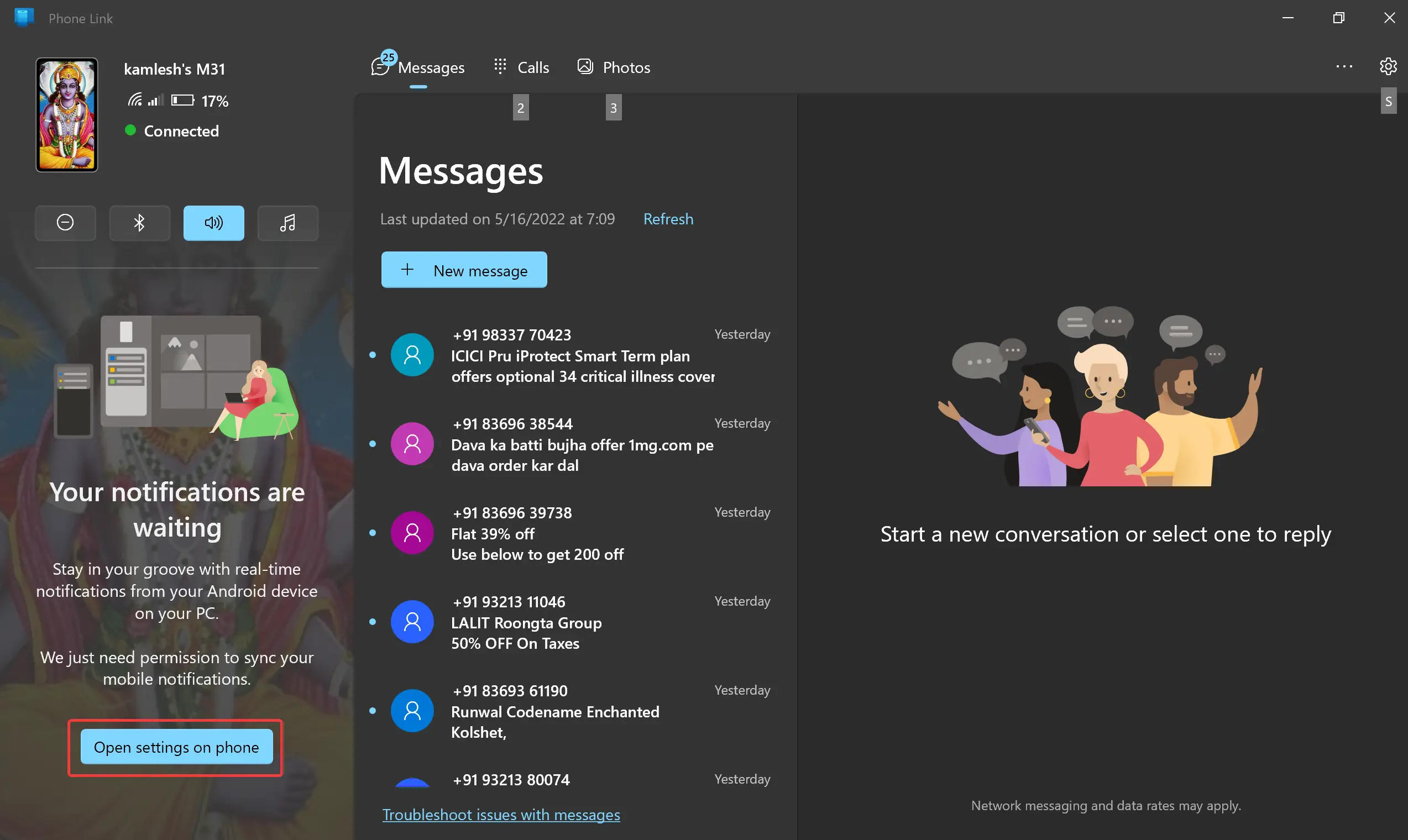
Step 20. Tap Open on your Android notification to access settings.
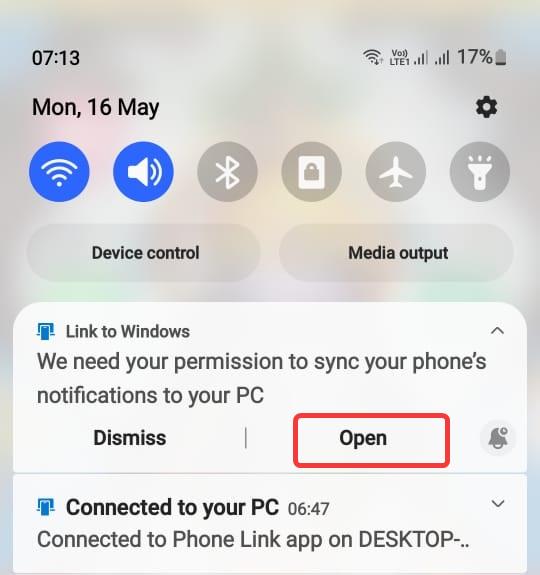
Step 21. In Notification Access, find Link to Windows and allow access.
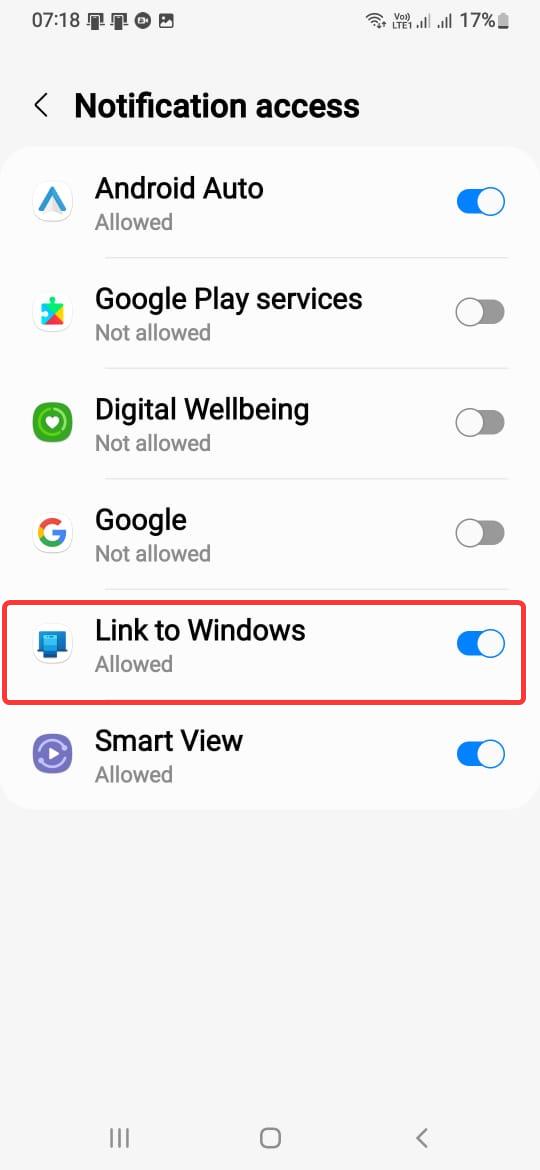
That’s it! Phone Link now shows your phone’s notifications. You can dismiss them on your phone by tapping the X. Your battery level appears at the top-left corner.
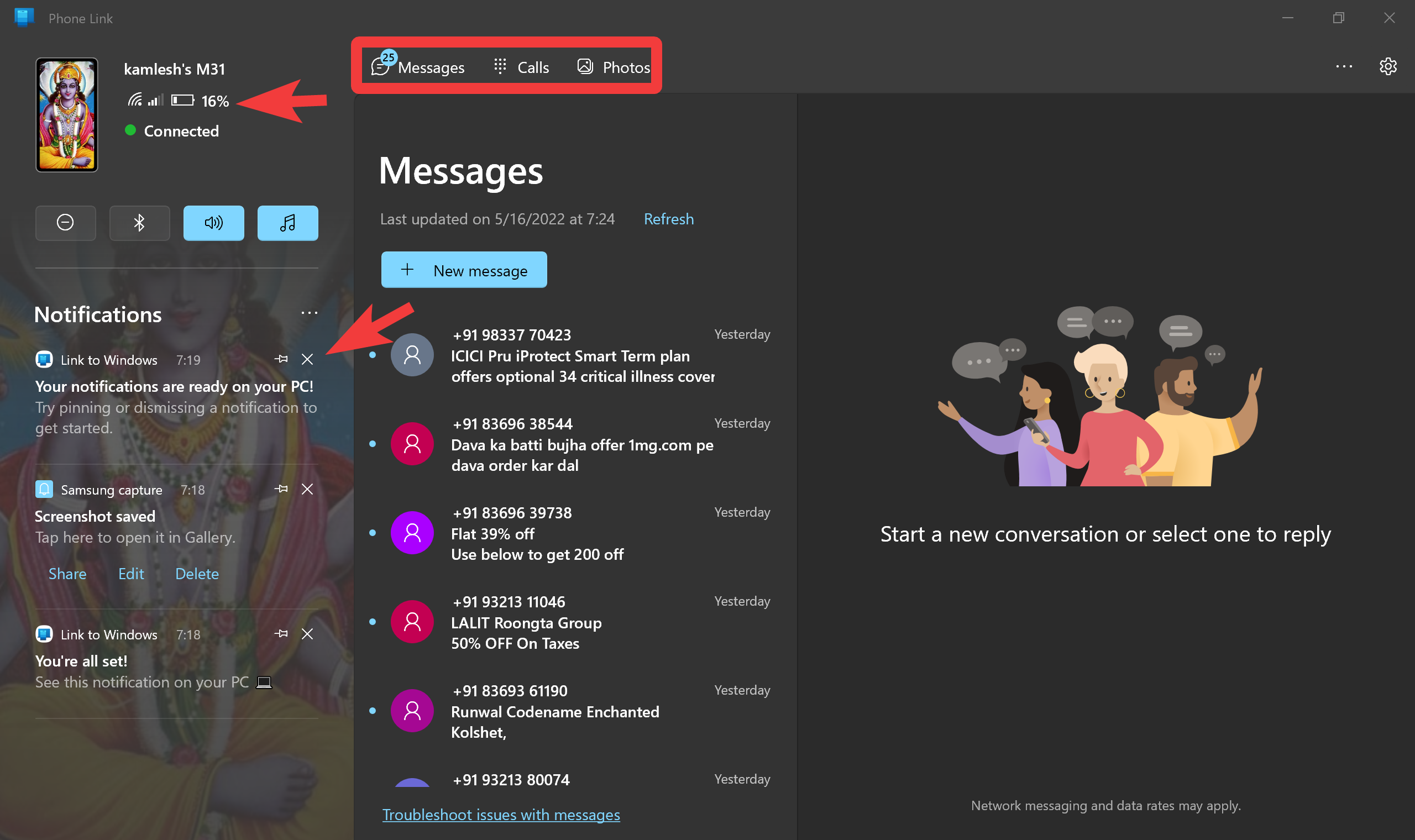
To make or receive calls, pair your phone and PC via Bluetooth. Photos can be viewed without extra steps. To delete photos, you’ll need additional permissions on your Android phone.
This is how Phone Link and Link to Windows apps work together.
Conclusion
In summary, you can remove your Windows 11 PC password if you’re the only user and have full control of the device. Use Settings, User Accounts Panel, or Command Prompt. Note that you cannot remove a Microsoft account password, but you can enable automatic sign-in. Always consider the security risks before doing so.