

Over time, a hard drive operates with less efficiency due to fragmentation in the file system because it has to check multiple places on your HDD for those pieces. To speed up your drive again, you have to defragment and optimize it on Windows 10 using a built-in tool.
What is Defragmentation?
Over time, the data blocks (fragments) that make up files get scattered across multiple locations around the surface of the hard disk, which is called fragmentation. Defragmentation rearranges all of those blocks in a sequence so they are located close together in physical space, which speeds up read times when accessing data on the disk.
On Windows 10, defragmentation is not necessary as it automatically defragments mechanical drives. Still, if you want to keep your HDD operating in the most efficient possible way, you can adopt Defragmentation. You can defrag the internal hard drive, as well as USB or any other external hard drive. Defragmentation is handled by Windows 10 automatically for its internal HDD, so it is essential to defrag an external hard drive, as it may not remain plugged in when Windows runs an automatic defrag program.
Windows 10, Windows 8, and Windows 7 automatically defrag files on your computer or laptop for you on a schedule (by default, once a week). Your PC may not start the scheduled defragmentation for any reason; hence, you should manually begin this program.
How to Defragment your Hard Disk on Windows 10?
Follow these steps to defragment your HDDs on Windows 10:-
Step 1. Click on the Start button and type defragment.
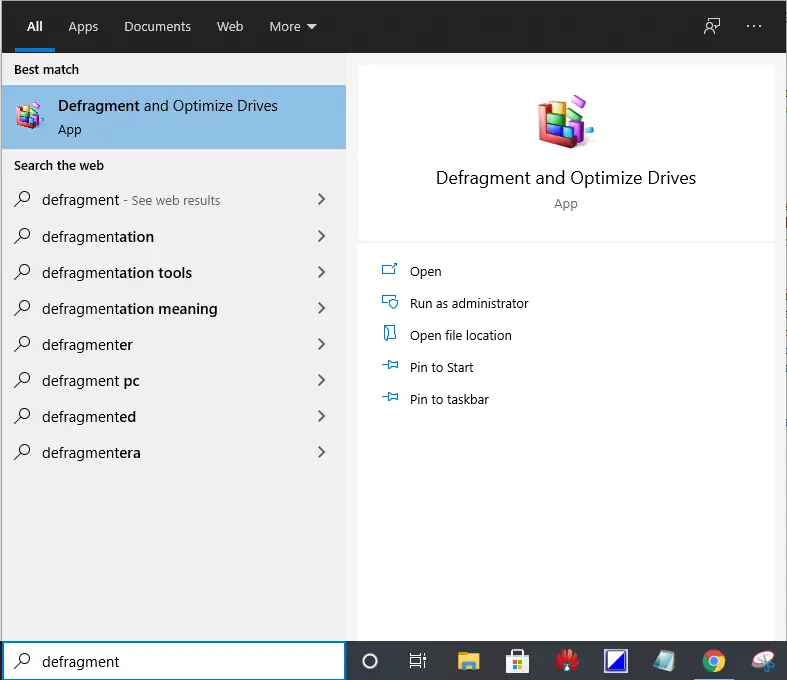 Step 2. Click the “Defragment and Optimize Drives” from the available search results to open up the Optimize Devices window.
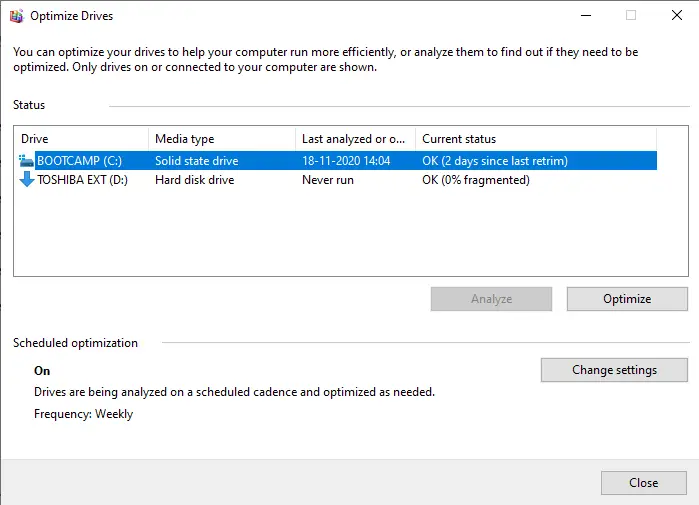 It will list all of the drives (external and internal hard drives) in your system that is eligible for optimization and defragmentation. If you don’t find any HDDs on the list, it may be because Windows 10 can only optimize drives formatted in the NTFS file system. Hard drives that are formatted as exFAT will not appear in the list.
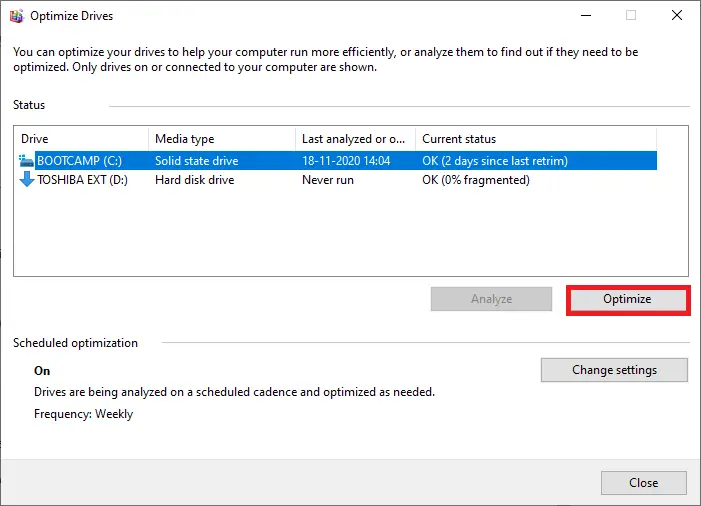
Step 3. If the disk needs optimizing and defragmenting, you will see a percentage complete progress indicator in the Current Status column. To defrag any disk, select the partition and click on the Optimize button.
 Step 4. To reschedule the automatic defrag, click on the Change settings button.
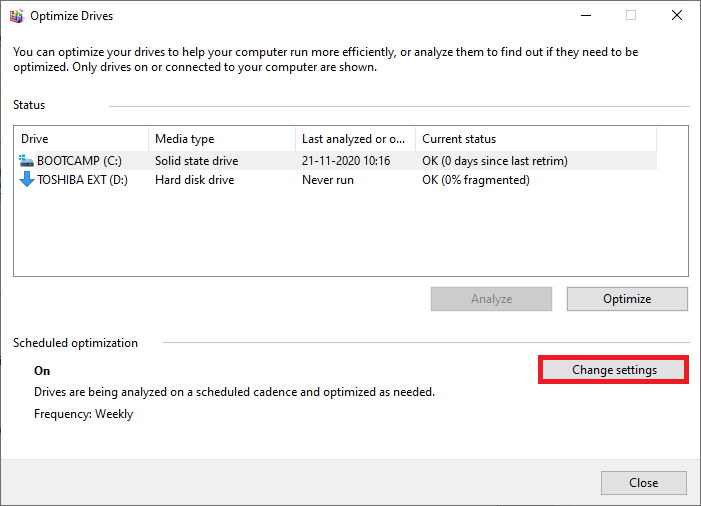 Step 5. Select the frequency between Daily, Weekly, and Monthly; then click on the Choose button to select the disk drive that you want to defrag automatically.
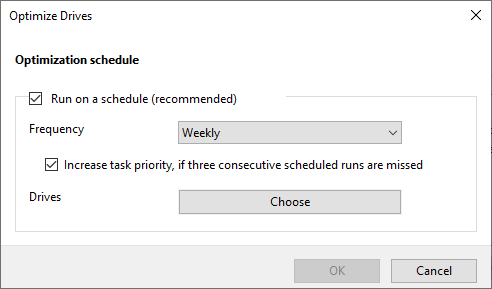 Step 6. Once you make the appropriate changes, click on the OK button.
Puran Defrag, IObit Smart Defrag, DiskTuna, and UltraDefrag are free applications specially built for defragging Windows PCs. If you prefer to use a third-party tool to defrag your HDD, you can opt for any.
FAQs
Is defragmentation still necessary in Windows 10?
Windows 10 automatically defragments mechanical hard drives on a schedule. However, manual defragmentation may still be helpful for external drives or when scheduled tasks fail.
Should I defrag an SSD?
No. SSDs should not be defragmented. Windows 10 performs TRIM optimization for SSDs instead of defrag to maintain performance.
How often should I defragment my hard drive?
Once a week is generally recommended. Windows 10 uses this frequency by default, but you can change it to daily or monthly.
Why doesn’t my drive appear in the Defragment and Optimize list?
Only NTFS-formatted drives show up in the tool. Drives formatted as exFAT or other file systems will not appear for optimization.
Do third-party defrag tools offer better performance?
Third-party tools can add features like boot-time defrag or deeper optimization. However, Windows 10’s built-in tool is reliable for regular use.
Conclusion
Defragmentation helps your hard drive stay organized and perform efficiently by rearranging fragmented data into a continuous structure. While Windows 10 handles defragmentation automatically for internal HDDs, running it manually ensures that both internal and external drives stay optimized—especially if scheduled maintenance is missed. By using the built-in Defragment and Optimize Drives tool, you can quickly check the health of your disks, improve performance, and keep your system running smoothly.