

Push To Install is a feature in Windows 10 that allows you to remotely install apps on your computer from the Microsoft Store website. This feature can be useful if you want to quickly install an app on your PC without having to be physically present. However, some users may not want to allow others to remotely install apps on their computers. In this guide, we’ll show you how to enable or disable Push To Install on Windows 10, so you can decide whether or not to allow remote installations.
Enabling or disabling Push To Install is a straightforward process. Depending on your preference, you can turn the feature on or off in just a few steps. Whether you want to prevent others from installing apps on your computer or you want to enable the feature to allow remote installations, this guide will show you how to customize the Push To Install feature in Windows 10.
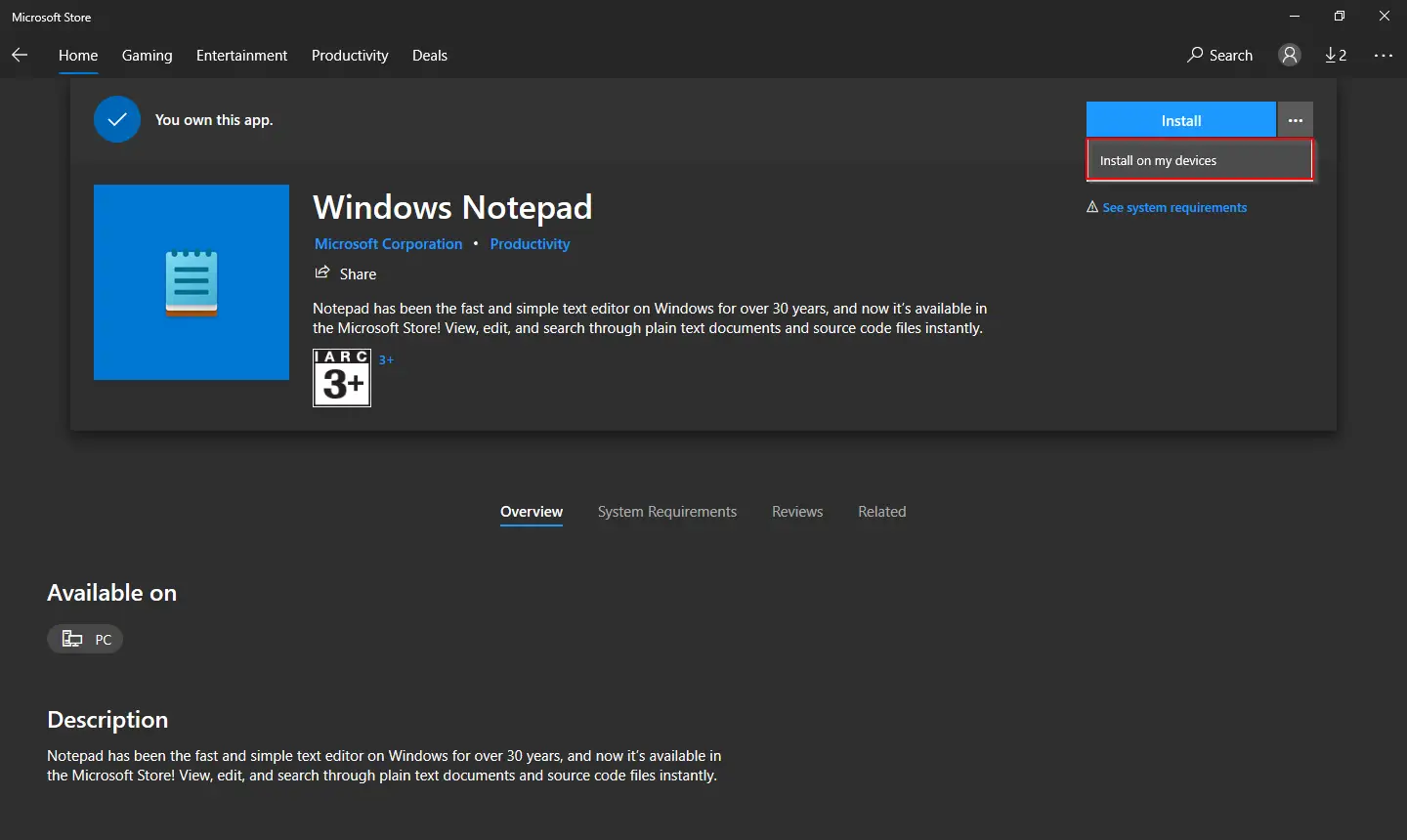
There are at least two ways to enable or disable the Push To Install (Remote Installation of Apps) feature on Windows 10. These are the following:-
- How to Enable or Disable Push To Install (Remote Installation of Apps) feature on Windows 10 using Group Policy Editor?
- How to Enable or Disable Push To Install (Remote Installation of Apps) feature on Windows 10 via Windows Registry?
How to Enable or Disable Push To Install (Remote Installation of Apps) feature on Windows 10 using Group Policy Editor?
Gentle Reminder: Group Policy Editor is not a part of Windows 10 Home edition; if you are using Windows 10 Home OS, then first enable the gpedit.msc on your PC.
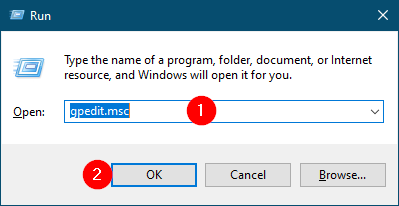
Step 1. Press the Windows + R keys simultaneously to open the Run dialog box.
Step 2. In the Run command box, type the following and hit Enter or click OK to launch the Local Group Policy Editor window:-
gpedit.msc
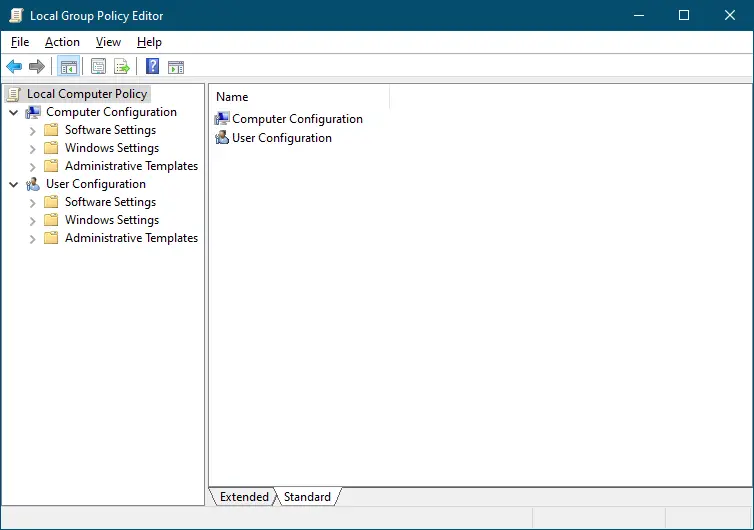
Step 3. In the Local Group Policy Editor window that opens, navigate to the following path:-
Local Computer Policy > Computer Configuration > Administrative Templates > Windows Components > Push To Install
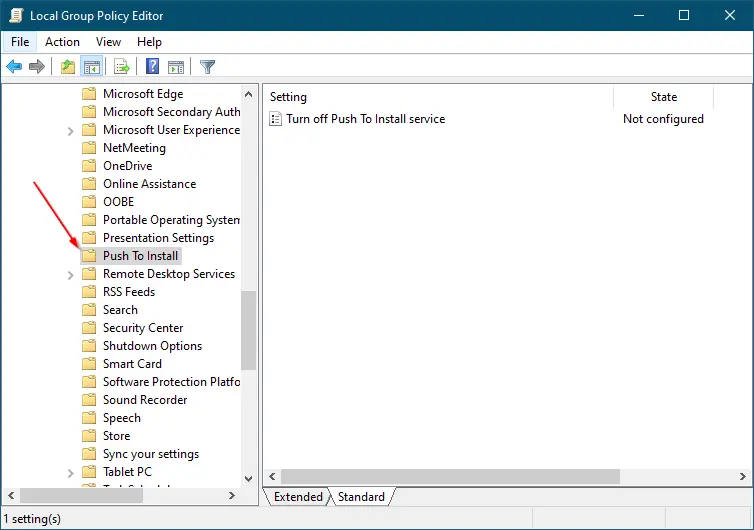
Step 4. In the right-side pane of the “Push To Install” path, double-click on the policy “Turn off Push To Install service.” On the popup window, by default, it is set to “Not configured,” which means the service is enabled for all. To disable the Push To Install service, select the Enabled option.
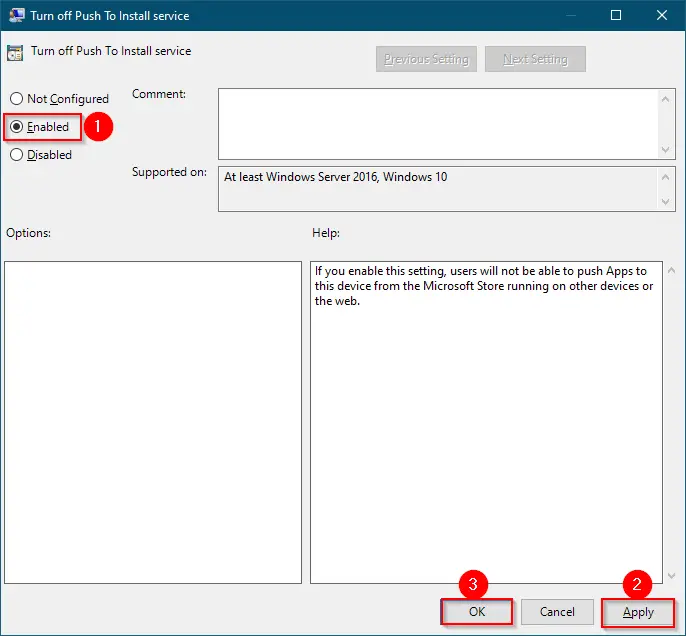
Step 5. Click Apply.
Step 6. Click OK.
Once you complete the above steps, Push To Install (Remote Installation of Apps) will be disabled. If you change your mind and want to enable this feature again, repeat the above steps, and on step 4, set the Policy to “Not Configured” or “Disabled.”
How to Enable or Disable Push To Install (Remote Installation of Apps) feature on Windows 10 via Windows Registry?
Gentle Reminder: Unknowingly editing the Windows Registry may damage the Windows Installation; hence, we recommend taking a full backup of the Registry and creating a system restore point before editing it.
In any case, if Group Policy Editor is not working on your PC, or you prefer to modify Windows Registry, perform the following steps to enable or disable Push To Install (Remote Installation of Apps):-
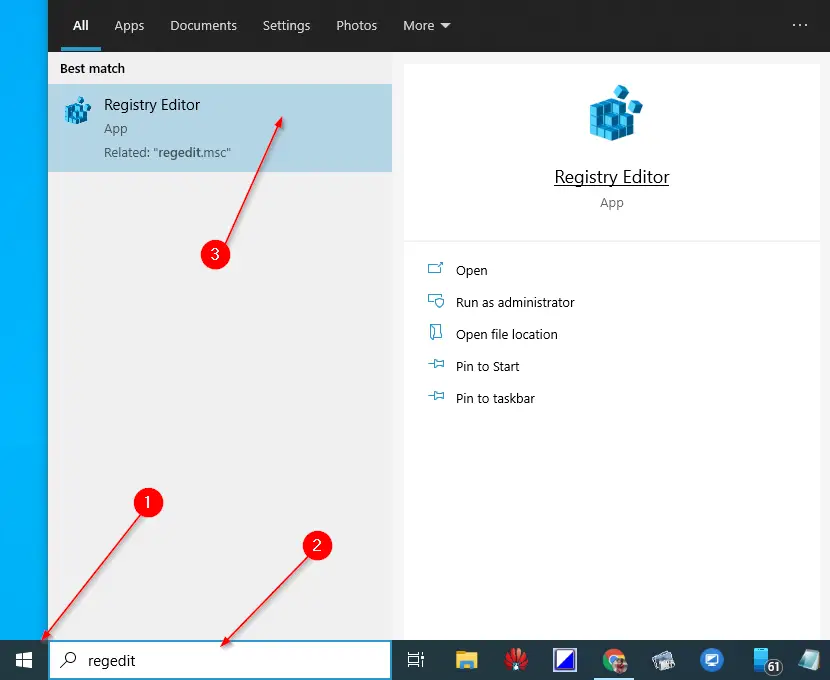
Step 1. Click on the Start button of Windows 10 and type regedit. In the available results, click on the Registry Editor to open it.
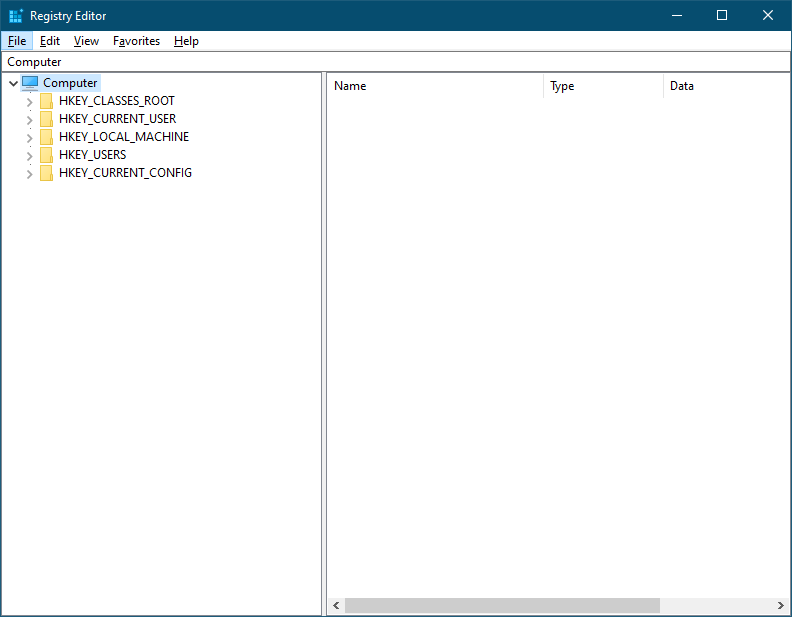
Step 2. Steer or browse for the following registry key in the Registry Editor window:-
HKEY_LOCAL_MACHINE\SOFTWARE\Policies\Microsoft
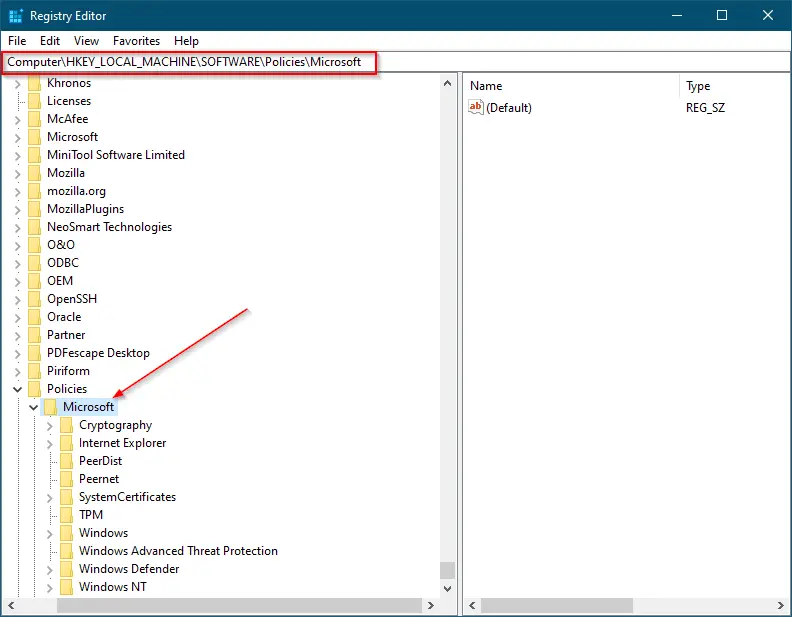
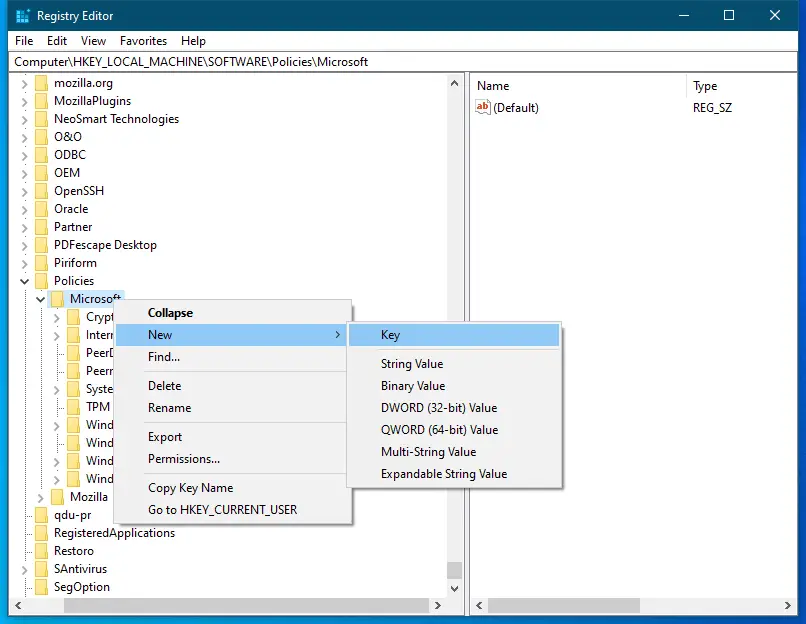
Step 3. Perform a right-click on the Microsoft key, select the New option, and then the Key option.
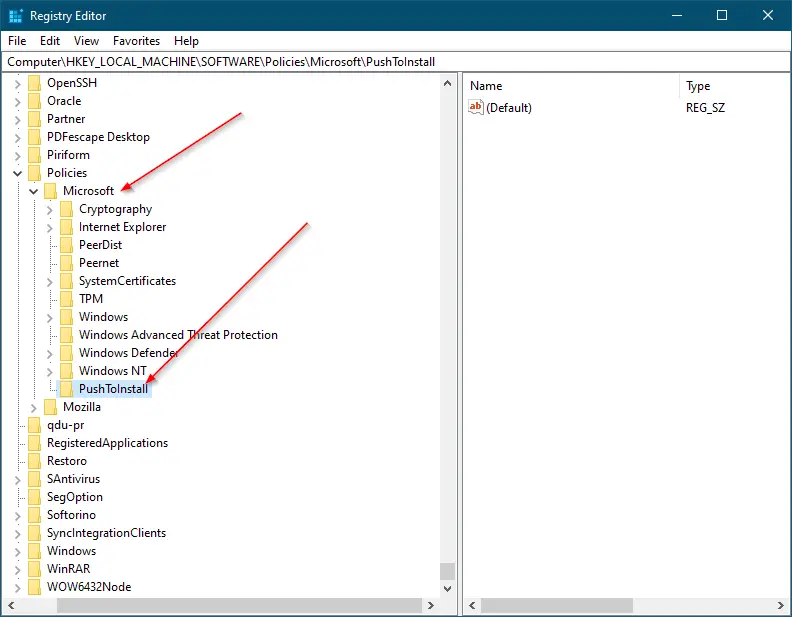
Step 4. Right-click on the newly created key, select the Rename option, and name it PushToInstall.
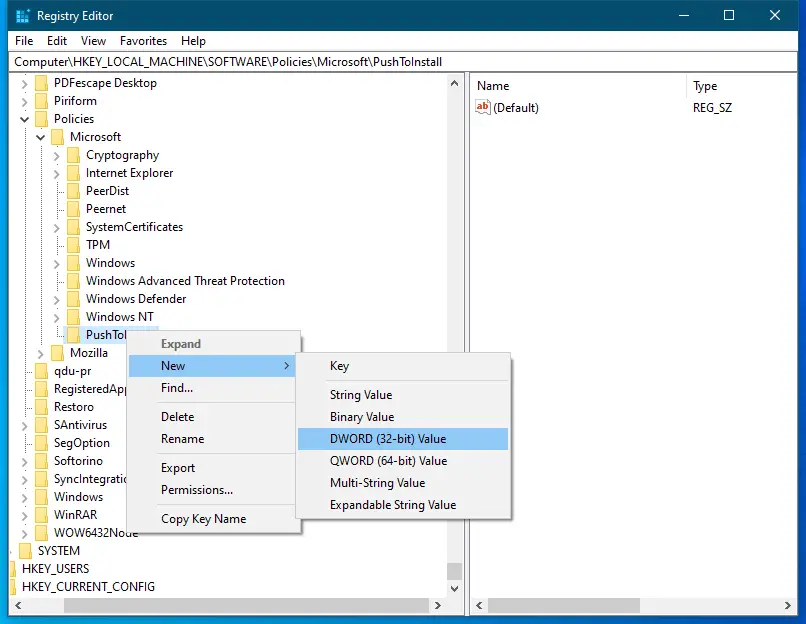
Step 5. Now, right-click the “PushToInstall” key, select New, and then DWORD (32-bit) Value.
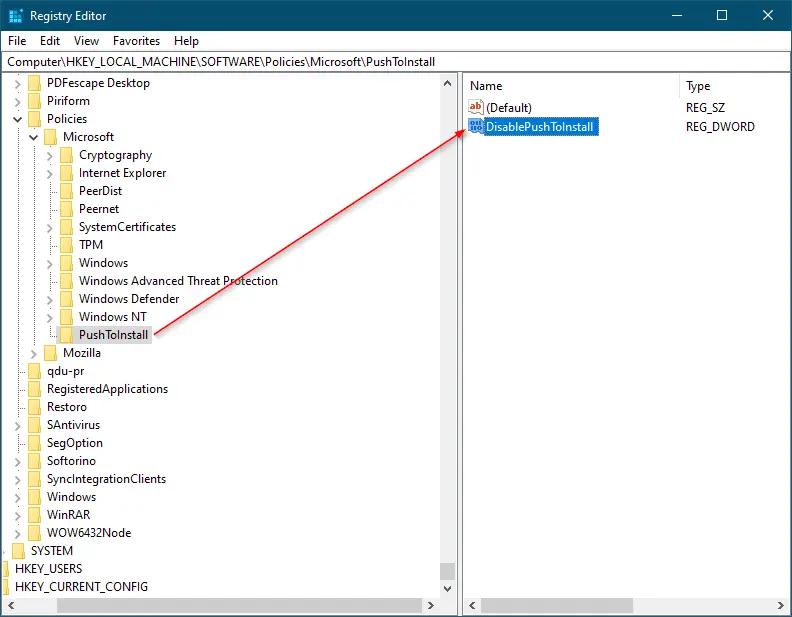
Step 6. The above action will create a new DWORD (32-bit) key on the right-side pane of the PushToInstall folder. Rename the newly created DWORD as DisablePushToInstall.
Step 7. Double-click on DisablePushToInstall to change its value. A small pop-up box will open. Set the Value data to 1 and then click the OK button.
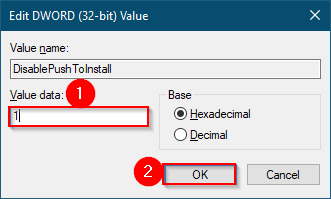
Step 8. Close the Registry Editor.
Once you complete the above steps, the Microsoft Store app will not install remotely on other devices.
If you wish to allow the installation of apps remotely from the Microsoft Store, navigate to the following key in Registry Editor:-
Computer\HKEY_LOCAL_MACHINE\SOFTWARE\Policies\Microsoft\PushToInstall
On the right side pane, set the Value data of DisablePushToInstall to 0 or delete it.
That’s all!