

PDF (Portable Document Format) has become the go-to standard for sharing and reading documents online, via email, or for printing. It preserves the original layout, fonts, and formatting, ensuring that the document looks the same on any device. However, one of the main challenges of PDFs is that they are primarily designed to be read-only, making it difficult to edit or copy text without dedicated tools.
Whether you need to grab text from a research paper, copy a paragraph from an eBook, or save the contents of a PDF into a Word or plain text file, you’ll need the right method. In this detailed guide, we’ll explore free online and offline tools that make it easy to extract text from PDF files on Windows 11, Windows 10, and even older versions like Windows 8.1 and Windows 7.
Why Extract Text from a PDF?
There are many reasons you might want to extract text from a PDF:
- To edit or update content from a document that you don’t have in its original format.
- To quote sections of a book, article, or report in your own work.
- To translate content into another language.
- To save key notes without keeping the entire file.
- To make scanned PDFs searchable using OCR technology.
Now, let’s look at the best free methods available today for Windows users.
Online Tools to Extract Text from PDFs
If you don’t want to install software on your PC, online tools are the fastest way to get text from PDFs. They are perfect for occasional use and work directly from your browser.
ExtractPDF
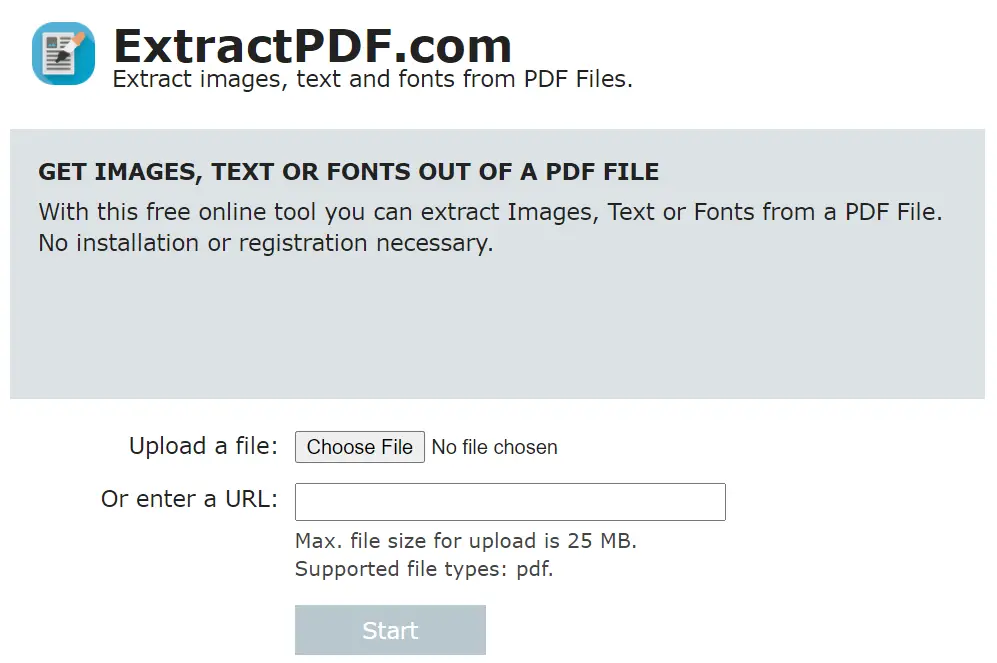
ExtractPDF is a straightforward online service that can extract both text and images from your PDF. Upload a file from your PC or paste an online file URL, click Start, and it will process your document within seconds. You can then download the text and images separately. The free service supports files up to 25 MB.
Online OCR
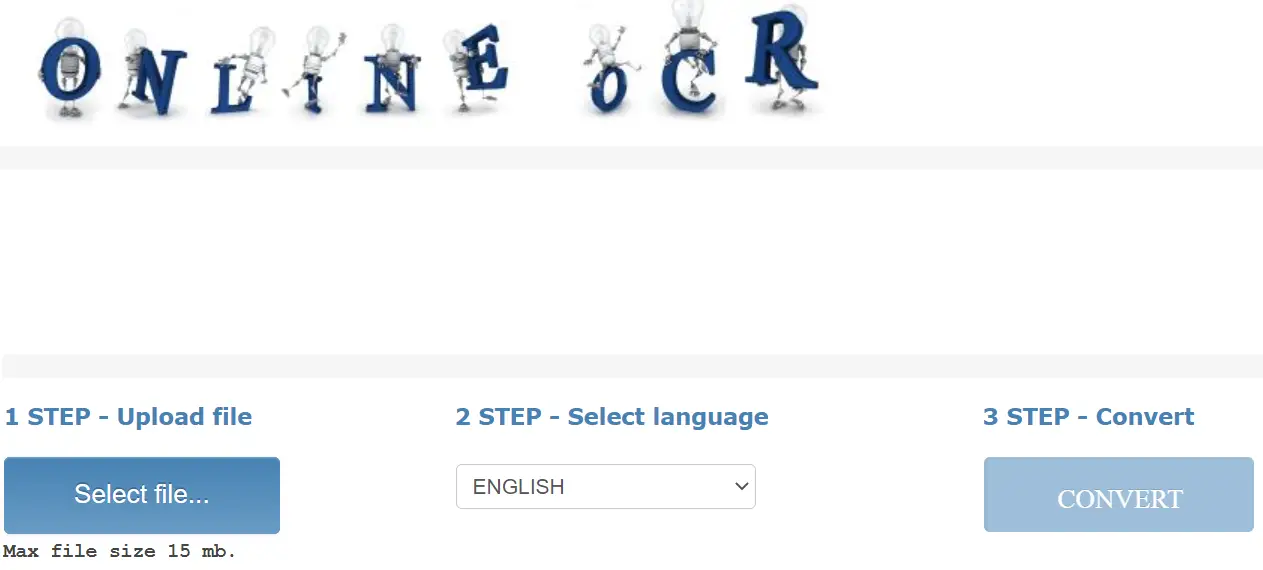
Online OCR is ideal for scanned PDFs or image-based files. It uses Optical Character Recognition to convert them into editable Word documents (.docx). Just upload your file, choose the language, click Convert, and download your file. The free plan supports files up to 15 MB.
PDF2Go
PDF2Go offers an easy way to upload a PDF, extract the text, and download it as plain text or a Word file. It supports drag-and-drop uploading, integration with Google Drive and Dropbox, and works on both desktop and mobile browsers.
Offline Software to Extract Text from PDFs
Offline software is the better option if you frequently extract text from PDFs or need to work with sensitive documents that shouldn’t be uploaded online. These tools work without internet access and often support batch processing.
STDU Viewer
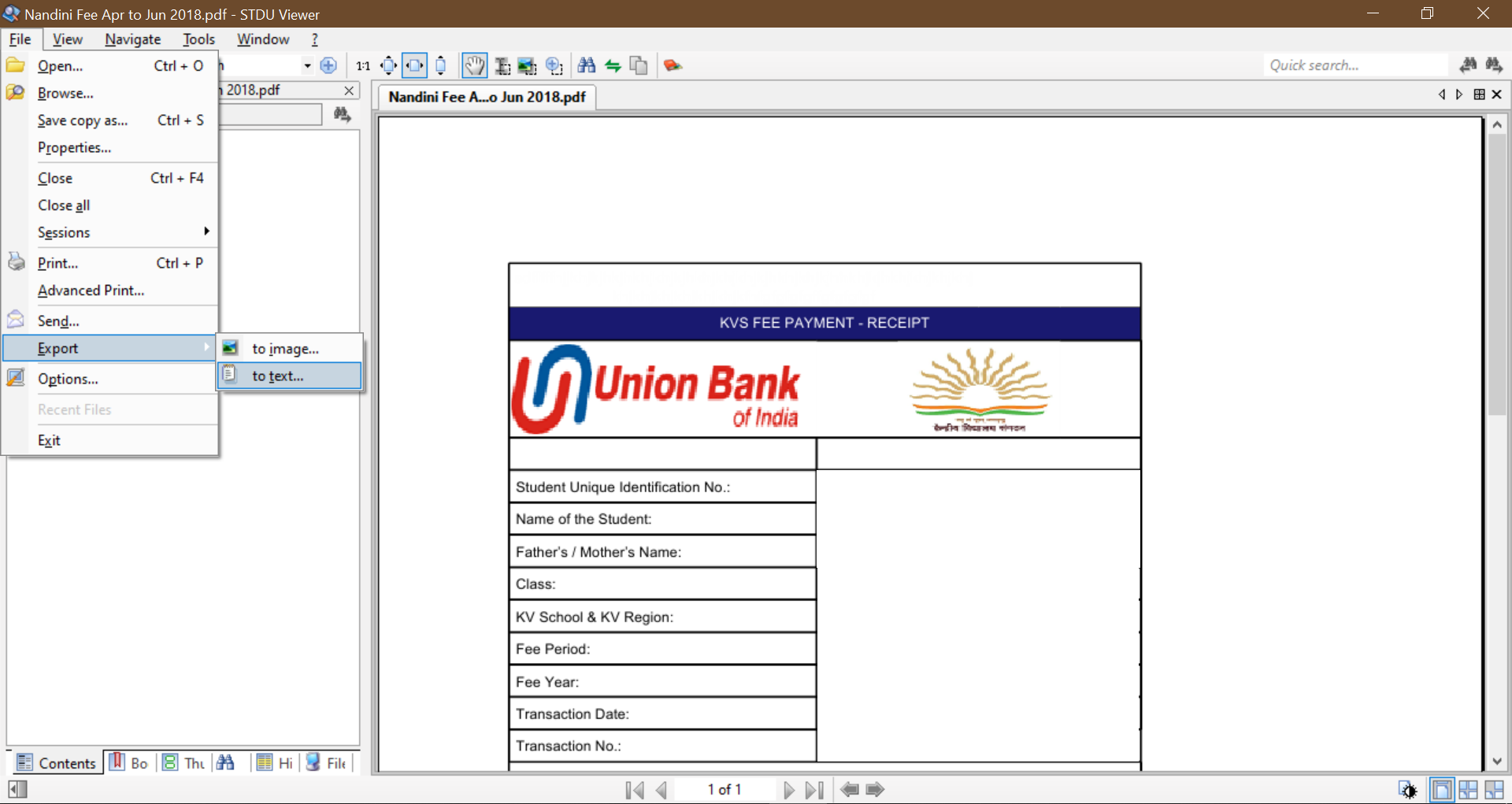
STDU Viewer is a free, lightweight tool that supports many formats, including PDF, TIFF, DjVu, and TXT. To extract text, open your PDF, go to File > Export > to Text, choose the save location, and click OK.
A-PDF Text Extractor
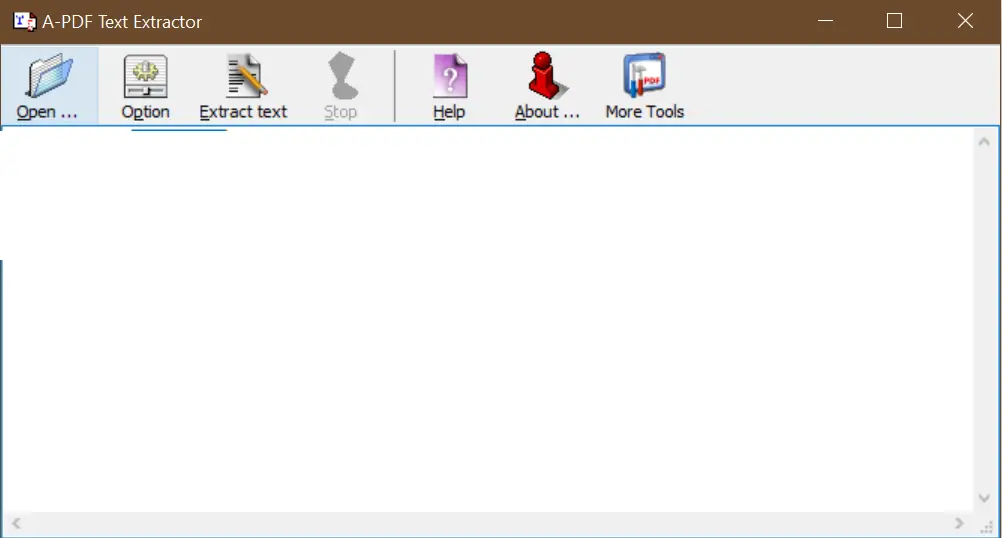
A-PDF Text Extractor is a simple yet powerful utility for converting PDF files to plain text. Open the PDF, click Extract text, and save the result. It’s fast, free, and available for personal and commercial use.
Gaaiho PDF Reader
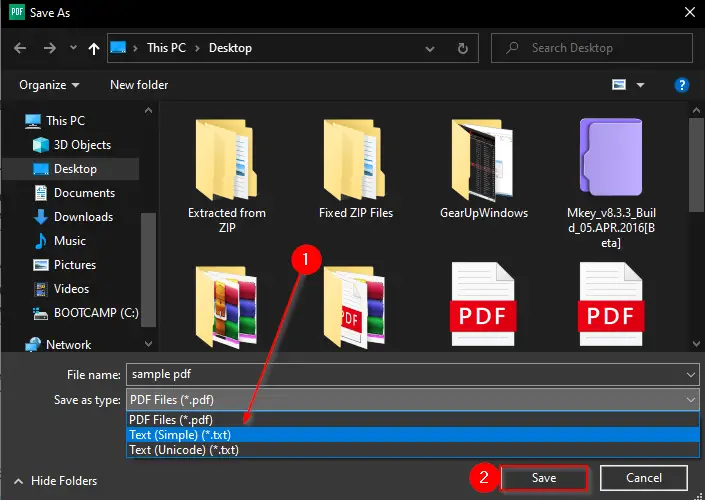
Gaaiho PDF Reader is a feature-packed PDF viewer for Windows. To extract text, open your PDF, go to File > Save as, choose PDF to Text, and save the file.
PDF Shaper Free
PDF Shaper Free is an all-in-one PDF toolkit that can extract text, split and merge PDFs, convert between formats, and add watermarks. Open your PDF, choose the “Extract Text” tool, and save the output in seconds.
Tips for Better Text Extraction
- If your PDF is scanned or image-based, always choose a tool with OCR capability for accurate text recognition.
- For large files, use offline tools to avoid slow uploads or file size limits.
- When extracting from complex PDFs with columns and tables, some formatting may be lost—double-check the output.
- For sensitive files, never upload them to online tools unless you trust the provider.
Frequently Asked Questions
Can I copy text from a password-protected PDF?
Only if you know the password or the file is not copy-protected. Some tools can bypass restrictions, but always ensure you have permission before doing so.
What’s the best free OCR tool for PDFs?
Online OCR and PDF2Go both offer free OCR capabilities for scanned PDFs. Offline, PDF Shaper Free also provides text recognition.
Will text extraction keep the original formatting?
Basic text extraction strips most formatting. To keep formatting intact, use tools that export to Word (.docx) instead of plain text.
Is it safe to use online PDF text extraction tools?
Reputable services delete files after processing, but for sensitive documents, offline tools are recommended.
Conclusion
Extracting text from PDF files on Windows 11 or 10 can be quick and hassle-free if you use the right tool. Online tools like ExtractPDF and Online OCR are great for occasional tasks, while offline software such as STDU Viewer, A-PDF Text Extractor, Gaaiho PDF Reader, and PDF Shaper Free are ideal for frequent use or when working with confidential files. Whether your goal is to convert a PDF into editable text, make a scanned file searchable, or simply copy a small section, these free tools have you covered.