

In earlier days, Windows PC manufacturers used to place a sticker on the computer or laptop displaying a 25-digit product or license key. This 25-digit code was used to activate your Windows installation. When installing a fresh copy of Windows after formatting, the same key was required to activate your PC via Microsoft’s servers.
Nowadays, if you purchase a PC with Windows 10 preinstalled, you might wonder how to find your product key. You won’t find a sticker on the machine, and the manufacturer no longer includes one in the box. Instead, Windows PC manufacturers have started embedding the product key in the BIOS, eliminating the need for a physical sticker. This makes reinstalling or upgrading Windows much easier, as the OS automatically retrieves the key from the BIOS—no need to enter it manually during installation.
Still, it’s a good idea to locate and store your product key safely. It can be useful if you need to transfer a Windows Home or Pro license to another machine, especially if the current PC’s motherboard fails.
Reasons may vary, and your situation may differ; in this post, we will guide you on how to recover the Windows 10 product key from the BIOS using the Command Prompt.
How to see your Windows 10 product key with the Command Prompt?
There are several tools available on the internet to find a Windows 10 product key from the BIOS. But, those who don’t prefer to use third-party software to retrieve the product key from BIOS/UEFI can use Command Prompt. It is the easiest way to find the product key or license through the Windows Command Prompt.
Step 1. Open the Command Prompt with elevated privileges.
To do this, press the Windows logo + R keys to open the Run dialog box. Type cmd in the Run box. Press Ctrl + Shift + Enter from the keyboard to open the Command Prompt as an administrator.
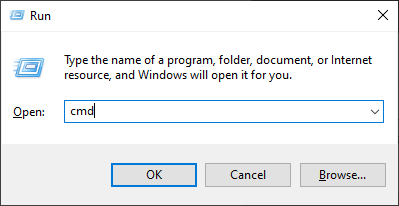
Step 2. In the elevated Command Prompt window, copy and paste the following lines:-
wmic path softwarelicensingservice get OA3xOriginalProductKey
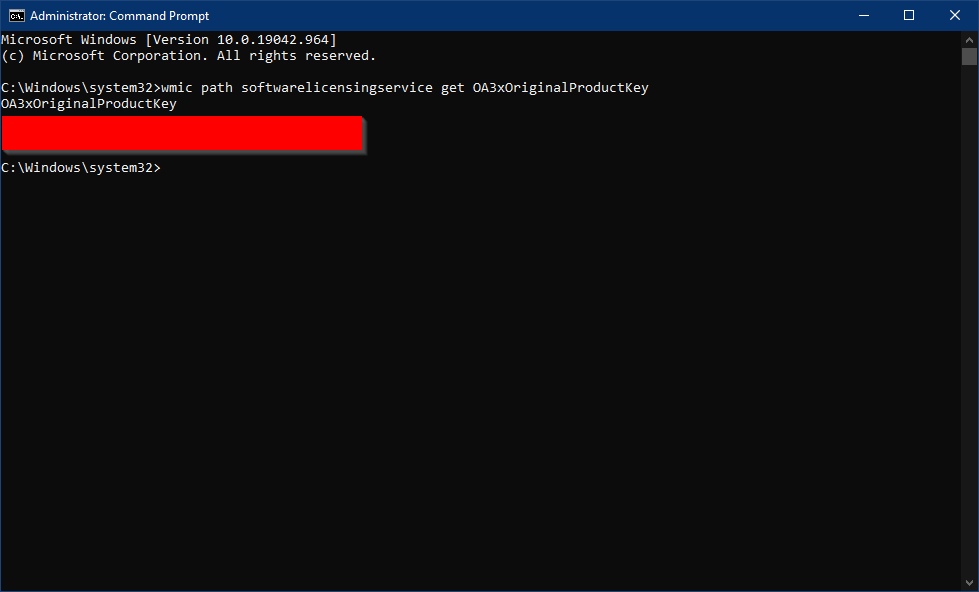
Alternatively, you can run the following command in the Command Prompt terminal to retrieve the product key from BIOS/UEFI:-
powershell "(Get-WmiObject -query ‘select * from SoftwareLicensingService’).OA3xOriginalProductKey"
Both of these commands attempt to read the Windows product key from the OA3 BIOS marker. That means the above commands will only show the Product key if it is embedded in BIOS and not if you built the machine yourself and installed/activated Windows.
If the product key isn’t saved to your BIOS/UEFI, the above commands will throw an error or return an empty string. In such a case, you can use a third-party tool to get the Windows 10 Product Key.