

There are times when a fresh start is the best option. Maybe your PC is running slowly, plagued with errors, or you just want to wipe it clean before handing it to someone else. In such cases, performing a factory reset in Windows 11 can bring your computer back to its original state.
A factory reset removes all your settings, preferences, and installed applications, restoring Windows 11 to the same condition it was in when you first bought the device. That means it’s like starting with a brand-new computer — but without leaving your home.
Before you reset, make sure you back up your important files. You can use a USB drive, cloud storage, or a tool like Ashampoo Backup Free to safeguard your data.
Steps to Reset Windows 11 to Factory Settings
Follow these steps to reset your Windows 11 PC:
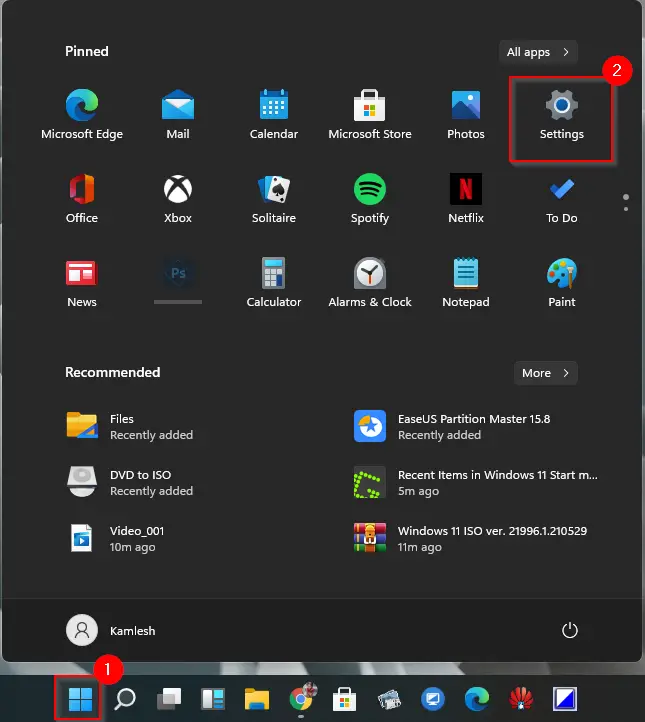
Step 1. Click on the Windows Start menu and select Settings.
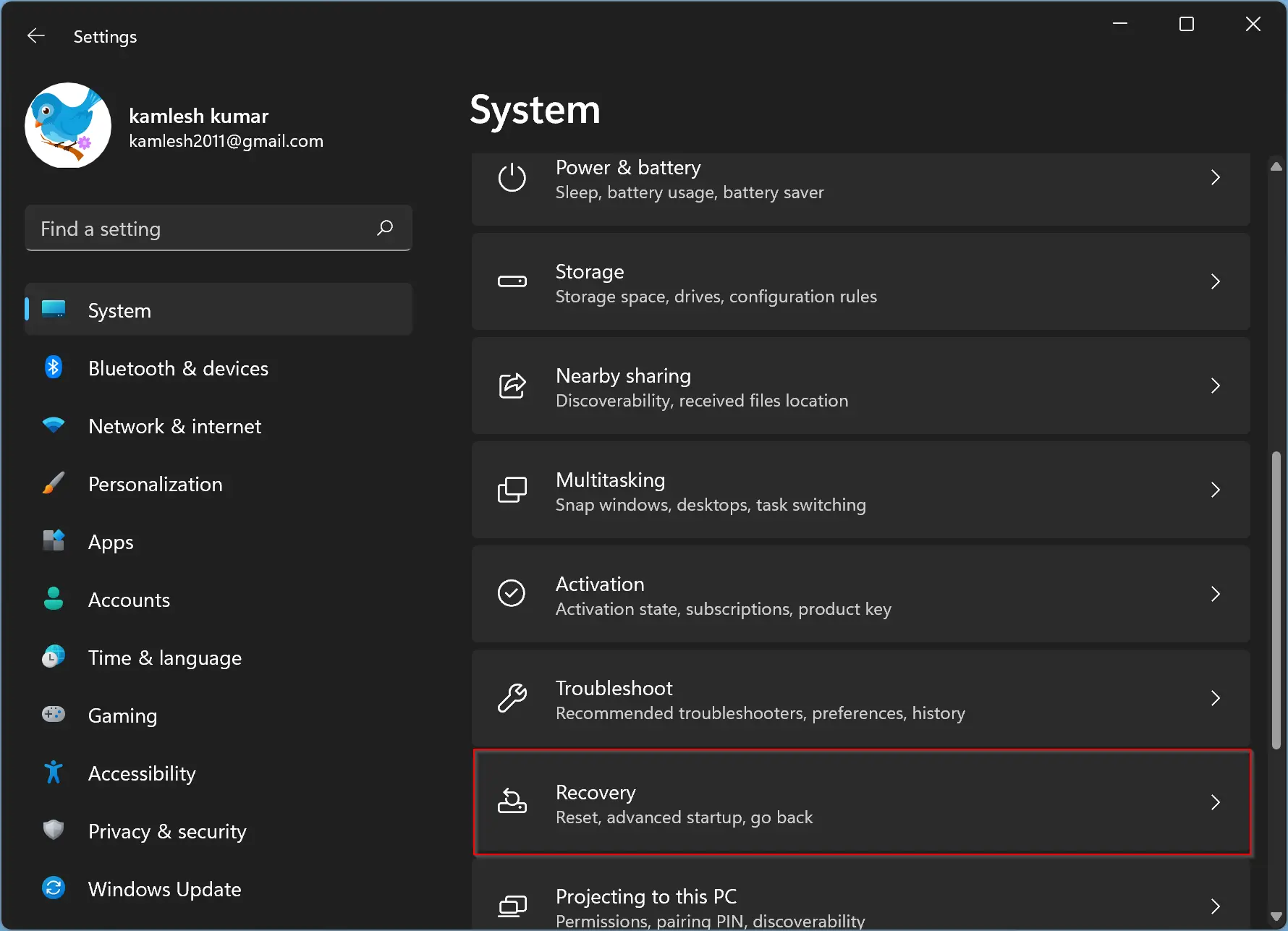
Step 2. In the Settings window, choose System.
Step 3. On the right side, click Recovery.
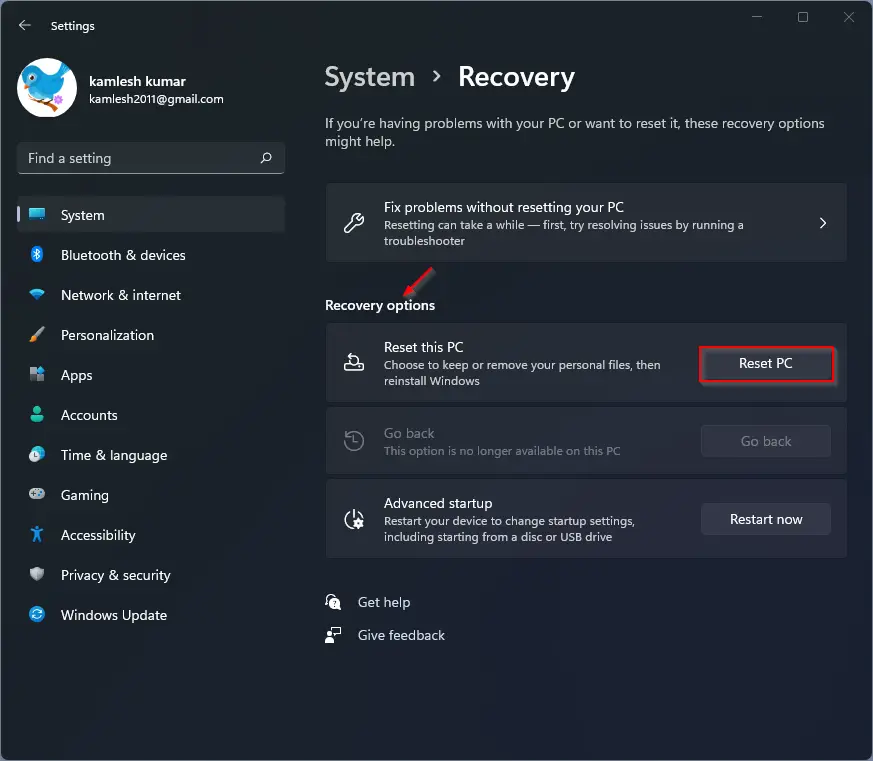
Step 4. Under Reset this PC, click on the Reset PC button.
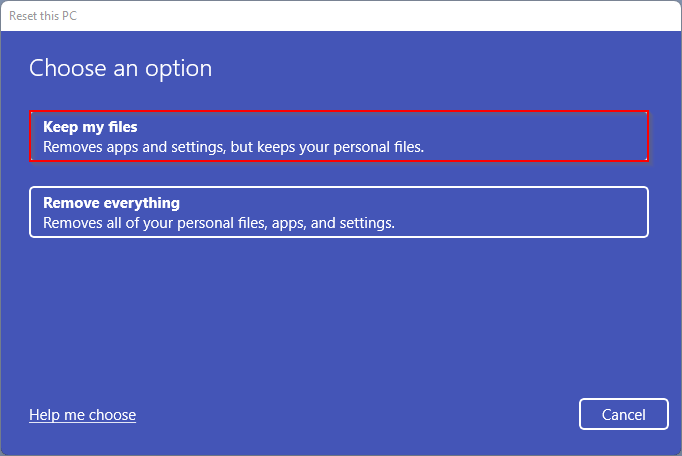
Step 5. Choose whether you want to keep your personal files or remove everything.
Step 6. Click Reset to begin the process.
Note: Resetting will erase your files and installed applications. Ensure you have your Windows 11 product key handy. If you can’t find it, tools like Magical Jelly Bean Keyfinder can help you retrieve it from your system.
Frequently Asked Questions About Resetting Windows 11
Will resetting Windows 11 delete my files?
If you choose the “Remove everything” option, all files will be deleted. If you choose “Keep my files,” your personal files remain, but apps and settings are removed.
How long does a factory reset take in Windows 11?
The reset process usually takes between 30 minutes to 2 hours, depending on your PC’s speed and storage size.
Can I undo a Windows 11 reset?
No, once a factory reset is complete, it cannot be undone. Always back up important data before starting.
Conclusion
Resetting your Windows 11 PC to factory settings is an effective way to fix performance issues, remove stubborn errors, or prepare your computer for resale. Just remember to back up your files and recover your product key beforehand. With the built-in options, the process is simple and doesn’t require any advanced skills.
For extra peace of mind, you can also create a recovery USB drive using a tool like Rufus, so you’re always ready to reinstall Windows if needed.