

If you’re a Mac user looking to run Windows 10, 8.1, or 7, Apple’s official Boot Camp Assistant makes it easy to install the operating system. However, resizing the Windows partition after installation can be tricky. Using Boot Camp to delete the Windows partition requires reinstalling Windows, which isn’t ideal if you have important data that can’t be moved to an external drive. Fortunately, there’s a way to resize your Boot Camp partition without erasing your Windows installation.
To do this, you’ll first need to free up some space on your macOS drive, then allocate that space to your Windows (Boot Camp) partition. In this guide, we’ll walk you through the steps to safely free up space on macOS and expand your Boot Camp partition—without losing any data. This allows you to optimize your system’s performance while keeping your files safe.
How to free up space on the Apple Mac partition?
To free up space on the Apple Mac partition, do the following:-
Step 1. Run the Launcher app on a Mac.
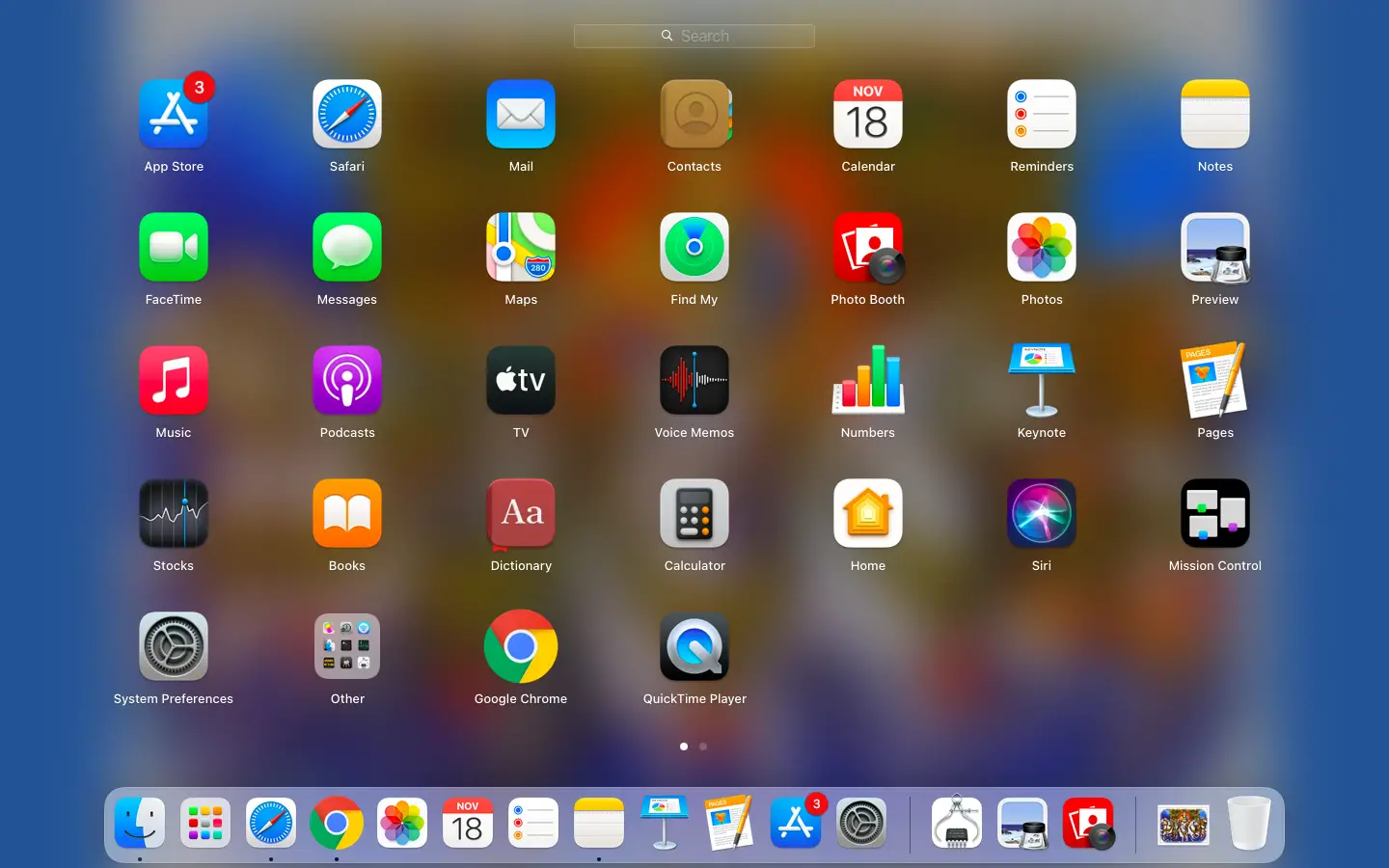
Step 2. In the search box, type Disk Utility.
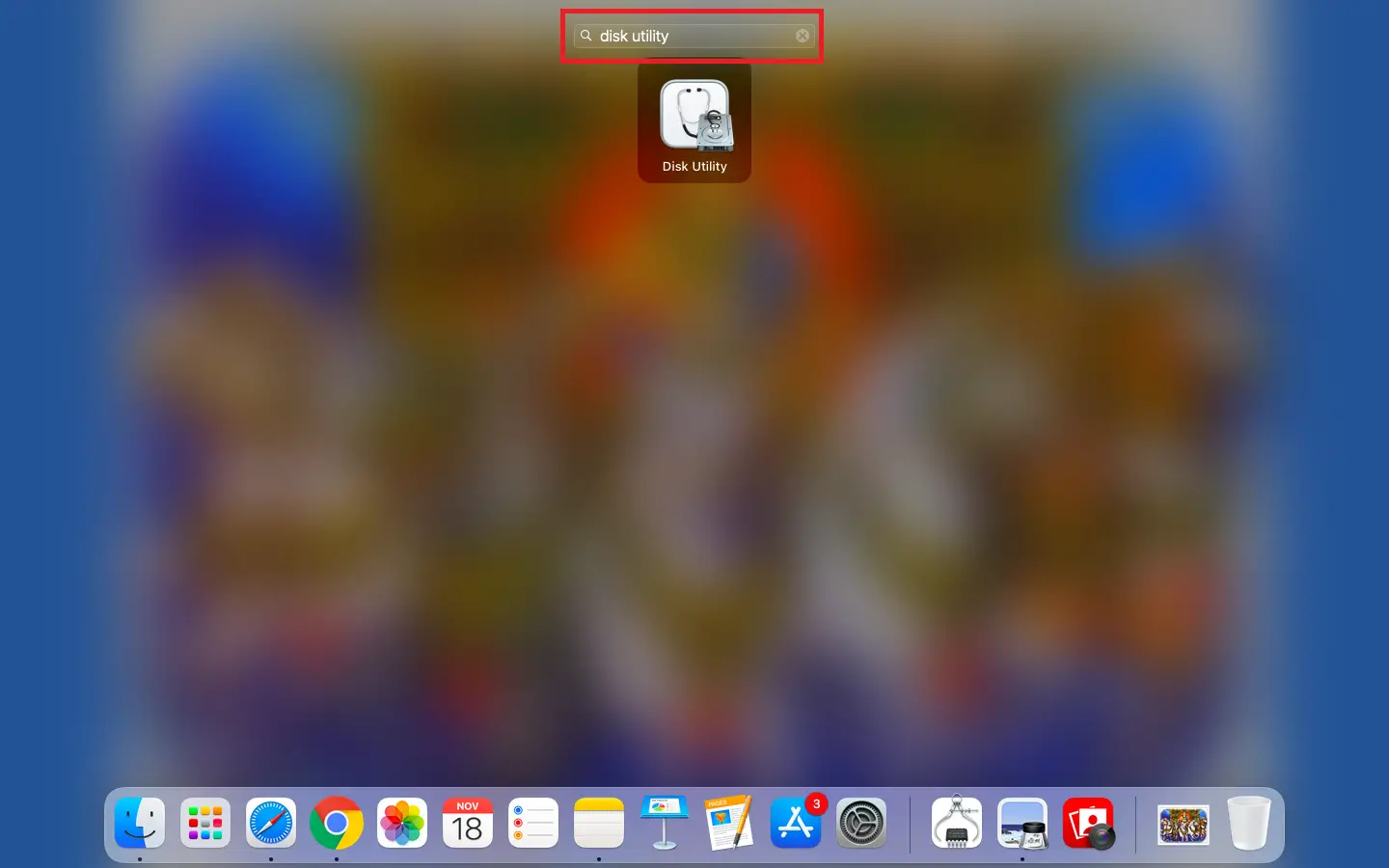 Step 3. From the available results, click on Disk Utility to launch the same. Select the Partition from the top menu.
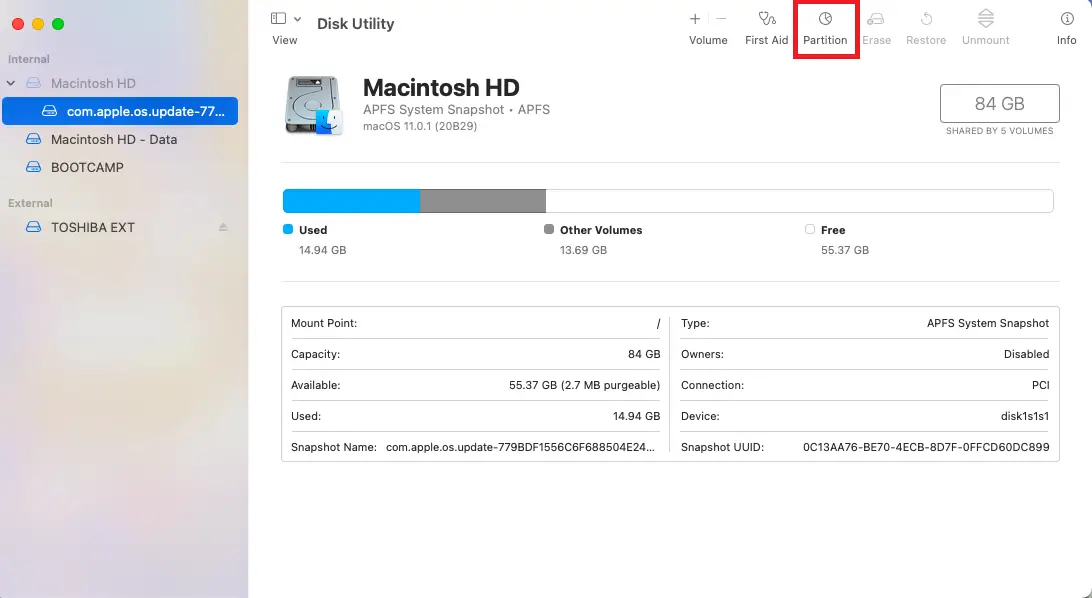 Step 4. Once Partition is clicked, it will show all partitions and sizes available on your Mac.
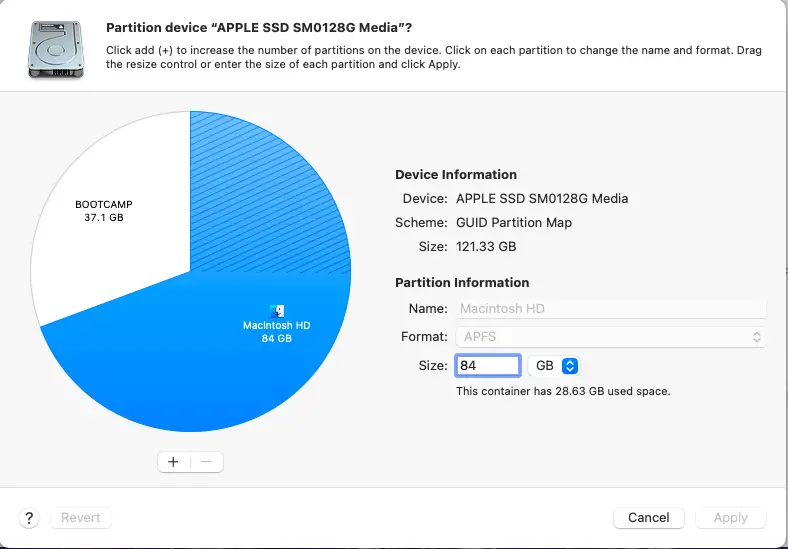 Step 5. Since we want to reduce the size of the Macintosh HD partition, which is currently 84GB, click on the Size text box and write a new size (64GB in my example).
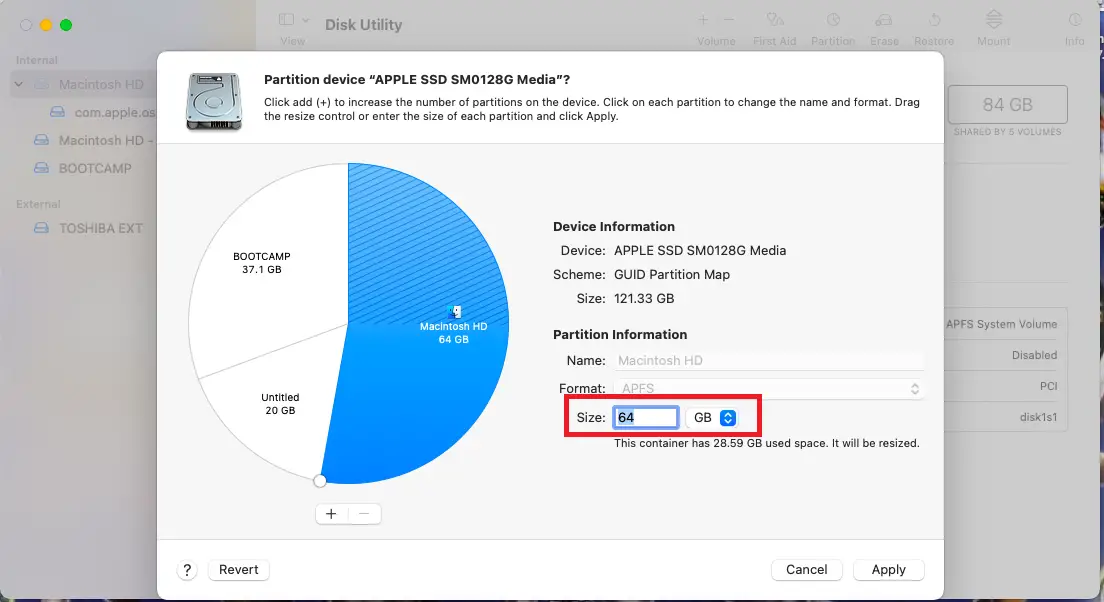 Step 6. Once a new size is specified for your Macintosh HD partition, hit Enter on the keyboard or click the Apply button.
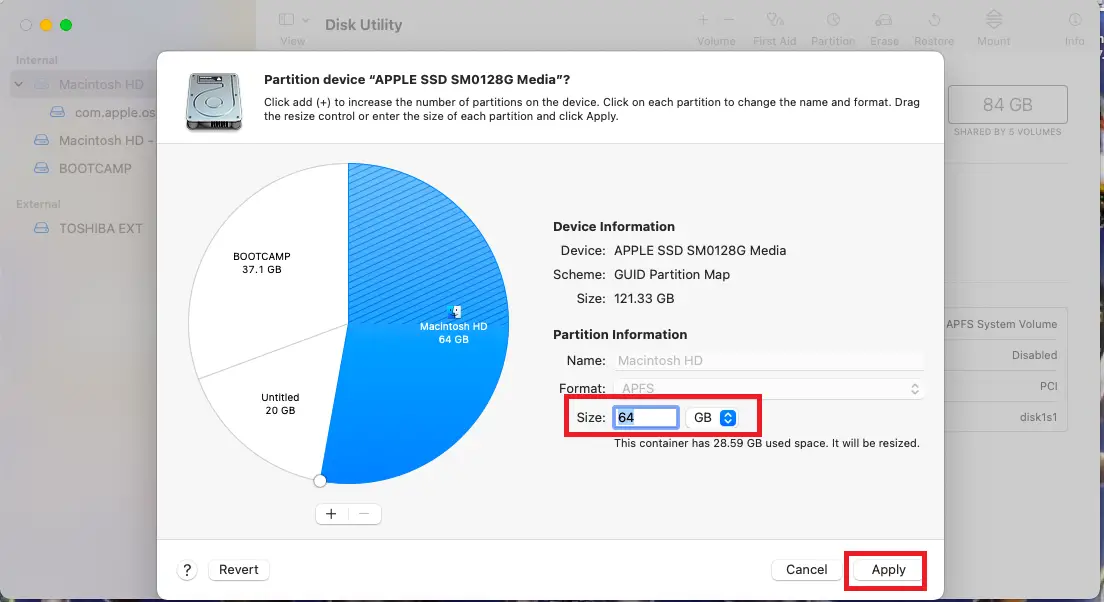 Step 7. Click on the Partition button on the new window when it opens automatically.
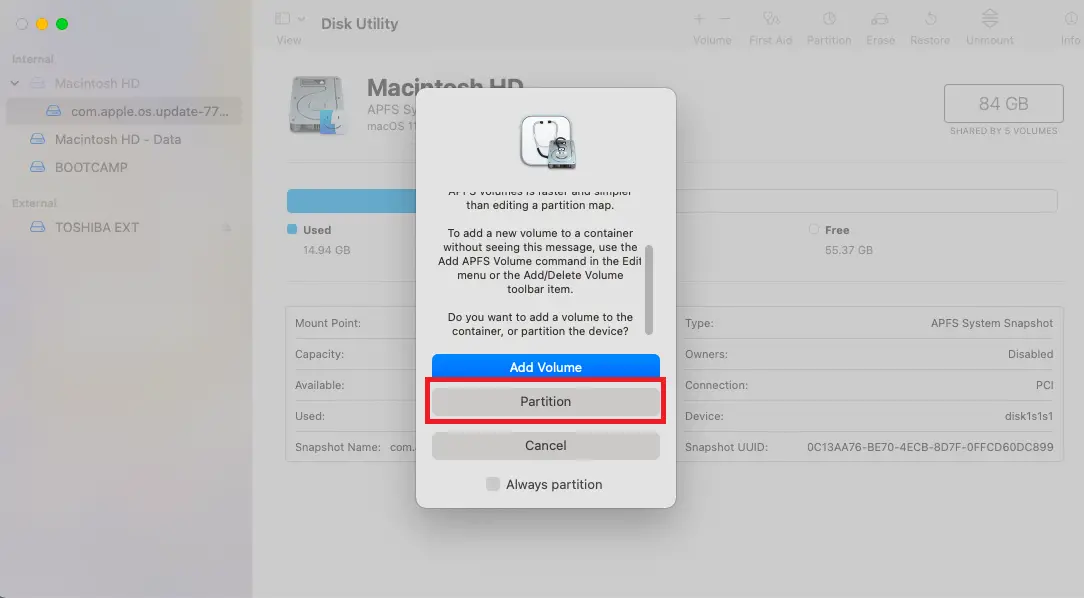 Step 8. Click on the Partition button again.
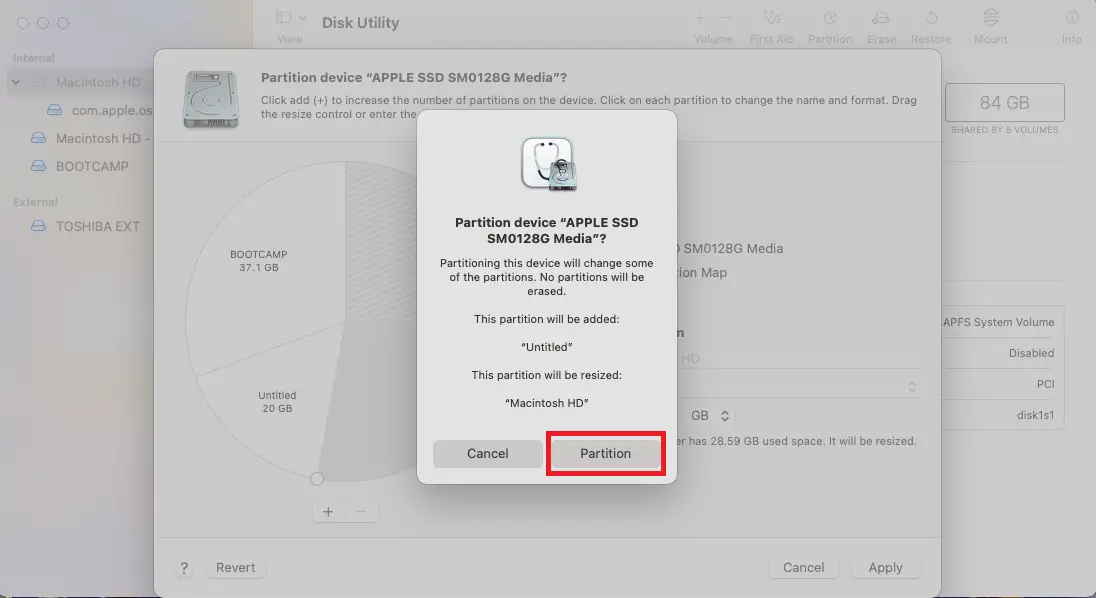 Step 9. Click the Continue button.
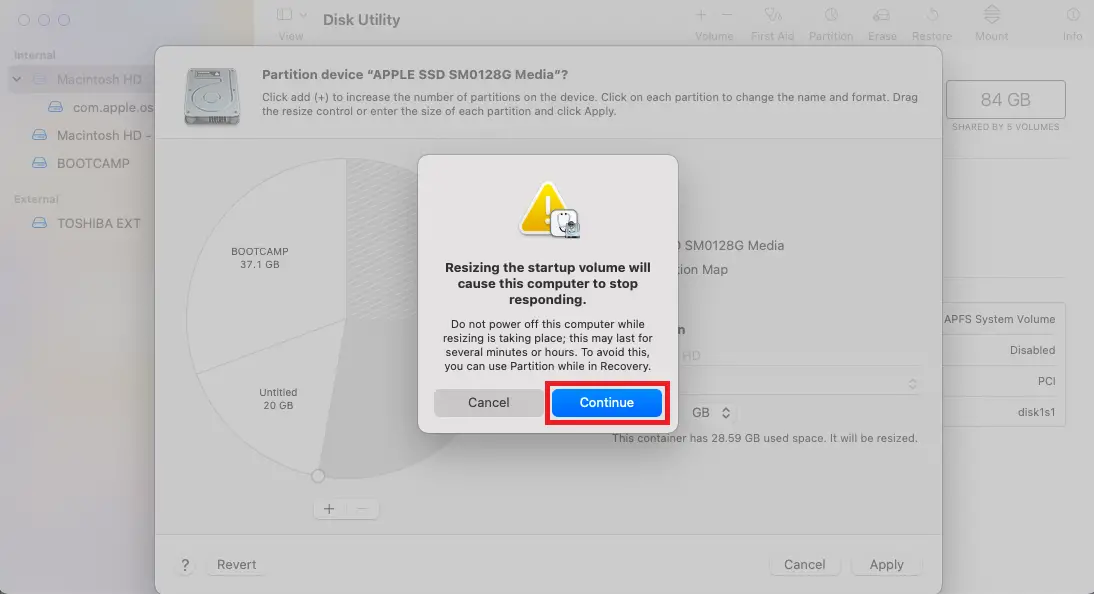 Step 10. Now, you will notice that Mac has started resizing the partition.
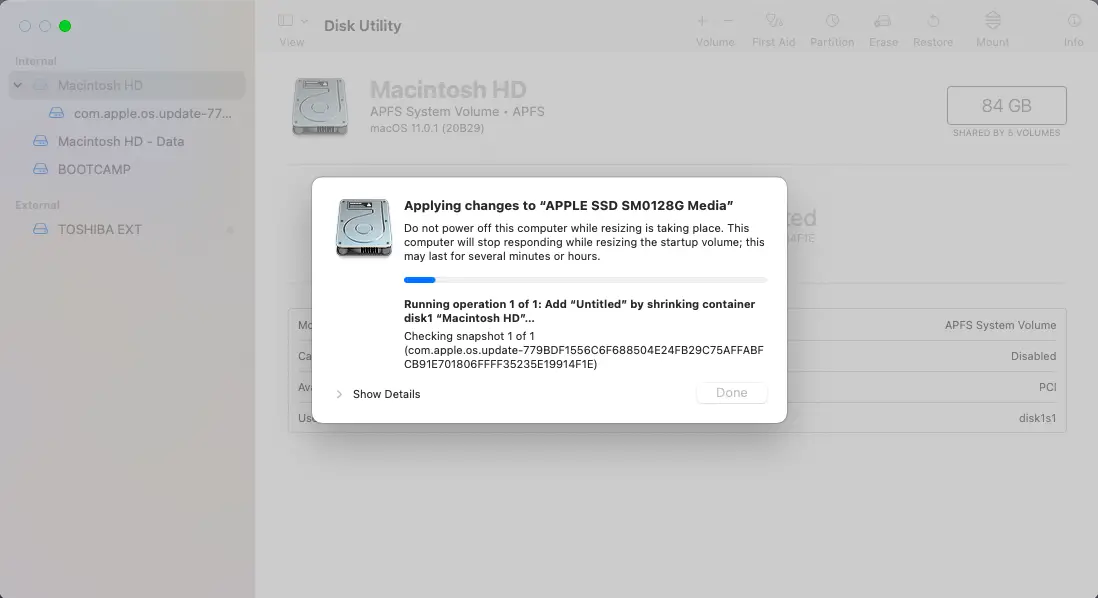 Step 11. Click on the Done button once resizing is completed (it may take more than 10 minutes, depending on the data stored on your Mac).
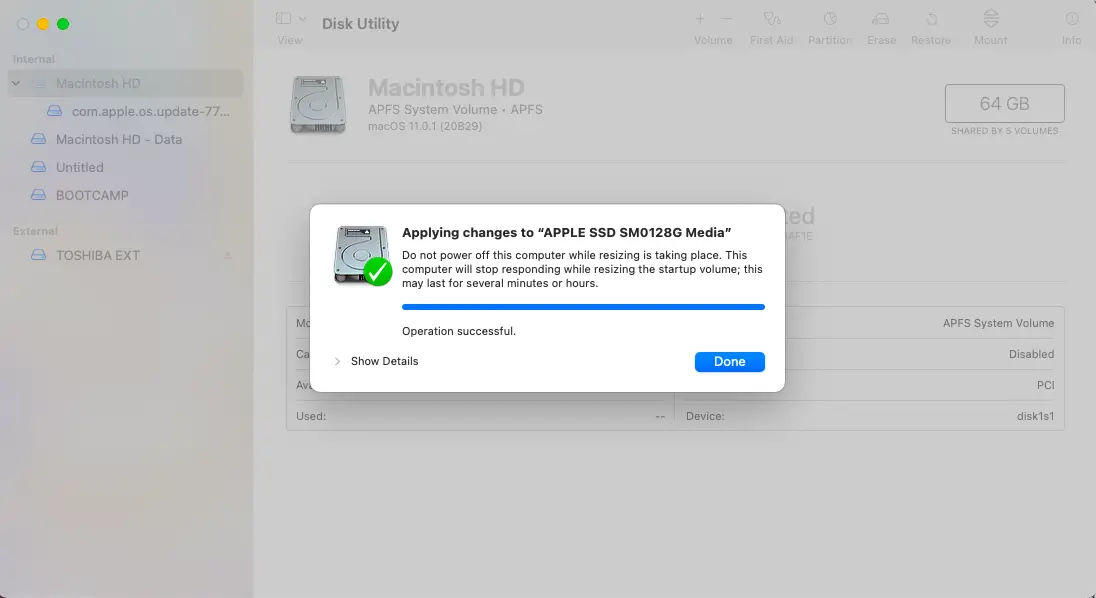 Step 12. Now resizing has been completed, and you will see the new size of the Mac partition.
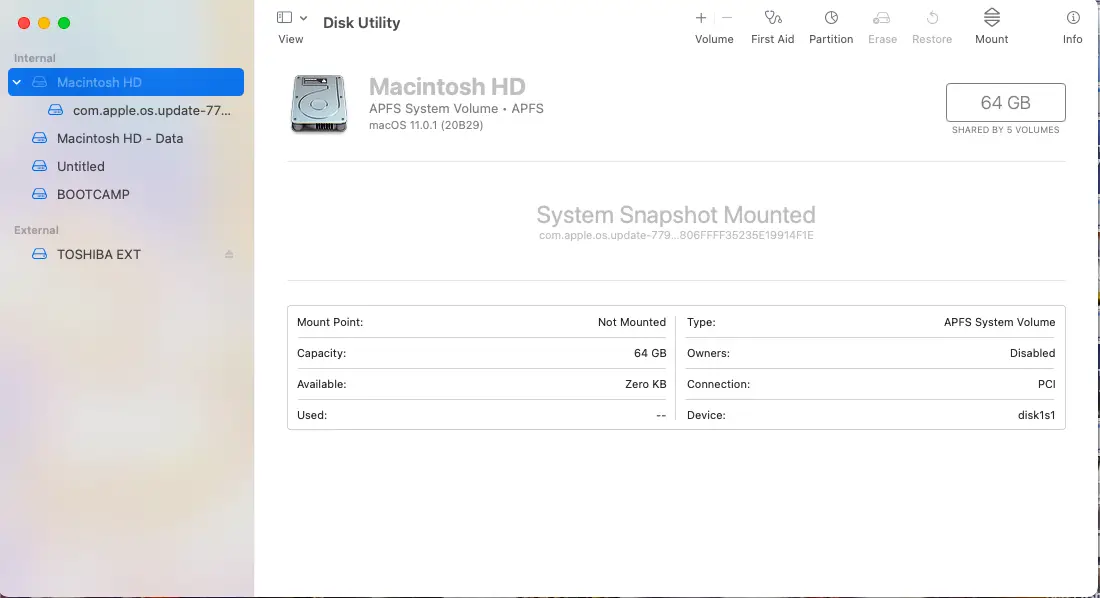 Step 13. You can also find unallocated space by clicking on the Untitled option on the left side.
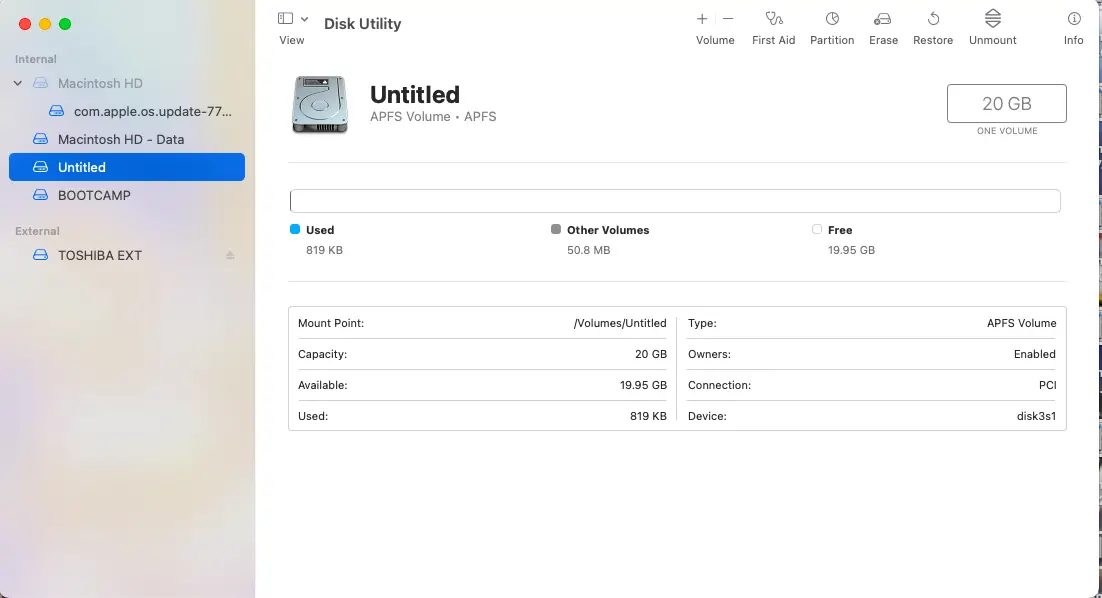 Now, on Macintosh HD, we have made 20GB of free space, and we want to merge it into the Windows 10 partition (Boot Camp).
How to add unallocated space on the Bootcamp Partition without deleting Windows?
Step 1. Boot from Windows OS partition (To boot into Windows partition, restart your Mac and hold the alt (option) key from the keyboard till you see the boot OS disk selection). From the right arrow key, select the Windows partition and press Enter on the keyboard to boot into Windows.
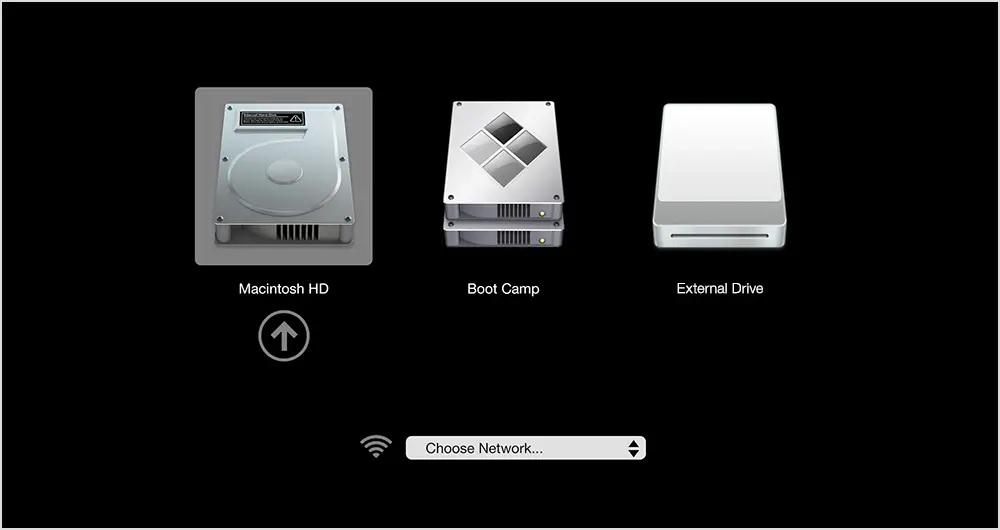
Step 2. Once you have logged into Windows OS, right-click on My Computer / This PC from the Desktop icon and select Manage to open Computer Management.
Step 3. On the Computer Management window, click on Disk Management from the left side options.
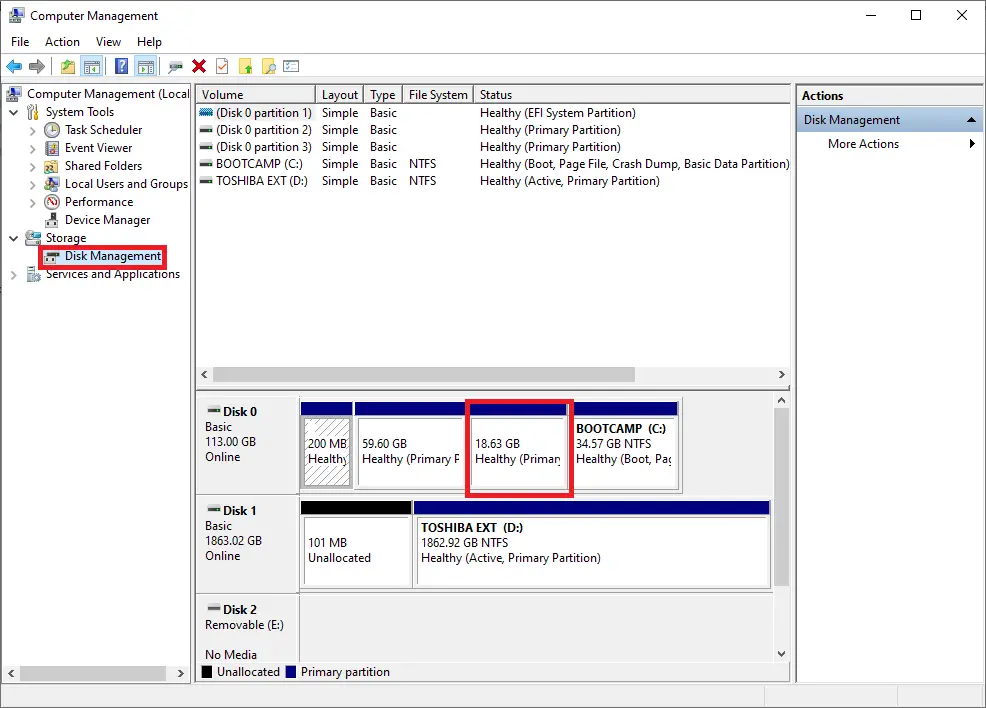 Step 4. You can see the free space as a healthy partition.
Step 5. Right-click and select the Delete Volume option to free up space again.
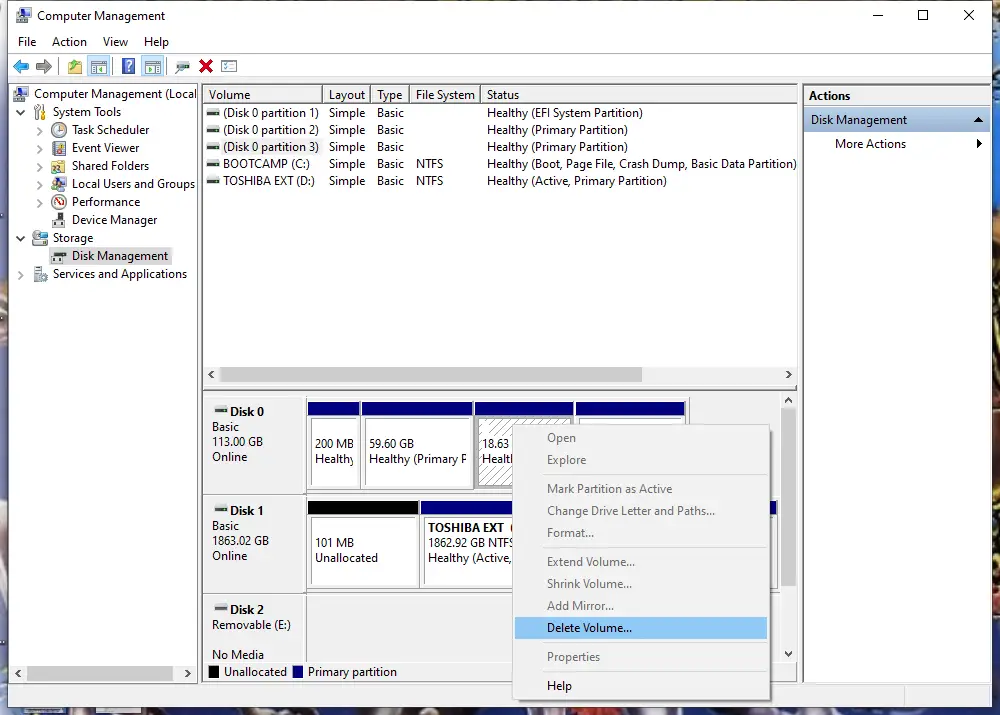 Now you will see Unallocated space.
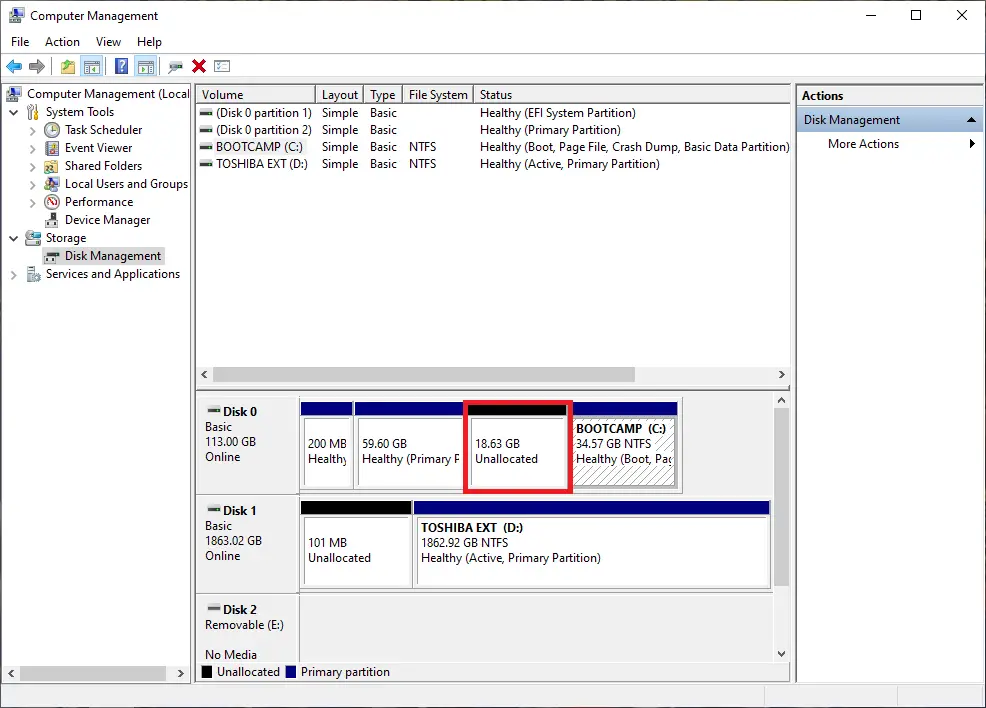 Step 6. Once free space is deleted, download and install the MiniTool Partition Wizard, a free software.
Step 7. Launch the MiniTool Partition Wizard tool.
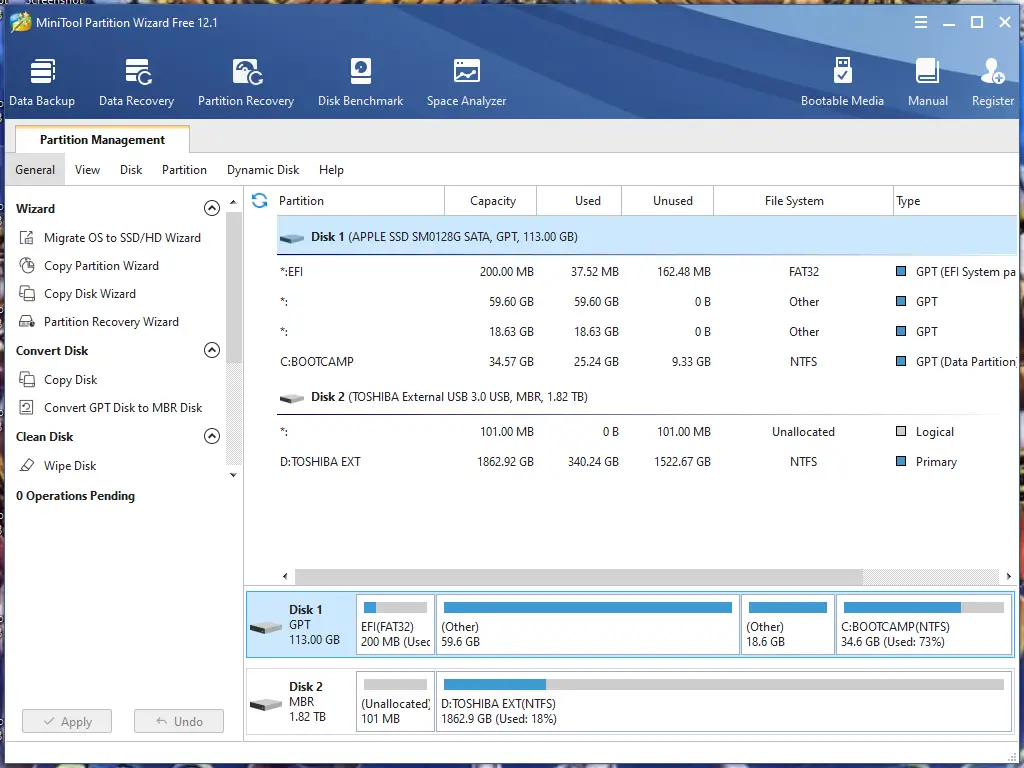 Step 8. Right-click on the BOOTCAMP partition and select the Extend option.
Step 9. Select the Unallocated partition/space.
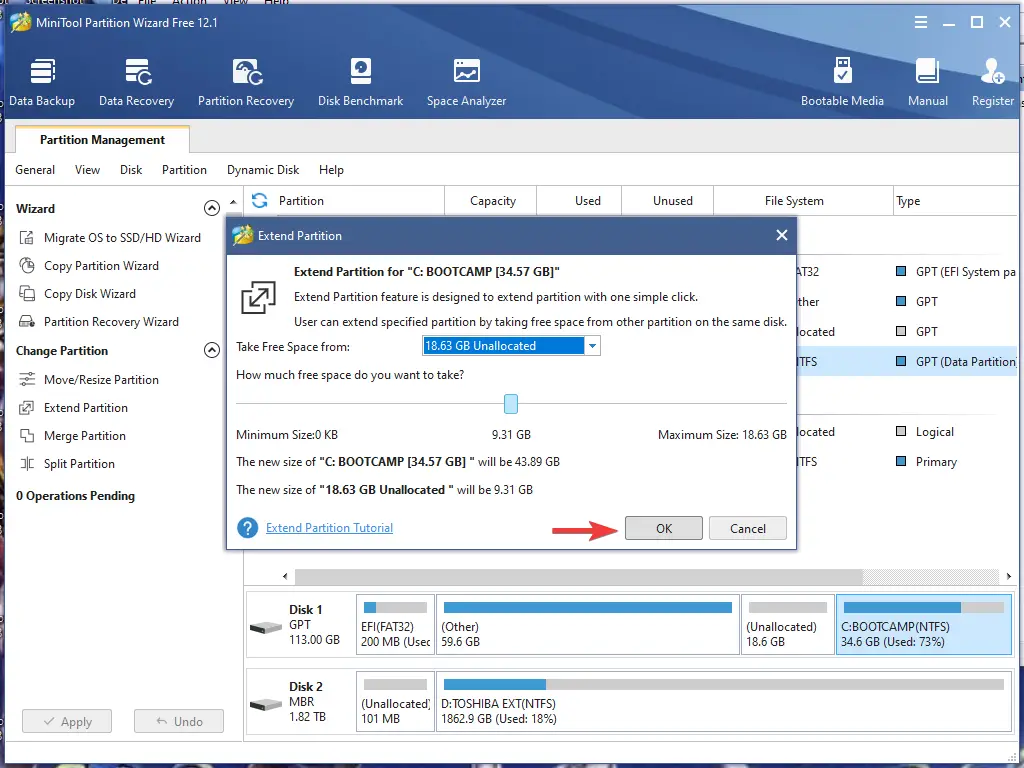 Step 10. Click the OK button.
Step 11. It will show a warning message; click the Yes button to proceed.
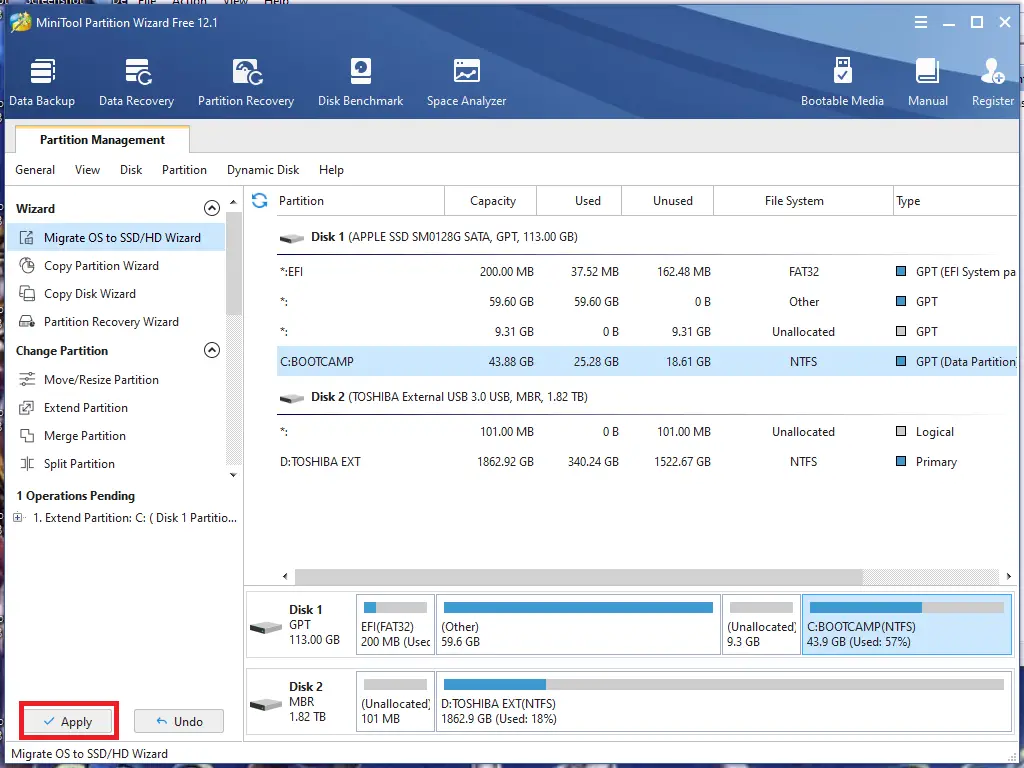
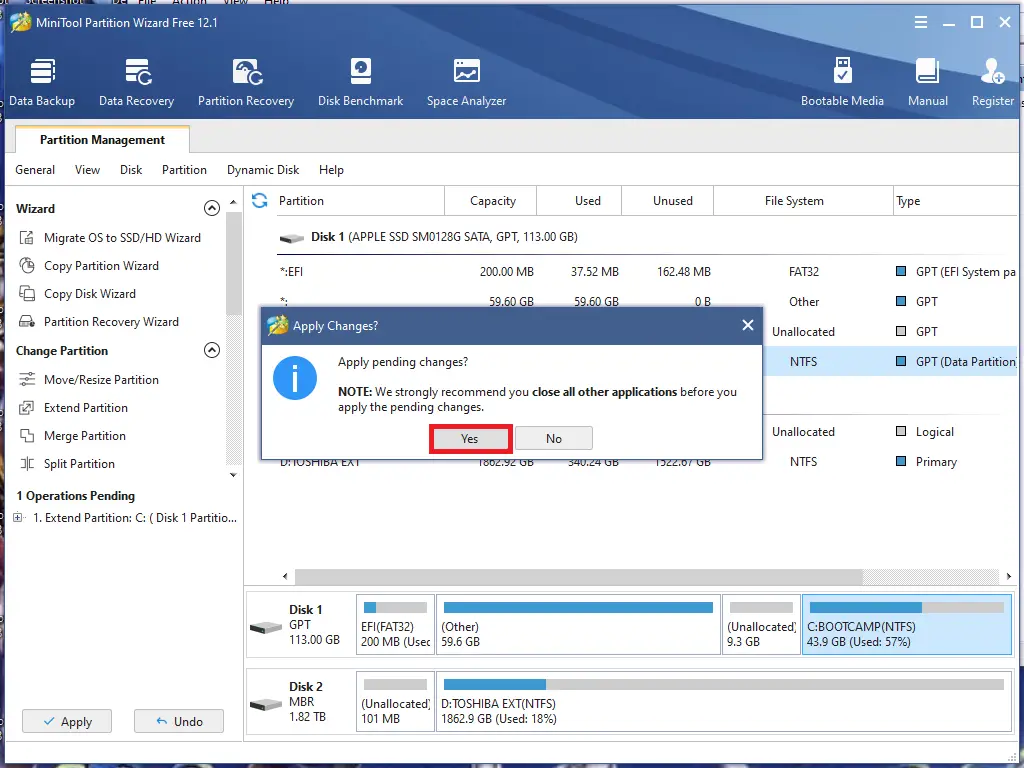 Step 12. Click on the Apply button.
 Step 13. Click on the Restart Now button.
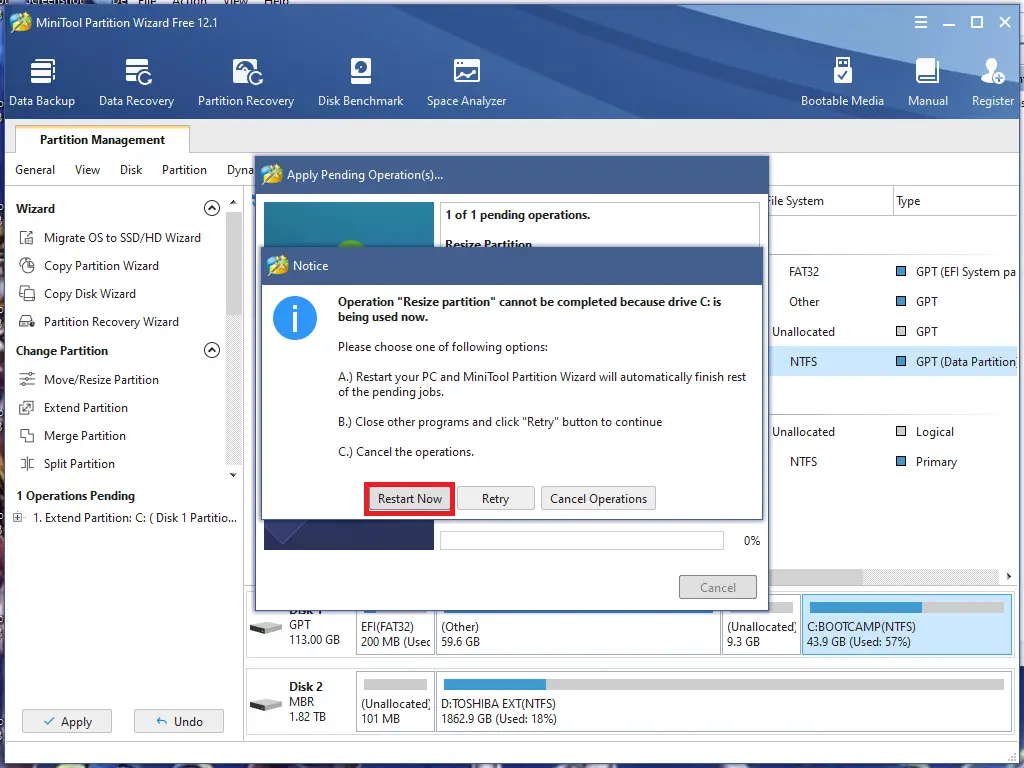 Now, Windows OS will restart to increase the size of the BOOTCAMP partition.
FAQs
Can I resize my Boot Camp partition without deleting Windows?
Yes. By freeing space on the macOS partition first and then extending the Boot Camp partition using a tool like MiniTool Partition Wizard, you can resize it without losing data.
Is it safe to shrink the macOS partition?
Yes, as long as you have enough free space and your disk is healthy. macOS Disk Utility handles the resizing safely in most cases.
Will resizing partitions erase my files?
No, shrinking macOS and expanding Boot Camp does not erase data when done correctly. However, a backup is always recommended.
Why can’t I resize the Boot Camp partition directly in Disk Utility?
Disk Utility cannot modify or extend NTFS (Windows) partitions. External tools like MiniTool Partition Wizard are required.
Do I need to boot into Windows to extend the Boot Camp partition?
Yes. Extending the Boot Camp (NTFS) partition requires Windows tools, so you must boot into Windows to perform the extension.
Will my Windows installation remain intact after resizing?
Yes. Resizing only adjusts partition boundaries. Your Windows files, programs, and settings remain untouched.
What if I don’t see unallocated space after shrinking macOS?
You must delete the newly created macOS volume (healthy partition) in Windows Disk Management to convert it into unallocated space.
Is MiniTool Partition Wizard free?
Yes. The free version supports resizing and extending partitions, which is enough for Boot Camp expansion.
Can I extend Boot Camp using macOS tools only?
No. macOS Disk Utility cannot extend NTFS partitions. Third-party Windows tools are required.
Does this method work on Intel and Apple Silicon Macs?
Boot Camp is only supported on Intel-based Macs. Apple Silicon (M1/M2/M3) does not support Boot Camp.
Conclusion
In conclusion, resizing a Boot Camp partition on a Mac machine can be challenging, especially when you have important data that cannot be moved to an external drive. However, with the steps provided in this guide, you can free up space on your Mac partition and safely resize your Boot Camp partition without losing any data. By using the Apple Disk Utility and MiniTool Partition Wizard, you can optimize your system’s performance and ensure that your data remains intact. With these tools and instructions, Mac users can run Windows 10, 8.1, or 7 on their machines without any hassle.
fwiw this worked perfectly for me, in case anyone is googling around for a solution
Thanks. This actually worked!
Worked perfect in my McBook Air at the first run. Excellent tutorial. Much Thanks.
You are welcome.
hi, great post and topic! however, my situation is different and i’m afraid to try things willy nilly…
i have a macbook pro 2012 i think and it was almost impossible to get windows on it, the normal bootcamp way didn’t work, i had to really massage it on. i finally did and both the mac and windows sides work fine. however, it turns out i allocated too much disk space to the windows side! so now what i want to do is shrink the windows allocation and increase the mac OS. i want to just move some of the free space back to mac, but i don’t want any new partitions.
is this possible? how can i do it?
thanks!
Dear Mike,
You can use a partition manager to resize the existing partition, such as MiniTool Partition Wizard.
I did this and windows is larger and working but when i boot back into Osx the bootcamp partition is no longer shown on desktop just says unmounted in disk utility. Any way to fox this