

Microsoft Edge can keep your browsing data — bookmarks, passwords, history, and more — synced across devices using your Microsoft account. If you prefer to keep that data only on this PC, switching off sync is a fast and safe option. Below, you’ll find clear, beginner-friendly steps to turn off sync completely or selectively, along with additional privacy tips and key considerations.
What is Sync in Microsoft Edge?
Sync copies browser data like Favorites, Passwords, History, Extensions, and Settings to your Microsoft account so the same info appears on other signed-in devices. Turning sync off prevents data from being uploaded to the cloud — but it does not automatically delete data stored in your Microsoft account unless you sign out and clear it there.
How to Turn Off Sync in Microsoft Edge (Step-by-step)
Follow these steps on a Windows desktop (Edge stable):
Step 1. Open Microsoft Edge.
Step 2. Click the profile icon at the top-right (it shows your picture or initials).
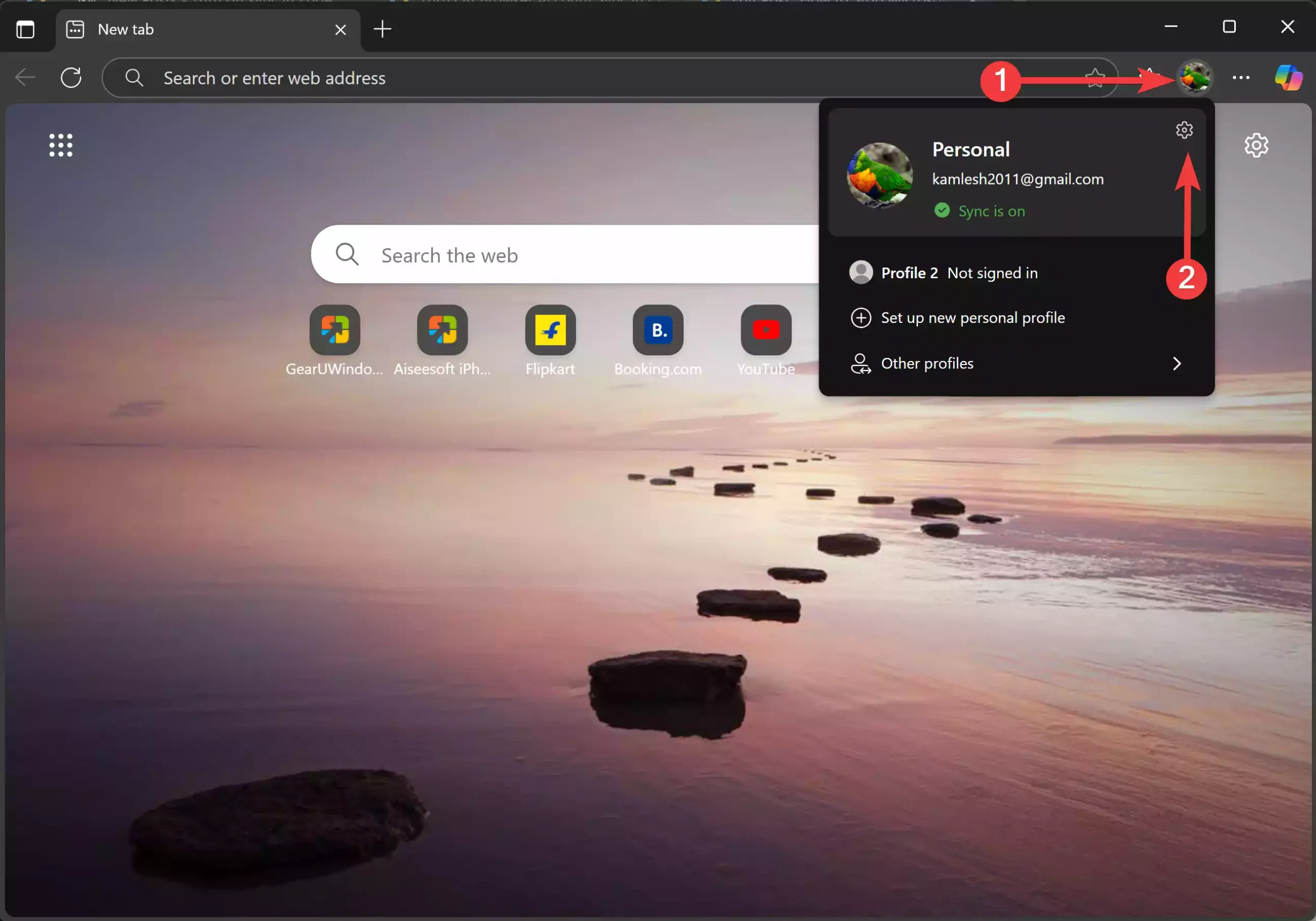
Step 3. Click Manage profile settings from the profile menu. Alternatively, open the main menu (three dots) → Settings → Profiles → Sync.
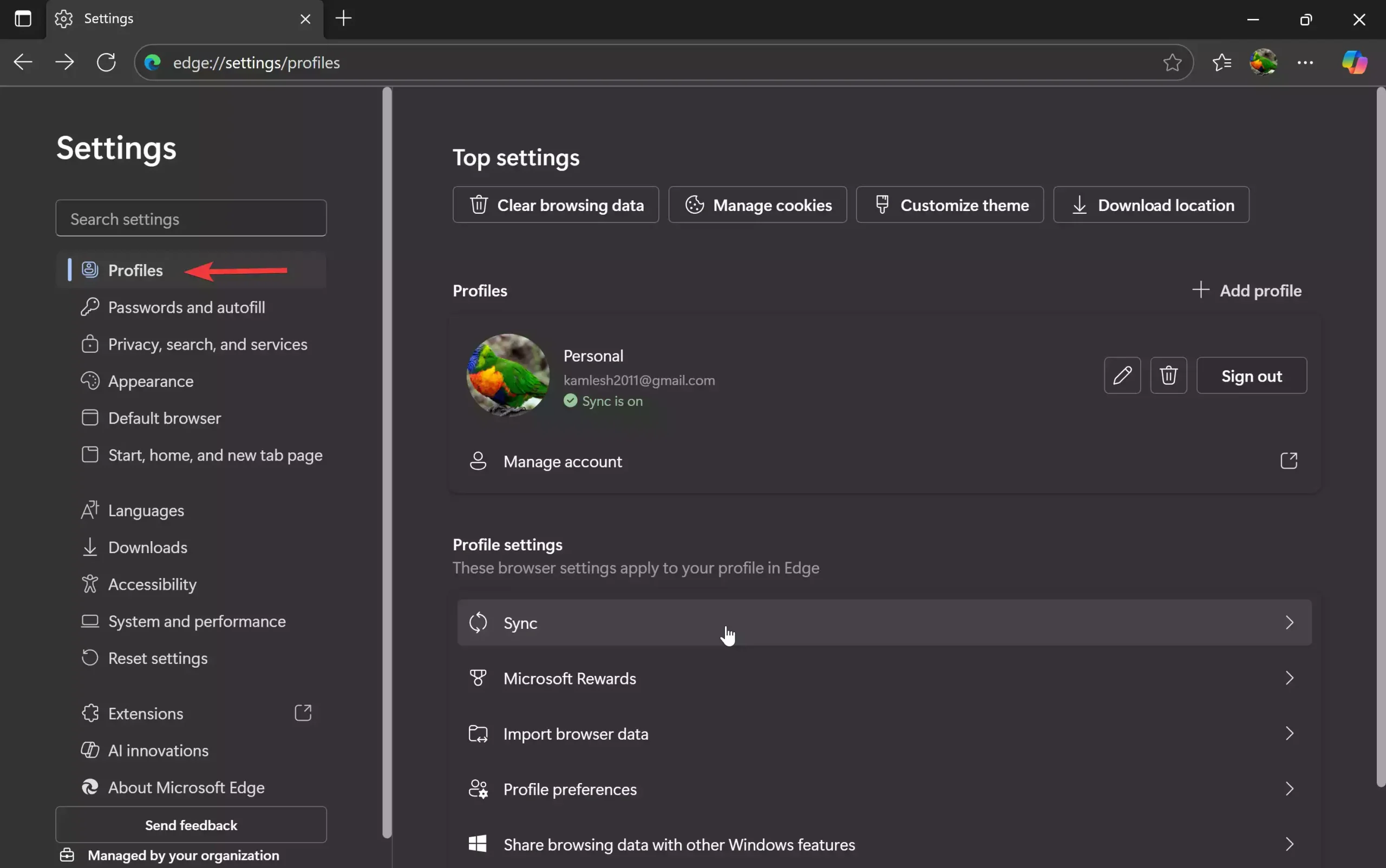
Step 4. Click Sync under Profile settings on the right sidebar of Profile.
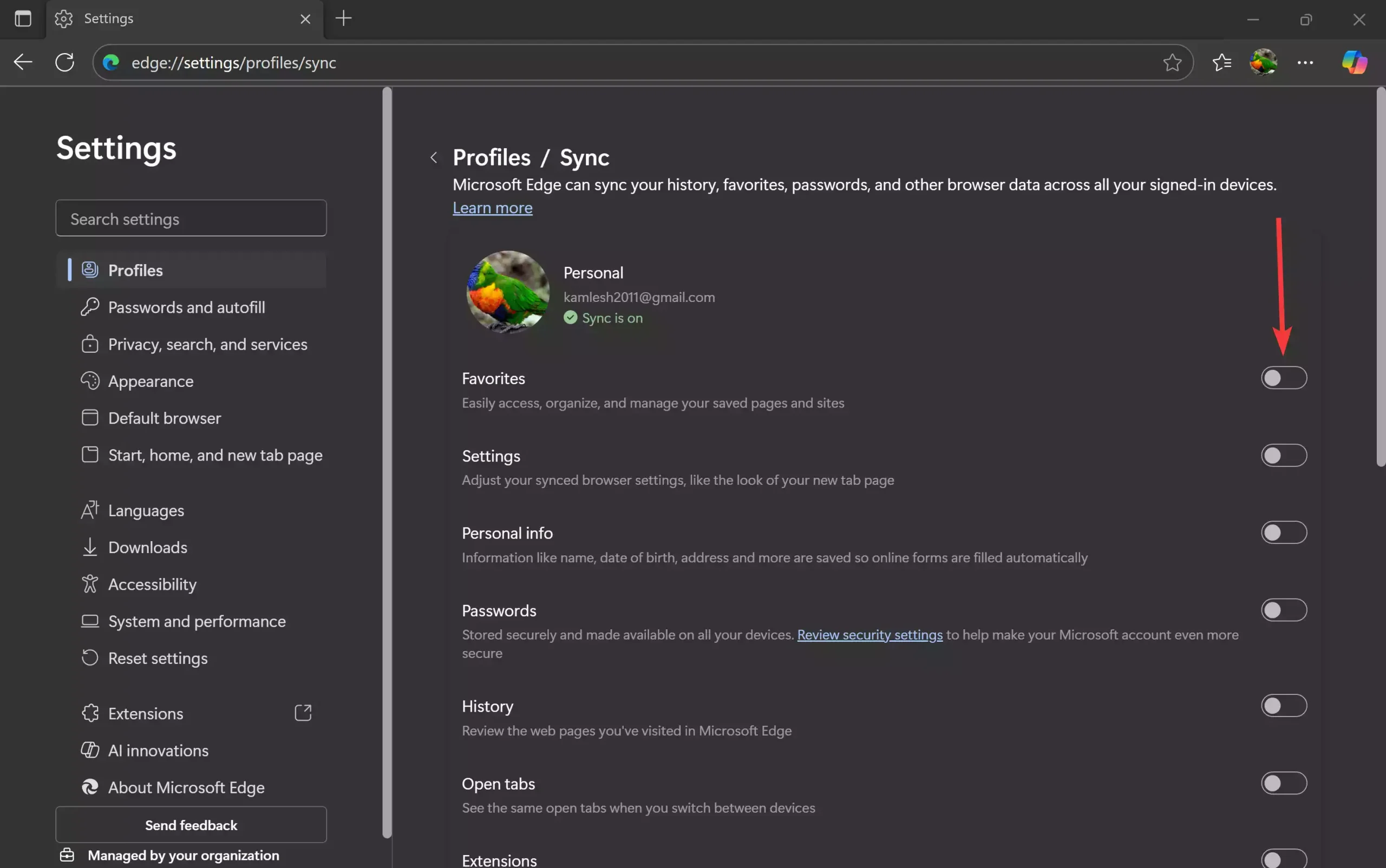
Step 5. Since there is no single toggle switch to turn Sync off at once, toggle off all the switches you see on the Sync settings. If you want to stop only specific items (for example, stop passwords but keep favorites), toggle off the individual categories, such as Favorites, Passwords, Addresses, and History, under the Sync section.
If you want to sign out completely
To stop Edge from using your Microsoft account entirely, go to Settings → Profiles and click Sign out. Signing out removes the active link between this browser and your Microsoft account; synced cloud changes will no longer apply.
Key Settings to Review After Turning Off Sync
After you disable sync, check these settings to keep your local browser private:
- Clear browsing data or set automatic deletion. For help with automatic removal on exit, see this guide on deleting Edge history on exit: How to automatically delete Microsoft Edge browsing history on exit.
- Extensions — remove or disable privacy-risky extensions. See: How to add, remove, or disable extensions in Microsoft Edge.
- Use InPrivate mode for sessions where you don’t want data saved: How to open InPrivate browsing in Microsoft Edge.
- Keep Edge updated — sync behavior can change across versions. Update instructions: How to manually update the Microsoft Edge browser.
When Turning Off Sync Helps
Turning off sync is useful when you:
- Use a shared or public computer and don’t want your bookmarks or passwords uploaded.
- Prefer to keep passwords and autofill data stored locally only.
- Are troubleshooting profile or sync-related issues and want a clean local session.
Why Would a Beginner Use This Guide
Many beginners worry about privacy and accidental data leaks. Disabling sync is a simple, low-risk step to keep browsing items on just one device. The process uses only Edge’s built-in settings and doesn’t require extra tools.
Supported Data Types (What Sync Covers)
Edge sync can include Favorites (bookmarks), Passwords, History, Open tabs, Extensions, Settings, and autofill data like addresses and payment info. When you turn off sync, you can choose to stop all or select categories.
How to Get Microsoft Edge / System Requirements
Edge comes preinstalled on Windows 10 and 11. If you need to update Edge for the latest controls, follow the manual update guide: How to manually update the Microsoft Edge browser.
Related: Reset, Cleanup, and Troubleshooting
If sync issues persist after turning it off, consider resetting Edge to defaults — this can fix stuck settings without affecting cloud accounts if you’ve already disabled sync. See: How to reset Microsoft Edge to default settings.
Pros / Considerations
Pros
- Keeps bookmarks, passwords, and history local to this device.
- Reduces risk of accidental data exposure across devices.
- Simple to reverse — you can re-enable sync anytime.
Considerations
- Disabling sync means changes (new favorites, saved passwords) won’t appear on other devices.
- Turning off sync does not delete data already stored in your Microsoft account — sign in to your Microsoft account online to remove cloud copies if needed.
- If you sign out, some local profile data may still remain on the PC; clear browsing data where required.
FAQs
Q. Will turning off sync delete my bookmarks?
A. No — turning off sync stops future syncing. Bookmarks already downloaded to this device remain unless you remove them. Cloud copies remain in your Microsoft account until you clear them there.
Q. How do I remove passwords stored in the cloud?
A. To remove passwords from Microsoft’s cloud storage, sign in to your Microsoft account online and manage privacy or password sync settings. On the browser, you can also clear saved passwords from Settings → Passwords and autofill → Passwords.
Q. I turned off sync but my profile still shows my email. What now?
A. If the profile is signed in, Edge still links to your account. To fully disconnect, go to Settings → Profiles and click Sign out. After signing out, the browser will no longer push/pull sync data.
Q. Is InPrivate mode enough instead of turning off sync?
A. InPrivate prevents local saving of history and cookies for that session, but it does not control cloud sync for your profile. Use InPrivate for temporary private sessions and turn off sync if you want to stop cloud storage.
Conclusion
Turning off sync in Microsoft Edge is a quick and effective way to keep browsing data local to your device. Use the steps above to disable everything or pick specific categories to stop. Follow the follow-up checks (clear browsing data, manage extensions, update Edge) to improve privacy further.