

The dark mode is prevalent across platforms, and you can easily enable it in apps like Gmail, Chrome, and even your Windows interface. Dark mode helps reduce eye strain, especially when you work in low-light environments. If you use Windows, you may also want to check our guide on how to enable dark mode or theme in Windows 10 or explore how to enable dark mode in Windows 11 for a unified look across all your devices. Unfortunately, Gmail does not yet provide a full dark mode, but a built-in Dark theme is available to make your inbox more comfortable for night viewing.
How to Enable Gmail Dark Mode?
To enable Gmail dark mode, follow these steps:
Step 1. Open your favorite browser.
Step 2. Browse Gmail and log in.
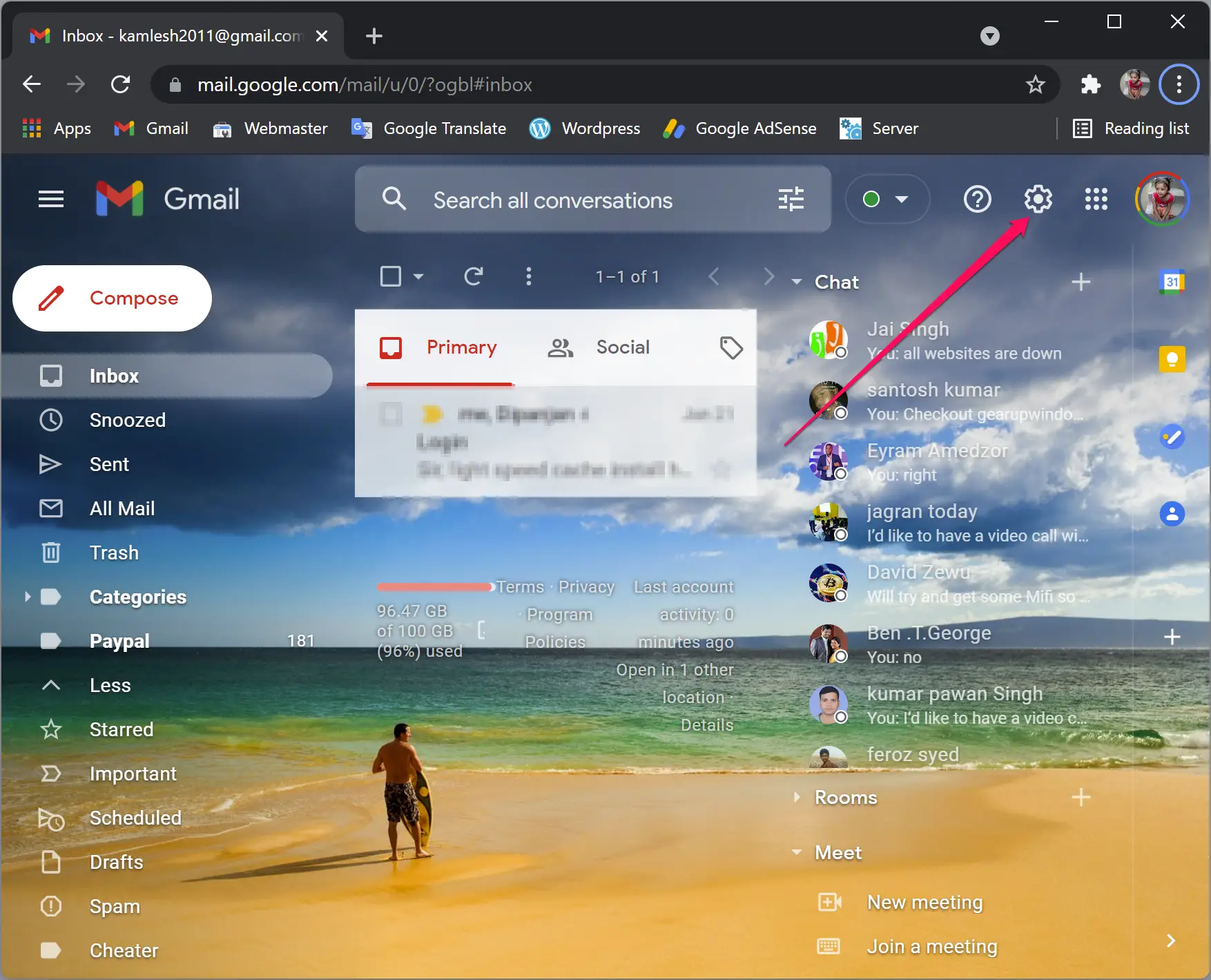
Step 3. Now, in Gmail, click the Settings gear icon in the top right corner.
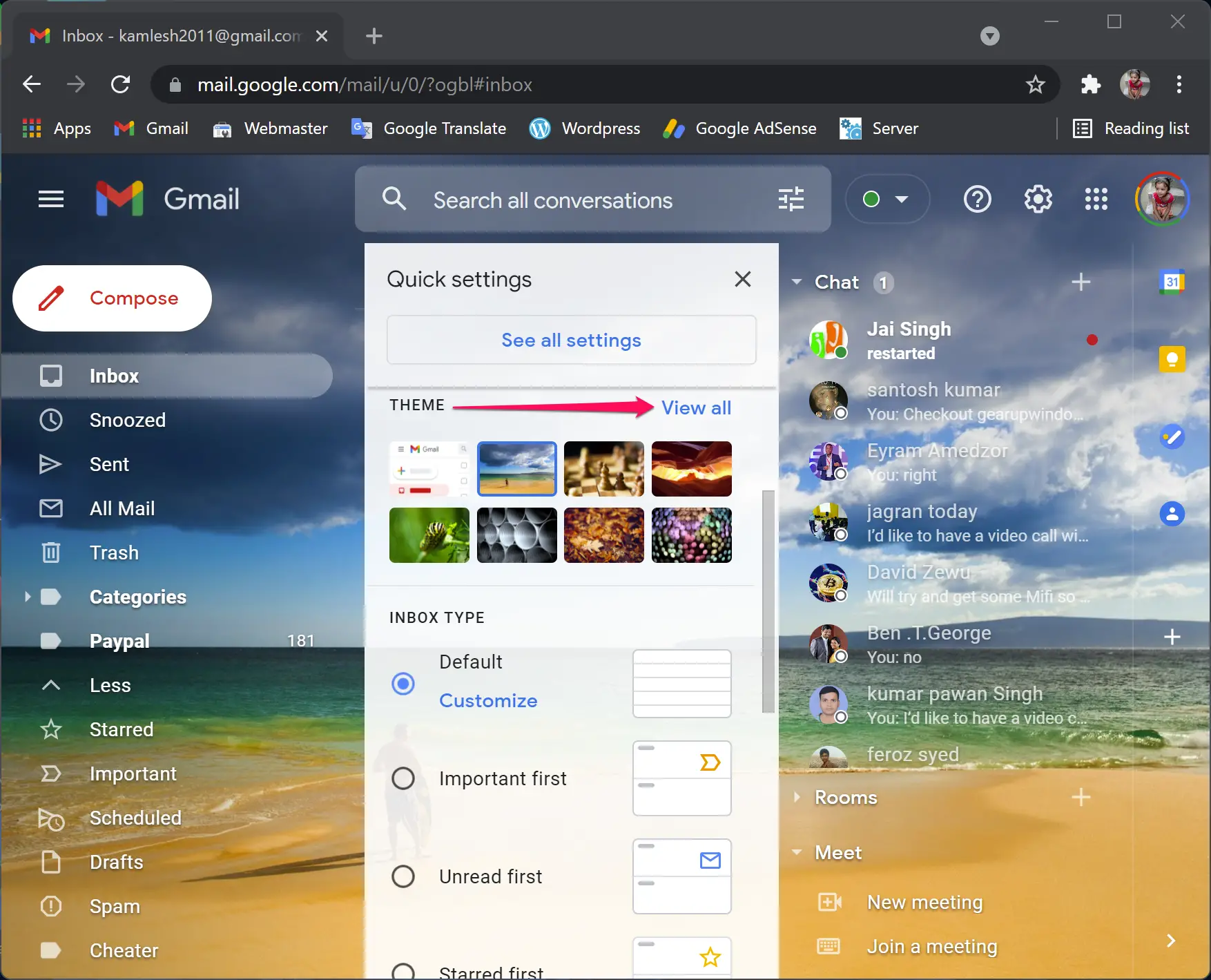
Step 4. On the pop-up window, click View all next to THEME.
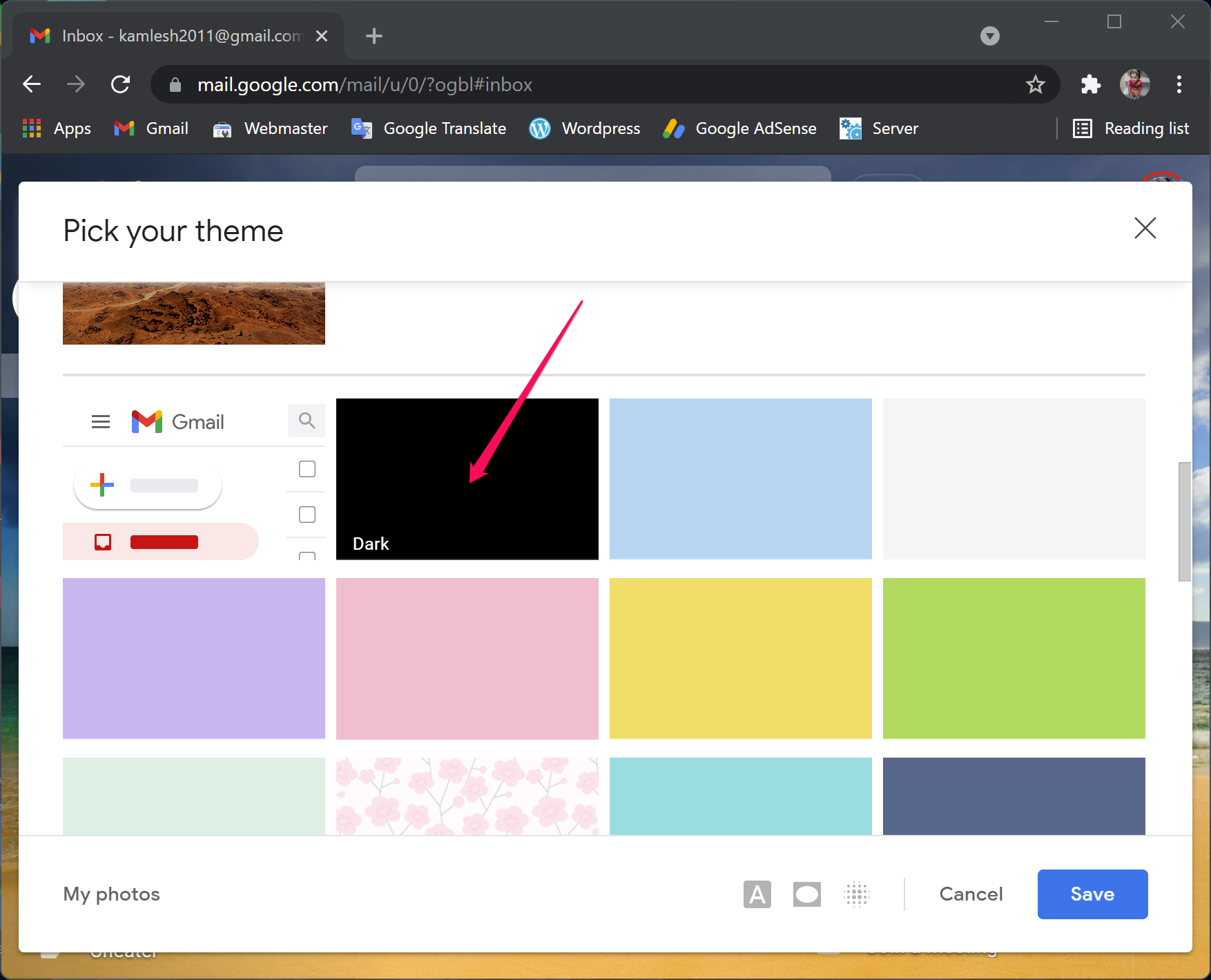
Step 5. Scroll down and then click on the Dark theme.
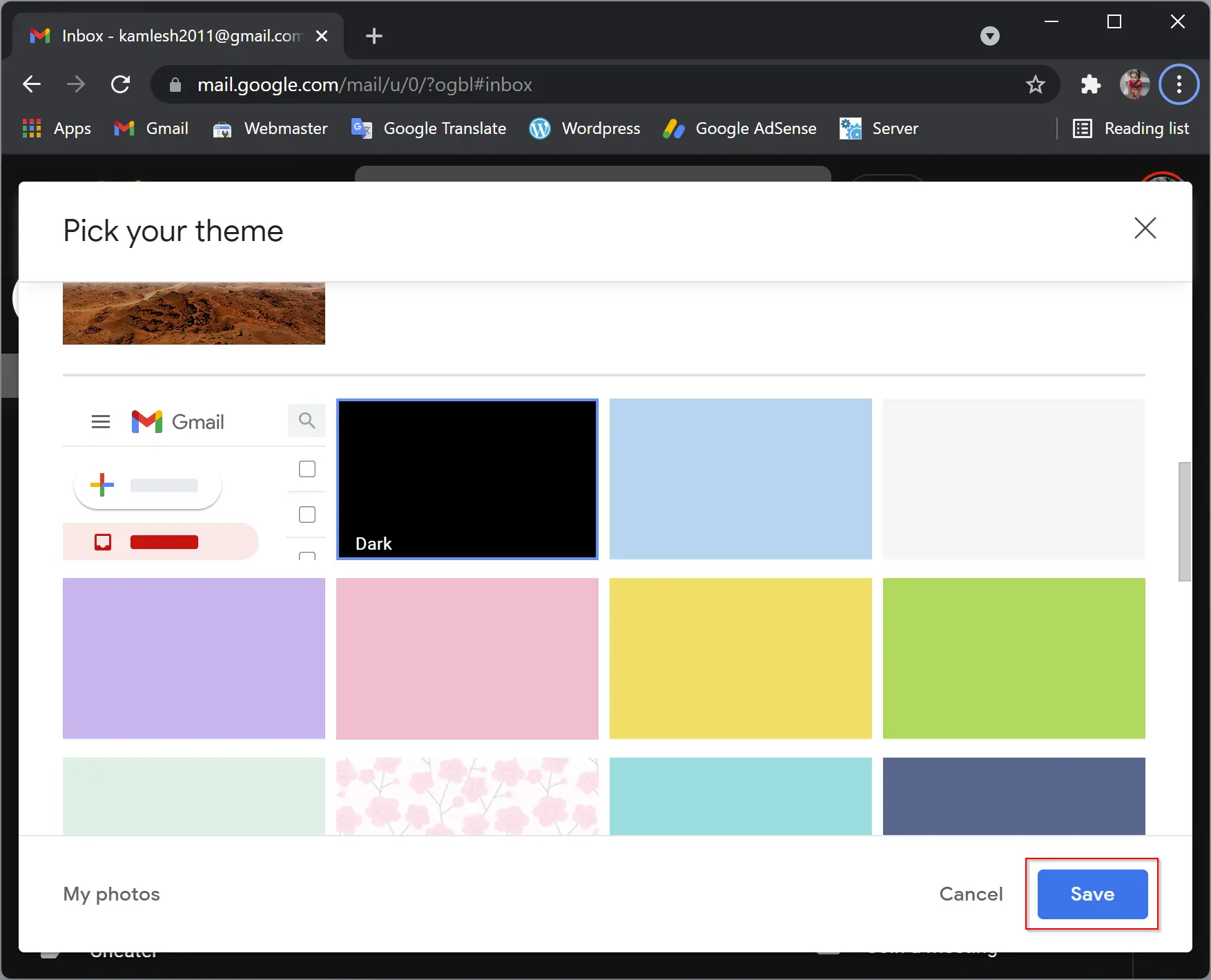
Step 6. Now, at the bottom of the Gmail screen, click the Save button.
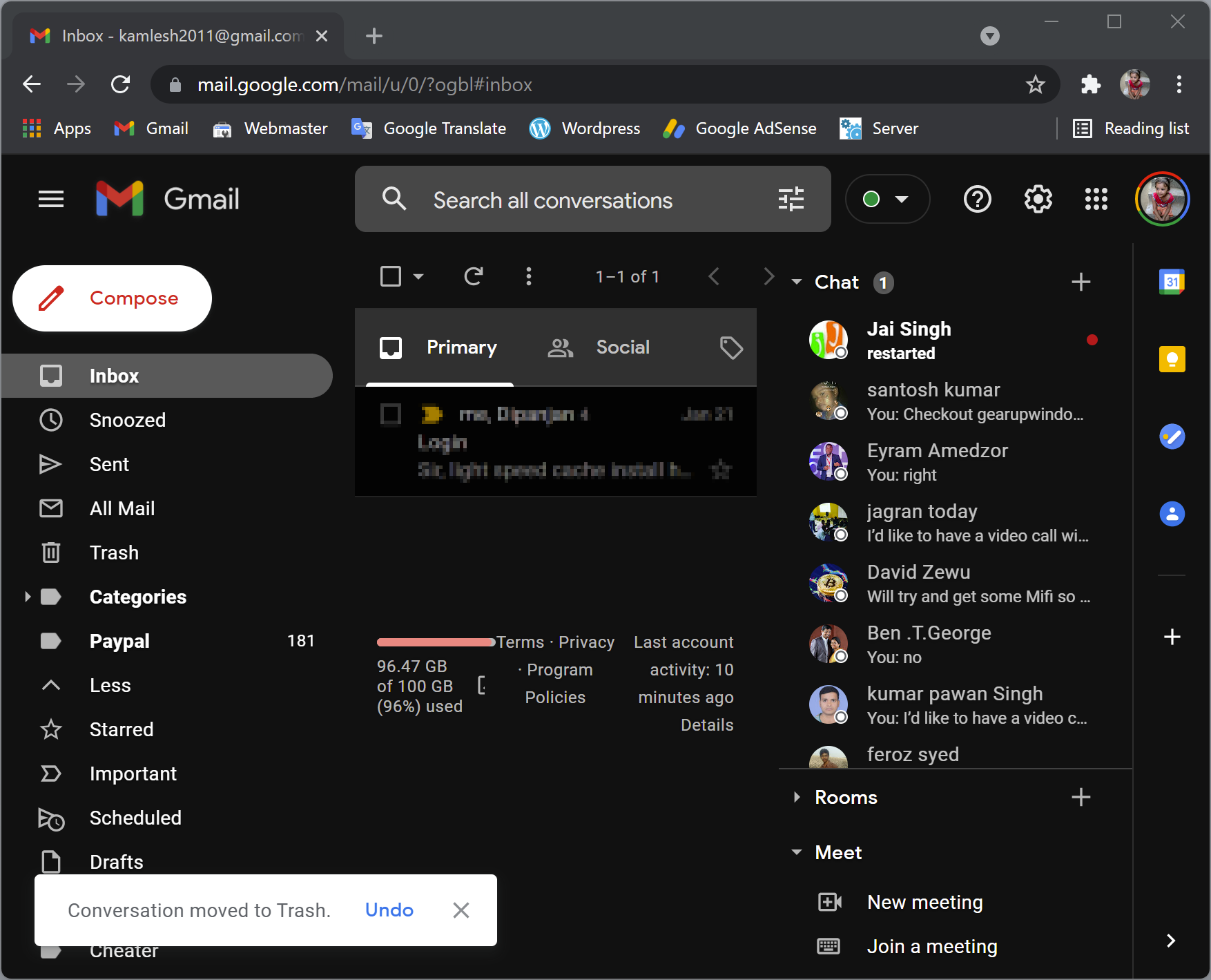
That’s all. Your Gmail theme is now dark. The background becomes pitch black, and the inbox area turns light grey. However, individual messages still appear with a white background, so the dark mode is mainly visible in the Gmail interface when you’re not viewing a message.
How to Enable Dark Mode in Chrome Browser?
Unlike Gmail, Google Chrome doesn’t have a native dark mode for web content. However, you can still enable dark mode for the browser and individual web pages. One of the easiest methods is to use an extension. For instance, Chrome users can follow this guide on forcing dark mode for web content in Google Chrome to darken all websites automatically.
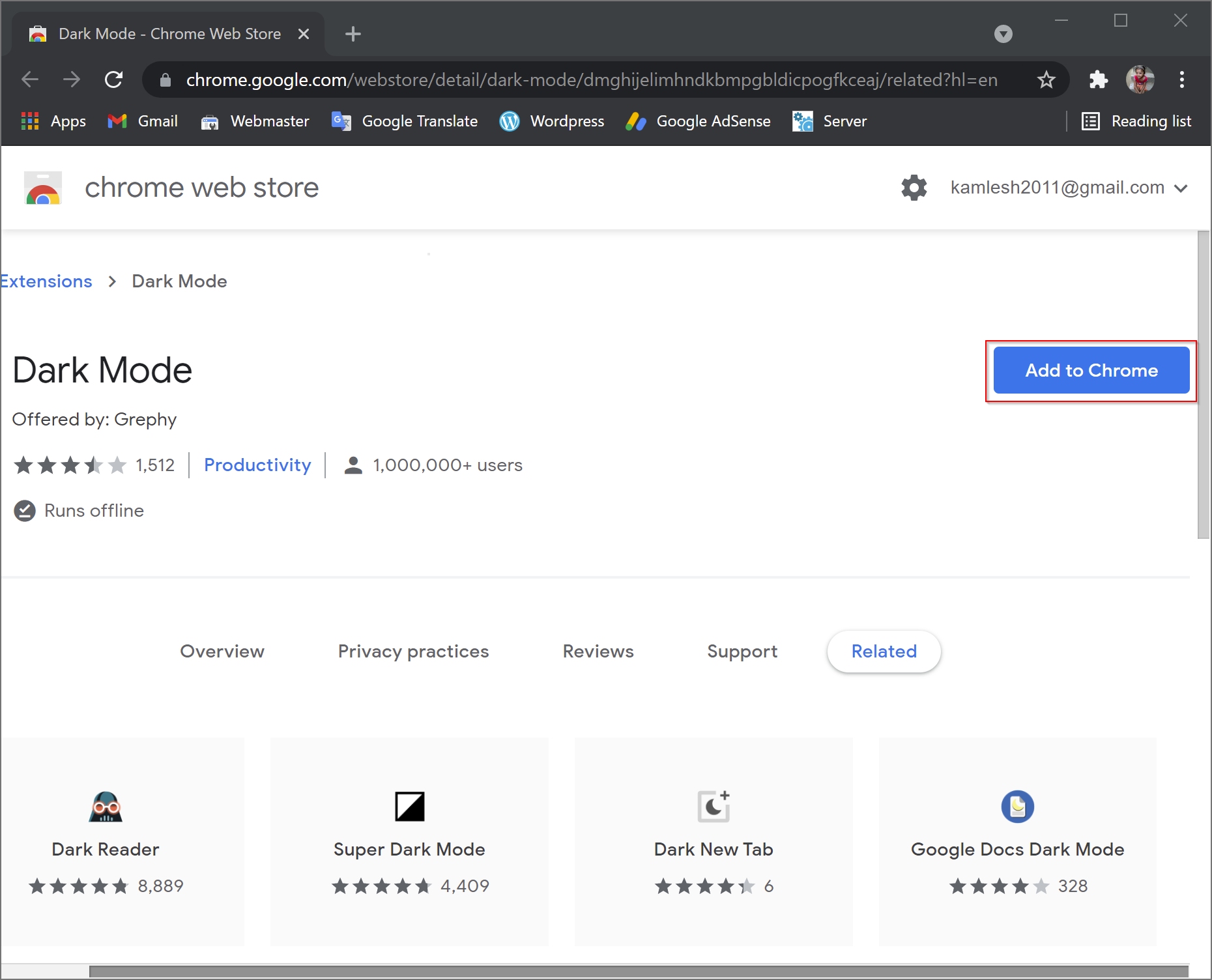
To manually apply dark mode, install the Dark Mode extension for Chrome. To do that, open the link and click the Add to Chrome button.
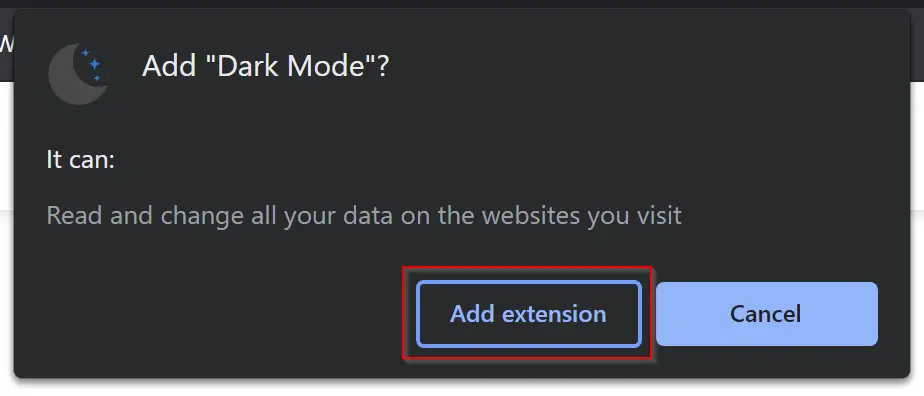
In the pop-up window, click the Add extension button. The Dark Mode extension is then added to your browser.
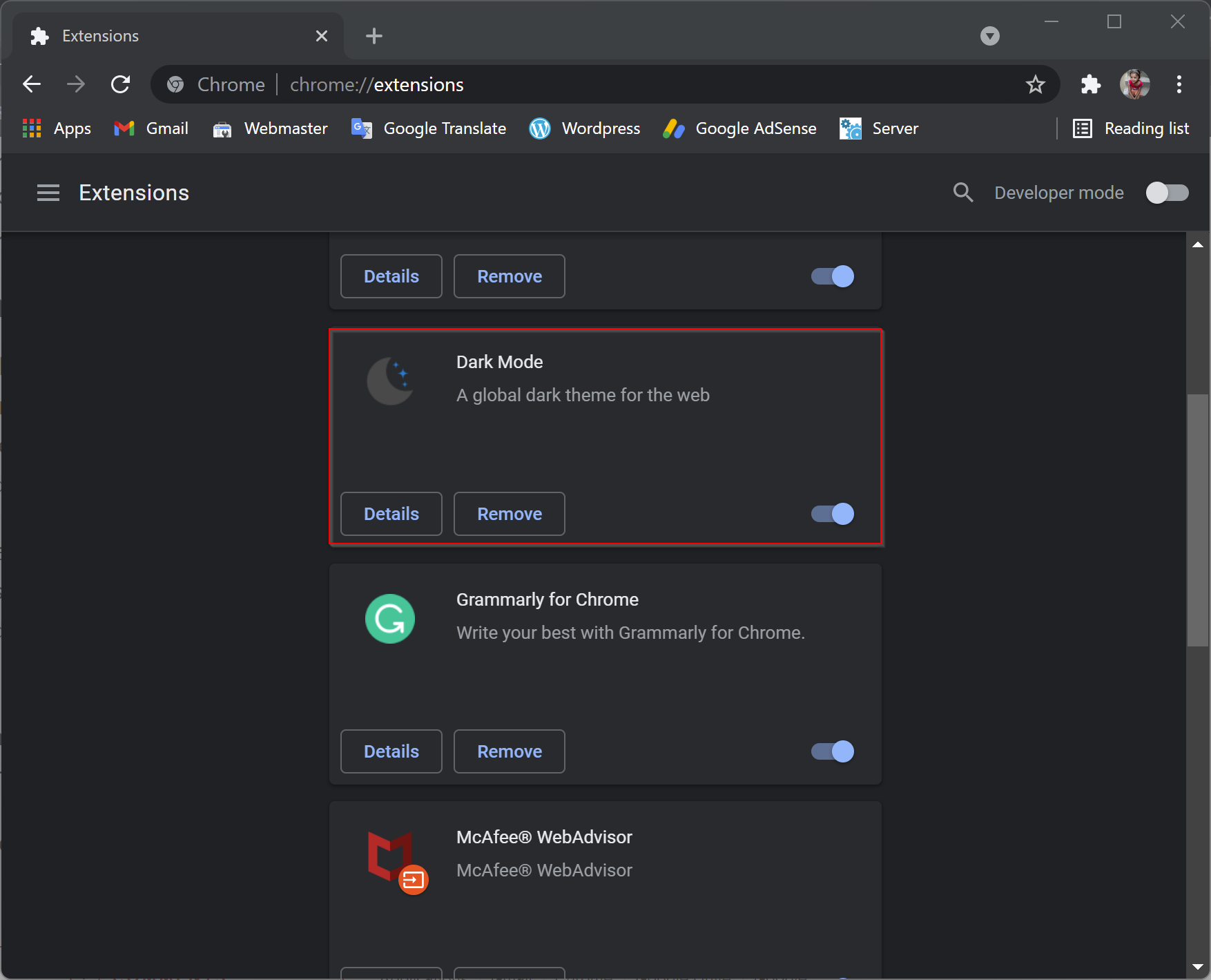
Once installed, open chrome://extensions/ in Chrome, find the extension “Dark Mode,” and toggle it on. Now, dark mode will apply automatically to every webpage, including Gmail. For deeper customization across the system, Windows users can also try the Dark Mode Switcher for Windows 11/10 to control light and dark themes globally.
Conclusion
In conclusion, dark mode continues to gain popularity for its comfort and visual appeal. Gmail users can easily switch to a dark inbox theme for a better low-light experience, while Chrome users can achieve a similar effect by enabling dark mode using extensions or flags. For those who wish to extend dark mode across their system, Dark Mode Switcher for Windows 11/10 provides a convenient solution. Whether you’re browsing the web, reading emails, or working late at night, dark mode ensures a visually balanced and eye-friendly experience.