

You might have already heard the term “smooth scrolling.” As the name suggests, it is a feature that allows you to scroll more fluidly and gradually.
By default, when you scroll up or down a document or web page using the mouse wheel, Windows 11 and 10 scroll three lines at a time. This means a single notch of the scroll wheel causes the page to jump by three lines—whether you’re viewing a Word document or browsing in Edge, Chrome, Firefox, or Opera.
If you’re not satisfied with this default 3-line scrolling behavior and want to change it on your Windows 11/10 system or in your browser, this gearupwindows article will guide you through the process.
How to Change Smooth Scrolling in Windows 11 or 10?
To change the scrolling settings system-wide on your Windows 11 or 10 computer, use these steps:-
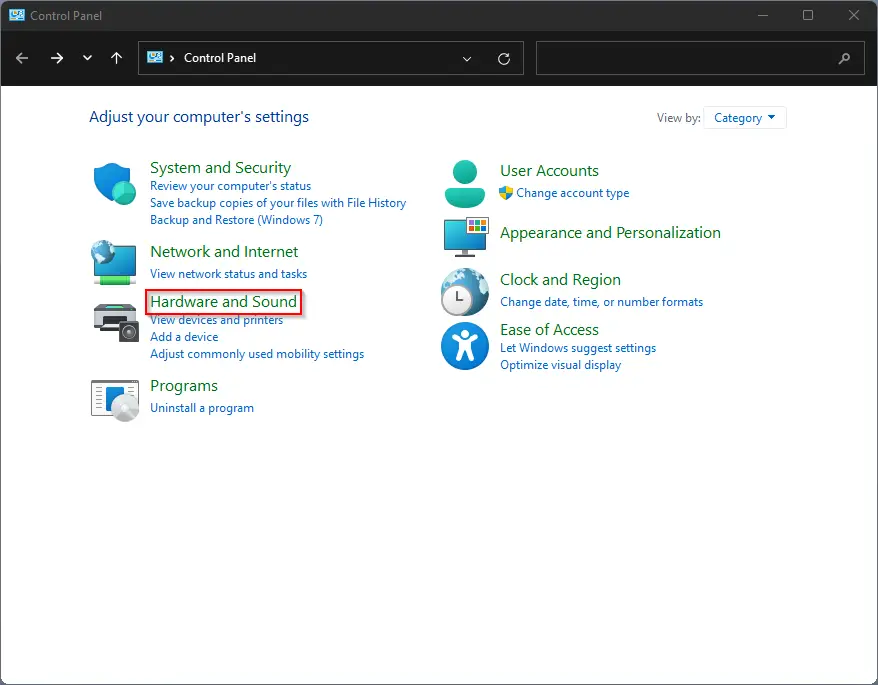
Step 1. Open Control Panel.
Step 2. Then, click on Hardware and Sound.
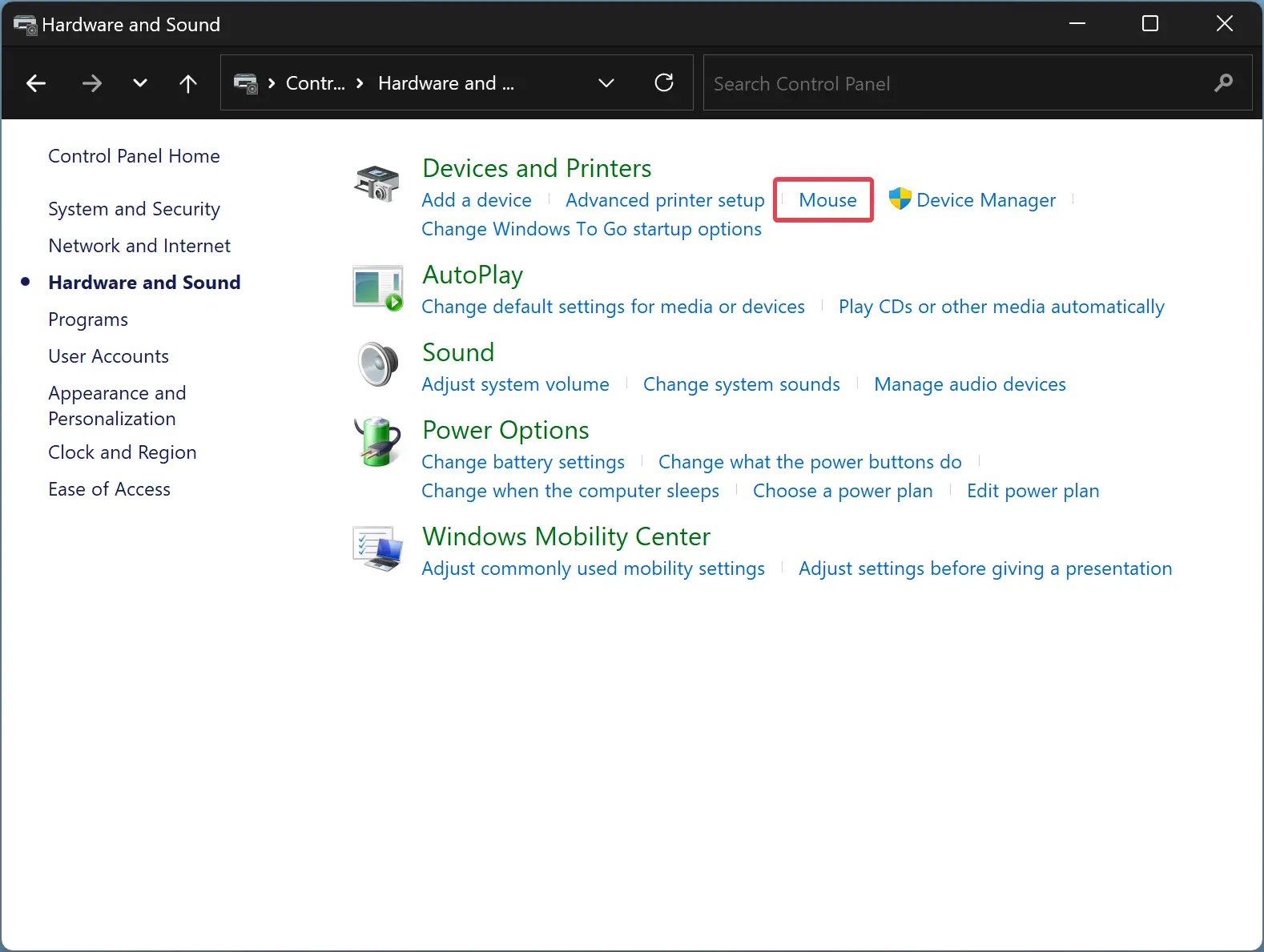
Step 3. On the next screen, click the Mouse option.
Step 4. Switch to the Wheel tab when “Mouse Properties” appears on your computer screen.
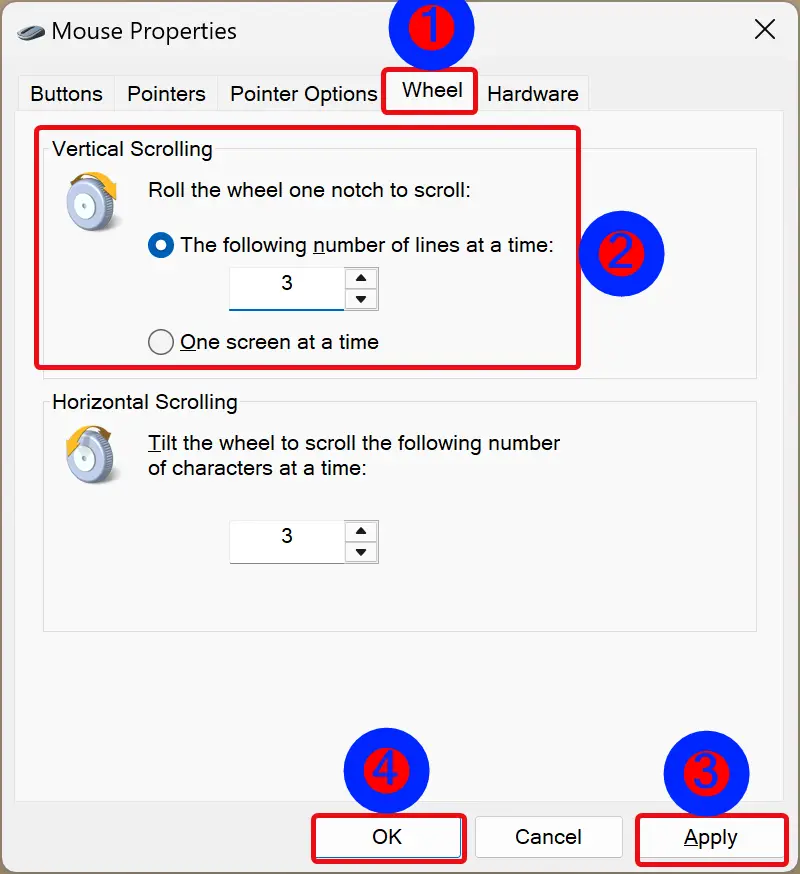
Step 5. Under “Vertical Scrolling,” you can increase or decrease the number of lines to scroll simultaneously. You can even choose One screen at a time to scroll.
Step 6. Click Apply.
Step 7. Click OK.
Once you complete the above steps, the changes will be applied system-wide, including in apps and browsers.
However, if you wish to keep the default settings of Windows and only want to change them for your web browsers, you can do it in Microsoft Edge, Chrome, Opera, and Firefox.
How to Enable Smooth Scrolling on the Edge browser?
To turn on smooth scrolling on the Edge browser, use these steps:-
Step 1. Click on the Start button and type systempropertiesadvanced.
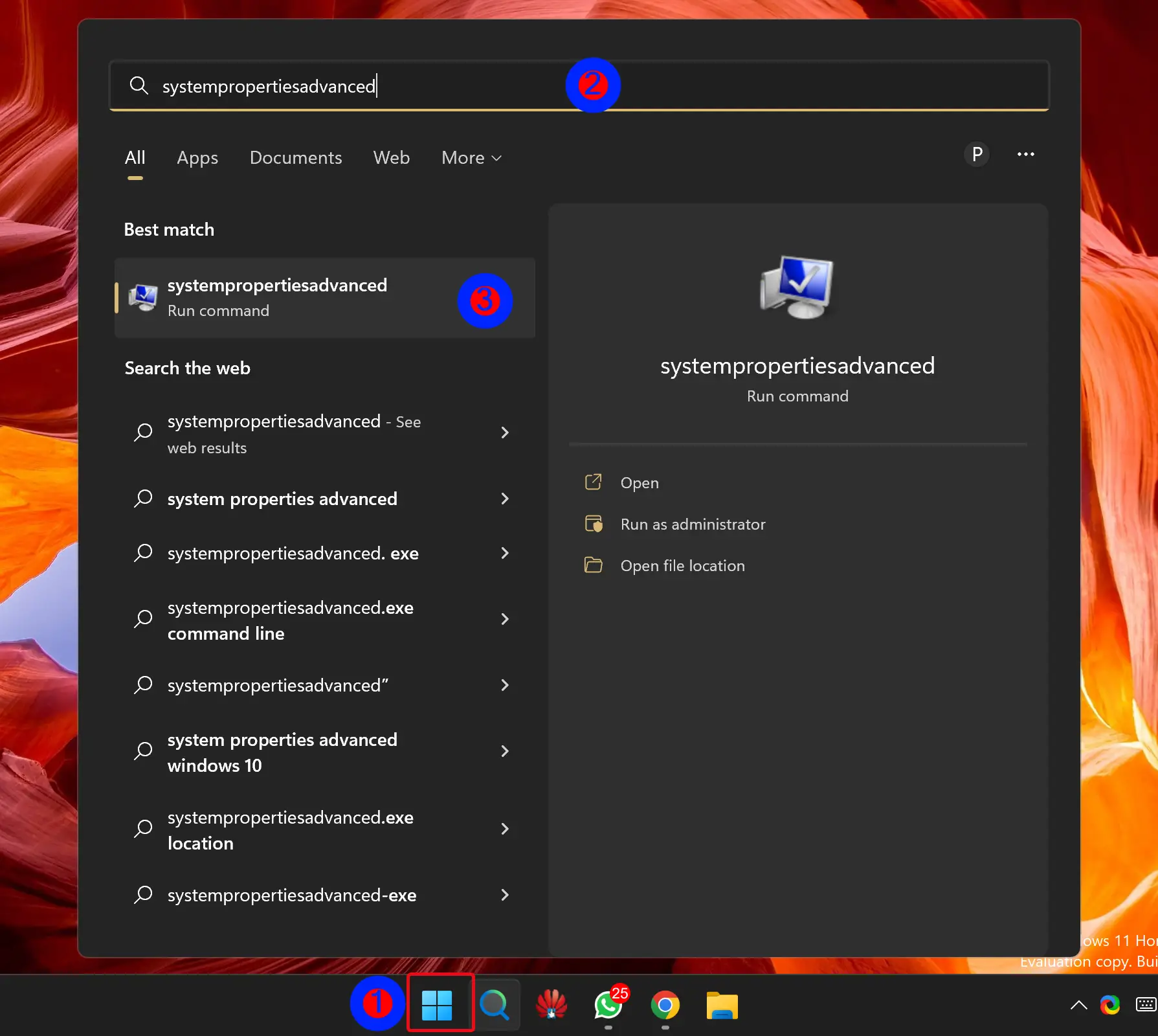
Step 2. In the search results, click on the systempropertiesadvanced to open the System Properties window.
Step 3. Switch to the Advanced tab.
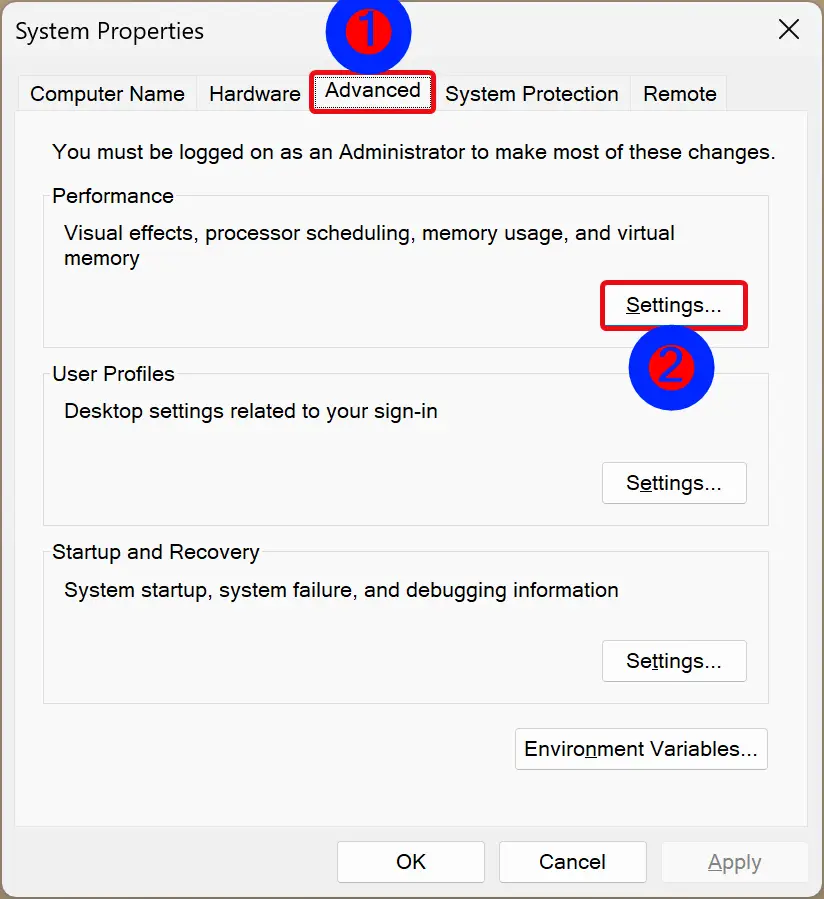
Step 4. Click on the Settings button under the Performance section.
Step 5. When the “Performance Options” window appears, switch to the Visual Effects tab.
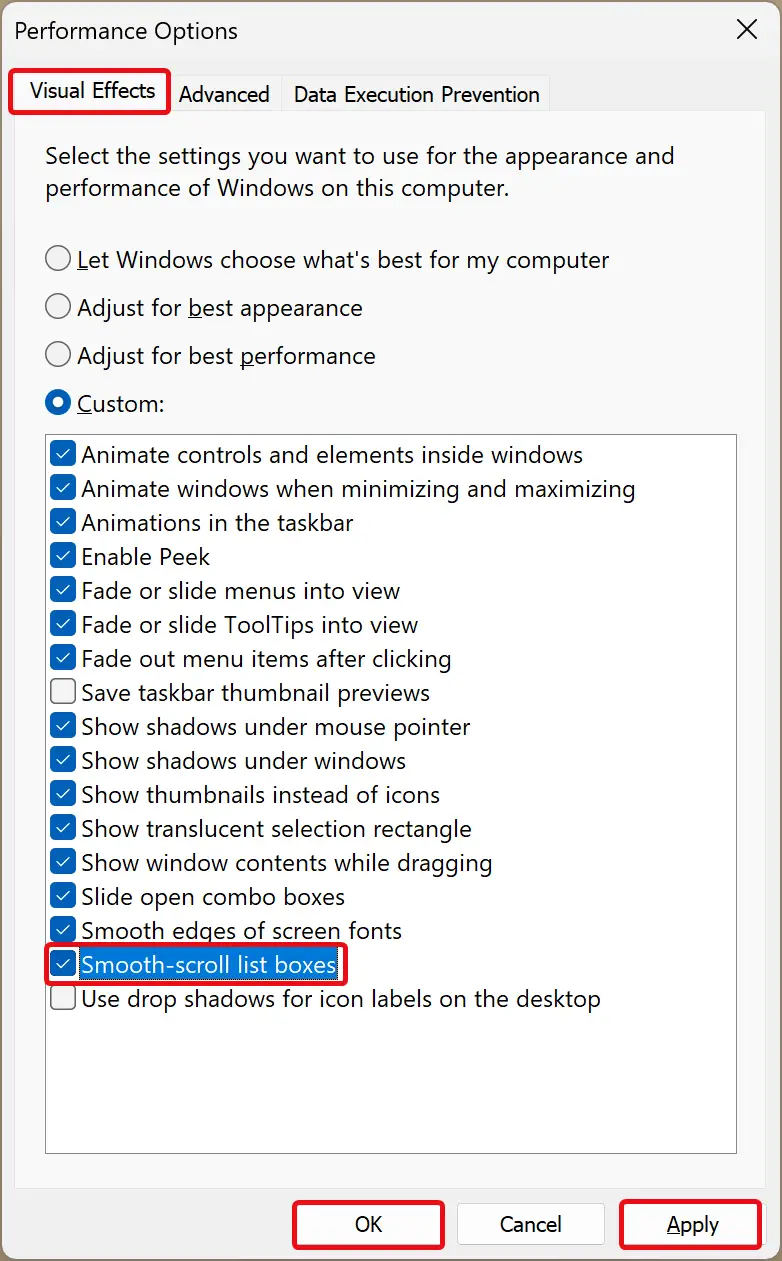
Step 6. Uncheck (To disable) / check (To enable) Smooth-scroll list boxes.
Step 7. Click Apply.
Step 8. Click OK.
Step 9. Click OK.
For a Chromium-based Edge browser, you can also use these steps:-
Step 1. Open Edge browser and type edge://flags in the address bar.
Step 2. Then, hit the Enter key on the keyboard.
Step 3. Next, type smooth in the search box.

Step 4. Select Enabled using the drop-down menu “Smooth Scrolling.”
Step 5. Click on the Restart button to apply the changes.
To revert the changes, select Default in step 4 above.
How to Enable Smooth Scrolling in Google Chrome?
To turn on smooth scrolling in the Chrome browser, do these steps:-
Step 1. Open Chrome.
Step 2. Type chrome://flags in the address bar and hit the Enter key on the keyboard.
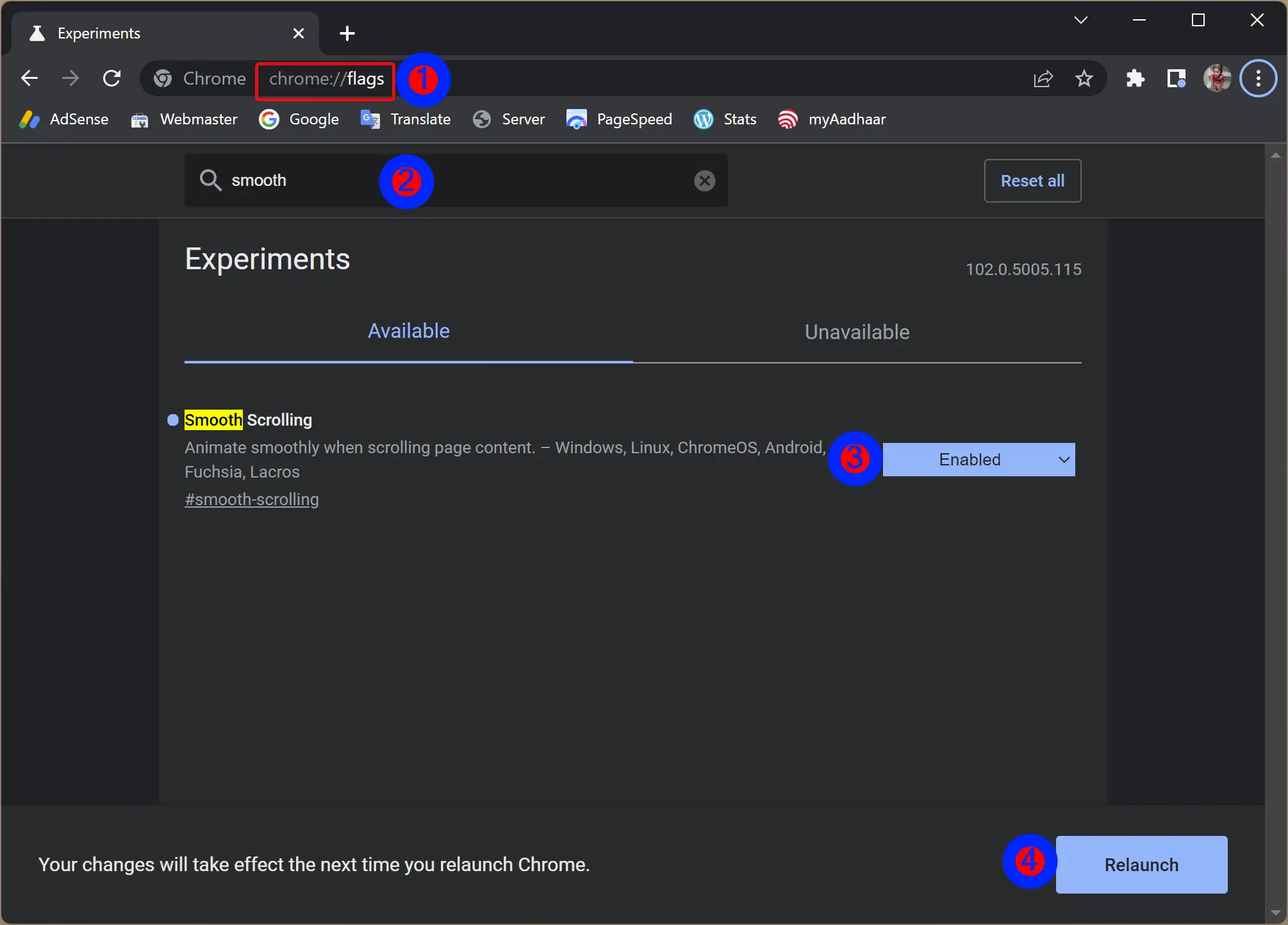
Step 3. Then, search for smooth.
Step 4. Select Enabled in the “Smooth Scrolling” drop-down menu.
Step 5. At last, click the Relaunch button to restart the Chrome browser.
To revert the changes, repeat the above steps, and in step 4, select the Default option.
How to Enable Smooth Scrolling on Mozilla Firefox?
To turn on smooth scrolling on the Firefox browser, use these steps:-
Step 1. Open Firefox.
Step 2. Click on the 3-horizontal lines (Open application menu) and select Settings in the drop-down menu.
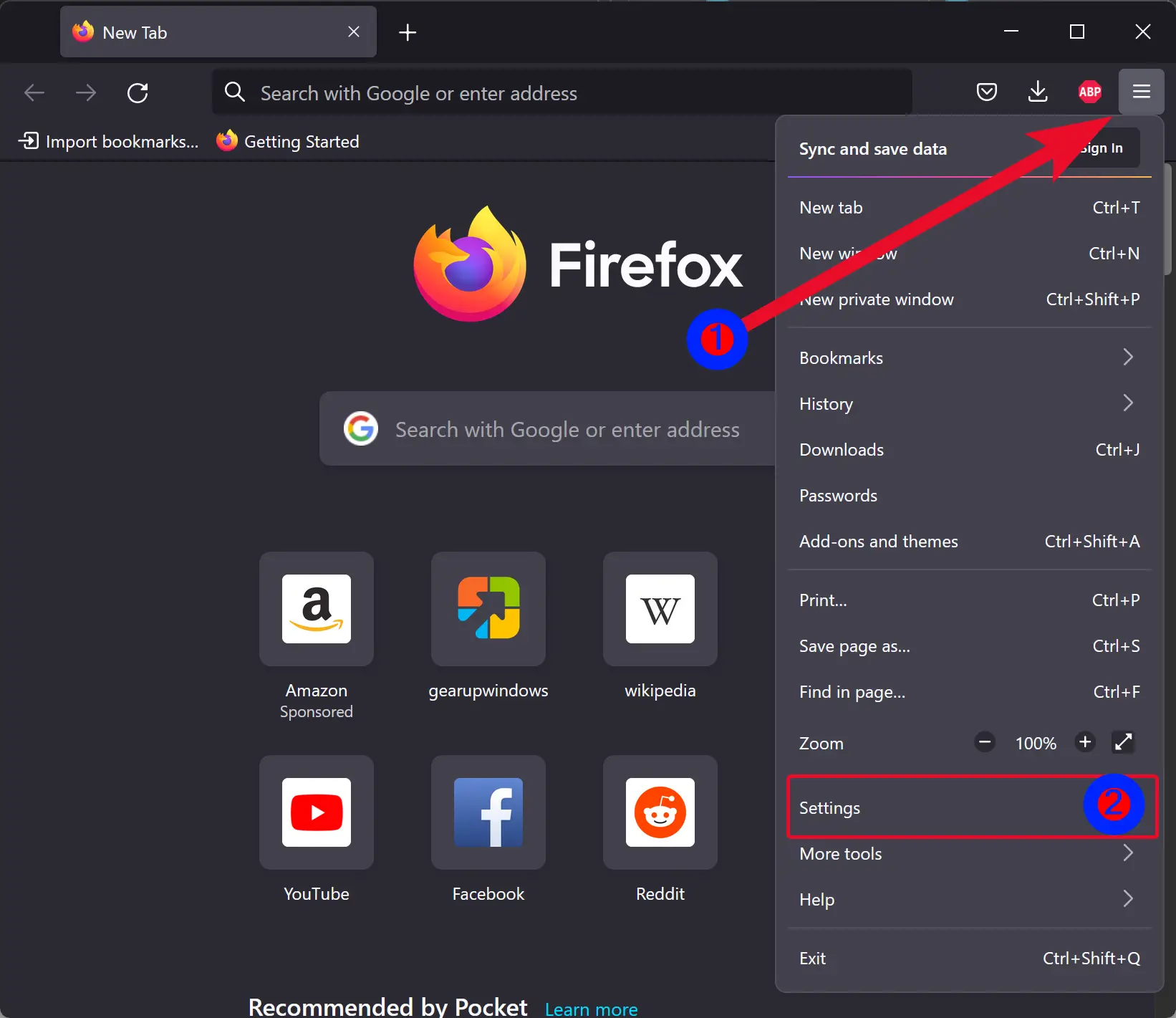
Step 3. Switch to the General tab on the Firefox Settings page.
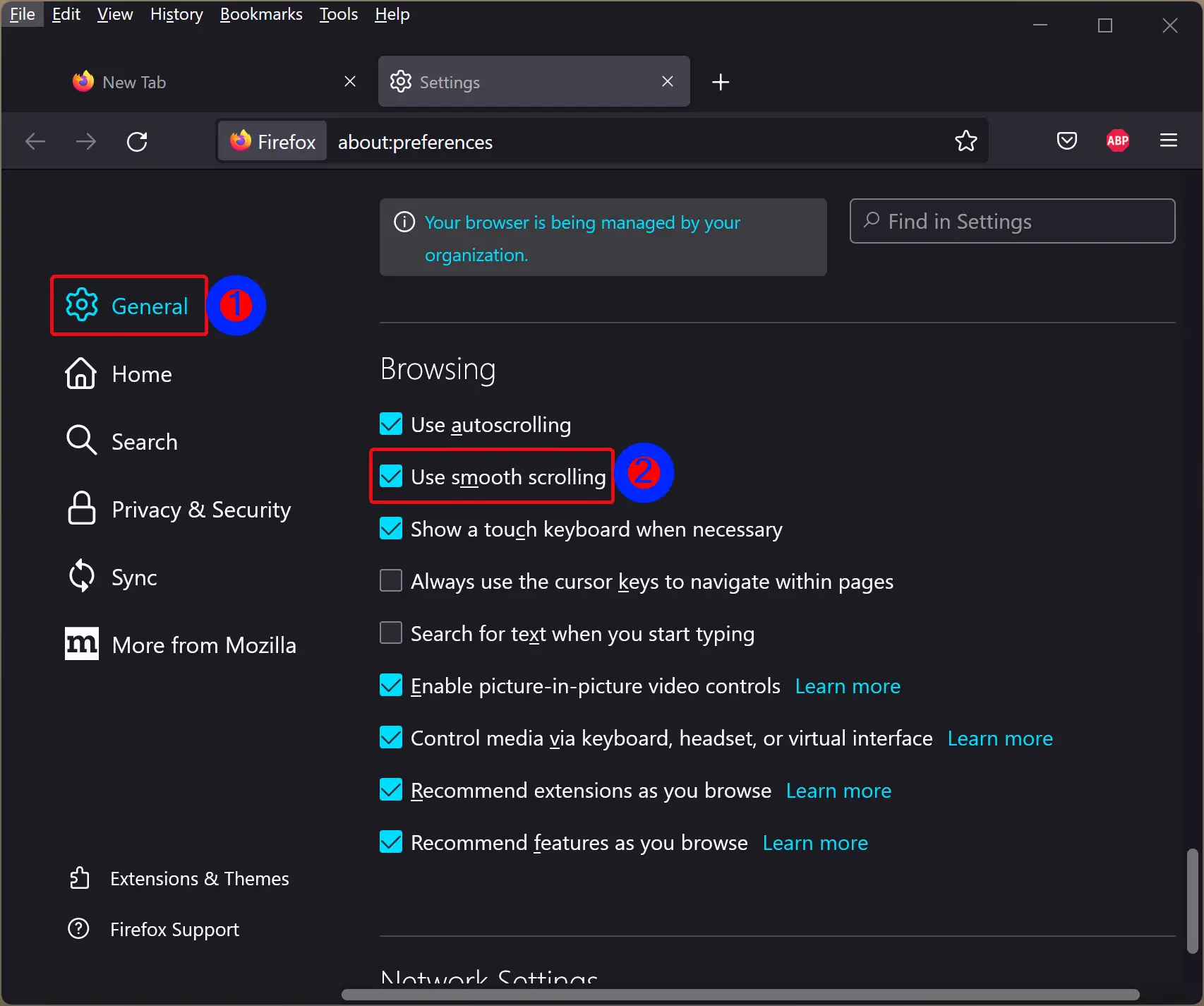
Step 4. On the right-side pane of the General tab, scroll down to the Browsing section and check/uncheck the Use smooth scrolling option to enable or disable this feature.
How to Enable Smooth Scrolling in Opera?
To turn on the smooth-scrolling Opera browser, use these steps:-
Step 1. Open Opera.
Step 2. Type opera://flags in the address bar and hit the Enter key on the keyboard.
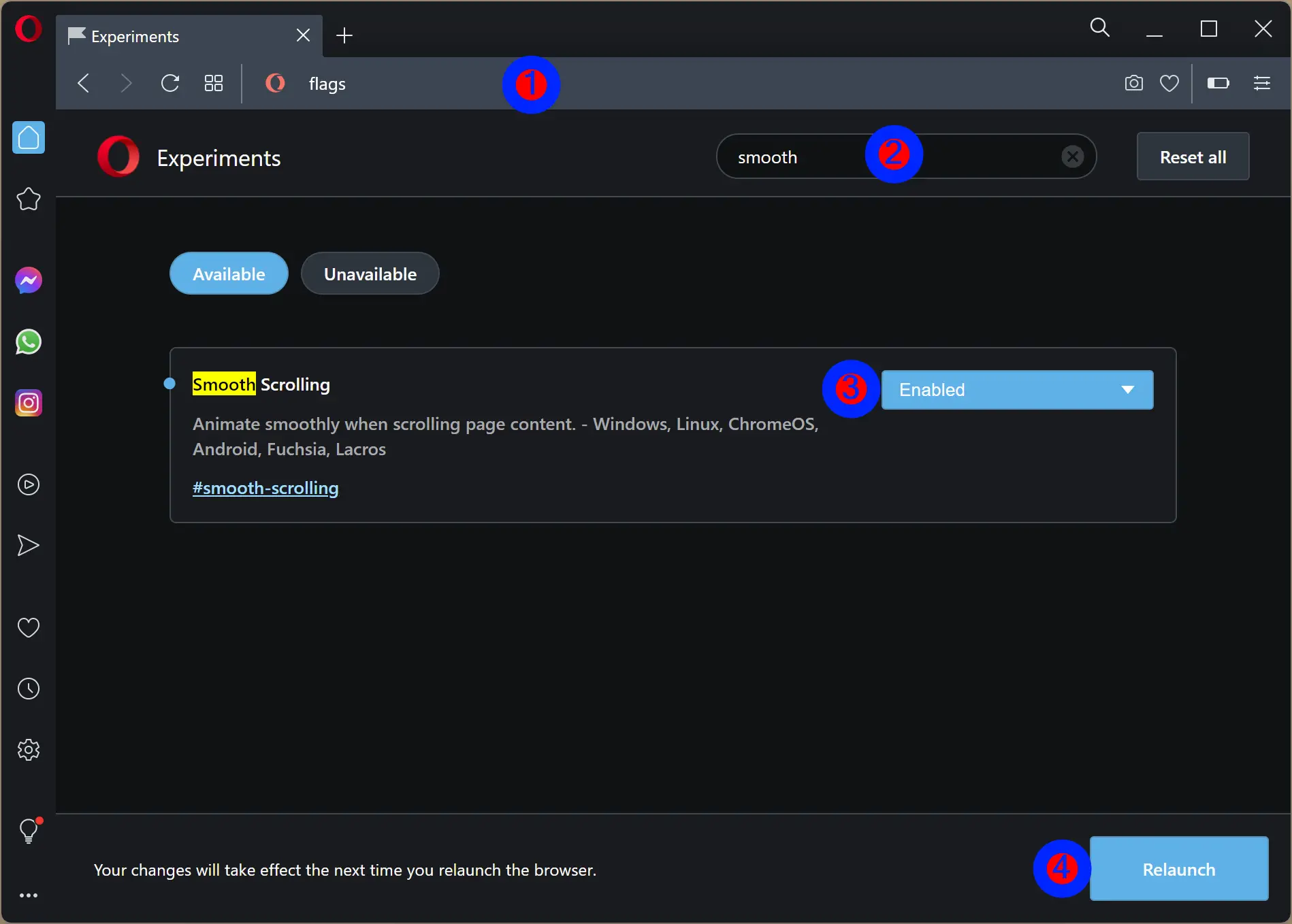
Step 3. Then, type smooth in the search box.
Step 4. Select Enabled in the Smooth Scrolling drop-down menu.
Step 5. Finally, click on the Relaunch button to restart the Opera browser.
To revert the changes, repeat the above steps, and in step 4, select Default [Undefined].
Conclusion
In conclusion, smooth scrolling is a useful feature that allows users to scroll through documents or web pages smoothly instead of jumping three lines at a time. In this article, we have discussed how to change smooth scrolling settings in Windows 11/10 system-wide and in various popular browsers like Microsoft Edge, Chrome, Firefox, and Opera. By following the steps mentioned in this article, users can customize their scrolling experience according to their preferences. Whether you want to enable or disable smooth scrolling, the steps are easy to follow, and users can revert the changes anytime they want.