

WiFi is one of the preferred methods for Windows users to connect to the internet. If your computer or laptop includes a Wi-Fi adapter, you can instantly connect to the internet using any WiFi connectivity of a router or smartphone. It is so simple, turn on the WiFi hotspot on your mobile phone and, using the credentials, connect your PC to the internet.
This gearupwindows article will share the different and simple ways to turn on or off Wi-Fi on a Windows 11 PC. You can adopt any of these procedures to enable or disable the WiFi on your computer.
How to Turn On or Off Wi-Fi on Windows 11 from the Keyboard?
Most laptops include a dedicated function key to enable or disable the Wi-Fi adapter. On the keyboard, one key will have a tiny wireless symbol. Clicking on that WiFi key, you can turn on or off the WiFi on your PC.
How to Enable or Disable Wi-Fi using Quick Settings in Windows 11?
The Quick Settings area on Windows 11 is where you can turn on or turn off the WiFi adapter quickly. To do that, you need to perform the following steps:-
Step 1. Move the cursor on the taskbar’s network/volume/battery icon and click on it to open the Quick Settings flyout.
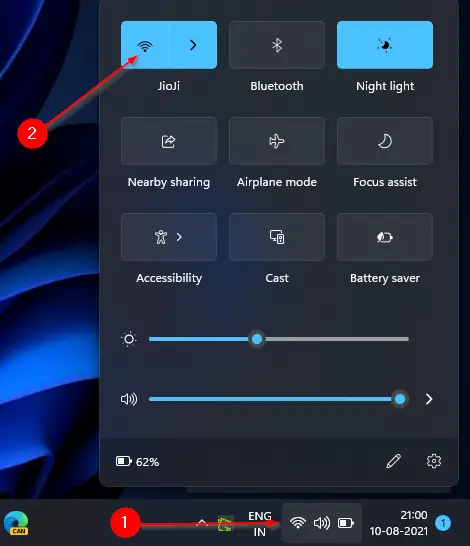
Step 2. Here, you will find several icons. Click on the Wi-Fi icon to turn off or turn off the Wi-Fi.
How to Turn On or Off Wi-Fi on Windows 11 through Device Manager?
To enable or disable Wi-Fi on Windows 11 using Device Manager, use these steps:-
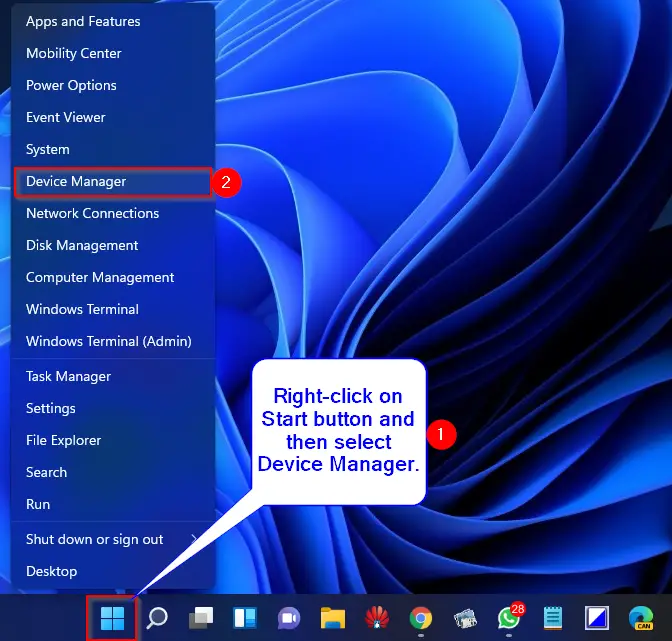
Step 1. Right-click on the Start button on the taskbar and select Device Manager from the available options to access Device Manager.
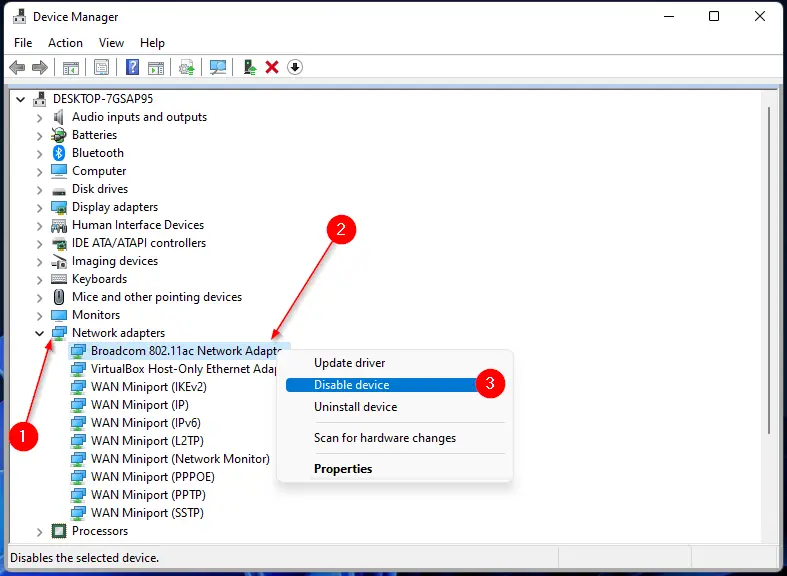
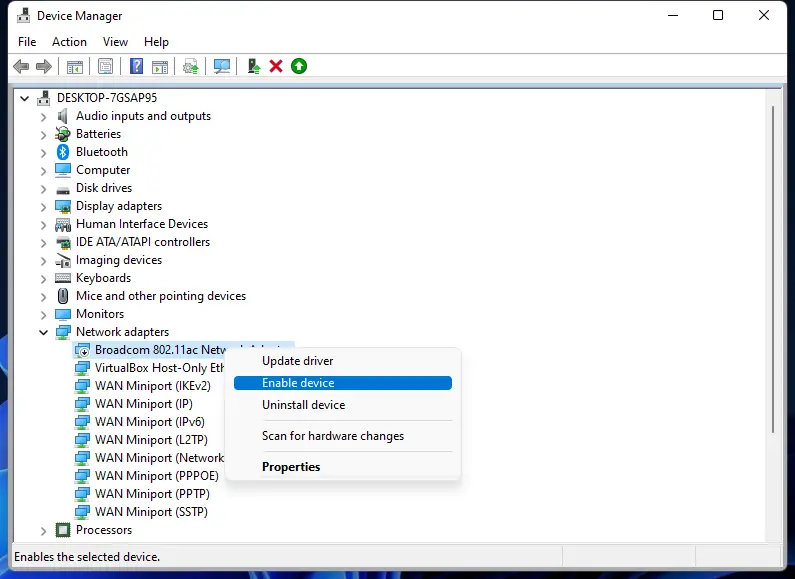
Step 2. Expand the Network adapters tree on the Device Manager window to see the Wi-Fi adapter’s entry. Then right-click on the Wi-Fi adapter and select the Disable device option.
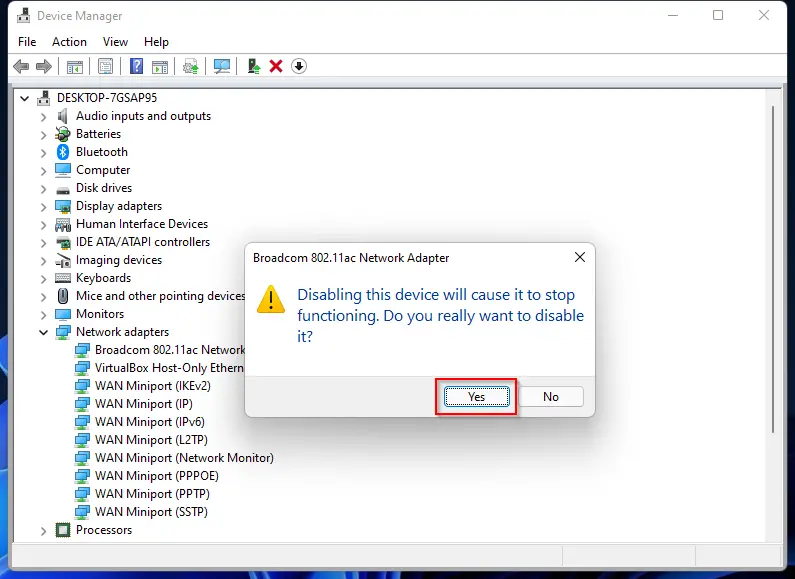
When prompted, click the Yes button to disable it.
After performing the above steps, WiFi will stop working on your PC. You will also notice a down arrow on the WiFi adapter icon.
To enable Wi-Fi again on your computer, repeat the above steps, and in step 2, select the Enable device option.
How to Turn On or Off Wi-Fi on Windows 11 using the Settings app?
The Settings app is my favorite choice for performing several tasks on Windows 11. You can enable or disable WiFi in two places using the Settings app. We will see them one by one.
First Method:
Step 1. Open the Settings app by pressing the Windows + I keys simultaneously from the keyboard or any other method.
Step 2. Select the Network & Internet category from the left sidebar of the Settings window.
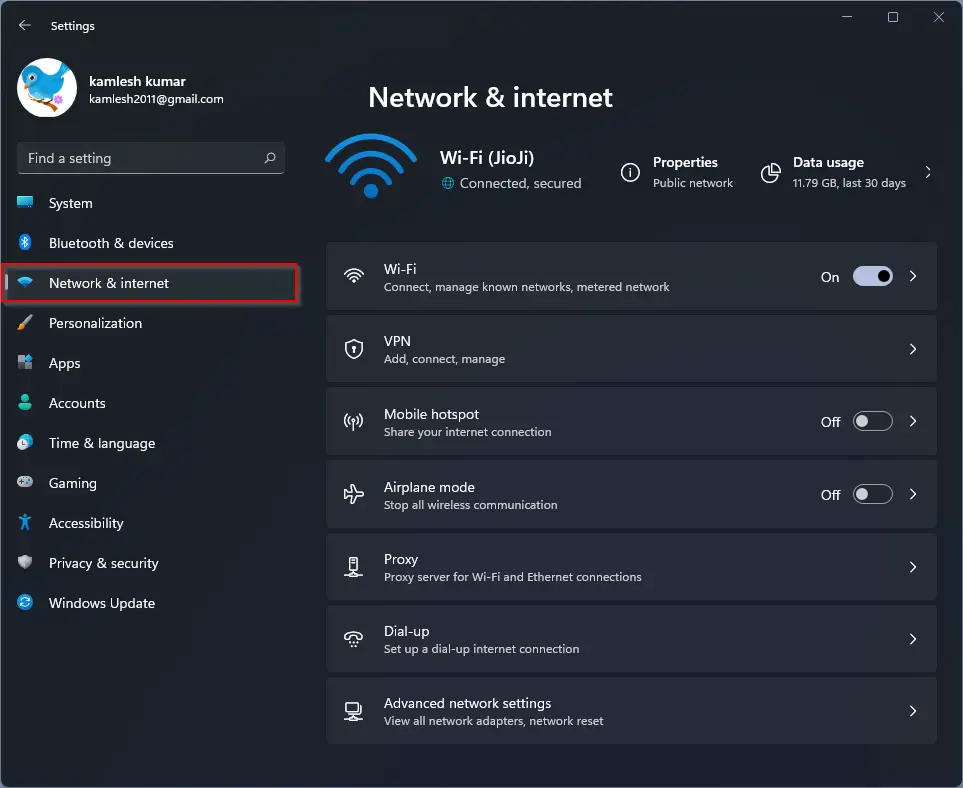
Step 3. Here, switch the toggle button to the On/Off position on the right side pane to quickly enable or disable WiFi according to your needs.
Second Method:
Step 1. Open the Settings app by pressing the Windows + I keys simultaneously from the keyboard or any other method.
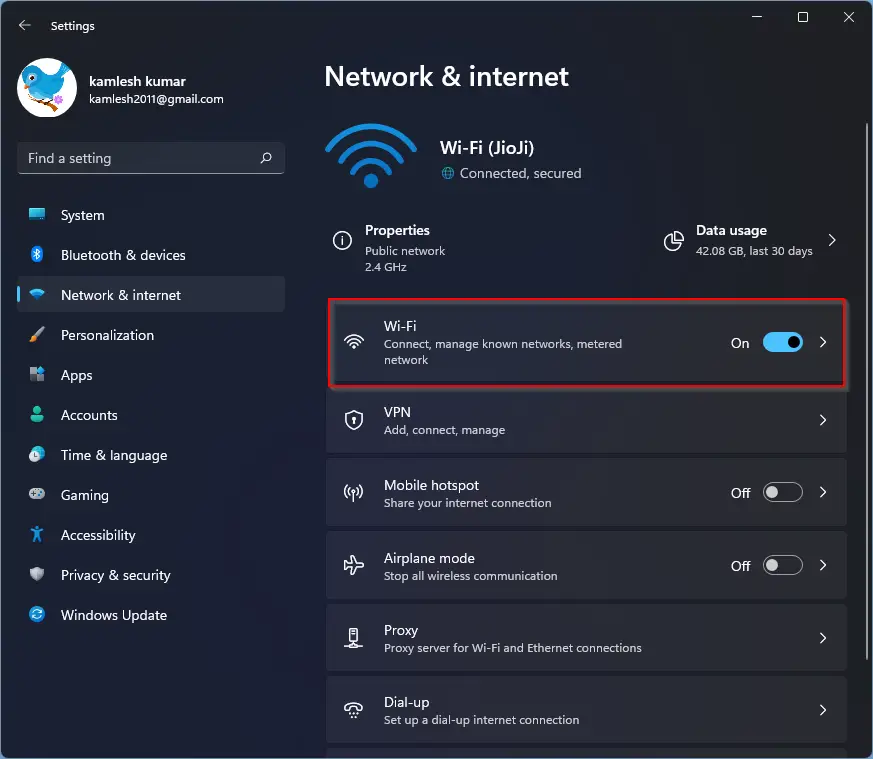
Step 2. Under settings, click on the Network & Internet category from the left side pane.
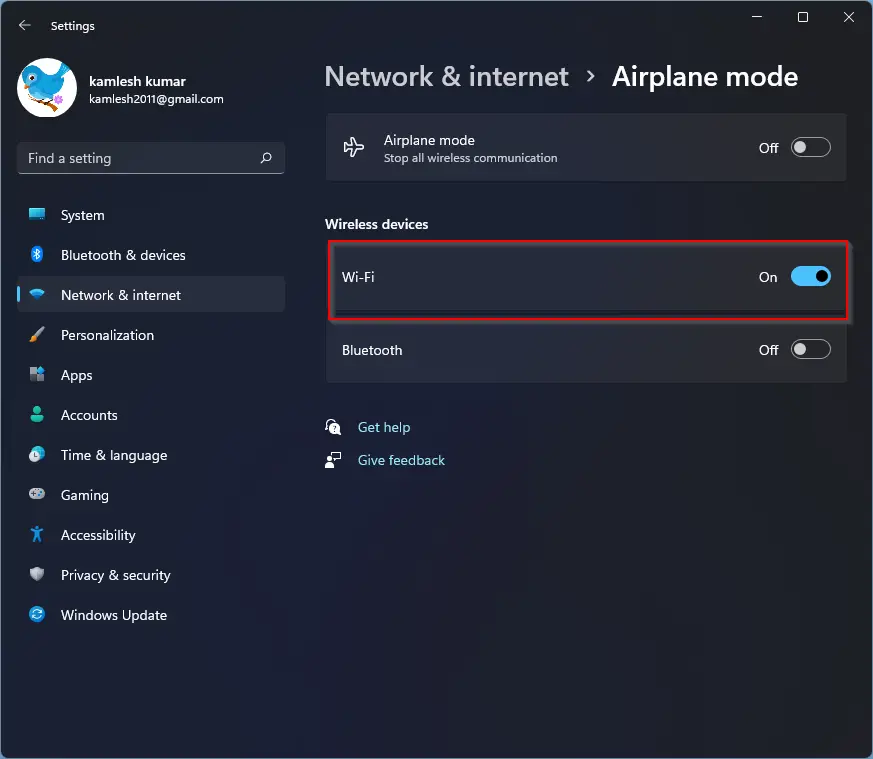
Step 3. On the right side pane, click on the Airplane mode.
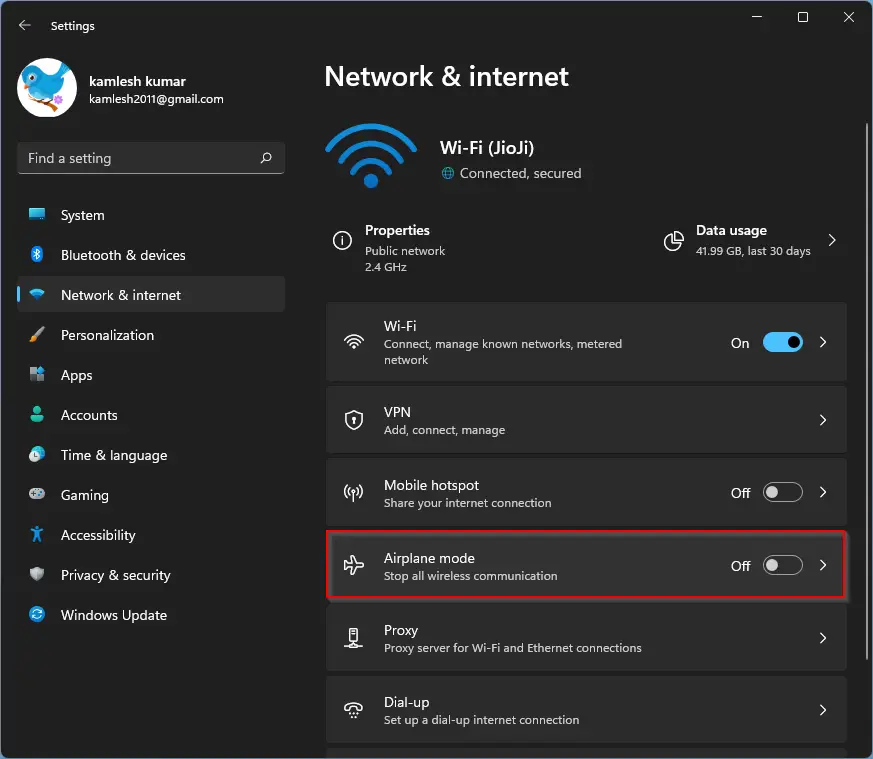
Step 4. Under the Wireless devices section, click on the toggle switch next to Wi-Fi to turn Wi-Fi on/off according to your choice.
How to Enable or Disable WiFi on Windows 11 through Registry Editor?
If you prefer to use Registry Editor to turn on or off the WiFi on Windows 11, then use these steps:-
Step 1. Open Registry Editor.
Step 2. Then, browse to the following path in the left sidebar of Registry Editor:-
HKEY_LOCAL_MACHINE\SOFTWARE\Microsoft\PolicyManager\default\Wifi\AllowWiFi
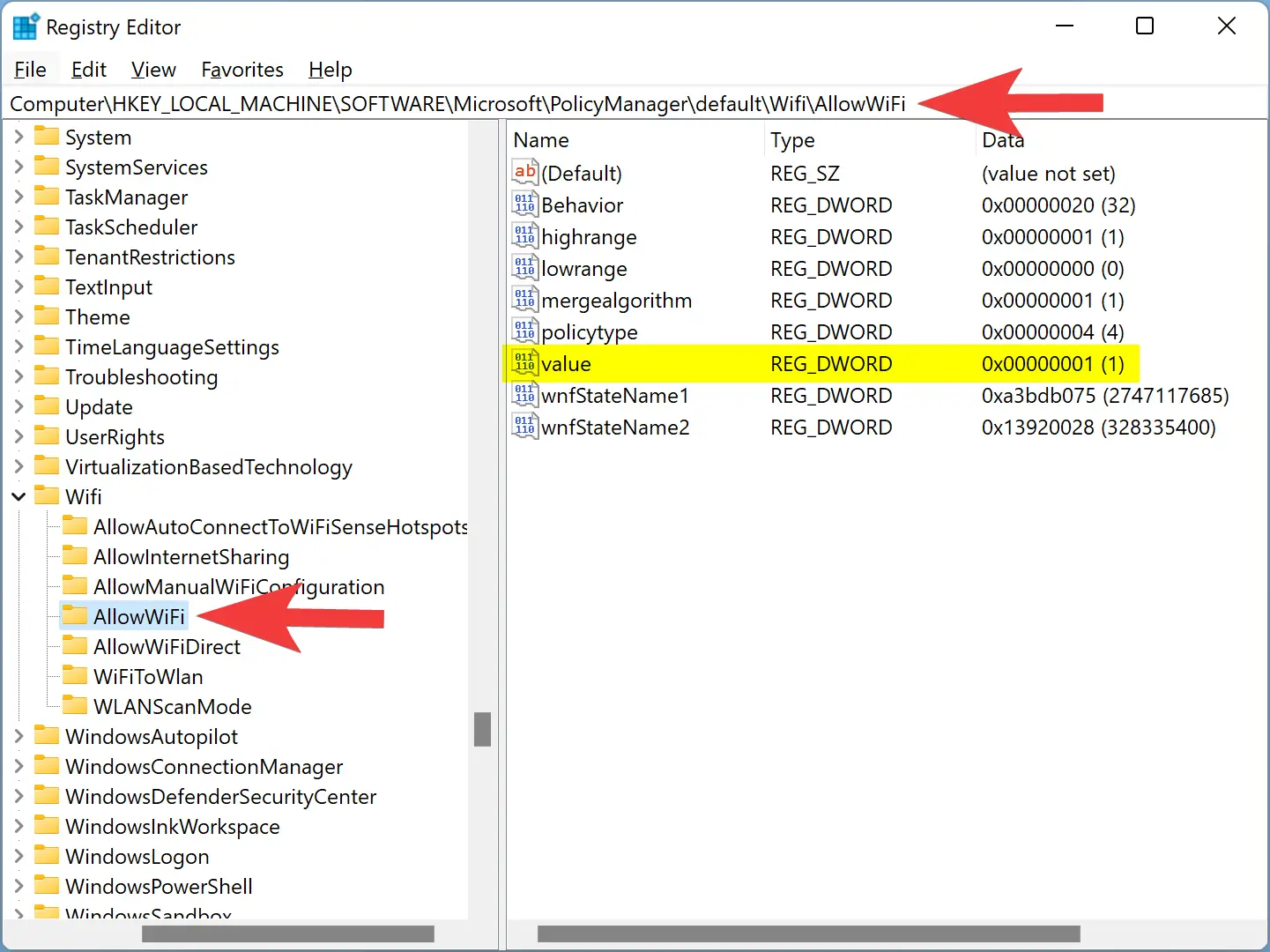
Step 3. On the opposite side of the AllowWiFi key, double-click on the value REG_DWORD and set its “Value data” to the following:-
- 0: To disable the WiFi.
- 1: To enable the WiFi.
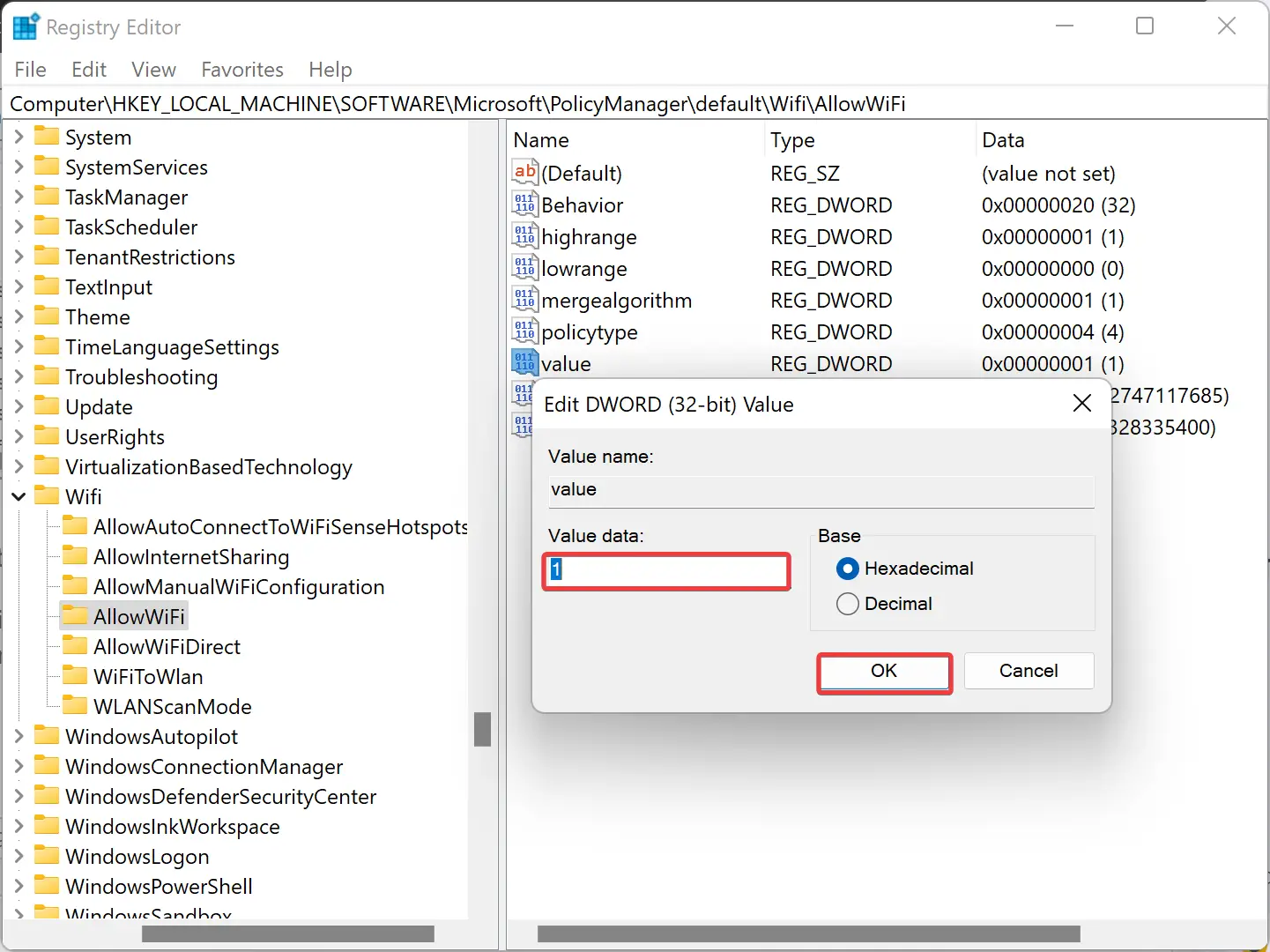
Step 4. Click OK.
Step 5. Reboot your computer to apply the changes.
Conclusion
To sum up, Wi-Fi is an essential feature for Windows users to connect to the internet, and Windows 11 offers several simple ways to turn it on or off. You can use the keyboard function key, Quick Settings, Device Manager, Settings app, or even the Registry Editor. Each method has its own pros and cons, allowing you to choose the one that best fits your preferences. Knowing how to manage Wi-Fi settings on your Windows 11 PC ensures a smooth and reliable internet experience.