

Are you looking to create a bootable USB flash drive for your Windows 10, 8, or 7 system? You’re in luck! Several free tools are available online to help you do just that. One popular option is the Windows USB/DVD Download Tool, which lets you create a bootable USB or DVD directly from an ISO file. Another handy utility is AnyBurn, which supports bootable USB creation and allows you to burn image files to CD, DVD, Blu-ray, and USB drives.
If you’re searching for a Windows-specific tool, Microsoft’s official Windows USB/DVD Download Tool is a reliable choice. However, many users don’t know that EasyBCD—a popular tool for managing boot entries—also lets you create a bootable Windows USB drive with just a few clicks.
Alternatively, you can use Command Prompt or the lightweight Rufus utility to create a bootable Windows 10, 8.1, or 7 USB flash drive. To learn how to create a bootable USB using EasyBCD, just follow the steps below!
How to Use the EasyBCD Tool to Create a Bootable Windows 10/8/7 USB Drive?
Follow these steps to create a bootable Windows USB drive using EasyBCD:-
Step 1. Download, install, and launch the latest version of the EasyBCD utility.
Step 2. Plug in the USB flash drive to your computer.
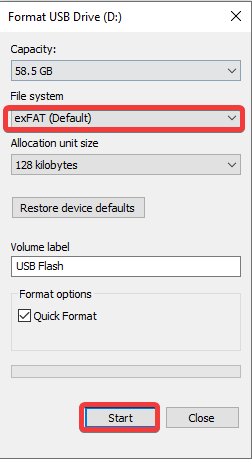
Step 3. Right-click on the USB drive and select the Format option. (Make sure to back up any important data before formatting.)
Step 4. Choose exFAT as the File System.
Step 5. Click the Start button to begin formatting.
Step 6. Once formatting completes, launch the EasyBCD utility.
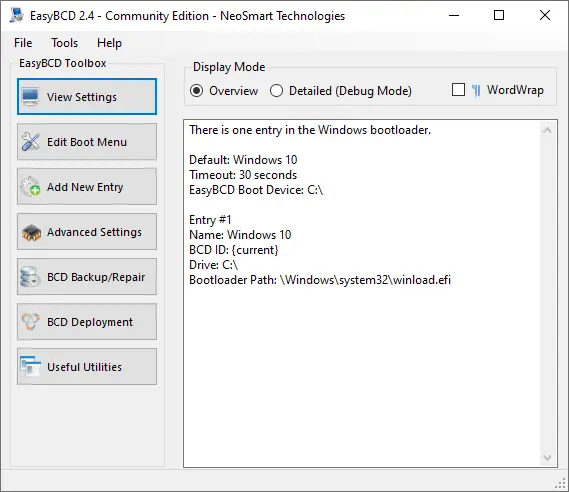
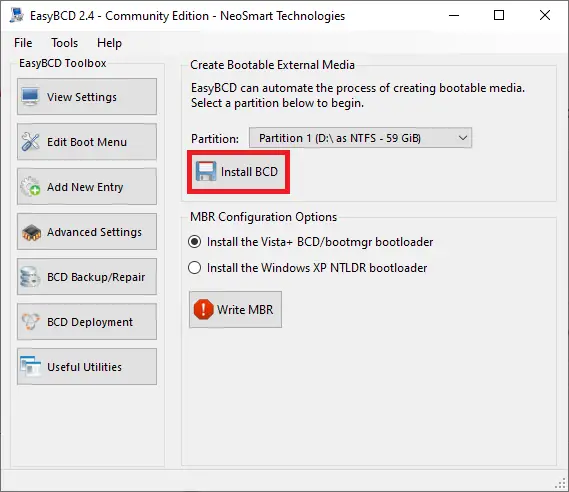
Step 7. Click the BCD Deployment button.
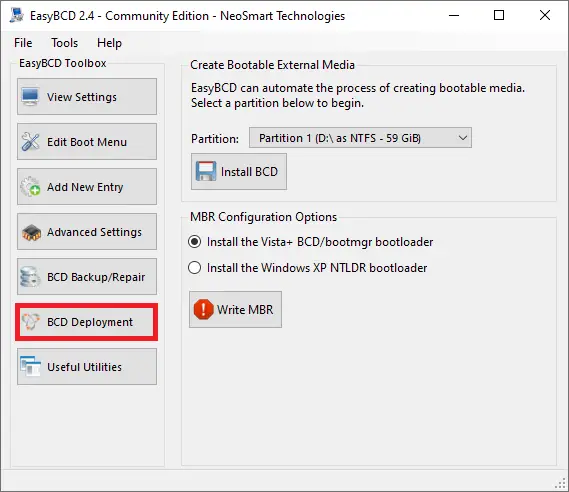
Step 8. Under the “Create Bootable External Media” section, select your USB flash drive from the Partition drop-down menu.
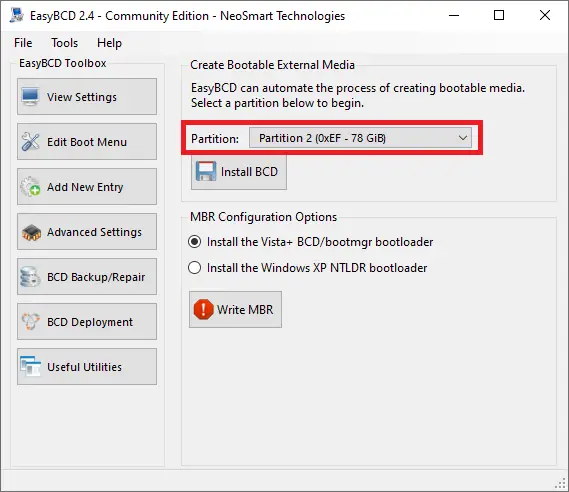
Step 9. Click the Install BCD button and wait for the Bootable Disk Created confirmation dialog box.
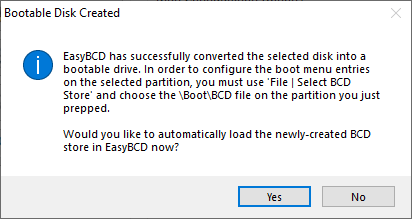
Step 10. Click Yes and then close EasyBCD.
Step 11. Now, copy all the Windows 10, 8.1, or 7 installation files and folders from the ISO or DVD to your USB flash drive.
Note: You can extract the contents of an ISO using WinRAR.
After copying all the necessary files and folders, your USB drive is ready to be used for installing Windows 10, 8.1, or 7.
Once your bootable USB is created, you can even test it without installing it on your computer or laptop.
Download EasyBCD
You can download EasyBCD from this page.
Conclusion
In conclusion, creating a bootable USB flash drive for Windows 10, 8, or 7 is easy, especially with the right tools. EasyBCD is one such user-friendly utility that allows you to create a bootable USB drive in just a few steps. By following the guide above, you can prepare your USB drive quickly and use it for fresh Windows installations. Whether you choose EasyBCD, Rufus, or Microsoft’s official tool, having a bootable USB drive is essential for recovery, installation, or troubleshooting.