

In today’s world, ISO files are becoming increasingly popular for storing and transferring data. An ISO file is an image file of an optical disc that contains all the files and folders of the original disc. However, many users face difficulties in managing and manipulating ISO files. This is where ISOBuddy comes in – an all-in-one ISO management solution. For those who want to create ISO files directly from folders online, try this free browser-based ISO creation tool for added convenience.
What is ISOBuddy?
ISOBuddy is a user-friendly software that allows you to convert, erase, and burn ISO files quickly and easily. It supports all types of ISO files, including CD, DVD, and Blu-Ray images. The software is compatible with all versions of the Windows operating system. You may also explore ISO Toolkit, another free and versatile tool designed for similar ISO management tasks.
Key Features
- Convert ISO files: ISOBuddy allows you to convert a range of formats, including GI, EPS, CDI, MDF, B5I, B6I, DMG, CDI, ITC and CCD images to an ISO image.
- Burn ISO files: ISOBuddy makes it easy to burn ISO files to CDs, DVDs, and Blu-ray discs. You can even create bootable discs using ISO files. If you’re looking for a lightweight alternative, check out the Free ISO Burner — a quick and simple solution for burning ISO images.
- Easy to use: ISOBuddy has a simple and intuitive user interface that makes it easy to use, even for beginners.
- Free to use: ISOBuddy is available for free download, and there are no hidden costs or limitations.
Why Use ISOBuddy?
- Time-saving: With ISOBuddy, you can manage ISO files quickly and easily, saving you time and effort.
- Compatibility: ISOBuddy supports all types of ISO files, making it a versatile tool for managing your data. You can also learn how to mount ISO images in Windows directly without third-party tools for basic use cases.
- Easy to use: The user-friendly interface makes ISOBuddy easy to use for everyone, regardless of their technical expertise.
- Free to use: ISOBuddy is available for free, which makes it an excellent option for users who need to manage ISO files but do not want to spend money on expensive software.
How to Use ISO Buddy?
Using ISOBuddy is very simple. Here is how to do:-
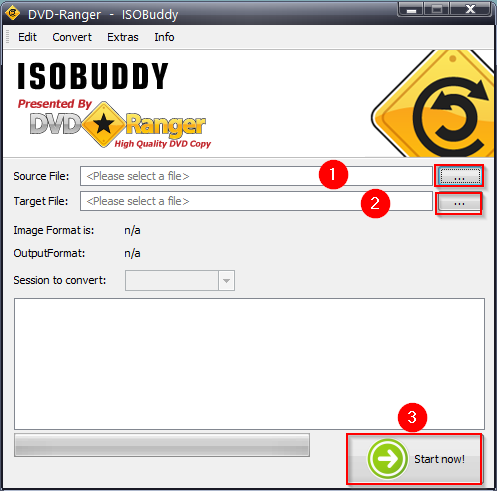
Step 1. Open ISO Buddy on your Windows PC. The main interface shows an option to convert an ISO file.
Step 2. Click the Browse button and choose the ISO, IMG, BIN, or any supported disc image you want to manage. Once selected, ISO Buddy will automatically read and display the file information.
Step 3. To convert your loaded file to ISO format, select the Target File option. Choose the destination folder and click Start Now!. ISO Buddy will quickly convert the file without losing data.
Step 4. If your PC has a disc writer, you can burn ISO files directly. First, select an ISO file on the main interface. Then, choose the Extras > Burn Disk Image function, insert a blank CD/DVD, and click Start to start the burning process. ISO Buddy handles the write operation smoothly.
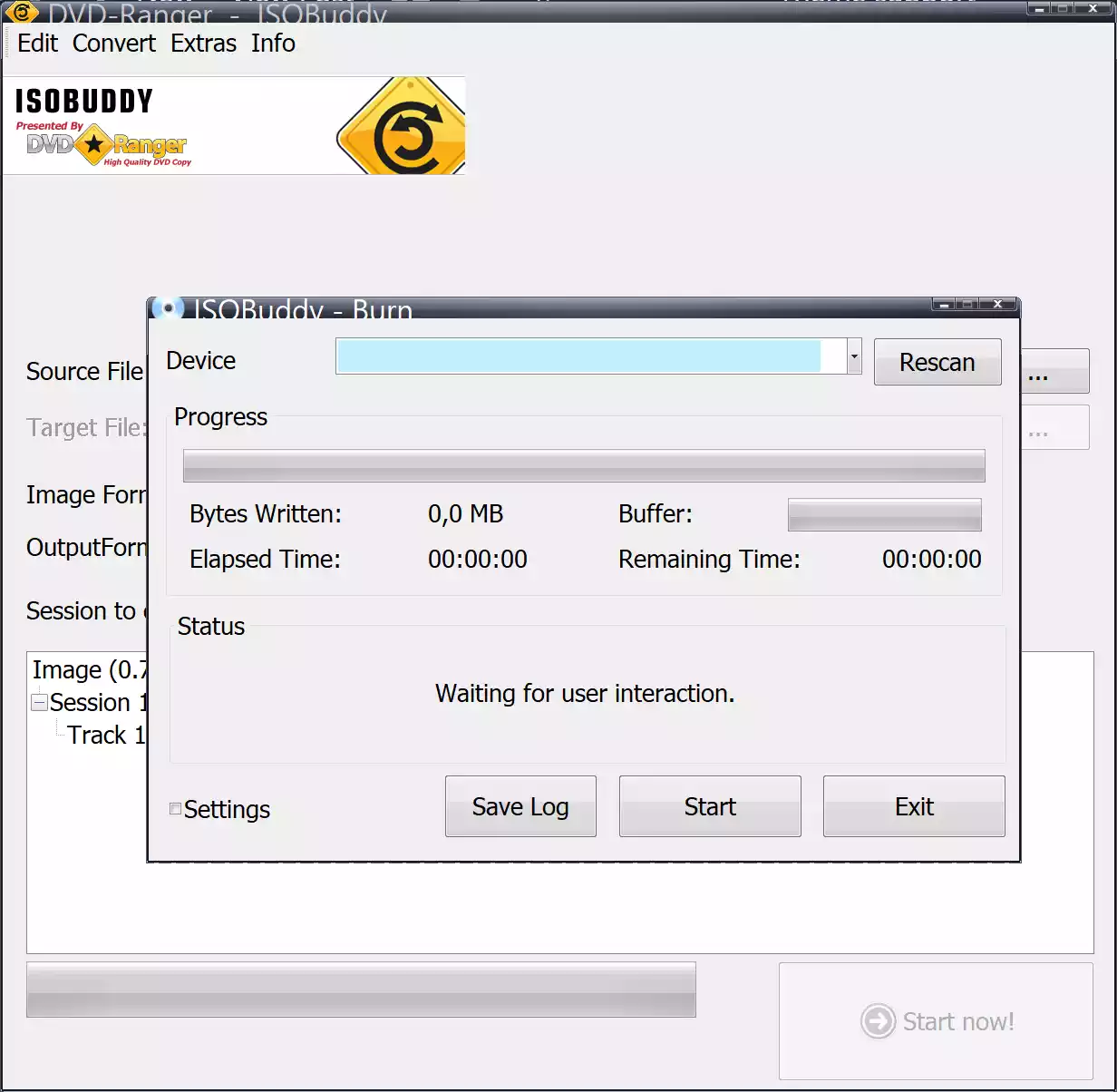
Step 5. After conversion or burning, check the output folder to ensure your files or ISO are created properly. ISO Buddy preserves the original file quality during all operations.
Step 6. If you want to erase a rewritable disk, first insert it into your PC. Select Extras > Erase Disk from the menu. Click Complete or Fast. ISO Buddy handles the erase operation smoothly.
Download ISOBuddy
You can download it here.
Conclusion
ISOBuddy is an excellent ISO management solution that offers a range of features to help you manage and manipulate ISO files with ease. With its user-friendly interface, compatibility with all types of ISO files, and the ability to perform tasks quickly and easily, it is a must-have tool for anyone who deals with ISO files regularly. Before you go, explore the best free virtual drive software for Windows to expand your ISO and disk image management toolkit. Best of all, ISOBuddy is available for free download, making it accessible to everyone.