

In this gearupwindows guide, we’ll show you how to use MiniTool Partition Wizard, a powerful and feature-rich partition manager for Windows that goes beyond the built-in tools.
Windows 11/10 includes a built-in Disk Management Tool and Diskpart.exe utility to perform basic disk tasks. While these tools are sufficient for simple operations, many users prefer a more advanced and user-friendly alternative. If you’re looking for a clean, ad-free, and full-featured partition manager, consider using MiniTool Partition Wizard.
Why MiniTool Partition Wizard?
MiniTool Partition Wizard is a free disk and partition management tool for Windows that handles a wide range of storage tasks. With it, you can copy, format, delete, wipe, extend, resize, and manage partitions with ease.
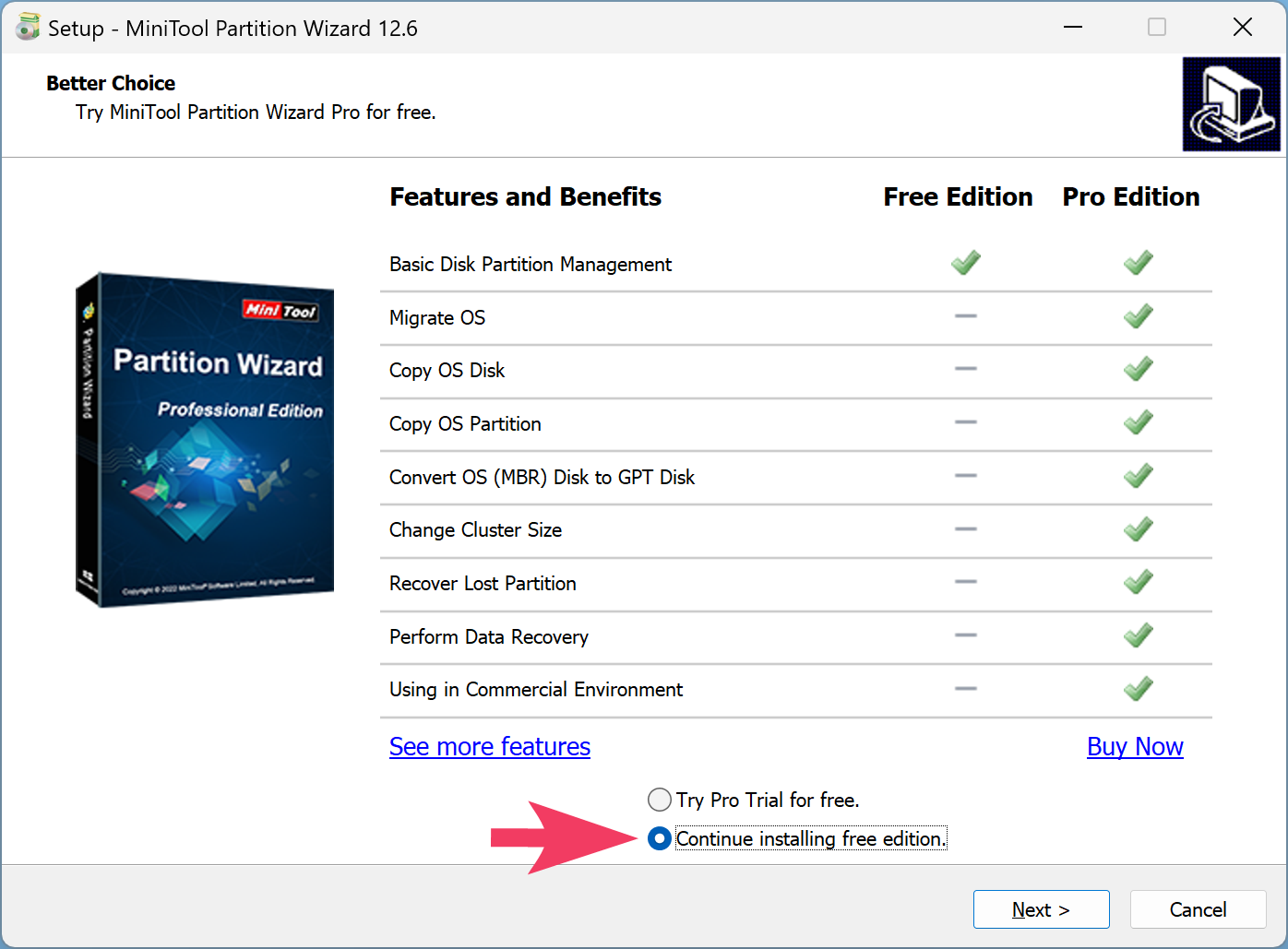
During installation, make sure to select the “Continue installing free version” option to avoid installing the trial version.
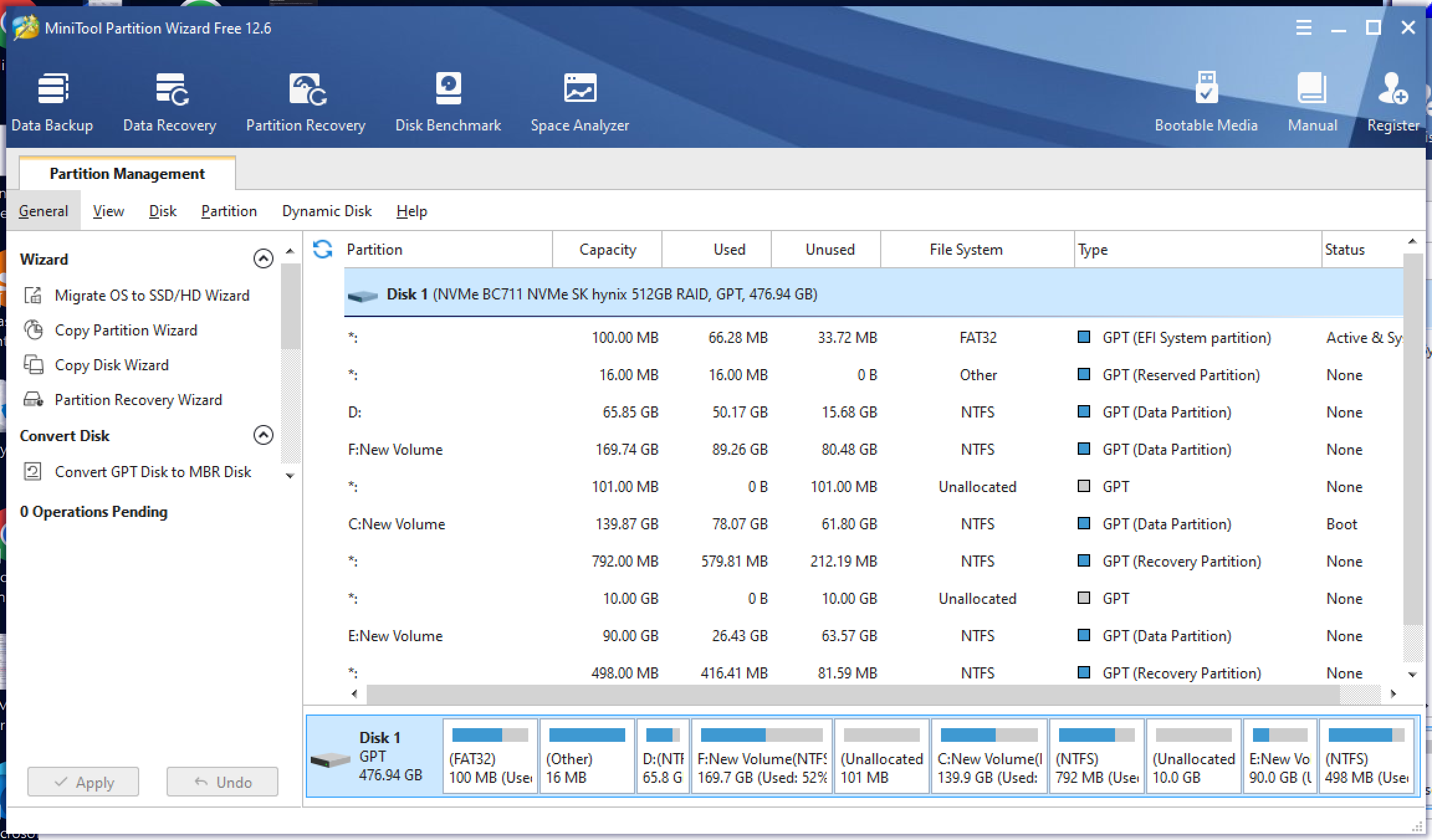
Once installed, launch the software to access a variety of tools like Migrate OS to SSD/HD Wizard, Copy Partition Wizard, Partition Recovery Wizard, and more. These tools allow you to handle both common and advanced disk operations without risk.
Key Features
- Works with all Windows versions from XP to Windows 11.
- Migrate OS from one drive to another using the Migrate OS to SSD/HD Wizard.
- Create primary and logical partitions in NTFS, FAT/FAT32, Ext2/3/4, Linux Swap, or leave unformatted.
- Convert NTFS partitions to the FAT file system.
- Adjust cluster size when formatting partitions.
- Change drive letters for any partition easily.
- Resize partitions by dragging or entering exact values.
- Run surface tests to identify bad sectors.
- Copy individual partitions or entire disks.
- Scan and repair damaged file systems.
- Apply custom volume labels for better organization.
- Rebuild MBR and copy MBR to the GPT disk.
- Convert system disk between MBR and GPT formats.
- Remove multiple partitions in one step.
- Hide partitions from File Explorer for privacy.
- Set any partition as active or inactive.
- Split an existing partition into two without losing data.
- Copy only the system partition or the entire disk.
- Convert between primary and logical partitions.
- Modify partition serial numbers and Type IDs.
- Recover lost partitions using the Partition Recovery Wizard.
- Wipe partitions securely using Write Zero, Random Data, or DoD 5220.22-M methods.
- View detailed partition properties such as file system, serial number, and physical sector info.
- Recover deleted files using the built-in data recovery tool.
- Benchmark any disk to analyze performance.
- Use the built-in disk space analyzer to find large or duplicate files.
- Supports multiple interface languages, including English, Japanese, French, German, Korean, and Italian.
Download MiniTool Partition Wizard
You can download the free version of MiniTool Partition Wizard from the official website here.
Conclusion
Every change you make using MiniTool Partition Wizard is first listed in the Operations Pending section. This preview feature lets you verify all steps before clicking the Apply button to execute them safely.
One standout advantage is its ability to enlarge the system partition without rebooting. If unallocated space is available, you can quickly extend your main drive in just a few clicks.
The software supports all versions from Windows XP to 11, making it a versatile tool for users with multiple PCs. With just one executable, you can manage partitions across various Windows environments efficiently and securely.