

In this gearupwindows guide, we’ll show you several easy methods to open the Windows Registry Editor. The Windows Registry is a hierarchical database that stores low-level settings for the operating system and installed applications. It manages configuration settings for programs, kernels, device drivers, services, the Security Accounts Manager, and even the user interface.
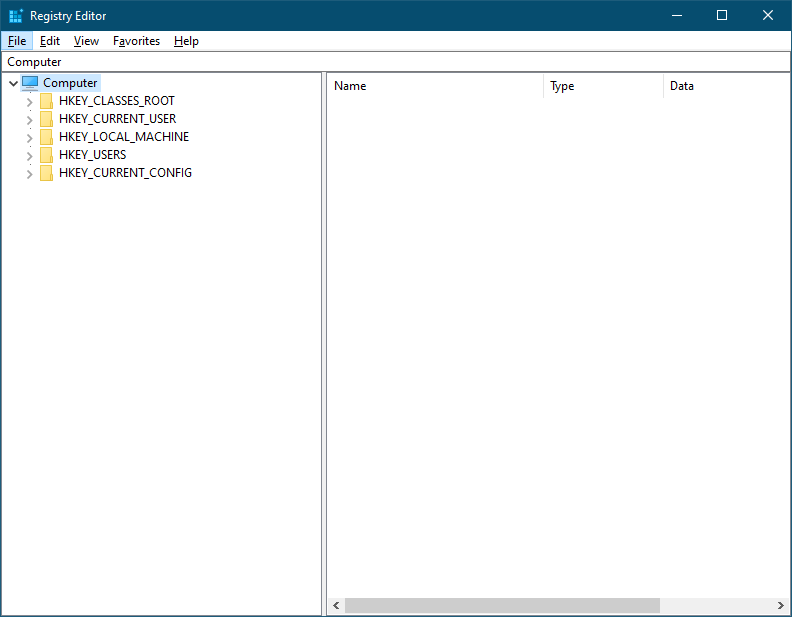
Many advanced troubleshooting and customization tasks require editing the registry. Below are multiple ways to open the Registry Editor in Windows:
- Via Run Box
- Using Command Prompt
- Through Taskbar Search
- By PowerShell
- Via File Explorer
- By Creating a Desktop Shortcut
How to Open Registry Editor Using the Run Dialog Box?
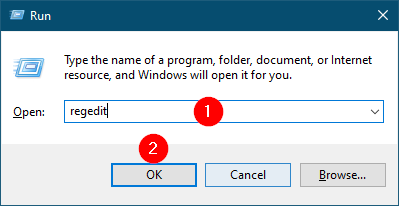
One of the quickest ways to access the Registry Editor is through the Run command box.
Step 1. Press the Windows logo + R keys on your keyboard to open the Run box.
Step 2. In the Run box, type regedit and click OK to launch the Registry Editor.
How to Start Registry Editor Using Command Prompt?
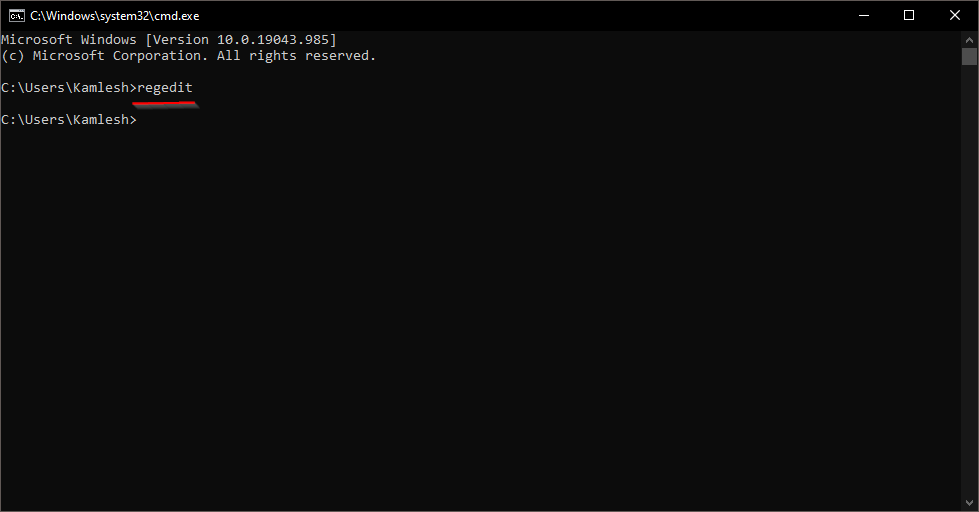
If you prefer using the Command Prompt for administrative tasks, follow these steps:
Step 1. Open Command Prompt as administrator.
Step 2. In the Command Prompt window, type the following command and press Enter:
regedit
How to Open Registry Editor Through Taskbar Search?
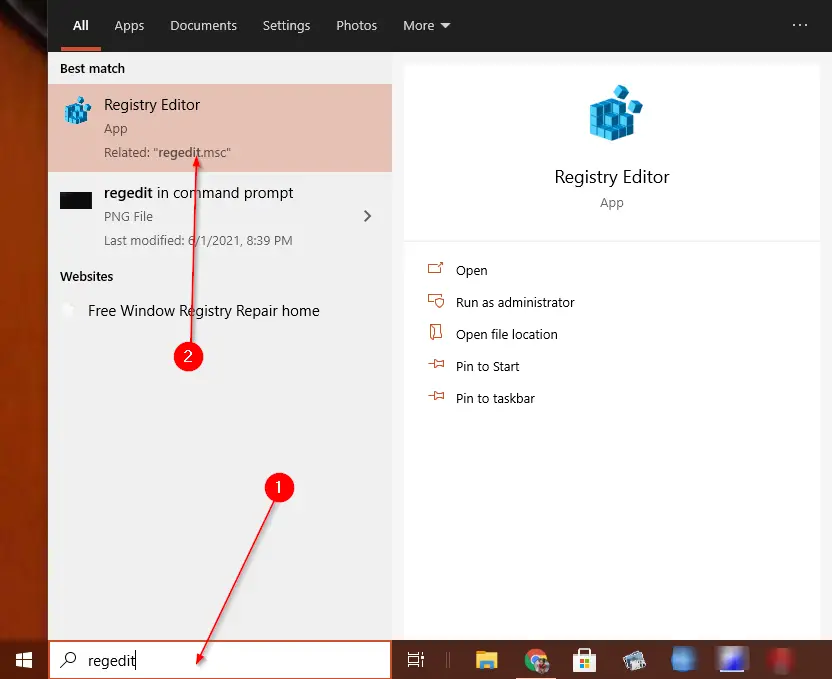
Windows Search on the Taskbar also lets you access the Registry Editor quickly.
Step 1. On the Taskbar Search, type regedit.
Step 2. From the results, click on Registry Editor to open it.
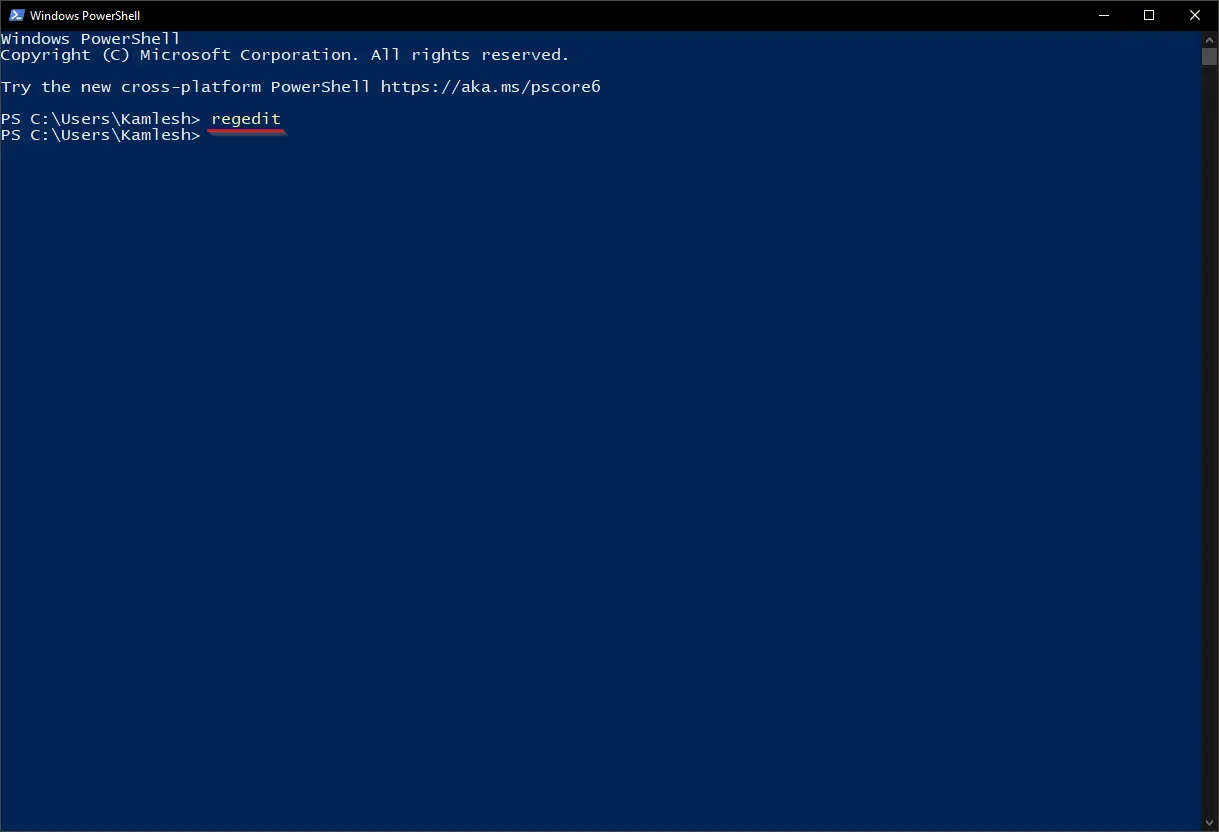
How to Access Registry Editor Using PowerShell?
You can also use Windows PowerShell to launch the Registry Editor.
Step 1. Open PowerShell as administrator.
Step 2. In the PowerShell window, type the command below and press Enter:
regedit
How to Open Registry Editor Using File Explorer?
File Explorer gives you direct access to the Registry Editor executable.
Step 1. Open File Explorer.
Step 2. Navigate to the following path:
C:\Windows\System32
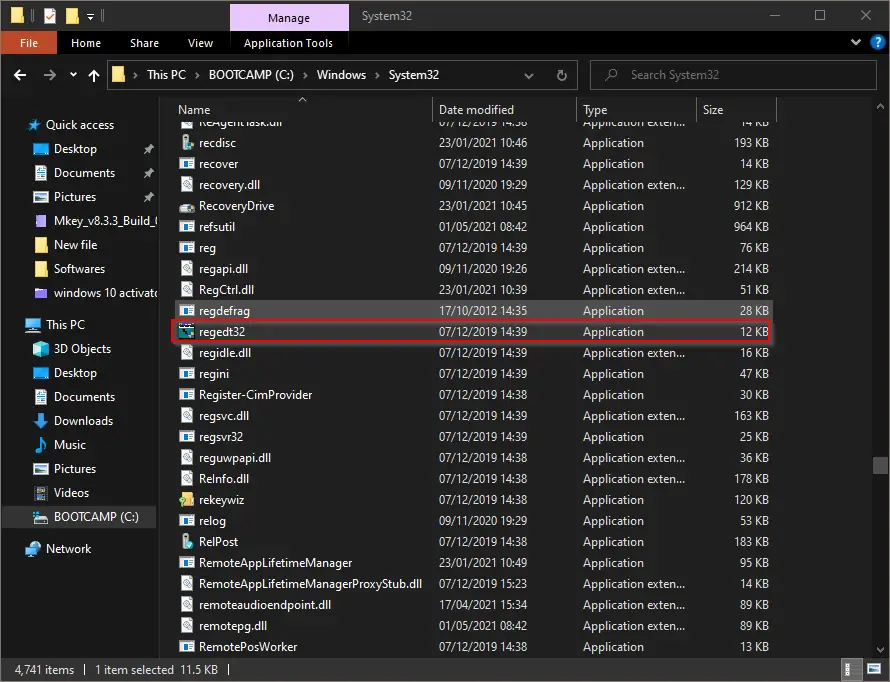
Step 3. Double-click on regedt32 to open the Registry Editor.
How to Open Registry Editor from the Desktop Shortcut?
If you access the Registry Editor frequently, creating a desktop shortcut is a convenient option.
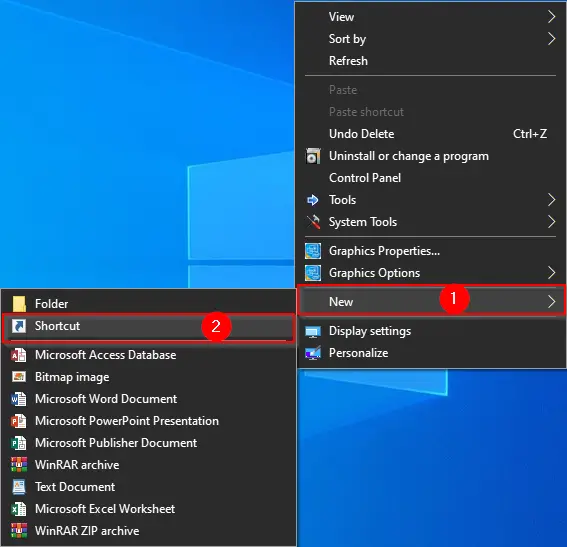
Step 1. Right-click on the desktop and choose New > Shortcut.
Step 2. In the shortcut location box, type:
%windir%\regedit.exe
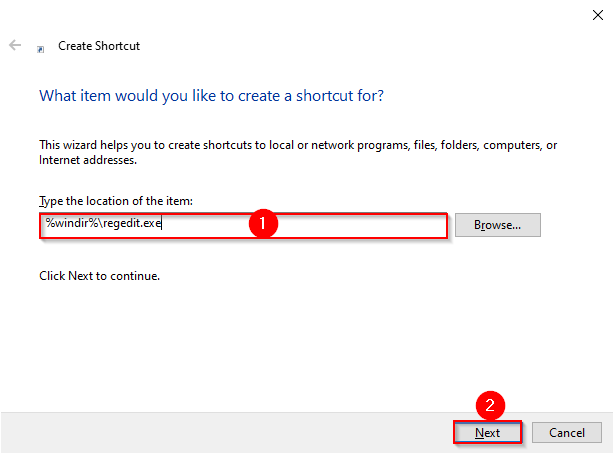
Step 3. Click Next.
Step 4. Name the shortcut as “Registry Editor“.
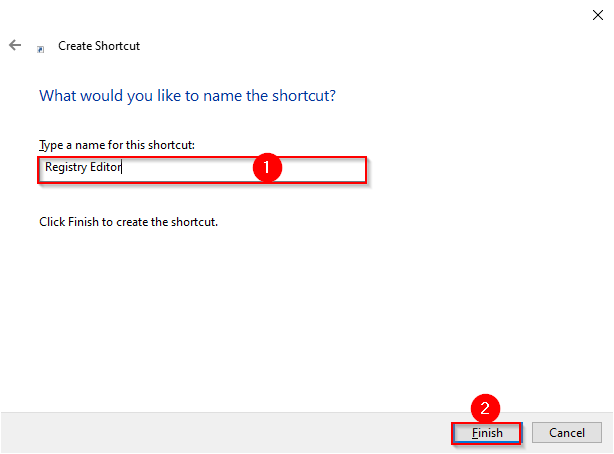
Step 5. Click Finish.
You can now access the Registry Editor anytime by double-clicking the shortcut icon on your desktop.
Conclusion
Accessing the Windows Registry is essential for advanced troubleshooting and system customization. Whether you prefer the Run box, Command Prompt, PowerShell, File Explorer, Taskbar Search, or a desktop shortcut, Windows offers multiple convenient ways to open the Registry Editor. By following any of the steps outlined above, you can quickly access the Registry and modify system configurations with ease.