

Whether you’ve just installed a fresh copy of Windows or your computer feels sluggish after months of use, Optimizer by Hellzerg is a perfect free tool to make your system faster, cleaner, and more private. It’s lightweight, portable, and applies smart tweaks in just a few clicks—no scripting or registry editing required.
What is Optimizer?
Optimizer is an open-source Windows optimization suite that lets you clean temporary files, disable telemetry, manage startup programs, and control system services—all from one simple interface. It’s designed to make Windows run faster and protect your privacy without any technical complexity.
This tool is especially useful after a fresh Windows installation, where you may want to debloat unnecessary apps, stop background tracking, and boost performance instantly.
Key Features of Optimizer
- Disable Windows telemetry and privacy-invading features.
- Clean junk, logs, and temp files to free up space.
- Manage startup programs for faster boot times.
- Uninstall unwanted UWP and system apps.
- Edit the hosts file to block ads and tracking domains.
- Perform one-click performance and network tweaks.
- Completely portable — no installation required.
Understanding Each Tab in Optimizer
The Optimizer interface is organized into several tabs, each focusing on a specific area of Windows management and maintenance.
1. General
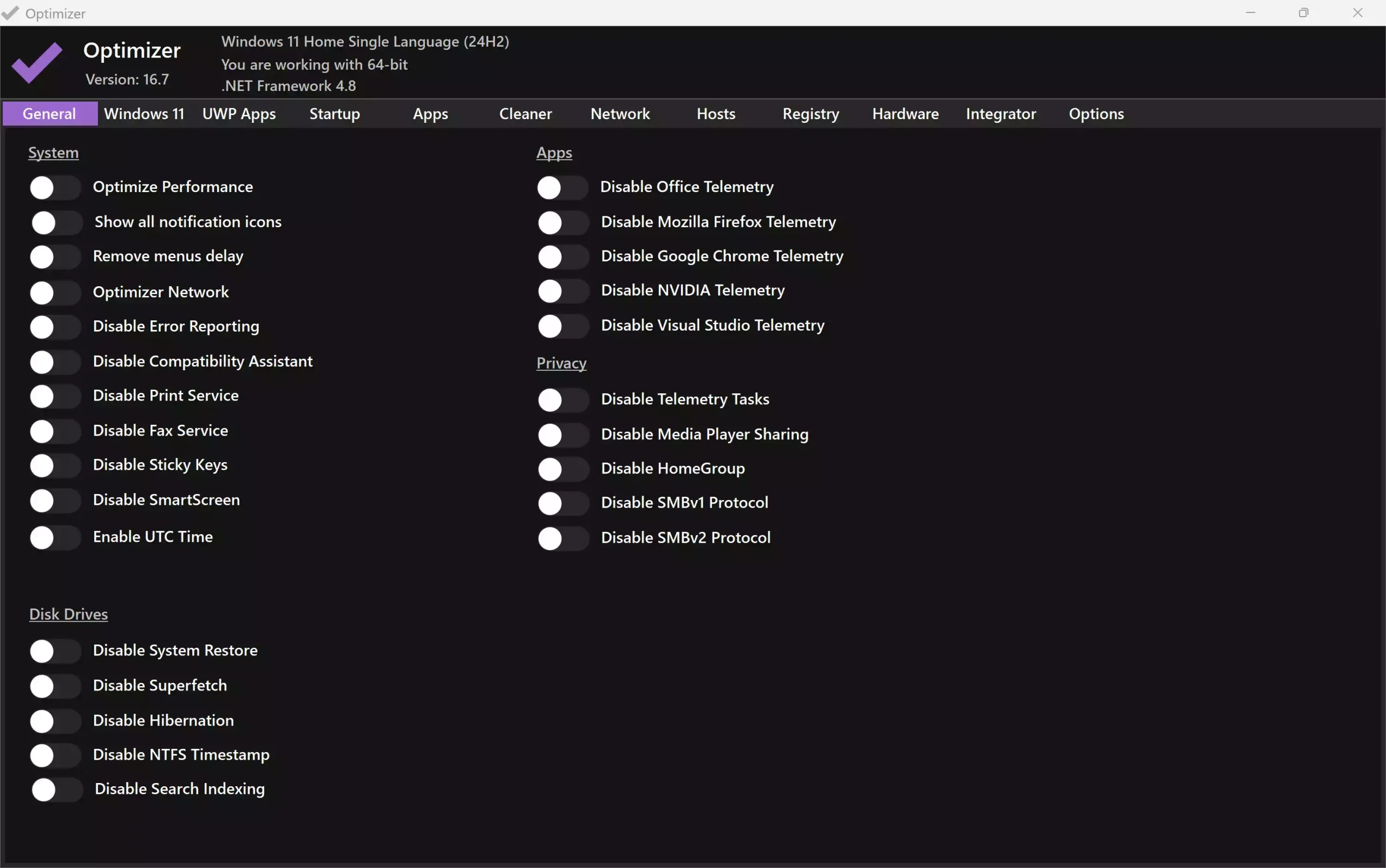
The General tab contains essential privacy and performance tweaks. You can disable telemetry, SmartScreen, sticky notes, error reporting, and more. It’s a quick way to stop Windows from collecting background data. For extended privacy control, see DonotSpy11 or O&O ShutUp10++.
2. Windows 11/10
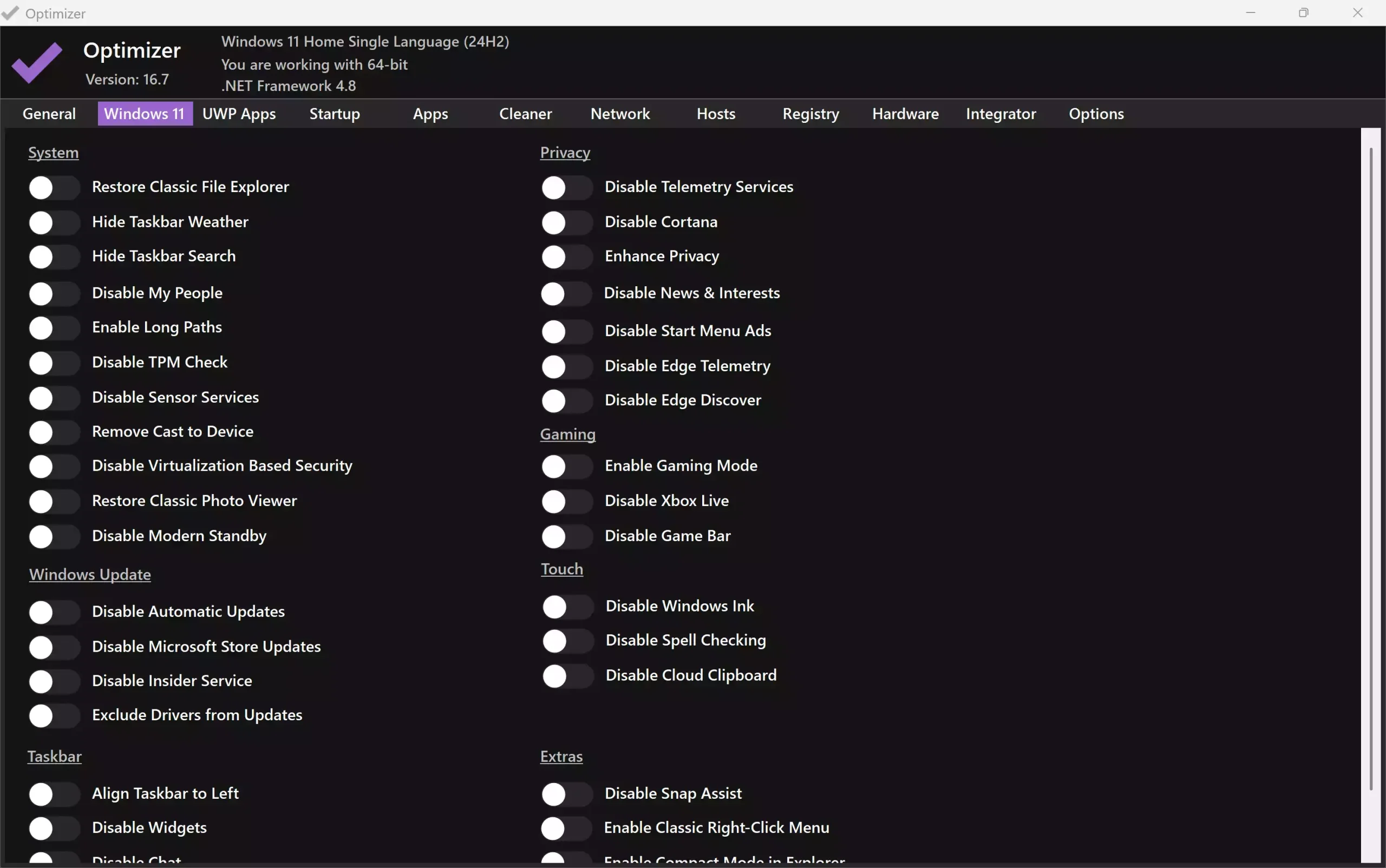
Depending on your operating system, this tab adjusts features specific to Windows 10 or 11. You can restore the classic context menu, hide taskbar weather, disable Cortana, or turn off the cloud clipboard — perfect for fine-tuning modern Windows editions.
3. UWP Apps
The UWP Apps tab allows you to remove preinstalled Microsoft Store apps like Weather, Mail, or Xbox with a single click. It’s ideal for decluttering new PCs. If you prefer automated cleanup, try Rytunex or CrapFixer.
4. Startup
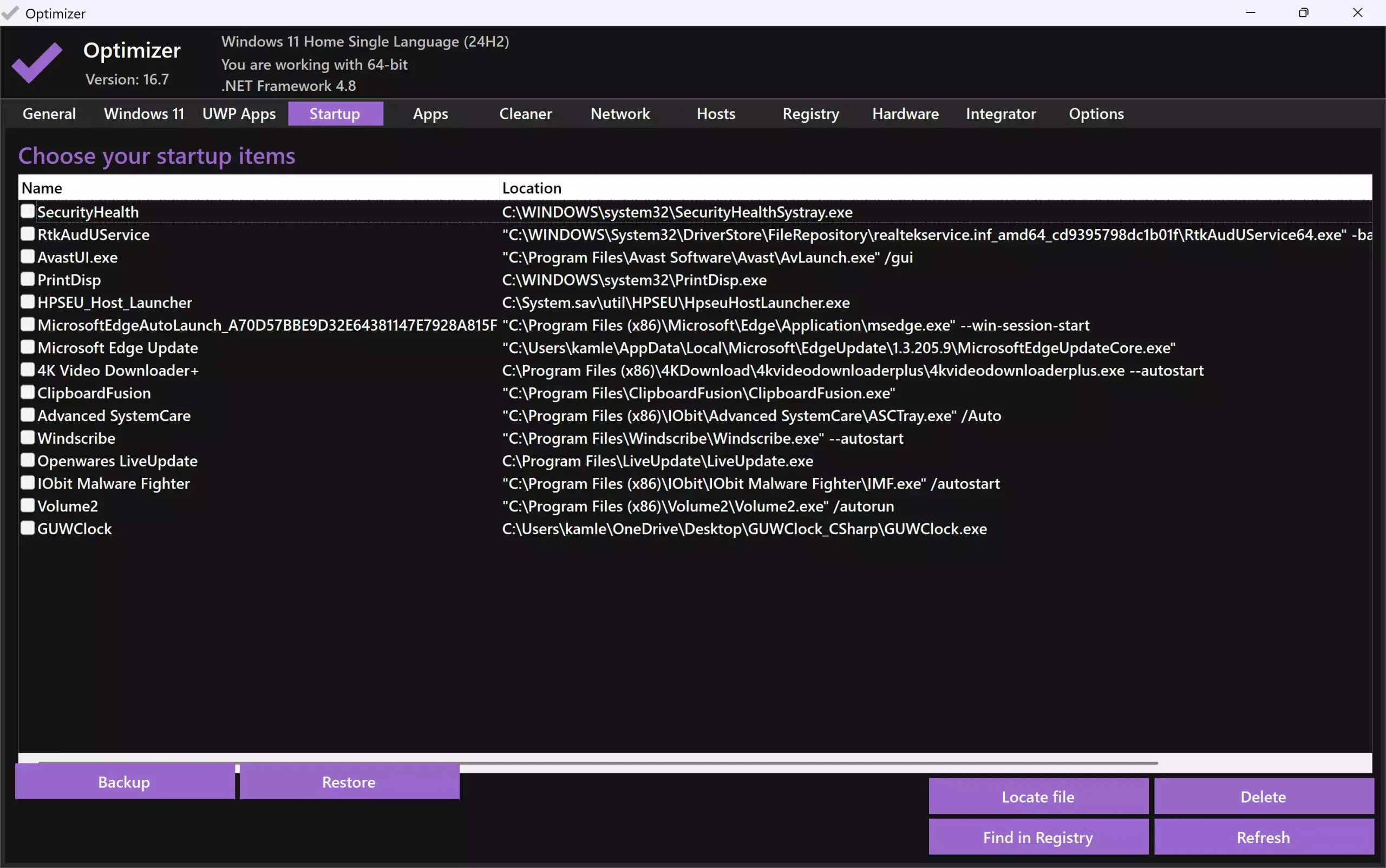
The Startup tab lists all applications that launch automatically with Windows. You can enable, disable, or delete entries to improve boot speed. It’s similar to the startup manager found in Ashampoo WinOptimizer Free.
5. Apps
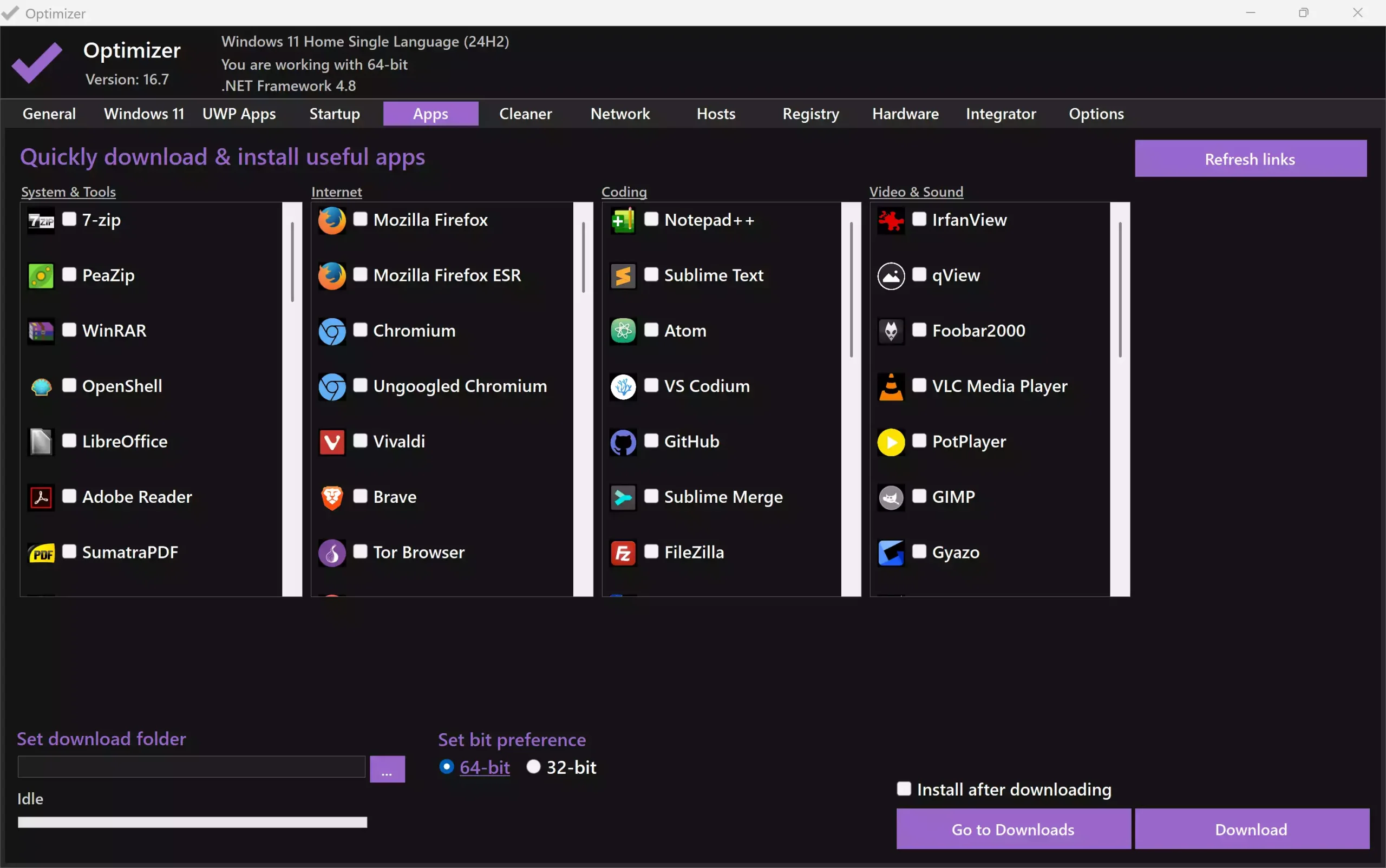
The Apps tab gives you one-click access to popular Windows software divided into four categories: System & Tools, Internet, Coding, and Video & Sound. You can easily install programs like 7-Zip, Brave, Notepad++, or PotPlayer. After selecting your apps, tick “Install after downloading” and click Download. Optimizer will automatically fetch and install all selected programs.
6. Cleaner
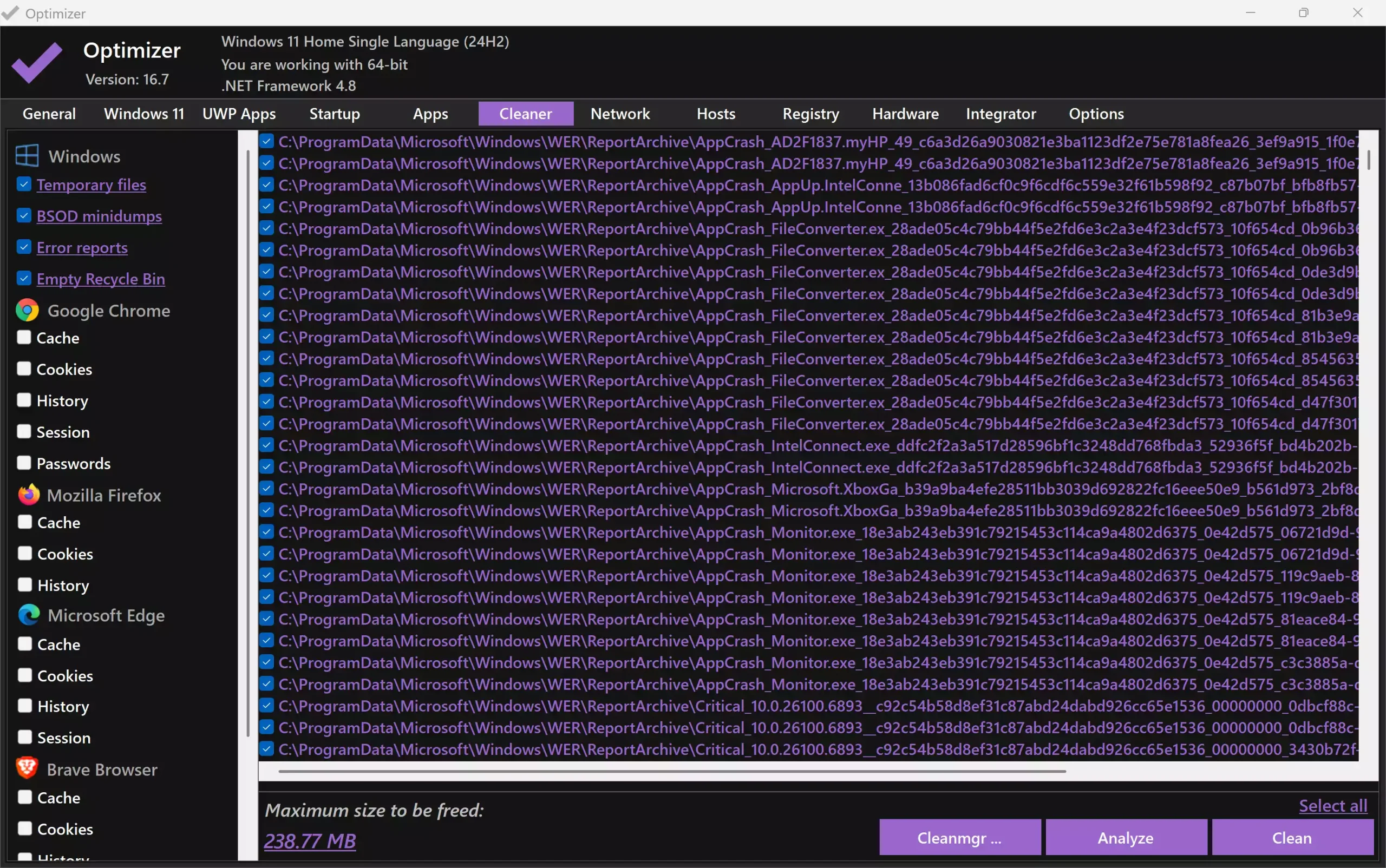
The Cleaner tab helps you delete unnecessary Windows files such as temporary files, BSOD minidumps, and error reports. It can also clear browser cache, cookies, history, sessions, and saved passwords. Simply select the items you want to clean, click Analyze, then press Clean to erase them. It’s an open-source alternative to CCleaner and pairs well with Privazer.
7. Network
The Network tab lets you apply TCP and DNS tweaks for faster internet performance. You can flush DNS cache, reset network settings, and adjust MTU for better speed. For DNS utilities, explore QuickSetDNS and DNS Jumper.
8. Hosts
The Hosts tab allows you to edit or import host files to block ads, telemetry, and tracking domains. It also supports downloading predefined lists for advanced blocking. Pair it with GlassWire for complete network protection.
9. Registry
The Registry tab helps you fix or restore common Windows features, such as Task Manager, Control Panel, Folder Options, and Command Prompt. These pre-tested tweaks are reversible and provide a safer way to manage registry-based configurations.
When Optimizer Can Help You
- After reinstalling or upgrading Windows.
- When your PC feels slow or bloated.
- If you want to enhance privacy and disable telemetry.
- To manage startup apps and reduce background load.
- For long-term Windows maintenance and optimization.
System Requirements
- Windows 10 or 11 (32-bit or 64-bit)
- Portable application — no installation required
- Administrator rights recommended for full access
How to Use Optimizer
Step 1. Download the latest portable version of Optimizer.
Step 2. Right-click Optimizer.exe and select Run as administrator.
Step 3. Explore each tab and apply the tweaks you prefer. Changes take effect instantly or after a reboot.
Step 4. Always create a system restore point before making advanced changes.
Download Optimizer
Optimizer is completely free and open source. You can download it from its official GitHub page. For comparison, you may also explore Ultimate Windows Tweaker 5 or Rytunex for similar all-in-one optimization tools.
FAQs
Q1. Is Optimizer safe to use?
Yes. Optimizer is open-source, portable, and doesn’t alter critical system files unless you choose to. Still, creating a restore point before applying tweaks is recommended.
Q2. Can I undo changes made by Optimizer?
Yes. Most options can be re-enabled directly, or you can restore Windows defaults through the same interface.
Q3. Does it replace CCleaner or BleachBit?
No. Optimizer complements them by focusing on privacy, startup, and performance tweaks, while tools like Privazer specialize in deep cleaning.
Q4. Can I use Optimizer offline?
Yes, it’s fully offline and requires no internet connection or user account.
Conclusion
Optimizer is a compact, feature-rich, and portable utility that simplifies Windows performance tuning and privacy management. It provides nearly everything a user needs to clean, tweak, and enhance Windows without relying on multiple separate programs.
For best results, pair it with Rytunex and CrapFixer to create a complete, safe, and modern optimization toolkit.