

When a document gets stuck in the queue or the printer refuses to respond, the culprit is often the Print Spooler—the Windows service that manages all print jobs. The free Print Spooler Repair Tool simplifies the usual manual steps (stopping the service, clearing the queue folder, and starting the service again) into a quick, guided process any beginner can follow.
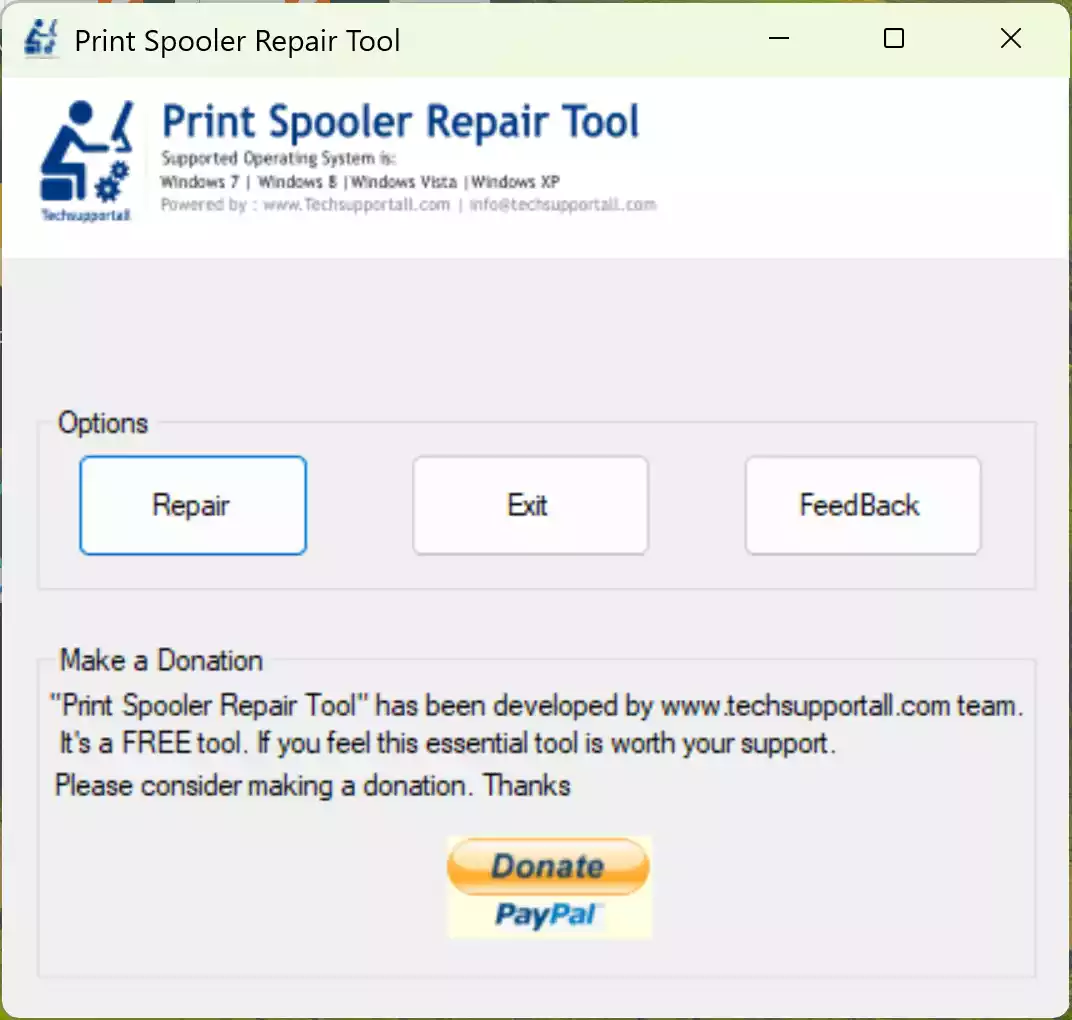
What is Print Spooler Repair Tool?
Print Spooler Repair Tool is a free Windows utility designed to diagnose and repair common print spooler problems. It focuses on clearing stuck jobs, fixing service configuration issues, and restoring the spooler to a working state—so your printer can start printing again without digging through advanced Windows settings.
Why Would a Beginner Use Print Spooler Repair Tool?
Beginners run into printing problems for many reasons: a jammed job that won’t cancel, a print dialog that won’t close, or a printer that constantly shows “Offline.” Manually repairing this involves multiple steps inside Services and File Explorer. The Print Spooler Repair Tool replaces that complexity with simple, guided actions. If you want to understand the underlying service better, our tutorial on service control covers it in detail: How to Stop or Restart Print Spooler Service in Windows 11 or 10.
Main Features of Print Spooler Repair Tool
- One-click queue cleanup: Stops the spooler service, removes stuck print jobs, and restarts the service.
- Service repair: Resets core spooler settings to defaults if they were changed by other apps or updates.
- Troubleshooting helpers: Provides guided steps for common scenarios like “Printer Offline” or “Spooler not running.”
- Beginner-friendly: Clear interface and guidance so you don’t have to use command lines.
How to Use Print Spooler Repair Tool
Follow these steps to quickly fix most print spooler errors on Windows 11/10:
Step 1. Close all apps that might be printing (Word, browsers, PDF readers) and pause the printer’s physical panel if it is trying to reprint the same job.
Step 2. Download the latest Print Spooler Repair Tool from its official source and save it to your PC.
Step 3. Right-click the tool and choose Run as administrator. Administrative permission is needed to start/stop services and clear the system spool folder.
Step 4. Click the Repair button to Clear/Reset Print Queue. The tool will stop the spooler service, delete pending job files, and restart the service.
Step 5. Try a small test print (e.g., a Notepad file). If the printer remains offline, review our guide to common causes and fixes: How to Fix Printer Spooler Problems on Windows 11 or 10.
Pros and Considerations
- Pros: Freeware; simple interface; effective for stuck print jobs; helpful when the print queue refuses to clear.
- Considerations: Requires admin rights; security software may prompt during service changes; deeper driver issues may still require reinstalling the printer driver.
Safe Use Tips for Beginners
- Create a system restore point before making major changes to services or drivers.
- Always Run as administrator so the tool can control the spooler service properly.
- If you don’t need printing temporarily (e.g., for security hardening), you can disable the service—see: How to Disable Print Spooler Service on Windows 11/10.
- Keep printer drivers up to date via the manufacturer’s website to avoid recurring spooler errors.
When Print Spooler Repair Tool Can Help You
- Stuck print jobs: Queue shows “Deleting…” forever.
- Spooler keeps stopping: Service crashes or won’t start.
- Printer offline: Windows sees the printer but won’t send jobs.
- Post-update issues: Windows Update or a driver update broke printing.
Download Print Spooler Repair Tool
The Print Spooler Repair Tool is freeware. You can download it from the developer’s website. If you prefer the classic repair utility, get it from the developer’s official page to ensure you have the latest, safe version.
Frequently Asked Questions About Print Spooler Repair Tool
Is Print Spooler Repair Tool safe to use?
Yes, it performs the same maintenance steps you could do manually (stop the service, clear the queue, start the service). Always download from the official source and run it as an administrator.
Do I need to uninstall and reinstall my printer?
Not usually. Clearing the queue and restarting the spooler fixes most cases. If prints still fail, try reinstalling the printer driver after using the tool.
Will it work on both Windows 11 and Windows 10?
Yes. The Print Spooler service functions similarly on Windows 11 and Windows 10, and the tool targets that service specifically.
What if my spooler keeps stopping after repair?
Check for corrupted drivers or third-party services conflicting with the spooler. You can also follow our service-level guide: Stop/Restart Print Spooler Service and see Printer Spooler Problems on Windows.
Conclusion
The free Print Spooler Repair Tool offers a quick, beginner-friendly way to clear the print queue and get printing back on track in Windows 11/10. For many users, a single cleanup and restart is all it takes. If you need a compact, portable option, try our recommended utility here: Fix Print Spooler (Portable Freeware). With either approach, you can resolve most spooler errors without complex troubleshooting.