

Radiograph is a Windows application available on the Microsoft Store that enables you to monitor computer performance, including temperature, component load, and power consumption. The app lets you check the health status of hard drives and the performance of components such as processors and graphics cards. If you’re looking for an advanced tool that provides deep system metrics, you may also like Sidebar Diagnostics — another excellent performance tracker for Windows.
The program is fully compatible with Windows 11 and 10. It comes with a modern UI that blends seamlessly with Windows 11’s aesthetics and light/dark theme support.
Why Radiograph?
Using Radiograph, you can keep track of your computer’s temperature, detect any potential hardware failures, and more. By spotting and reporting hardware errors before they become major problems, this system monitoring tool can help you keep your computer running smoothly. If your focus is primarily on CPU thermal control, check out Core Temp — a lightweight temperature-monitoring tool for Windows.
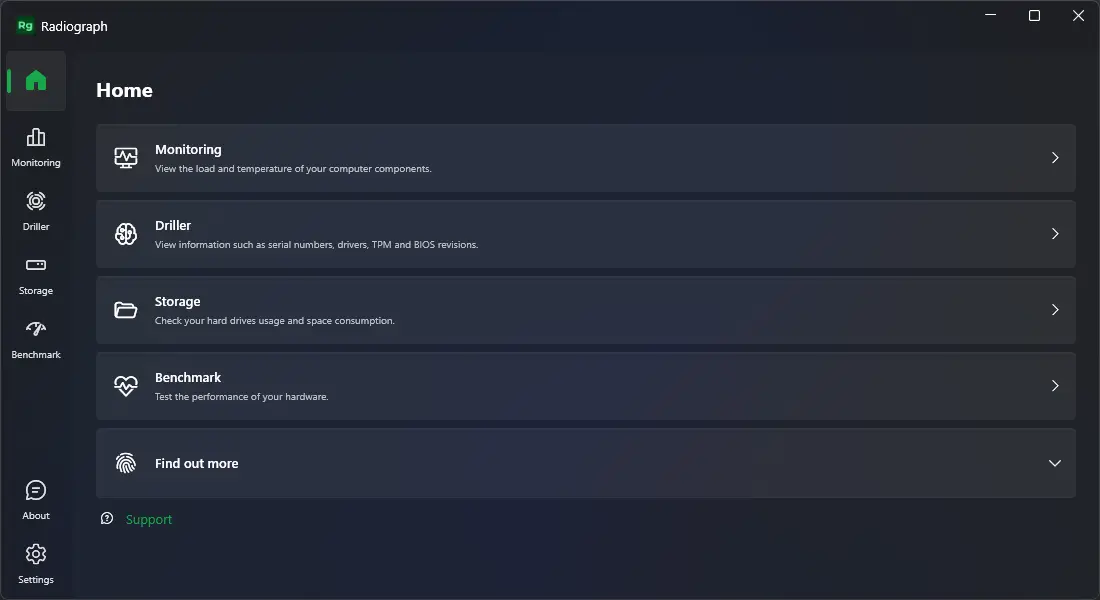
There are several tabs included in this application. When you open the tool, the Home tab automatically opens, showing important shortcuts to the various sections. Clicking on any tab — such as Monitoring, Driller, Storage, or Benchmark — takes you directly to that section.
Monitoring
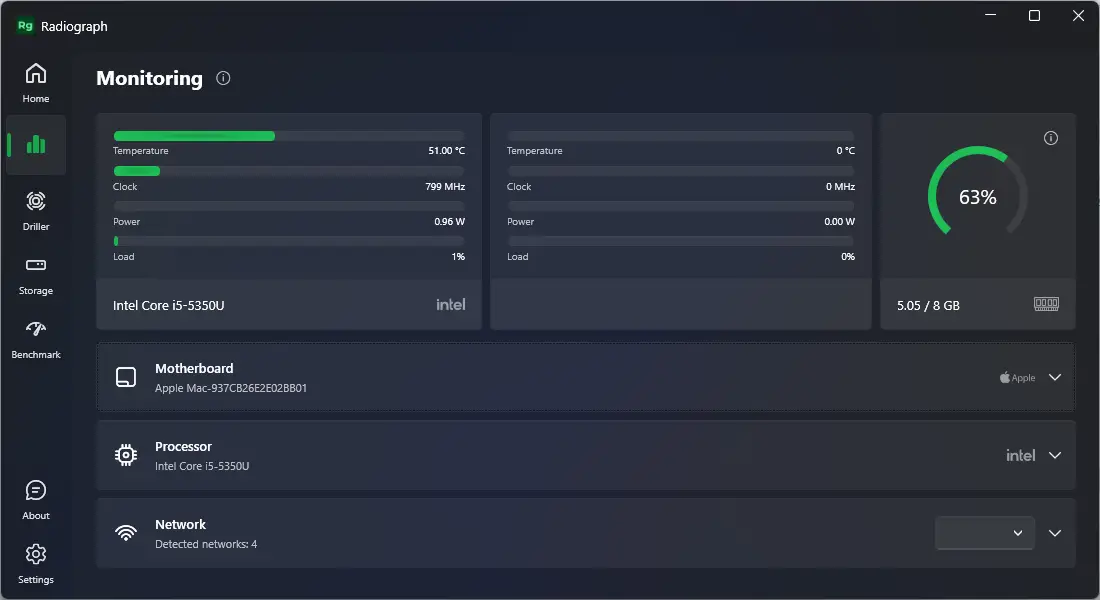
The Monitoring tab is the most important section of Radiograph. As the name suggests, it allows you to monitor the live performance of your PC, including temperature, clock speed, voltage, power usage, and CPU load. You can also view the RAM usage percentage, the processor make/model, and the total installed memory. Expanding options like Motherboard or Processor reveals detailed hardware stats such as temperature, power draw, and socket voltage. For broader power and fan control, you can explore SpeedFan as an additional companion tool.
The Network section also shows live data about your internet download/upload speed and current IP address — a handy feature for system administrators or performance enthusiasts.
Driller
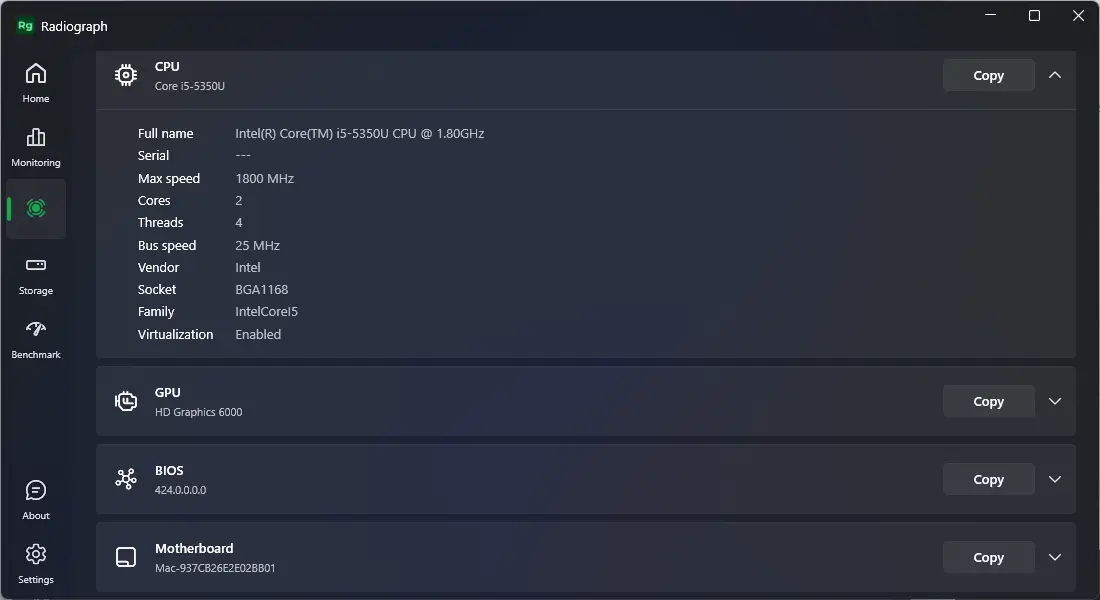
The Driller tab provides deep insight into your PC hardware. It displays detailed data about the CPU, GPU, BIOS, Motherboard, Memory, OS, and TPM (Trusted Platform Module). You can also copy this data with a single click to share or document your system’s configuration — a helpful feature when troubleshooting. Similar diagnostic tools like SysGauge provide extended monitoring of disk and network performance if you need additional benchmarking options.
Storage
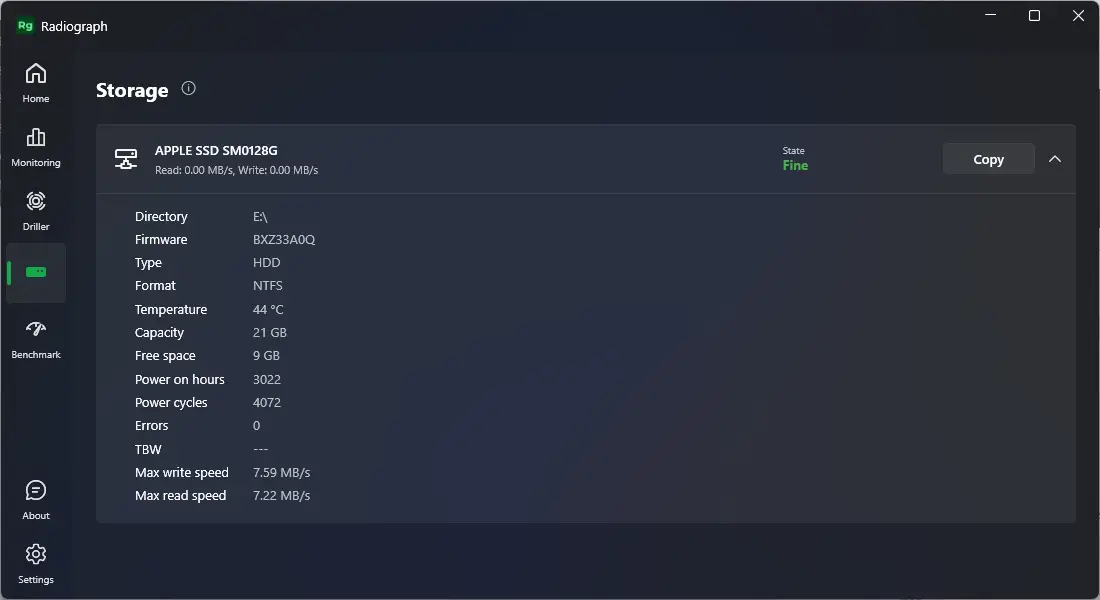
This tab helps you analyze your storage drives, including HDDs and SSDs. It provides information on temperature, read/write speed, and overall drive health status — letting you know when it’s time to replace an aging disk. It’s especially useful for older PCs and laptops that rely on mechanical drives. This makes Radiograph an excellent companion to tools like Radiograph itself, which serves as a unified hardware insight suite.
Benchmark
This tab is currently in beta. Once complete, it will provide performance metrics for stress testing your hardware components safely.
Settings
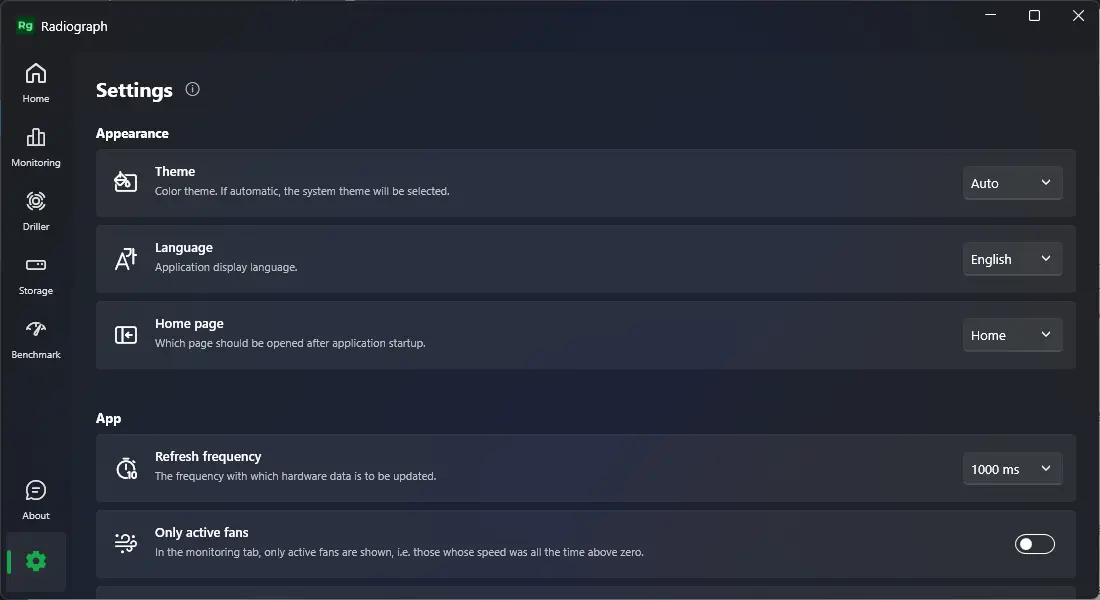
Radiograph includes a Settings menu that allows you to adjust the theme, language, and other display options. By default, it adapts automatically to your Windows theme (light or dark), but you can manually change it anytime.
Download Radiograph
If you find Radiograph useful, you can download and install it directly from the Microsoft Store.
Conclusion
In conclusion, Radiograph is a powerful and reliable Windows application that provides in-depth monitoring and real-time hardware insights. It allows users to check crucial system metrics such as temperature, CPU load, power usage, and drive health — all within a clean, modern interface. By identifying potential hardware issues early, Radiograph ensures your system stays stable and efficient. Combined with tools like Core Temp, SpeedFan, and Sidebar Diagnostics, you can build a complete system health suite for your Windows PC.