

Gone are the days of traditional CDs and DVDs, as most modern computers no longer come with a CD/DVD drive. Fortunately, several freeware tools are available online that allow you to create a bootable USB flash drive from an ISO file. ISO2Disc is a reliable option that not only supports creating bootable CDs/DVDs from Windows ISOs but also allows you to create bootable USB flash drives and Windows To Go drives.
Microsoft has also recognized the need for modern users to create bootable media and has developed the official Windows USB/DVD Download Tool. This tool enables you to create bootable CDs/DVDs and USB flash drives from ISO files and supports the latest Windows 11/10 operating systems. However, it does not include the Windows To Go feature.
For those who prefer to use an official Microsoft tool rather than a third-party application, the Windows USB/DVD Download Tool is a great choice. It was originally called the Windows 7 USB/DVD Download Tool but was later renamed to avoid confusion for Windows 8/8.1 users. With these free tools, you can easily create bootable USB flash drives or CDs/DVDs for your Windows operating system needs.
How to Create a Bootable USB / DVD from ISO?
Here are the steps to create a bootable USB/DVD from ISO using the Windows USB/DVD Download Tool:
Step 1. Download, install, and open the Windows USB/DVD Download Tool (available in different languages) on any Windows PC, including Windows XP, Vista, 7, 8.1, 10, or 11.
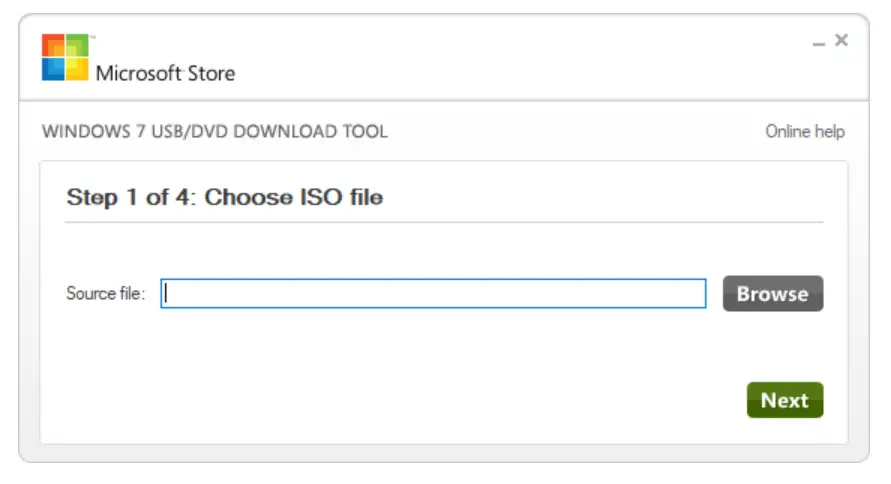
Step 2. Select the bootable ISO file from your computer.
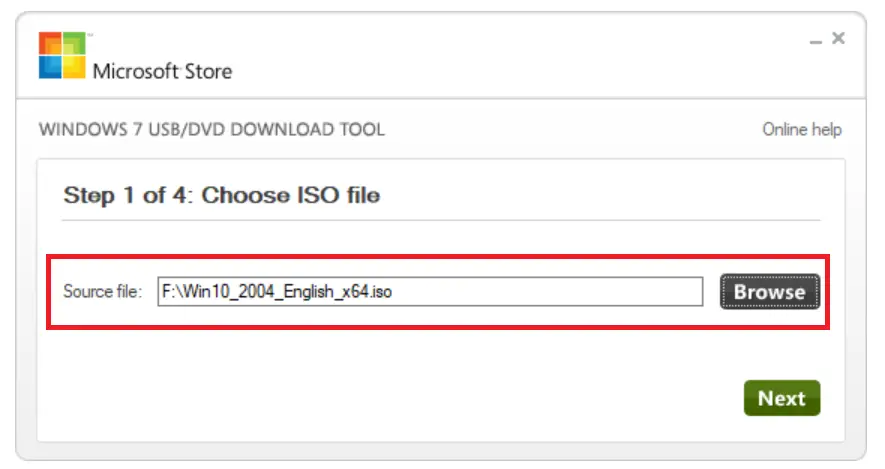
Step 3. Click “Next” to continue.
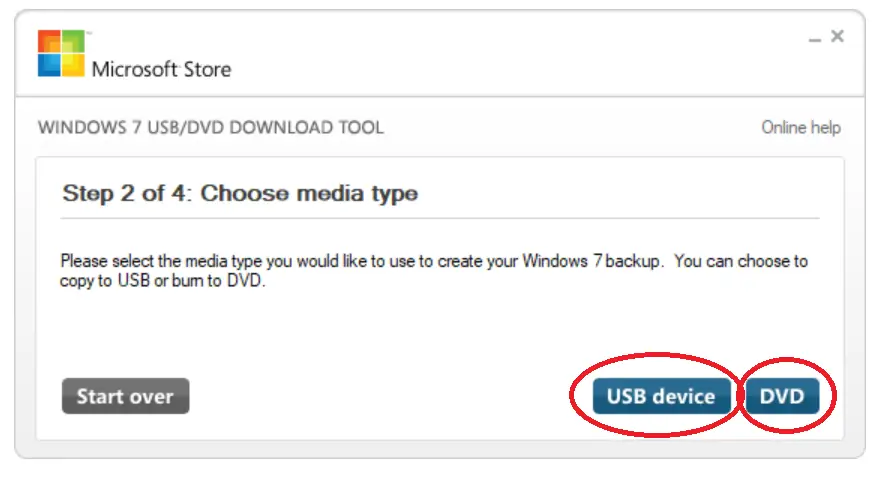
Step 4. Select a USB device to create a bootable USB drive, or select DVD to create a bootable DVD.
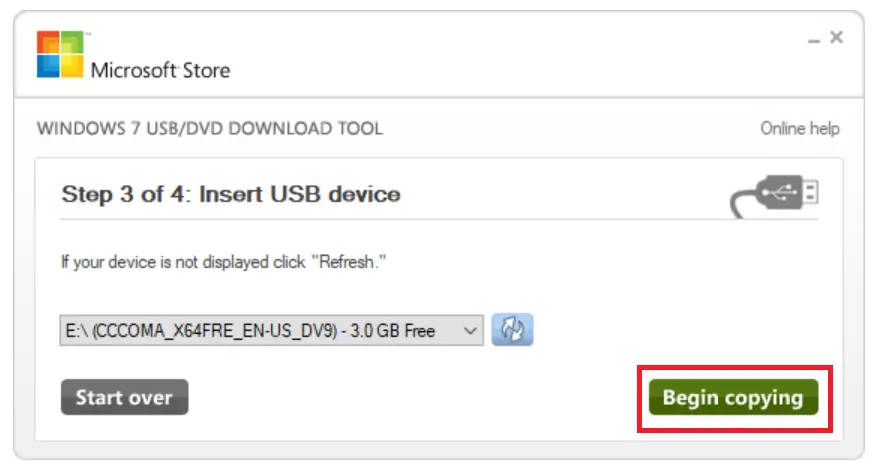
Step 5. The tool will automatically detect the USB drive. If it’s not detected automatically, click on the “Refresh” icon.
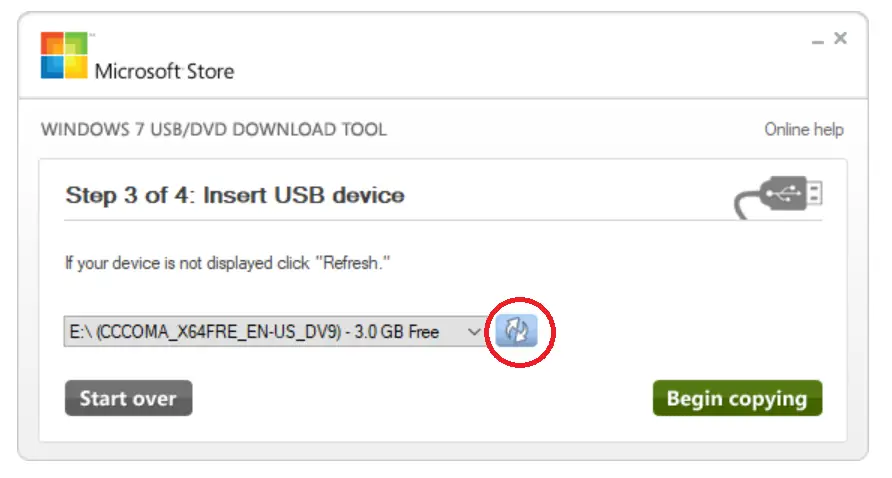
Step 6. Once the USB drive is ready, click “Begin Copying.”
Step 7. The Windows USB/DVD Download Tool will prompt you to format your USB drive.
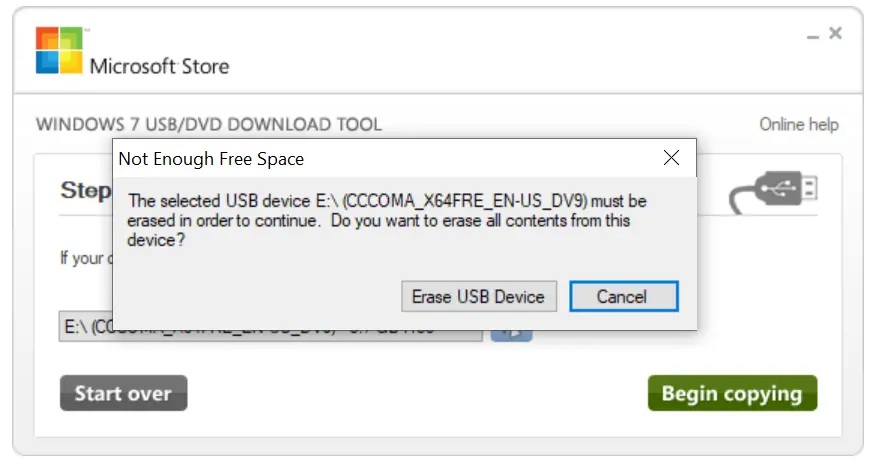
Step 8. Click “Erase USB Device” to format your USB drive.
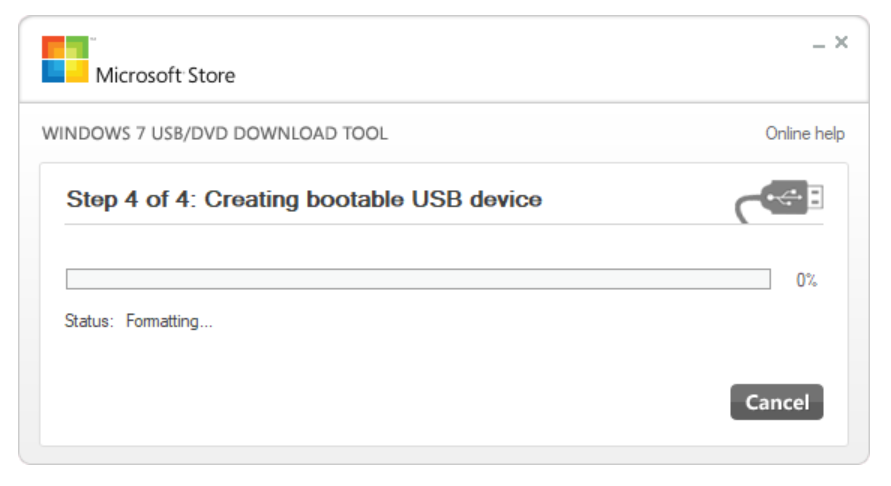
The tool will start formatting and then copy the required files. Once you have a bootable Windows USB drive, you can use it to boot and install Windows on any computer. After creating a bootable USB flash drive, you can test it without installing it on your computer or laptop.
Download Windows USB/DVD Download Tool
You can download Windows USB/DVD Download Tool from the official source.
Frequently Asked Questions (FAQ)
How large should my USB drive be?
Use at least 8GB for Windows 10 and 16GB for Windows 11 to avoid copy errors and allow for larger install.wim files.
Which file system should I use—FAT32 or NTFS?
UEFI-only PCs generally require a FAT32 bootable USB. The Windows USB/DVD Download Tool often formats NTFS, which may not boot on some UEFI devices. If your ISO contains files larger than 4GB (FAT32 limit), use a tool like Rufus to split the file or use its UEFI:NTFS option.
Will creating a bootable USB erase my drive?
Yes. The process formats the USB. Back up any important data before you begin.
Does the Windows USB/DVD Download Tool support Windows 11?
Yes, it can create Windows 11 media from an ISO. If your PC doesn’t meet TPM/Secure Boot requirements, consider using Rufus for advanced options.
Can I create a Windows To Go drive with this tool?
No. The Windows USB/DVD Download Tool doesn’t support Windows To Go. Use ISO2Disc or Hasleo WinToUSB for that scenario.
How do I boot from the USB after creating it?
Insert the USB, power on the PC, and press the boot menu key (often F12, Esc, F9, or F10). Select the USB device. You may need to enable USB boot or adjust UEFI/Legacy options in BIOS/UEFI.
I get “Invalid ISO file” or the tool fails—what should I do?
Re-download the ISO (preferably via Microsoft’s Media Creation Tool), verify the file isn’t corrupted, and try a different USB port/drive. If issues persist, use Rufus as an alternative.
Can I use a DVD instead of a USB?
Yes. The tool can also burn a bootable DVD if your PC has an optical drive.
Conclusion
The absence of CD/DVD drives on modern computers has made it necessary to find alternative methods to create bootable media. Luckily, there are several freeware tools available, including ISO2Disc and the official Windows USB/DVD Download Tool from Microsoft, which allow users to create bootable USB flash drives or CDs/DVDs from ISO files. With these tools, you can easily create bootable USB/DVDs from an ISO by following a few simple steps. Whether you prefer a third-party application or an official Microsoft tool, you can create bootable media for your Windows installation needs.