

Looking to create a bootable USB drive for your Windows computer? While burning an ISO file to a CD/DVD is a built-in feature in Windows, creating a bootable USB flash drive requires additional tools. Luckily, there are several freeware options available, such as Microsoft’s Windows USB/DVD Download Tool, ISO2Disc, and WinUSB Maker. With these tools, you can easily create a bootable USB drive for Windows 7/8/10/11 or even create a Windows To Go Drive.
WinUSB Maker also allows you to create bootable ISO images, DOS disks, and full-drive backups. The program is straightforward to use—requiring only a Windows installation disk, an existing setup disk, ISO image, or a folder to get started. Additionally, it offers features like file system options and ISO file verification.
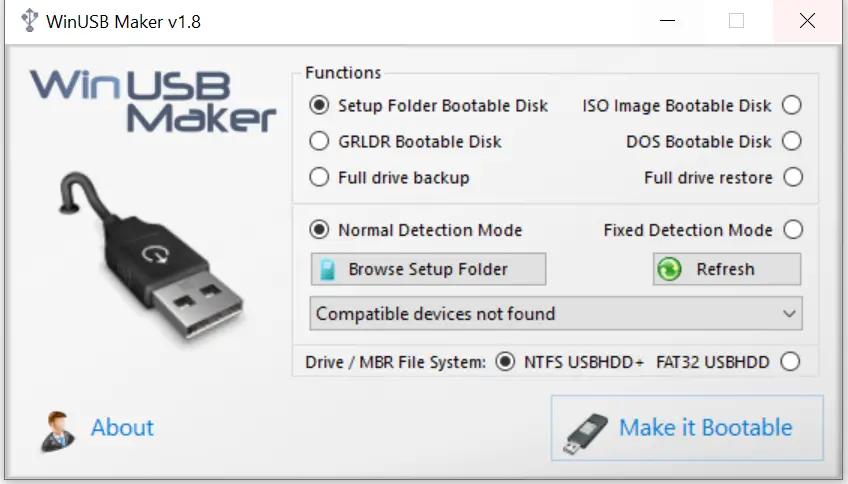
How to Create a Bootable USB of Windows 10 / 8.1 / 7 from ISO?
Follow these steps to create a bootable USB drive from an ISO image:
Step 1. Download, install, and launch the WinUSB Maker freeware tool.
Step 2. From the radio buttons, select ISO Image Bootable Disk.
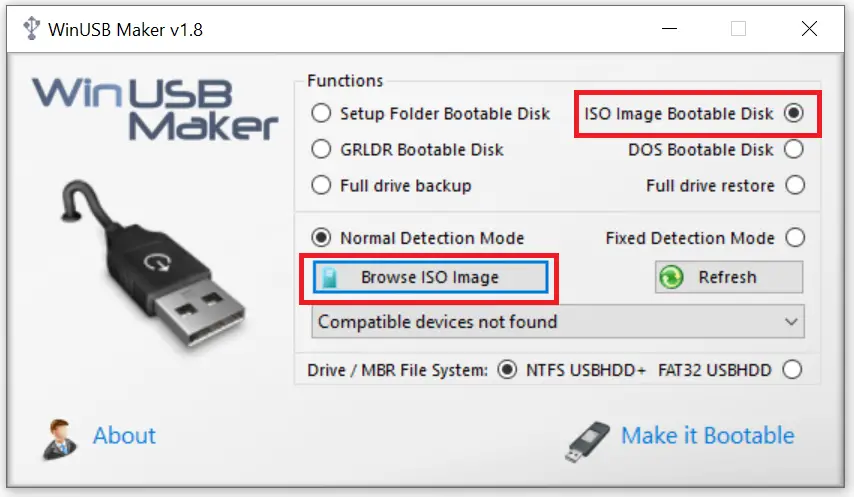
Step 3. Click Browse ISO Image and select the bootable ISO file of Windows 7 / 8 / 10 / 11.
Step 4. Connect your USB flash drive or pen drive to the PC. It will automatically detect the inserted USB drive. If it doesn’t, click the Refresh button.
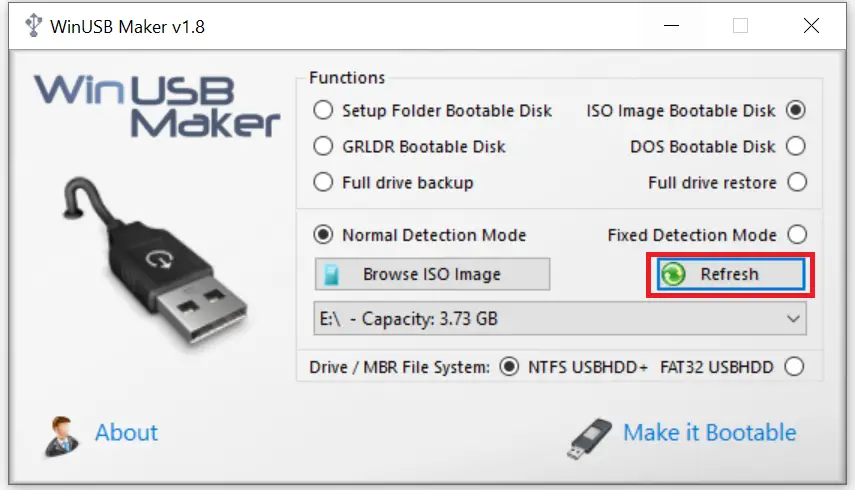
Step 5. Once the USB drive is ready, click the Make it bootable button.
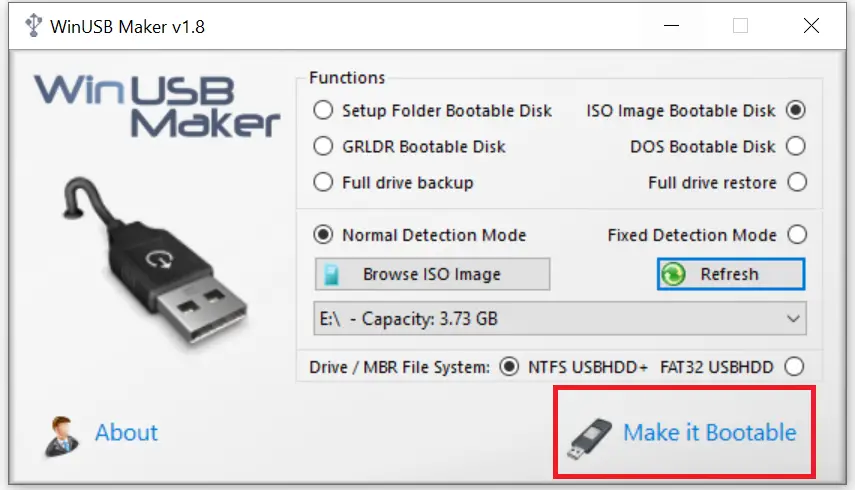
Step 6. A warning prompt will appear—click Yes to continue.
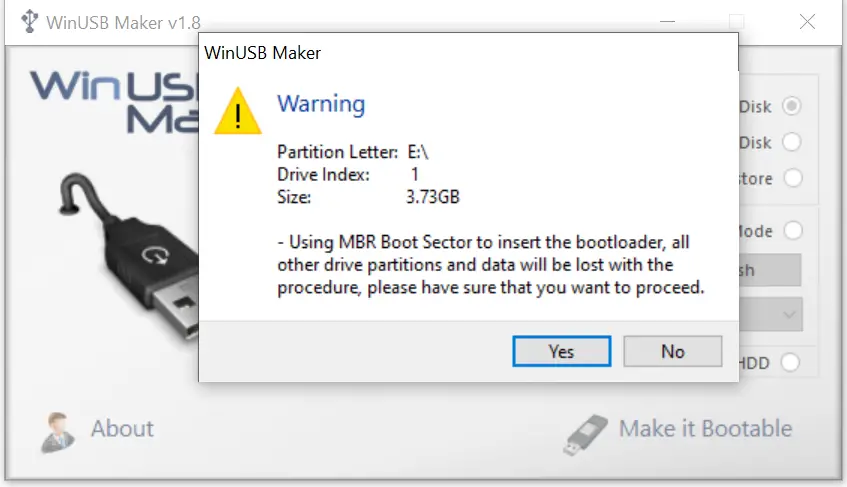
Step 7. The tool will format the inserted USB flash drive and start copying the files from the ISO.
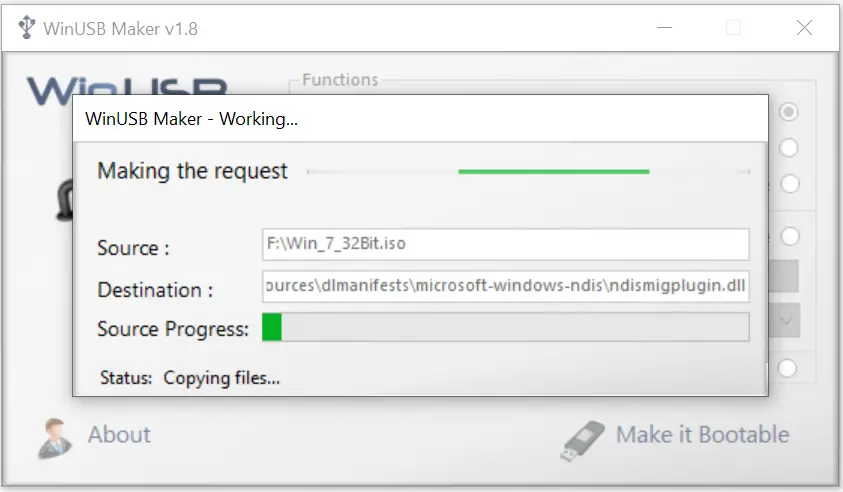
File copying is extremely fast in WinUSB Maker. The progress bar shows which files are being transferred. Overall, it’s a great app for creating a bootable USB flash drive.
Download WinUSB Maker
You can download WinUSB Maker from here.
Once your bootable USB drive is ready, you can test it without installing Windows on your computer or laptop.
Conclusion
Creating a bootable USB drive for your Windows computer is a simple task when you have the right tools. While ISO burning to CD/DVD is built into Windows, bootable USB creation requires freeware tools like the Windows USB/DVD Download Tool, ISO2Disc, and WinUSB Maker.
Among these, WinUSB Maker stands out as an easy-to-use solution. It allows you to create bootable USB drives for Windows 7/8/10/11, bootable ISO images, DOS disks, and full-drive backups. The process is straightforward: select the ISO file, connect the USB drive, and click “Make it bootable.” Once created, you can even test the USB without installing it.
With the right tool, creating a bootable USB drive becomes quick, efficient, and hassle-free.