

While Windows 11 and 10 come with several high-quality screensavers, Microsoft has not shown any interest in adding new ones since the launch of Windows 7. However, if you still rely on screensavers to protect your PC, Fliqlo has some good news for you.
What is Fliqlo?
Fliqlo is a free screensaver that mimics the look and feel of a flip clock. It displays the current time in a large, bold format that’s easy to read. The numbers flip just like a real flip clock, complete with a satisfying flipping animation. Fliqlo also features customizable background colors and lets you switch between 12- and 24-hour formats.
Installation and Compatibility
Fliqlo is available for both Windows and Mac OS. The installation process is quick and straightforward. Download the screensaver from the official website, run the installer, and Fliqlo will be added to your list of available screensavers. It supports most versions of Windows and macOS, including the latest ones.
Customization Options
Fliqlo offers several customization settings:
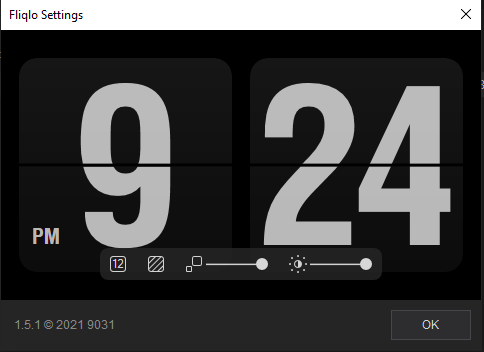
- Switch between 12-hour and 24-hour formats
- Choose between a black or white clock face
- Customize the background color to match your desktop
Why Choose Fliqlo?
Beyond its retro aesthetic, Fliqlo is:
- Easy to use, even for beginners
- Lightweight and doesn’t slow down your system
- A conversation starter due to its nostalgic flip clock design
Fliqlo for Windows 11 and 10
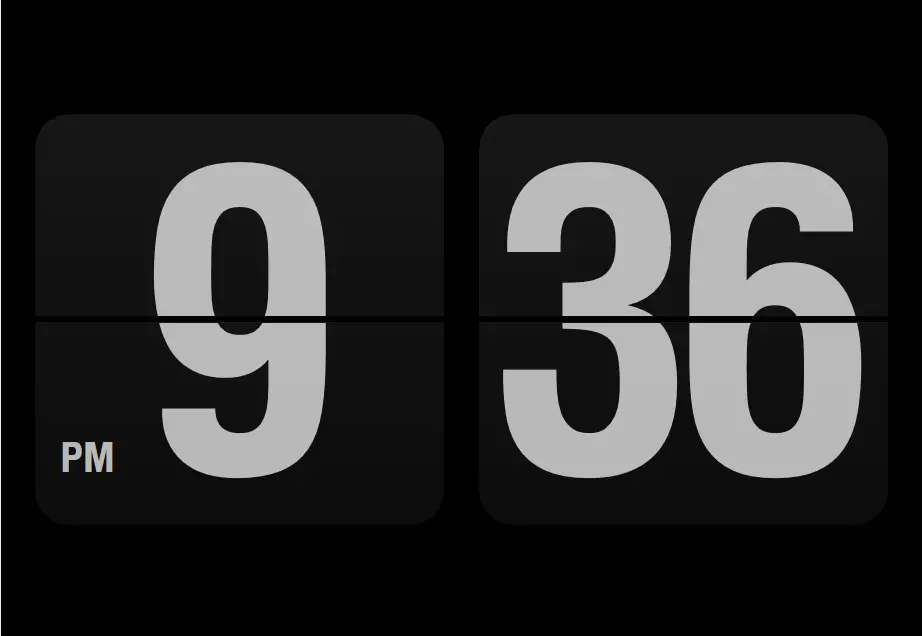
Fliqlo brings a minimalist and elegant flip clock to your desktop. The retro design mirrors vintage alarm clocks from the 70s and 80s. Smooth flipping animations and subtle ticking sounds add a touch of nostalgia. It’s especially popular among designers, students, and those who enjoy functional, aesthetic digital setups.
You can choose between 7-inch and 10-inch clock sizes, adjust fonts, enable night mode for dimmer nighttime display, and even switch between landscape and portrait orientations. It also includes brightness controls and an option to hide or show the background.
How to Install Fliqlo Screensaver?
To install Fliqlo on your Windows PC:
Step 1. Download the ZIP file from the developer’s official website.
Step 2. Extract the contents into a folder.
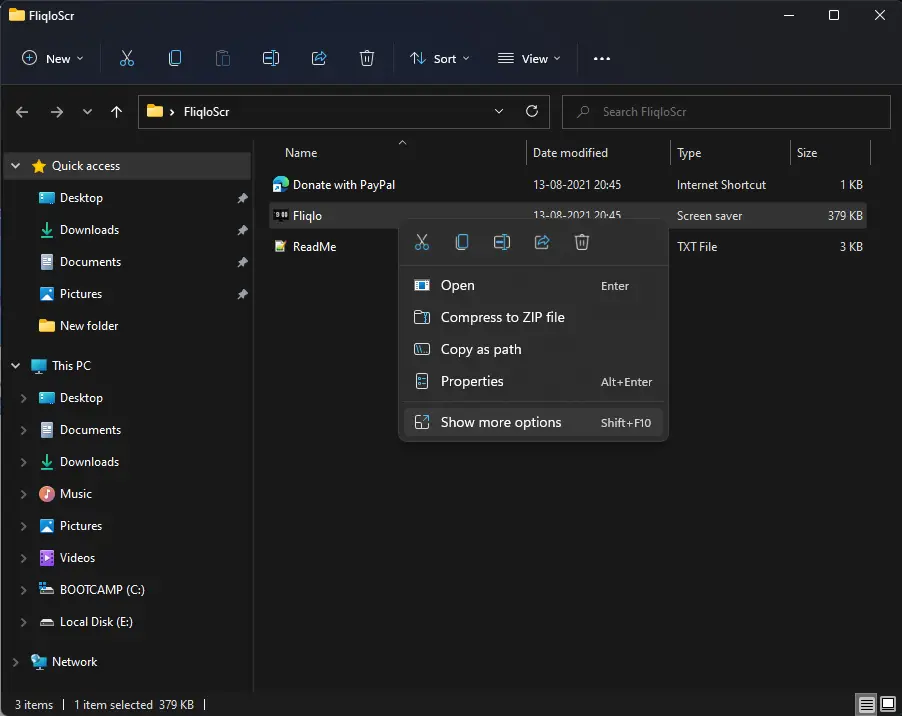
Step 3. Right-click the Fliqlo.scr file and select Show more options (only needed in Windows 11).
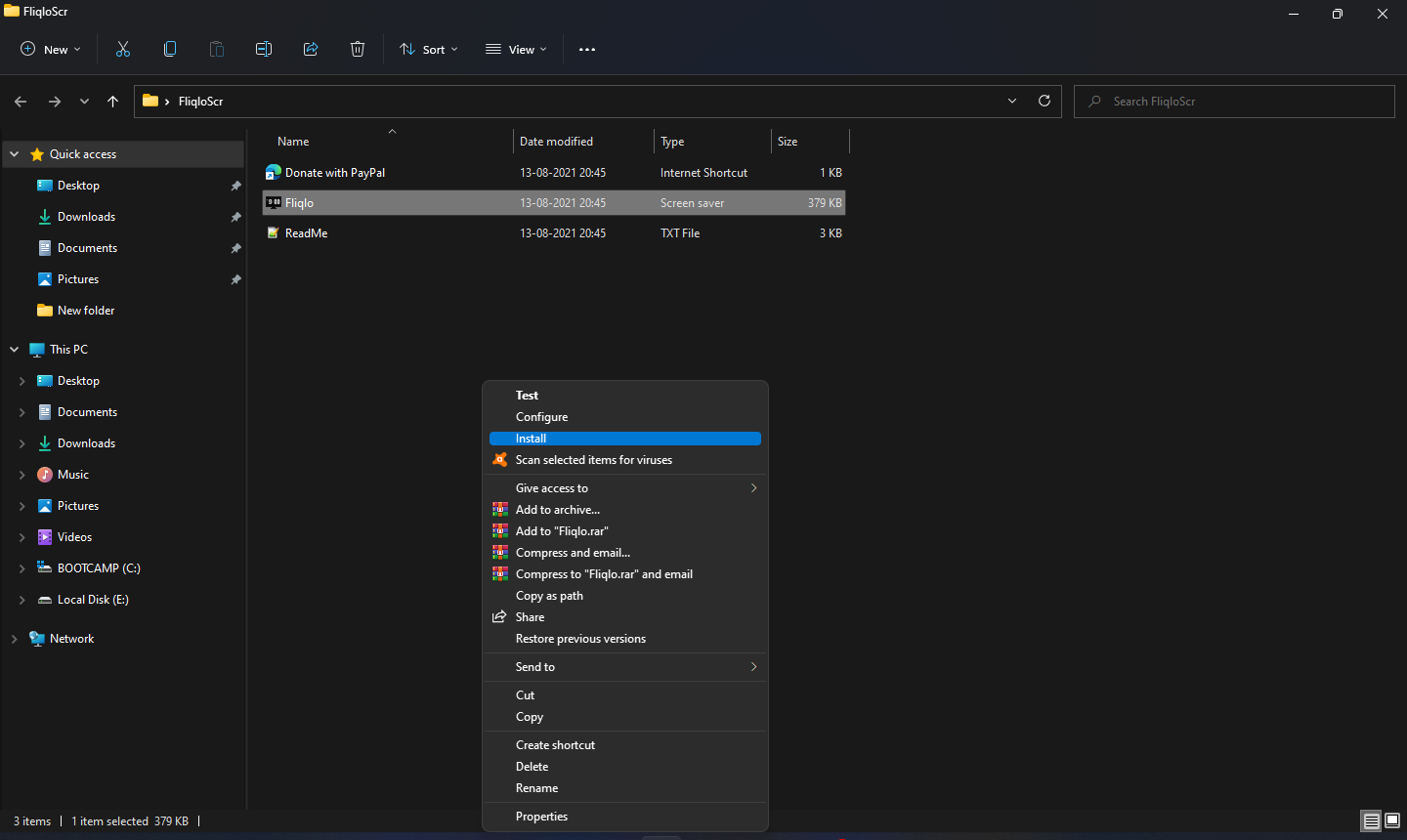
Step 4. Click Install.
How to Use Fliqlo Screensaver on Windows 11/10?
To activate Fliqlo as your screensaver:
Step 1. Click the Start button or press the Windows key.
Step 2. Type change screen saver and select the result.
Step 3. In the Screen Saver Settings window, choose Fliqlo from the drop-down menu.
Step 4. Click Apply, then OK.
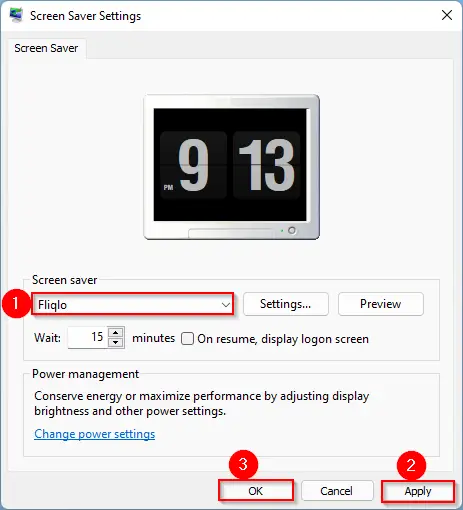
Download Fliqlo
You can download Fliqlo directly from its official website.
Conclusion
While Microsoft hasn’t introduced new screensavers in years, Fliqlo offers an attractive and functional option that enhances your PC’s aesthetics. Its clean, retro flip clock design, ease of use, and rich customization options make it a top pick for Windows and Mac users alike.
Fliqlo is free, lightweight, and compatible with most operating systems, making it the perfect replacement for outdated default screensavers.
Also Read: ClocX is a free Clock Widget for Windows 11/10.
hi everybody, thank you for having this huge watch. Noe i hove it will work on my computer, stay negative, iP
hey, i wanted to try this but for some reason all my screensaver files have been classified as autocad script so i cant install any of them automatically… the install button literally wont come out. how do you fix this? thank you so much!
Hi Min,
You can right-click on Screensaver and select the Install option to install it on your computer.
For file association, you can use SFC and DISM commands https://gearupwindows.com/how-to-repair-windows-11-with-sfc-and-dism-tools/
You have to extract the zip file first