

Looking for a free bloatware removal utility for Windows 11/10? This pillar guide explains what bloatware is, why beginners choose dedicated tools over manual removal, and how to use safe utilities to clean and speed up your PC. We also include trusted options you can try, each with a quick intro and a link to the full guide on GearUpWindows.
Not sure where to start? Pick a beginner-friendly tool like BloatyNosy or a safe, reversible option like O&O AppBuster; power users can try a script approach with Win11Debloat or BRU.
What is a Free Bloatware Removal Utility?
A bloatware removal utility is a free tool that helps you remove unwanted preinstalled apps and features (often called UWP apps or “inbox” apps) and disable clutter that slows down Windows. Good utilities also add safety steps, such as creating a System Restore point and letting you undo changes.
Why Would a Beginner Use a Bloatware Removal Utility?
These tools simplify technical tasks into clicks. You can reclaim storage, reduce background processes, and improve privacy without hunting through Settings or the command line. Most include recommended presets so you don’t accidentally remove essentials.
Main Features of Bloatware Removal Utilities
Typical capabilities include safe removal and restoration of built-in apps, visibility into which apps are safe to remove, optional PowerShell-based cleanup for deeper tasks, startup and privacy tweaks, and one-click presets with rollback.
How to Use a Bloatware Removal Utility
Follow these beginner-safe steps regardless of which free tool you pick.
Step 1. Back up important files and create a restore point (many tools can create it for you).
Step 2. Read the tool’s preset or “recommended” list to understand what will change.
Step 3. Start with a gentle cleanup (remove clearly unwanted apps, disable obvious annoyances).
Step 4. Reboot and test your Start menu, Microsoft Store, and core apps.
Step 5. If needed, revisit the tool to fine-tune (you can usually restore removed items).
Beginner-Safe Free Utilities You Can Try
BloatyNosy (Windows 11 focus)
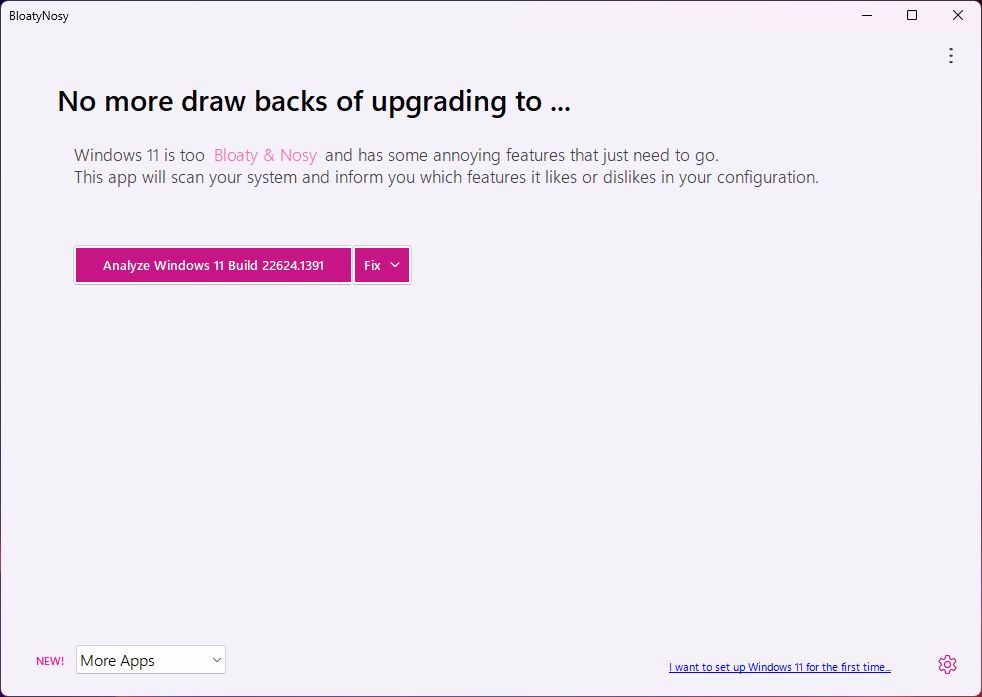
If you want a modern, guided debloat for Windows 11, try BloatyNosy. It organizes tweaks and removals into clear categories, offers sensible defaults, and highlights what’s safe so beginners don’t overdo it. Great when you want an easy, visual approach without scripts.
Best for: users who prefer a friendly GUI with beginner-safe recommendations. See our full guide in BloatyNosy – the ultimate debloat app for Windows 11.
O&O AppBuster (remove/reinstall inbox apps)
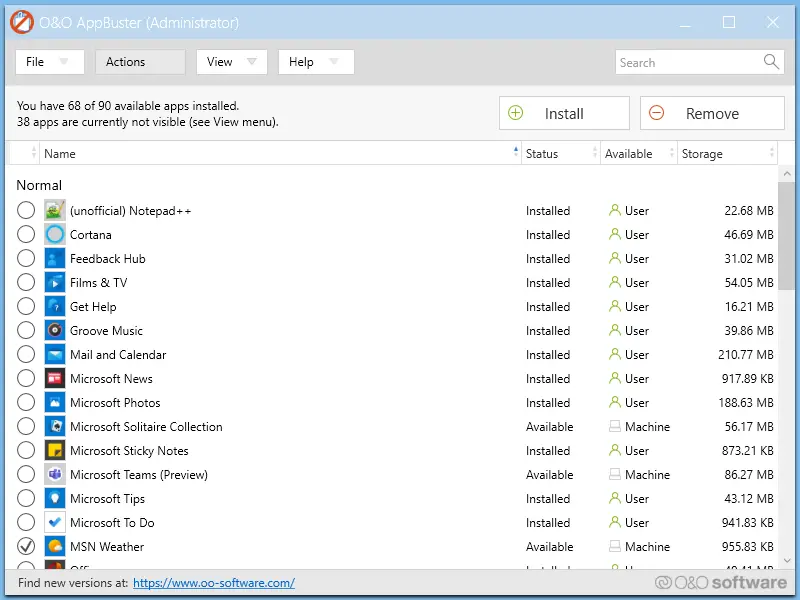
O&O AppBuster is ideal when you mainly want to remove or reinstall Microsoft’s built-in apps cleanly. It shows what’s installed, what’s available, and what’s hidden—plus it can restore accidentally removed apps with one click.
Best for: a safe, reversible way to manage inbox apps. Learn how it works in our O&O AppBuster write-up.
LoveWindowsAgain (toggle annoyances fast)
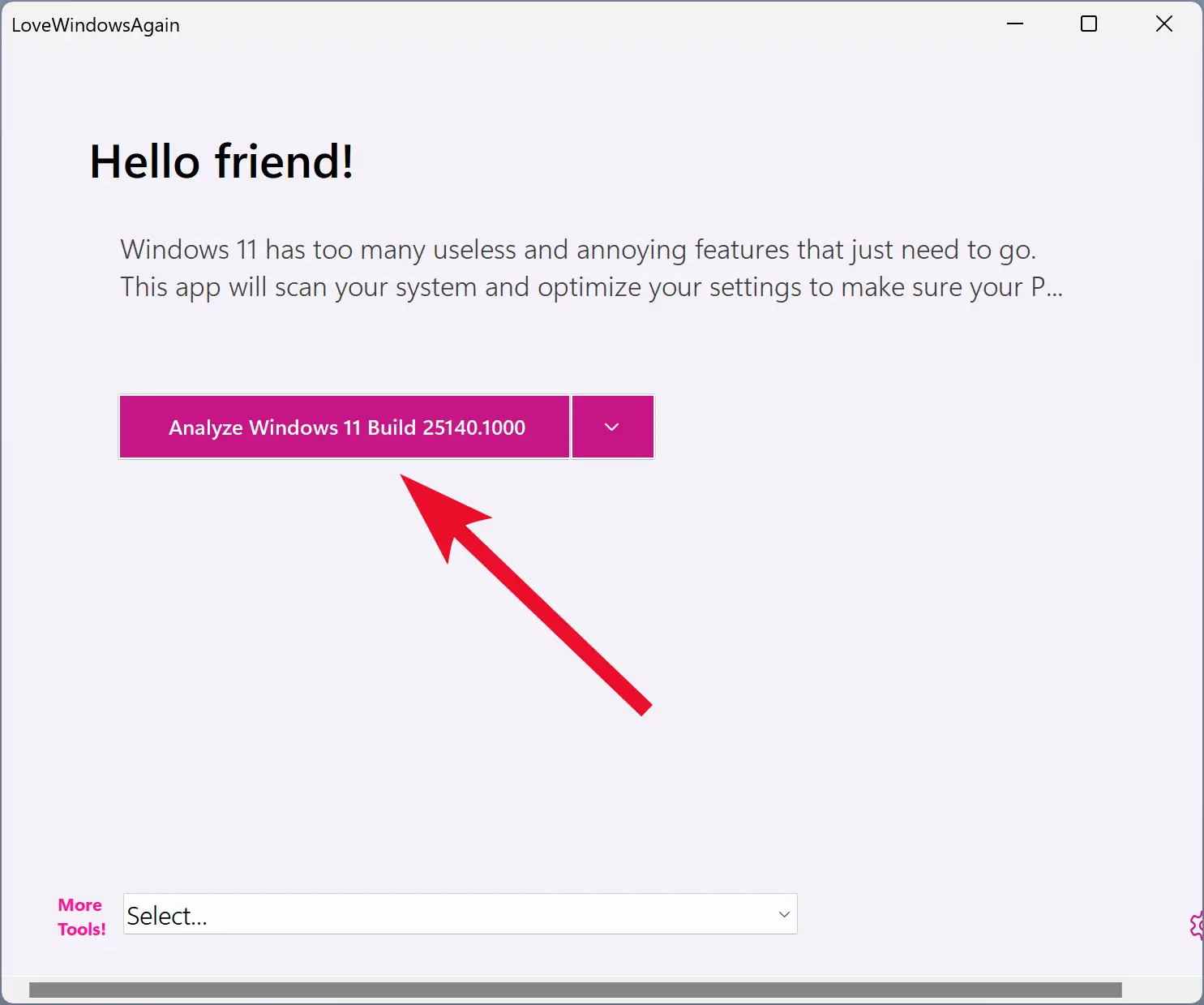
LoveWindowsAgain focuses on removing small annoyances: disable telemetry, hide unwanted icons, revert certain UI changes, and trim obvious bloat without heavy surgery. It’s a gentle, reversible tune-up that keeps core apps intact.
Best for: a quick declutter and usability fixes. Read our LoveWindowsAgain guide.
Wintoys (optimize & repair with a clean UI)
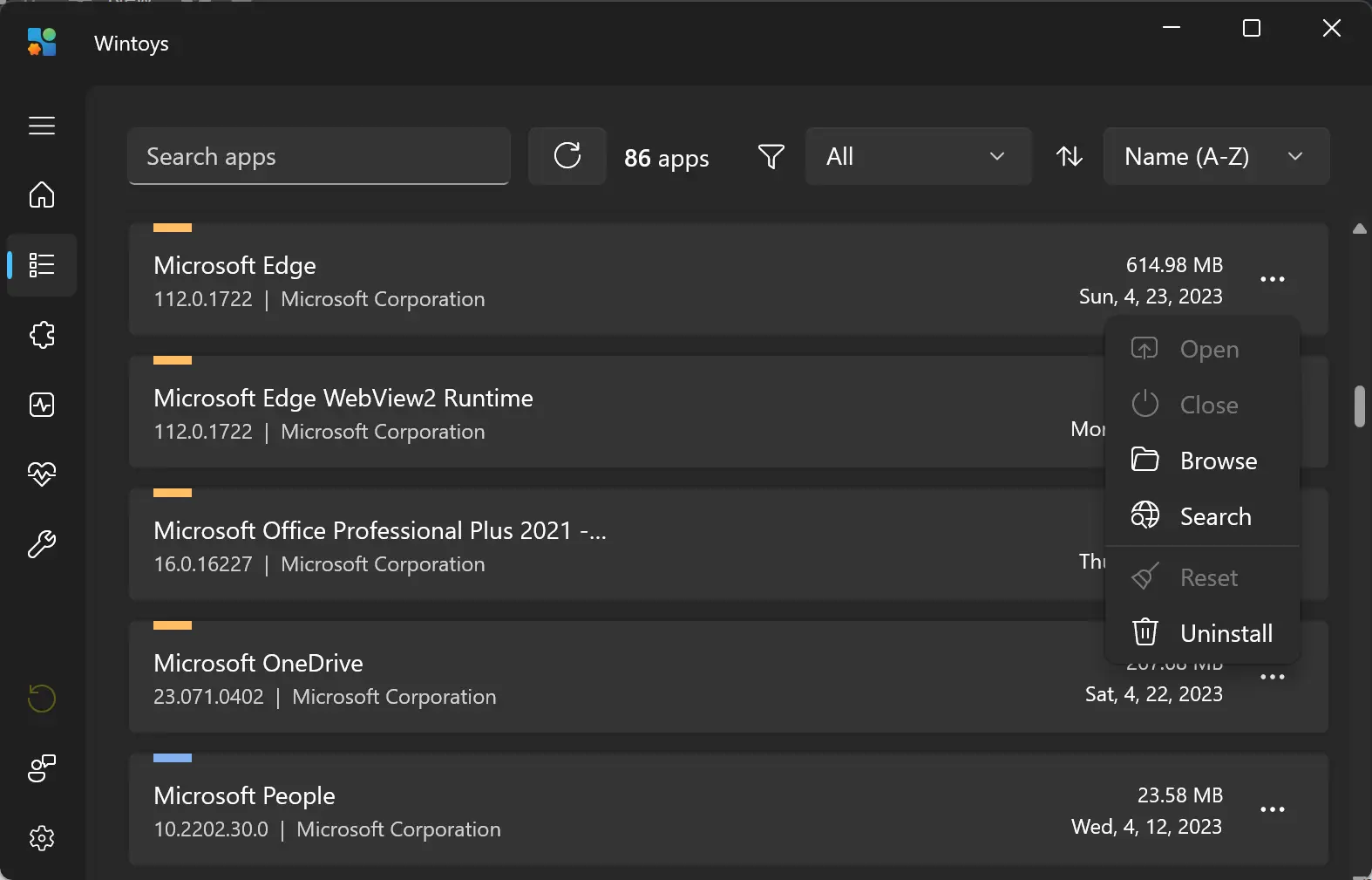
Wintoys combines cleanup, optimization, and repair in one simple interface. It organizes tasks into tabs and surfaces sensible choices, so you can tidy up startup items, services, and bloat without digging through the OS.
Best for: users who want an all-in-one toolbox with a tidy UI. Explore it in our Wintoys overview.
Win11Debloat (scripted cleanup)
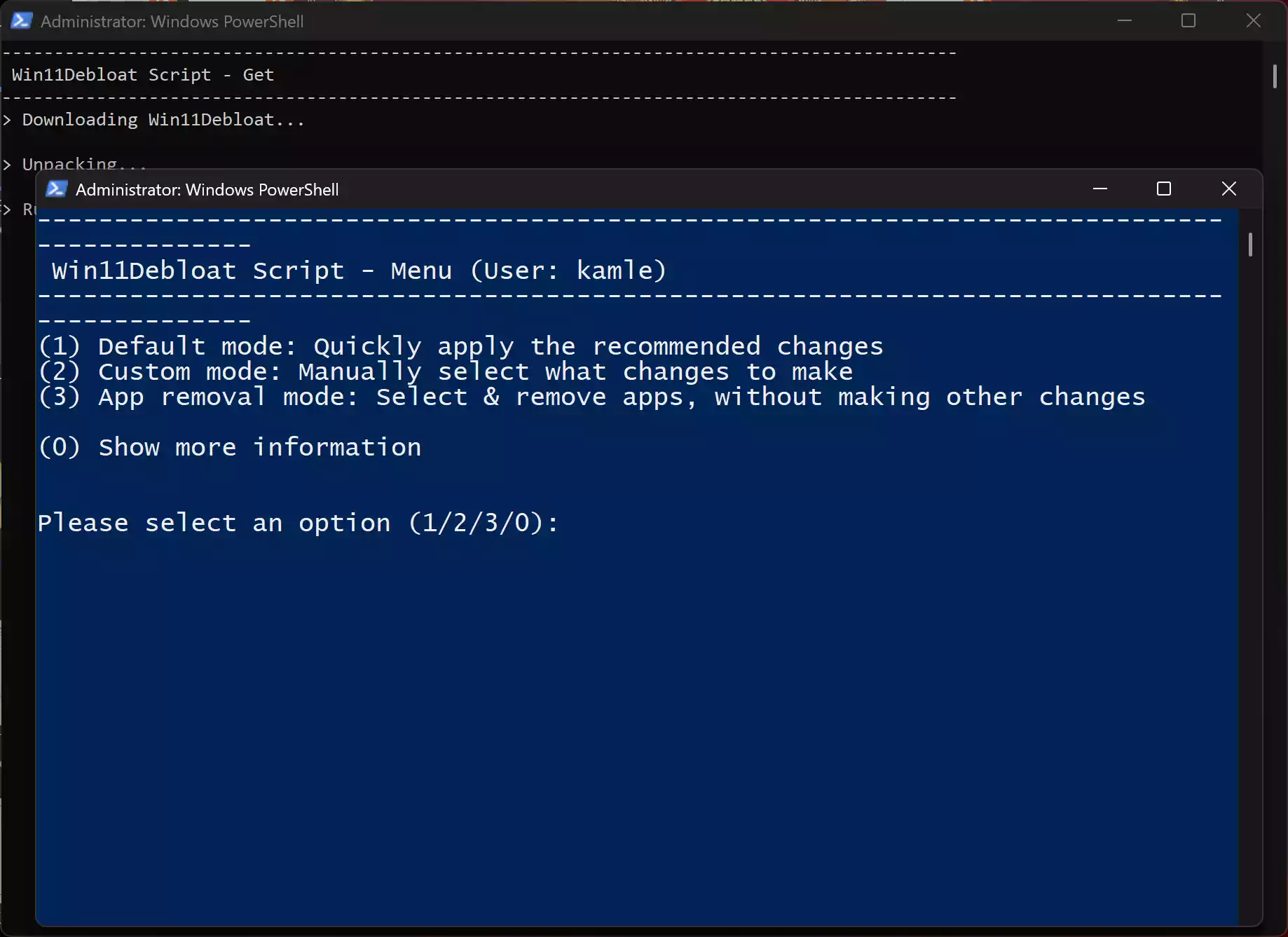
Win11Debloat uses a simple PowerShell script with pre-made safe defaults to remove common clutter and reduce background noise. It’s fast and effective if you’re comfortable running a script once, then rebooting.
Best for: a quick one-and-done cleanup via script. See the steps in our Win11Debloat tutorial.
RyTuneX (privacy, performance & debloat in one)
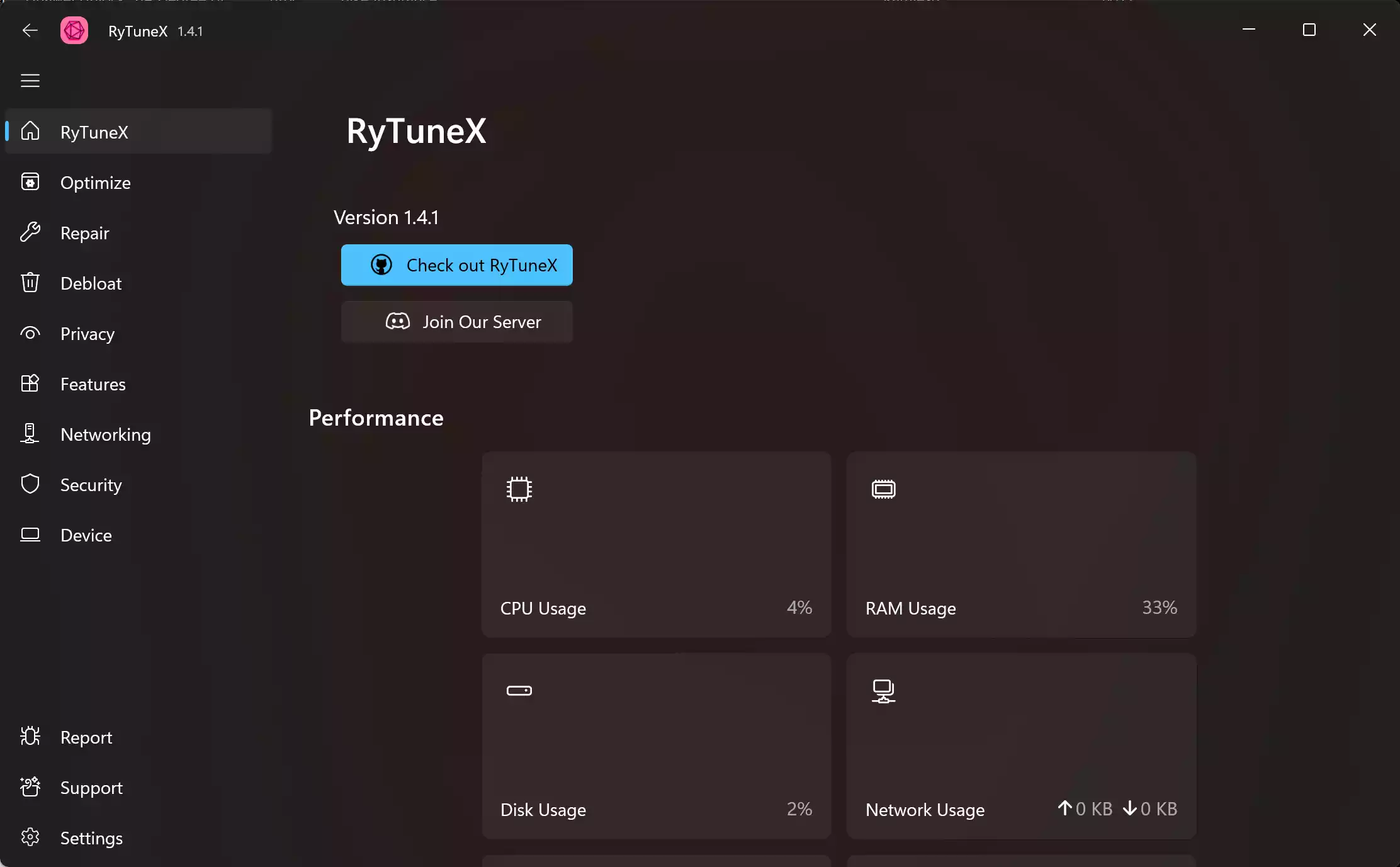
RyTuneX blends debloat with privacy controls and performance tweaks, all in a clear GUI. You can trim telemetry, manage services, and remove preinstalled apps while keeping the option to roll back changes.
Best for: users who want a balanced GUI covering privacy, performance, and bloat removal. Learn more in our RyTuneX guide.
ThisIsWin11 (setup & customize Windows 11)
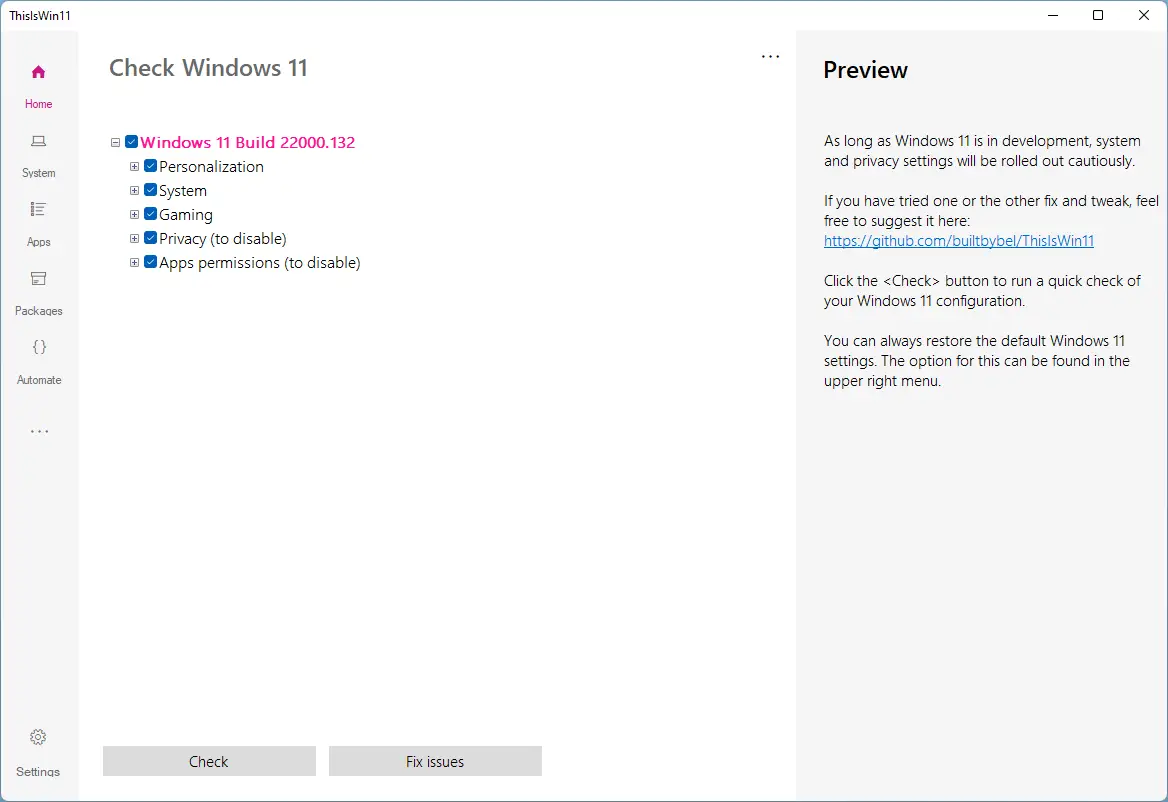
ThisIsWin11 helps you set up and customize Windows 11 quickly. Its debloat presets and automation save time when preparing a fresh install or a new PC, while still letting you pick what stays.
Best for: new setups and users who want curated presets. Details in our ThisIsWin11 article.
WinClean (cleanup & optimize)
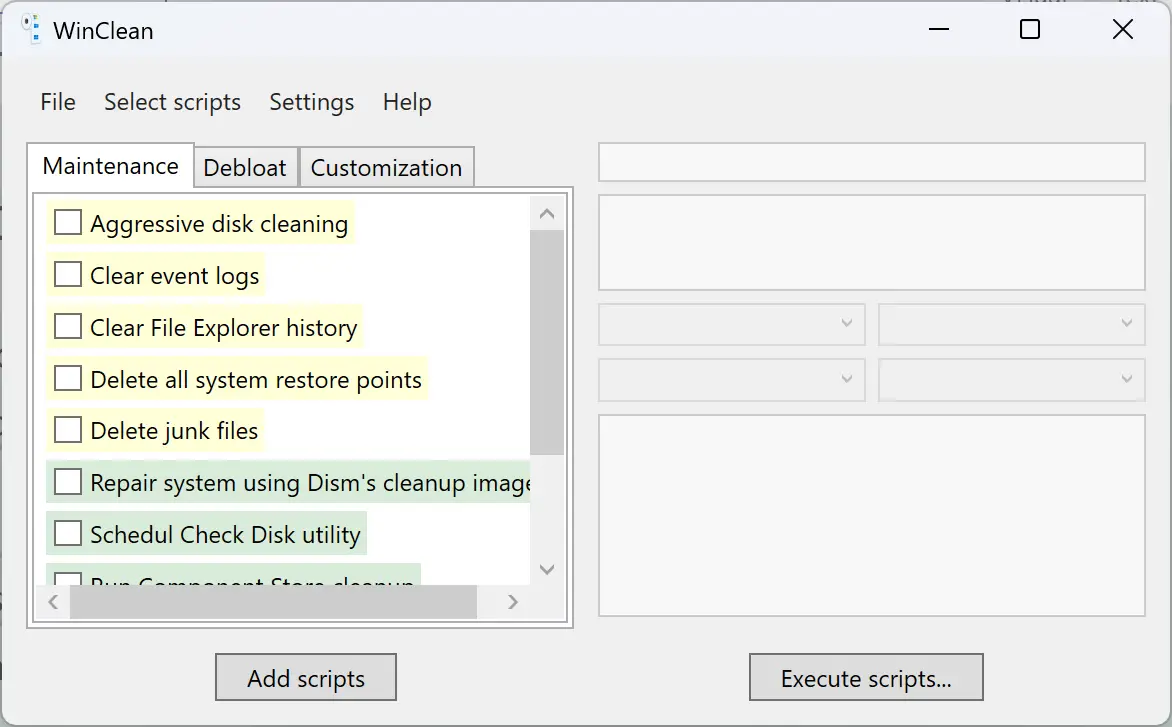
WinClean focuses on junk removal and quick optimization. If you mainly want to free up space and remove obvious clutter, this straightforward utility does the job without overwhelming settings.
Best for: a lightweight cleanup before deeper debloat. See our WinClean coverage.
CrapFixer (one-click open-source optimizer)

CrapFixer analyzes your system and applies sane defaults for debloat, privacy, and cosmetic fixes. It’s handy when you want a quick win and minimal decisions—run, review, and apply.
Best for: fast results with minimal tweaking. Read our CrapFixer guide.
Bloatware Removal Utility (BRU)
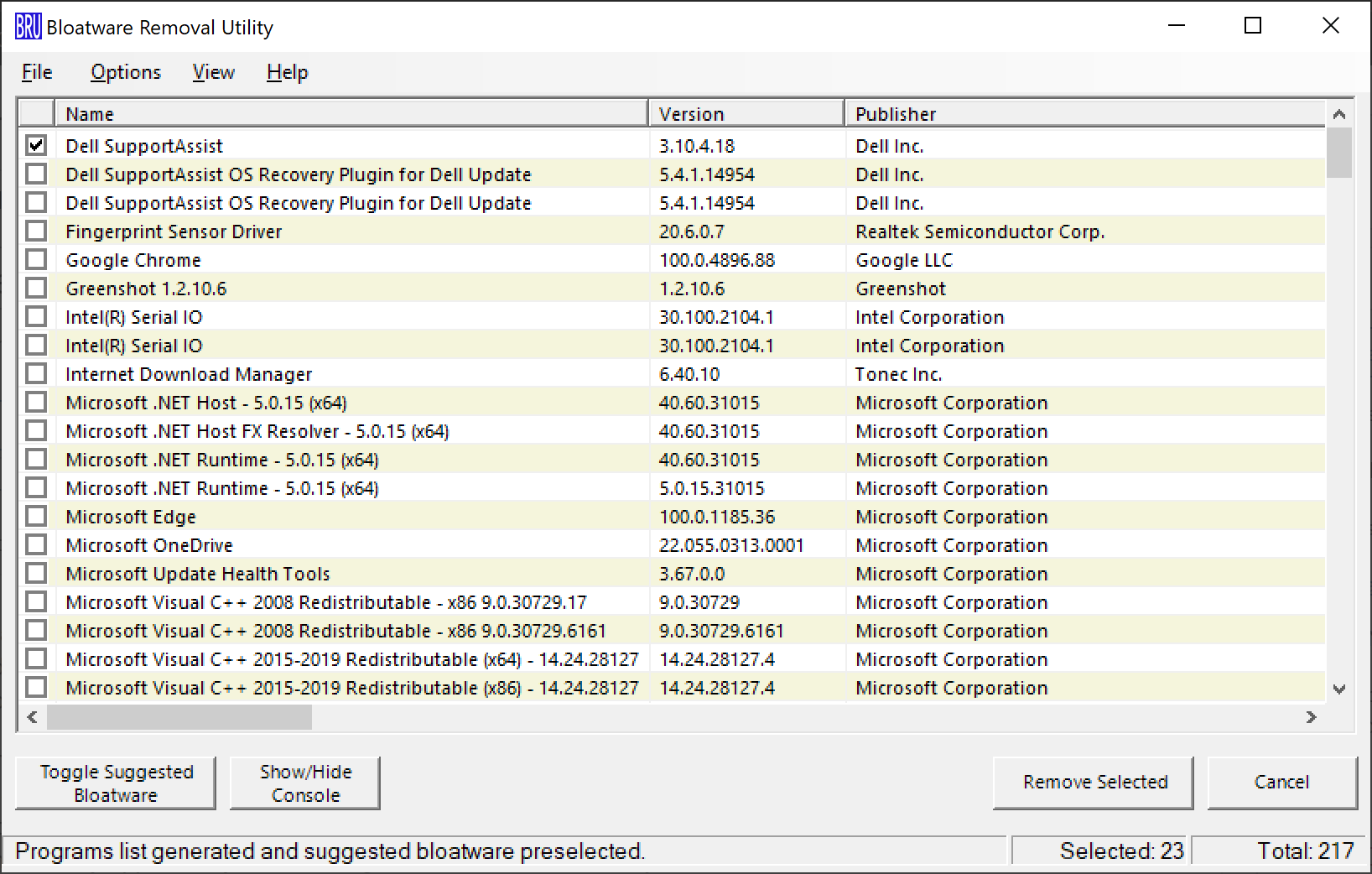
Prefer a script-style cleanup? Bloatware Removal Utility (BRU) uses a straightforward batch/PowerShell method and can create a System Restore point before changes, so you can roll back easily. It stays in this pillar as a reliable pick for users comfortable with a minimal interface.
Safe Use Tips for Beginners
Start small and avoid aggressive presets until you’ve tested basic cleanup. Keep Microsoft Store, Photos, and core system components unless you’re sure. Create a restore point, export any “selected apps” list before removal where supported, and change one thing at a time.
When a Bloatware Removal Utility Can Help You
Use these tools when the Start menu feels crowded, boot takes too long, unwanted apps reappear after updates, or you’re setting up a new PC and want a cleaner baseline.
Download Free Bloatware Removal Utilities
For safe downloads and complete walkthroughs, visit each tool’s dedicated guide above: the articles include official sources, usage notes, and reversal tips. Picking from trusted guides reduces the risk of removing the wrong component.
Frequently Asked Questions About Bloatware Removal Utilities
Is removing bloatware safe?
Yes—when you use beginner-friendly presets and keep a restore point. The tools listed here highlight items that are commonly safe to remove and let you reverse changes.
Will debloating speed up my PC?
It can improve boot time, reduce background activity, and declutter the Start menu. Pair debloat with managing startup apps and storage cleanup for best results.
Can I get the removed apps back?
In most cases, yes. Tools like AppBuster can reinstall built-ins, or you can restore via Microsoft Store or use rollback features where provided.
Do I need to use PowerShell?
No. Many utilities offer a graphical interface. Scripts like Win11Debloat are optional for those who’re comfortable running them.
Conclusion
This updated pillar turns our single BRU post into an easy starting point for free bloatware removal on Windows 11/10. Begin with a gentle tool, keep restore/undo handy, and use our linked guides to download from official sources and follow safe, beginner-friendly steps.