

Have you ever tried to delete, move, or rename a file or folder on your Windows computer, only to receive an error message saying it is currently in use by another program or process? This can be a frustrating issue, especially when it prevents you from completing simple tasks. Fortunately, several free file unlocker programs are available to help you resolve this problem.
In this article from Gearupwindows, we’ll discuss one such tool: Free File Unlocker, a free and effective solution to unlock and delete files or folders that are locked or being used by other applications.
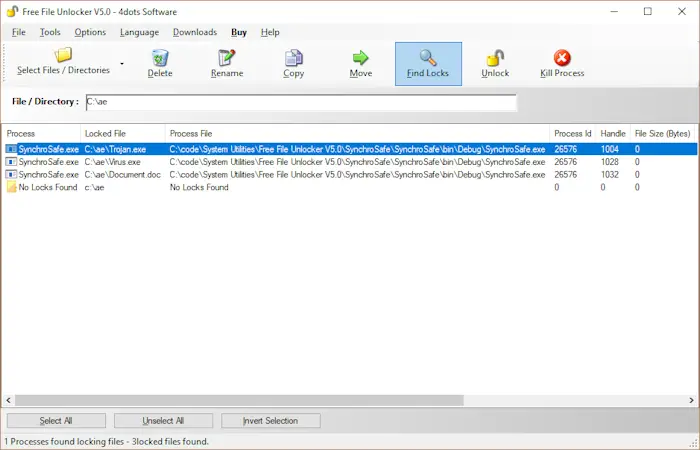
What is Free File Unlocker?
Free File Unlocker is a free program designed to unlock files and folders that are being used by other processes or programs. It’s a straightforward and effective tool that lets you unlock and delete files, even if they are locked by Windows or any other application. The program is lightweight and integrates seamlessly into your system, making it easy to use without any complicated setup.
Key Features of Free File Unlocker
- Simple Interface: Free File Unlocker features an intuitive interface that’s easy to use. You can unlock files and folders with just a few clicks, making it a hassle-free experience for all users.
- Multiple Unlock Methods: The program offers various unlock methods, including the brute-force method, which attempts to unlock files forcefully, and the priority method, which unlocks files based on their priority level. This flexibility allows you to choose the best method for your situation.
- Customizable Settings: Free File Unlocker lets you customize various settings, such as the number of retries and the wait time between retries, to ensure that the program performs optimally in your specific environment.
- Windows Explorer Integration: The program integrates directly with Windows Explorer, allowing you to right-click on any locked file or folder and select the “Unlocker” option. This integration makes it incredibly easy to use without opening the program manually.
- File Shredder: In addition to unlocking files, Free File Unlocker comes with a file shredder tool that allows you to securely delete files, making it a comprehensive tool for managing locked and unwanted files.
How to Use Free File Unlocker?
Using Free File Unlocker is simple and quick. Here’s a step-by-step guide to help you get started:
Step 1. Download and install Free File Unlocker from the official website.
Step 2. Launch the program and navigate to the file or folder you want to unlock.
Step 3. Right-click on the locked file or folder and select the “Unlocker” option from the context menu that appears.
Step 4. In the Unlocker window, you will see a list of processes that are currently using the file or folder. Select your preferred unlock method.
Step 5. Click the “Unlock” button to unlock the file or folder. If the file is being stubborn, the program may offer additional methods, or you can choose to delete it using the file shredder tool.
If the program is unable to unlock the file or folder, you can use the file shredder tool to securely delete it from your system. This can be particularly useful when dealing with corrupted files that need to be permanently removed from your PC.
Download Free File Unlocker
Free File Unlocker is a free utility available for download from the official website. You can get the program by clicking the link below:
Conclusion
Free File Unlocker is an excellent solution for anyone struggling with files and folders that cannot be deleted or unlocked due to system or application locks. Its user-friendly interface, customizable settings, and multiple unlock methods make it a must-have tool for all Windows users. If you’re looking for a simple yet effective way to unlock and delete stubborn files, Free File Unlocker is definitely worth trying. It will save you time and frustration by easily unlocking and allowing you to manage your files.