

OCR (Optical Character Recognition) technology is used to obtain text from an image or even a scanned document. It allows you to copy the text from an image for further editing or printing. Once you have copied the text from the picture using OCR technology, you can paste it into Notepad, Wordpad, or a Microsoft Word document for further editing or printing.
PDF allows you to directly copy the text if it is not write-protected or not converted into PDF from an image file. A few good handy freeware programs are available over the internet that help extract the text from an image file, for instance, Some PDF Images Extract. To enhance your knowledge, the latest Microsoft Word program can also obtain the text from an image file. But there is a cache. First, you need to convert the image into a PDF, and then, further, you can obtain text from an image file using a Microsoft Word document.
Why FreeOCR?
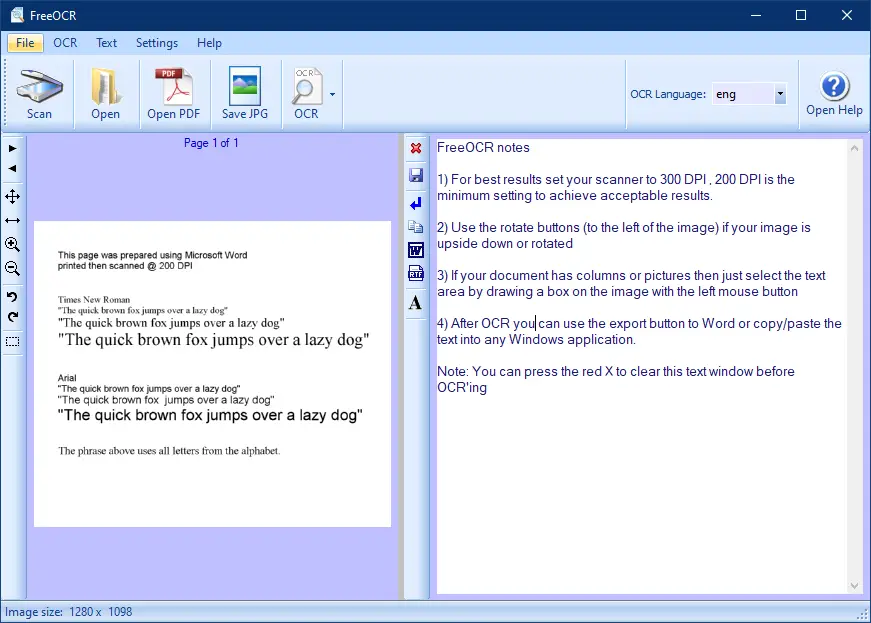 In this post, we introduce a new free app called FreeOCR. As the name suggests, FreeOCR is a freeware program that offers OCR (Optical Character Recognition) scanning. It supports most Twain-compatible scanners and can open scanned PDFs, multi-page TIFF images, and popular image file formats. The output is plain text, which can be directly exported to Microsoft Word format. If you’re looking for an OCR tool to extract text from image files and PDFs, FreeOCR could be the right choice.
In terms of compatibility, it supports all versions of Windows, including Windows 11, 8.1/8, 7, Vista, and XP. I have personally tested it on Windows 11/10 64-bit editions, and it works without any issues.
How to use the FreeOCR tool to obtain or extract texts from images?
Follow these steps to use the FreeOCR tool to obtain or extract texts from images:-
Step 1. Navigate to the official webpage link and download the latest version of FreeOCR.
Step 2. Install the downloaded file on your PC and launch the tool by double-clicking its shortcut from the desktop.
Step 3. You can select the Scanner, image, or PDF file to obtain the text using FreeOCR. Select the appropriate option from its toolbar. For my example, we are going to extract text from an image file. Hence, we will click on the Open button for an image and select from our PC.
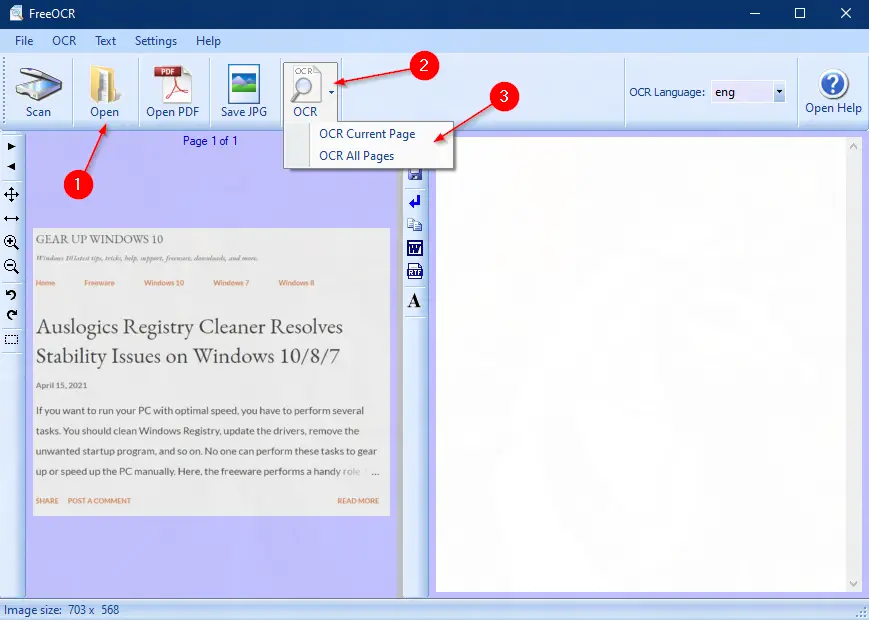
Step 4. Once the image or PDF is imported into the FreeOCR application, click on the OCR button. Select here the “OCR Current Page” or “OCR All Pages” option according to your needs.
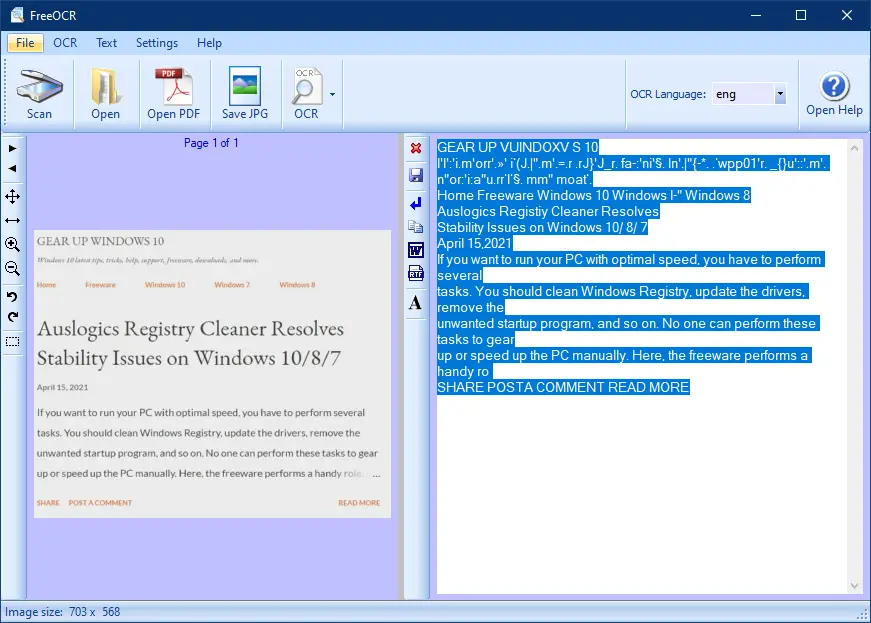 Step 5. You can see the extracted text on the right side pane of this freeware utility. It allows you to copy the output texts, which you can paste into any Notepad, Wordpad, or Microsoft Word document.
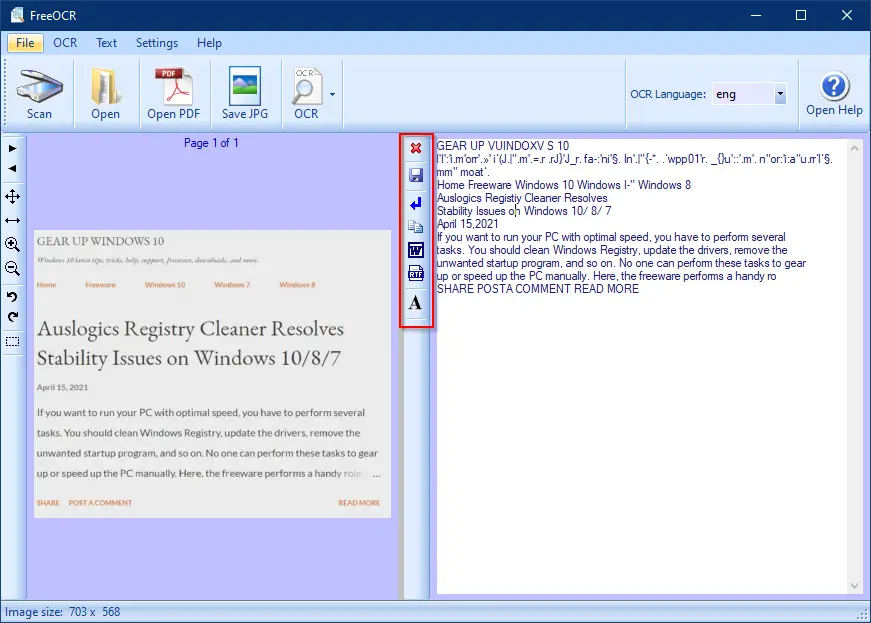
Additionally, you can directly send the output in a Microsoft Word document or RTF by clicking on its icon at the center of the app. If you want to save the output in a text file, click on the Save icon in the middle of this program.
Download FreeOCR
You can download this freeware utility from its official website.
Conclusion
In conclusion, OCR technology has made it possible to extract text from images and scanned documents. FreeOCR is a reliable and efficient freeware program that allows you to obtain text from images and PDFs. It features OCR scanning, supports most Twain scanners, and opens most scanned PDFs, multi-page TIFF images, and popular image file formats. FreeOCR outputs plain text that can be directly exported to Microsoft Word Format, making it easy to copy and edit the text. The tool is compatible with all versions of Windows, including Windows 11, 8.1/8, 7, Vista, and Windows XP. With its modern design and ease of use, FreeOCR is a great option for anyone looking for a reliable OCR tool.