

Do you frequently search for related images by uploading a picture on Google search? If your answer is yes, then this post will help you a lot. This post will help those Windows 11/10 users who regularly search for images on Google. You can speed up image search by adding Search on Google Images to the Context Menu of Windows 11/10. Once you have added Search on Google Images to the right-click menu, you can directly search on Google Images to perform a reverse image search—no need to navigate to https://images.google.com/ and upload images manually to find similar pictures. For users who often manage and move images, you may also like to read how to enable or disable drag and drop to prevent accidental move or copy in Windows 10.
What is Reverse Image Search?
Reverse Image Search is basically a search algorithm that allows you to upload an image file as a search query. Then it finds all visually similar images to the input image on the web.
Reverse Image Search is a good option to keep track of your pictures online, checking for anyone’s identity, or checking the authenticity of an image. This technology helps you find similar images online and discover related images quickly from all around the web.
While most popular web browsers, such as Google, Bing, and Yandex, include a Reverse Image Search, still, there are still many third-party tools available for the same job. You need to upload the image and make the tool search for similar images in its database. These tools match the image by shape, color, pattern, and texture, and then provide you with the output. If you’re already using Google Chrome, you may also like to enable and use the built-in screenshot tool of Google Chrome to capture visuals directly from the browser.
How to Add “Search on Google Images” to Windows 11/10 Context Menu?
Windows users often customize their right-click context menu to enhance productivity. If you want to learn more about enabling or disabling right-click options in general, check out this detailed guide on managing the right-click context menu.
To do a reverse image search on Google Images from Windows Explorer, you need to use a third-party application called GoogleImageShell. Before proceeding, you can also explore how to fully customize context menus with advanced tools like Nilesoft Shell.
Once you install GoogleImageShell on your PC, it will add a search option to the context menu of images. By clicking on this search option, you will find similar image results displayed in your default web browser in a few seconds. Isn’t it so simple to find images on Google Images? Let us see these steps in detail:-
Step 1. Download the GoogleImageShell application.
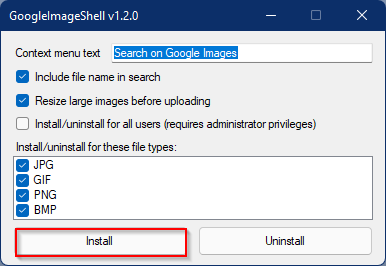
Step 2. Double-click on the downloaded executable file to open its setup, and then click on the Install button to complete the setup.
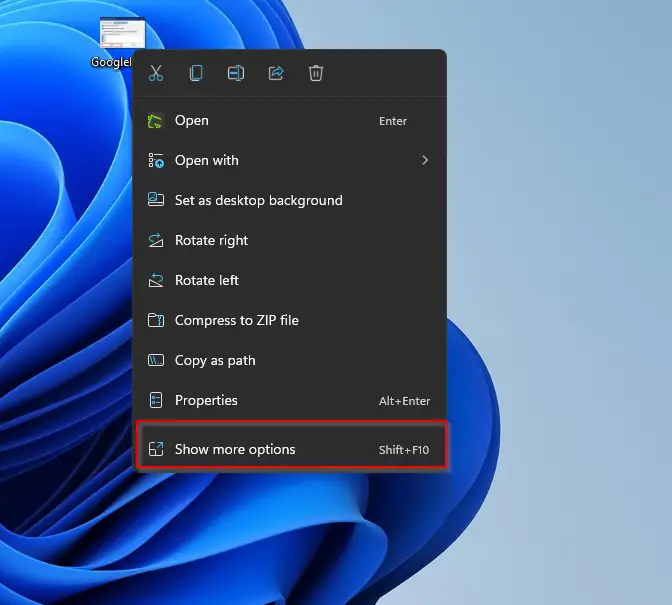
Step 3. Now, navigate to the image under File Explorer that you want to search on Google Images. Right-click on the image file and then click on “Show more options” on the context menu. If you wish to remove this classic menu option from Windows 11, check out how to remove “Show more options” from Windows 11 context menu.
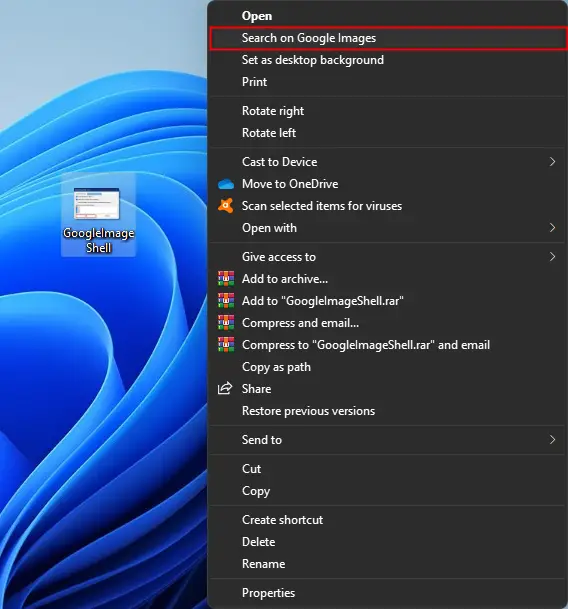
Step 4. Now, click on the Search on Google Images option.
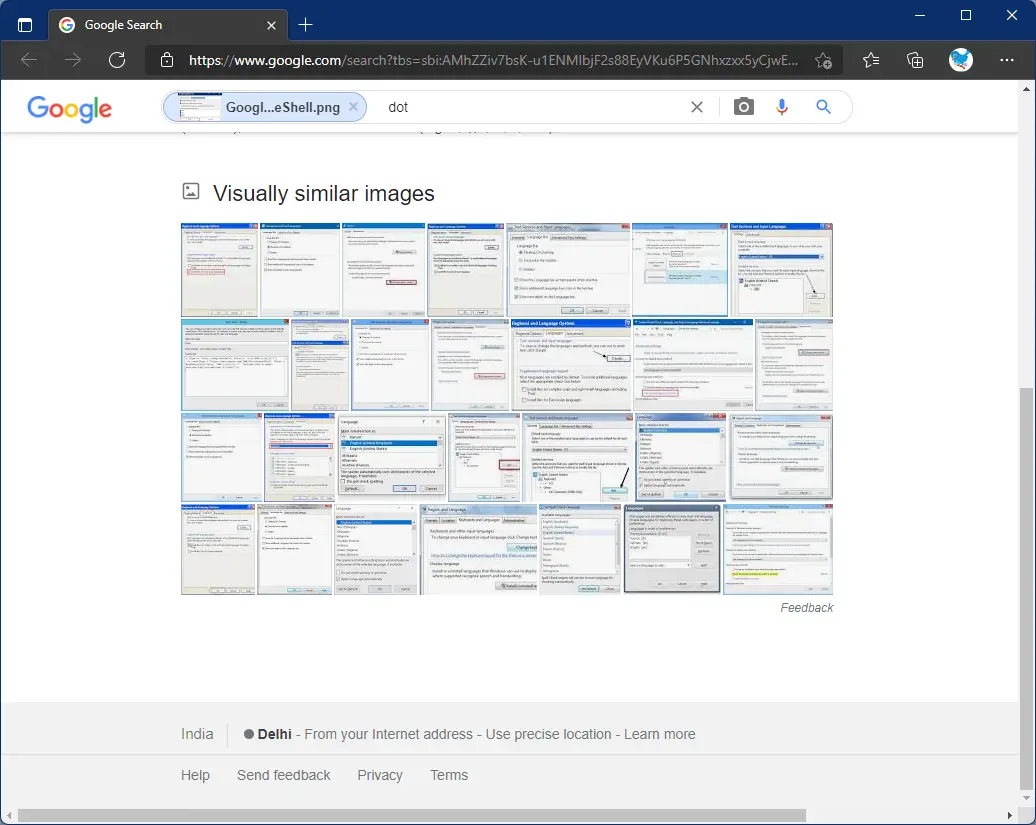
After completing the above steps, the selected image will be uploaded to Google, and your favorite browser will open. Under “Visually similar images,” you can see results.
Download GoogleImageShell
You can download GoogleImageShell from the GitHub website.
Conclusion
In conclusion, reverse image search is a useful feature that allows users to find similar images online and discover related images quickly from all around the web. While there are many third-party tools available for the same job, Windows 11/10 users can speed up their image search by adding “Search on Google Images” to the context menu. With the help of the GoogleImageShell application, users can now perform a reverse image search directly from Windows Explorer, without the need to navigate to https://images.google.com/ and upload images manually to find similar pictures. By following the simple steps mentioned in this post, users can now easily add the “Search on Google Images” option to their context menu and perform a reverse image search quickly and efficiently.