

One of the best browsers in the world is Google Chrome. There are a lot of themes available to download from the Chrome store, as well as the option to create your own. You can also uninstall the theme. Chrome automatic updates can even be disabled with a small tweak. It is also possible to change or disable Google Chrome’s Background Image without using a third-party tool. Using the latest version of Google Chrome, we can change the background image of the New Tab Page automatically. Chrome is also able to change the New Tab Page Background Image automatically, just like Windows 10 wallpaper does. Chrome offers a feature called “Refresh daily” that automatically changes wallpapers. However, it is disabled by default in Chrome.
A variety of images can be selected for the “Refresh daily” feature in Chrome, including Landscapes, Art, Textures, Life, Earth, Cityscapes, Geometric shapes, Solid colors, and Seascapes. In the “Refresh Daily” option, a new image will appear on the New Tab Page every day based on the collection selected.
How to Automatically Change the New Tab Page Background Image Daily on Chrome?
Follow these steps to automatically change the New Tab Page background image on Chrome every day:-
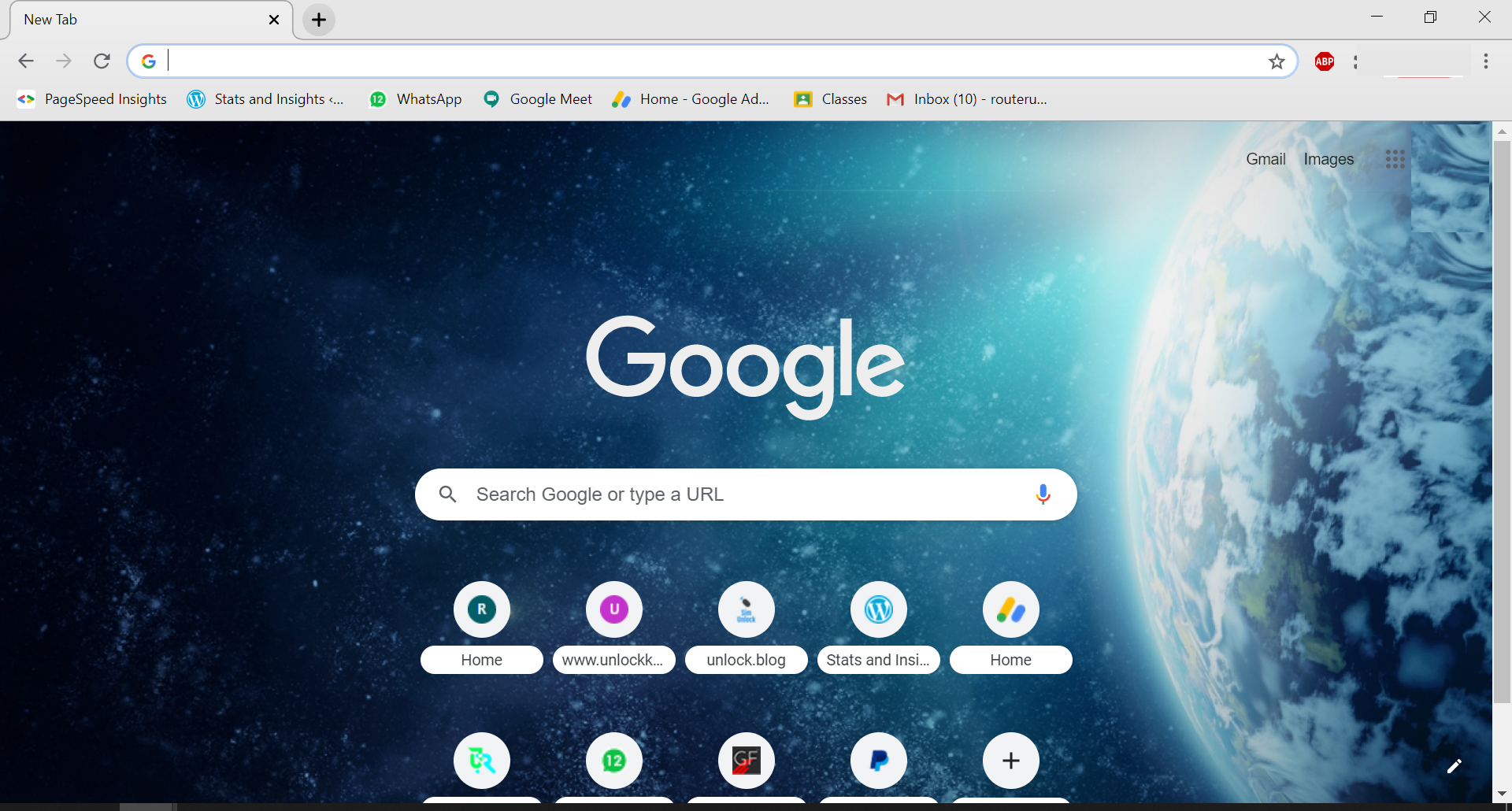
Step 1. Open a New Tab in the Google Chrome browser.
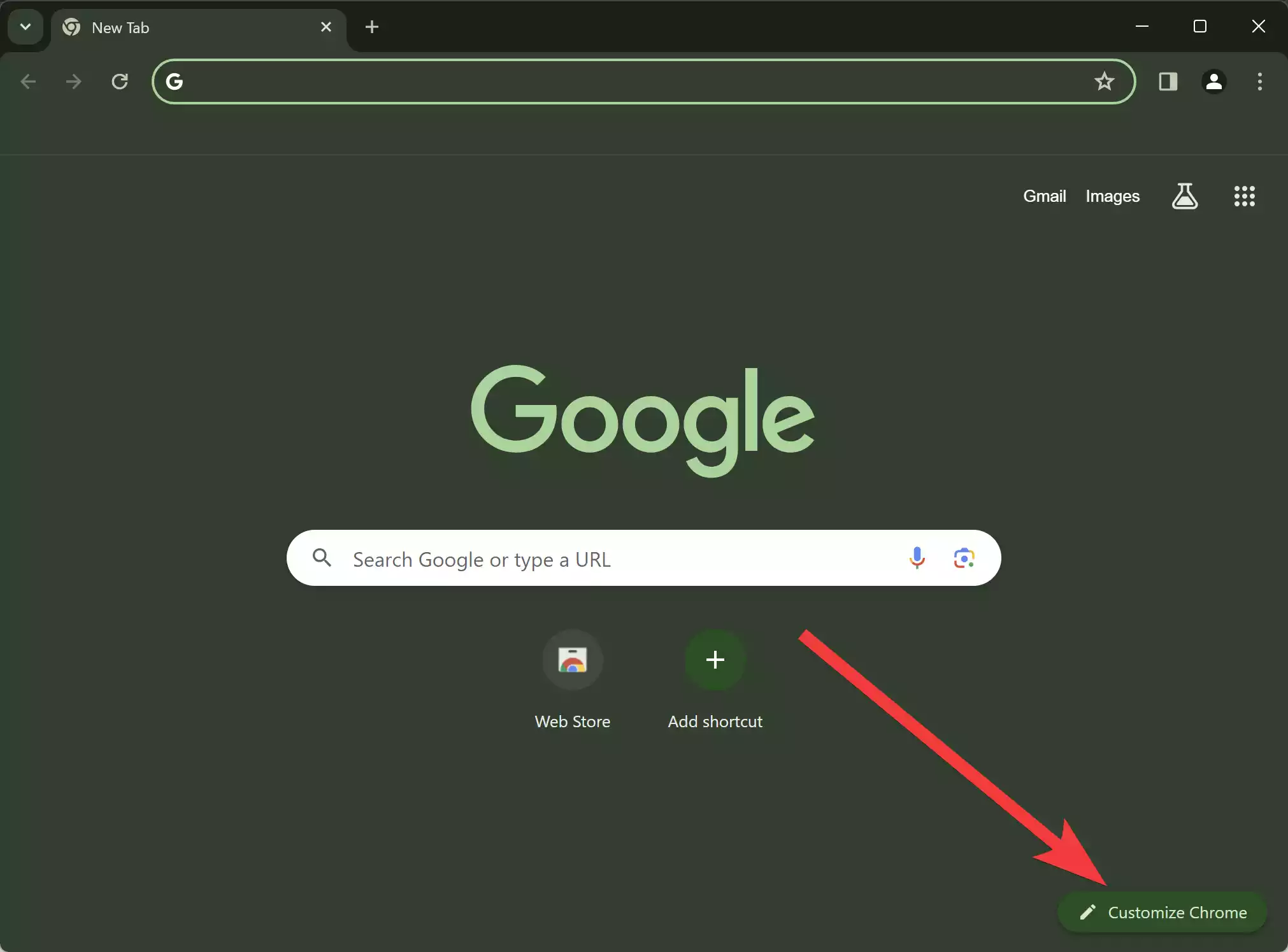
Step 2. Move the cursor to the bottom right corner of the Chrome page and click on the Pencil Icon (Customize Chrome) to customize the page.
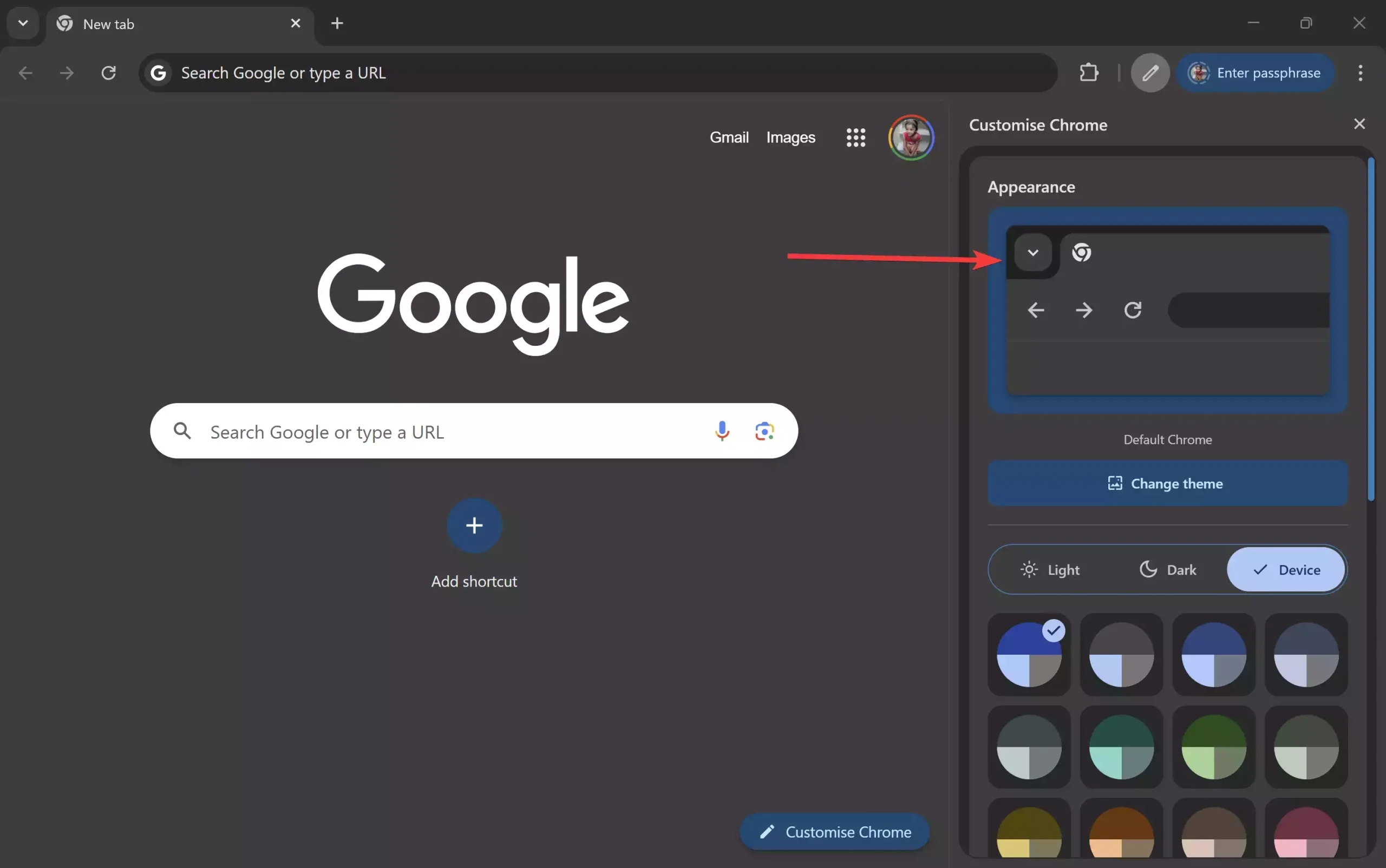
Step 3. The above action will open the sidebar. In the side panel, click the down arrow button under Appearance.
Step 4. Click on any available image from Chrome’s preset collections, such as Landscapes, Art, Textures, Life, Earth, Cityscapes, Geometric shapes, Solid colors, Seascapes, etc.
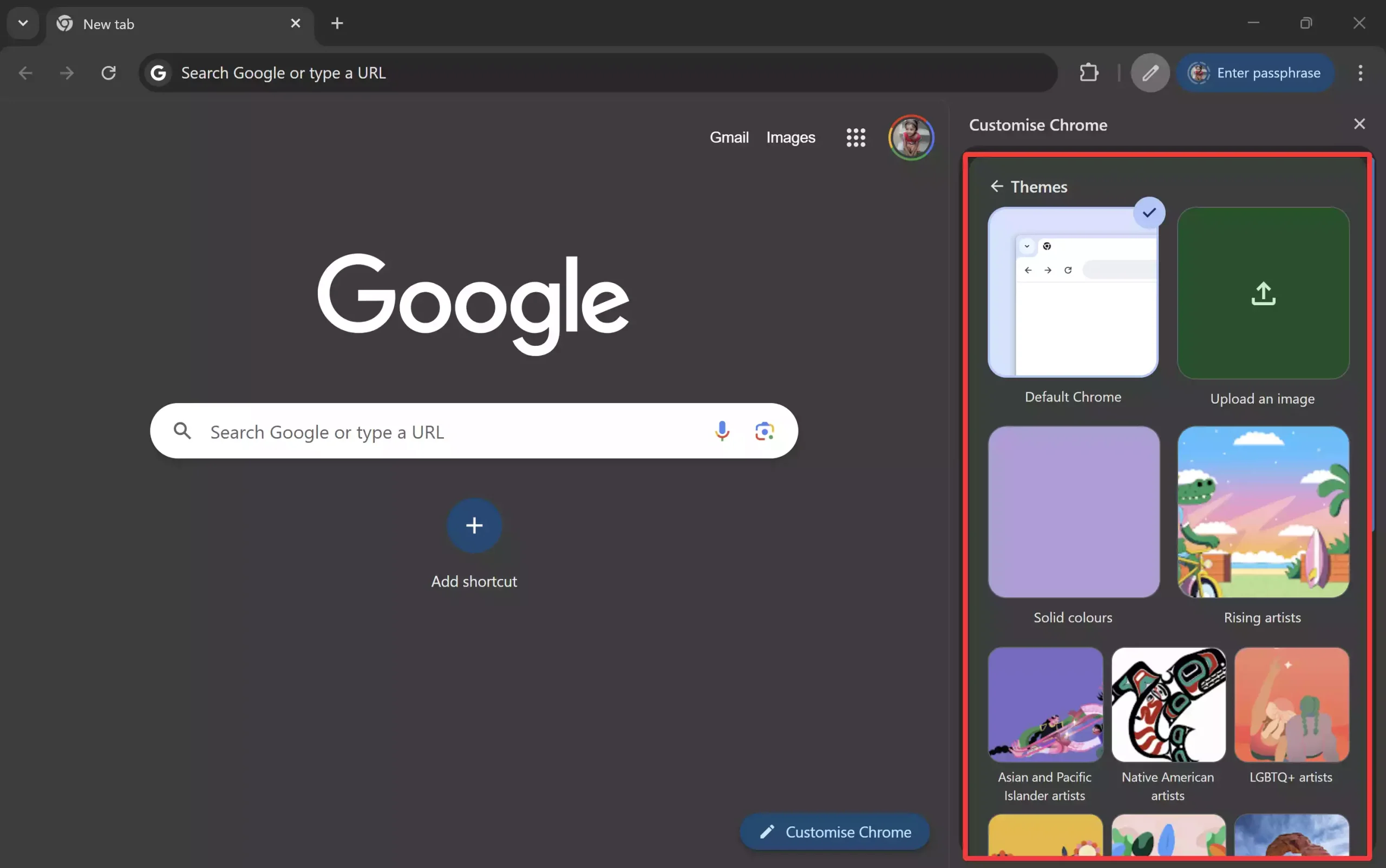
Step 5. It will show a preview of the selected image collection.
Step 6. From the top right side, turn on the Refresh daily slider.
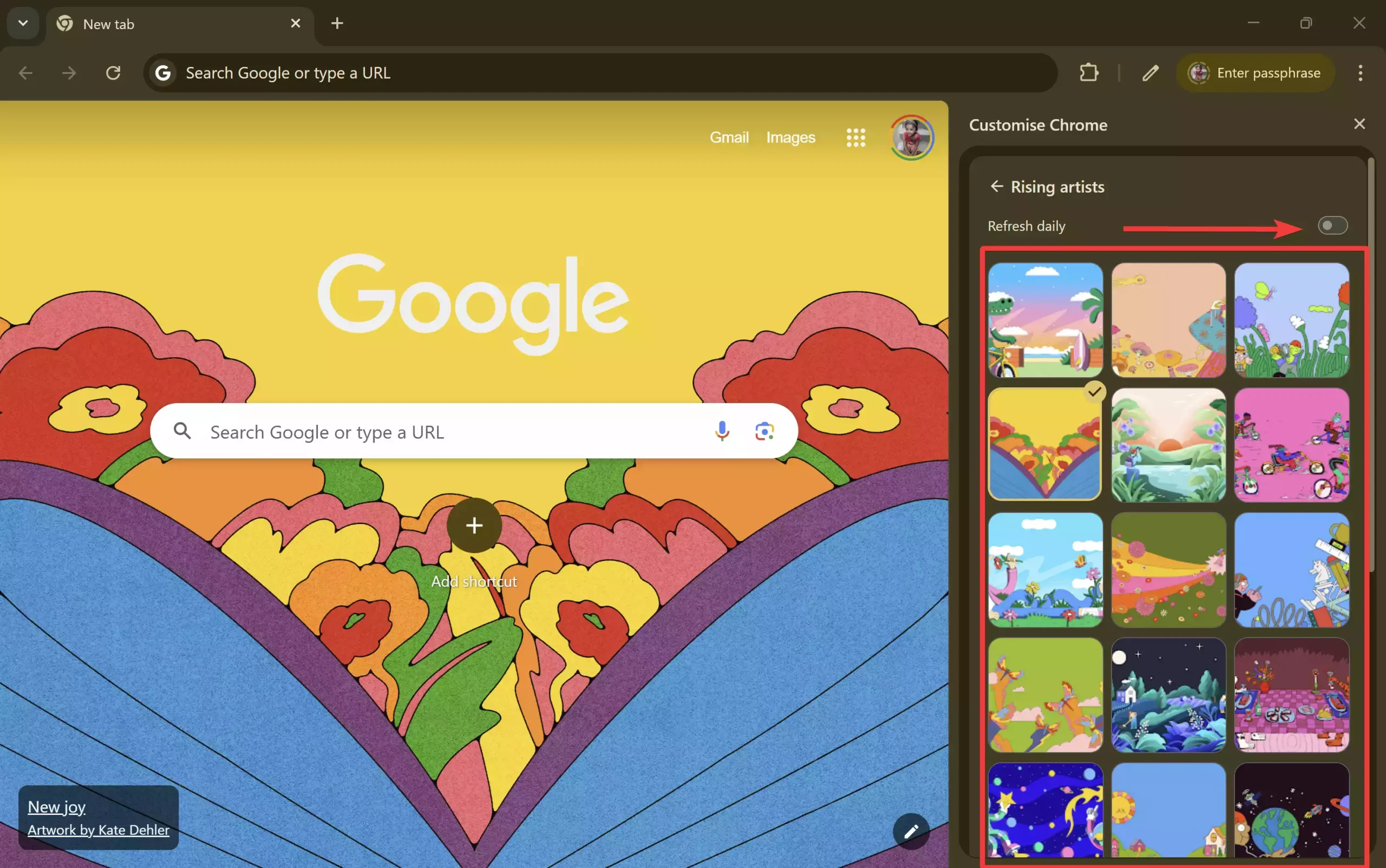
Step 7. Finally, close the Customize control sidebar to apply the changes.
That’s all! Have fun!
FAQs
What is the “Refresh daily” feature in Google Chrome?
It is a built-in Chrome option that changes your New Tab Page background automatically every day using the selected image collection.
Do I need an extension to auto-change Chrome’s background?
No. The latest versions of Chrome include this feature natively under the Customize Chrome sidebar.
Can I choose which type of images Chrome rotates?
Yes. You can pick from Chrome’s curated categories, such as Landscapes, Cityscapes, Art, Textures, Life, Earth, Geometric shapes, Solid colors, and more.
Does “Refresh daily” work if I use a custom image?
No. The automatic refresh option works only with Chrome’s preset image collections, not personal uploads.
Can I stop the daily background change later?
Yes. Open the Customize Chrome sidebar again and turn off the Refresh daily slider anytime.
Why don’t I see the Refresh daily slider in my Chrome browser?
You may be using an outdated version of Chrome. Update the browser to the latest build and try again.
Does changing the New Tab background slow down Chrome?
No. Background images are lightweight, and using the daily refresh option has minimal impact on performance.
Will theme settings or extensions interfere with background refresh?
Some custom themes may override the New Tab background. Switch back to Chrome’s default theme if the option doesn’t work.
Can I use different collections on different devices?
Yes. Chrome applies New Tab backgrounds per device. Each installation can have its own image category and settings.
Does the background change exactly at midnight?
Not necessarily. Chrome refreshes the wallpaper during the first New Tab load after a new day begins.
Conclusion
In conclusion, Google Chrome is an excellent web browser that offers users the ability to personalize their browsing experience by changing themes and backgrounds, and even disabling automatic updates. With the “Refresh daily” feature, users can automatically change the New Tab Page background image every day based on their selected image collection. This is a great way to add some variety and spice to your daily browsing experience. By following the simple steps outlined above, you can easily enable this feature and enjoy a new background image every day on Google Chrome.
For cityscape.. It does not change daily for me. Is this a glitch?
Thanks!
DOES NOT CHANGE FOR ME EITHER