

Google Chrome offers to save your web passwords when you try to log in to a website. Once you have saved the password, you don’t need to remember it for further use. When you reaccess the same webpage, the Chrome browser fills in the login details automatically. Google Chrome also offers a built-in option to export saved passwords on your computer. This means that you don’t need to use any third-party software or extension to back up Chrome passwords.
In this post, we will guide you on how to back up saved passwords in the Google Chrome browser. There are at least two ways to back up or restore your saved passwords on your computer or notebook. These are the following:-
- Backup and restore Google Chrome passwords using Settings
- Backup and restore Chrome passwords using a third-party tool.
Above, both options are valid with the latest version of Google Chrome; you can use these steps on Windows 11/10/8/7 operating systems.
How to Backup and Restore Google Chrome Passwords using Settings?
To dump the stored password in the Chrome browser, do the following steps:-
Step 1. Open the Chrome browser, click on the 3-dots menu on the toolbar, and select Settings.
Alternatively, open the Chrome browser and type chrome://settings/ in the address bar, and hit Enter on the keyboard.
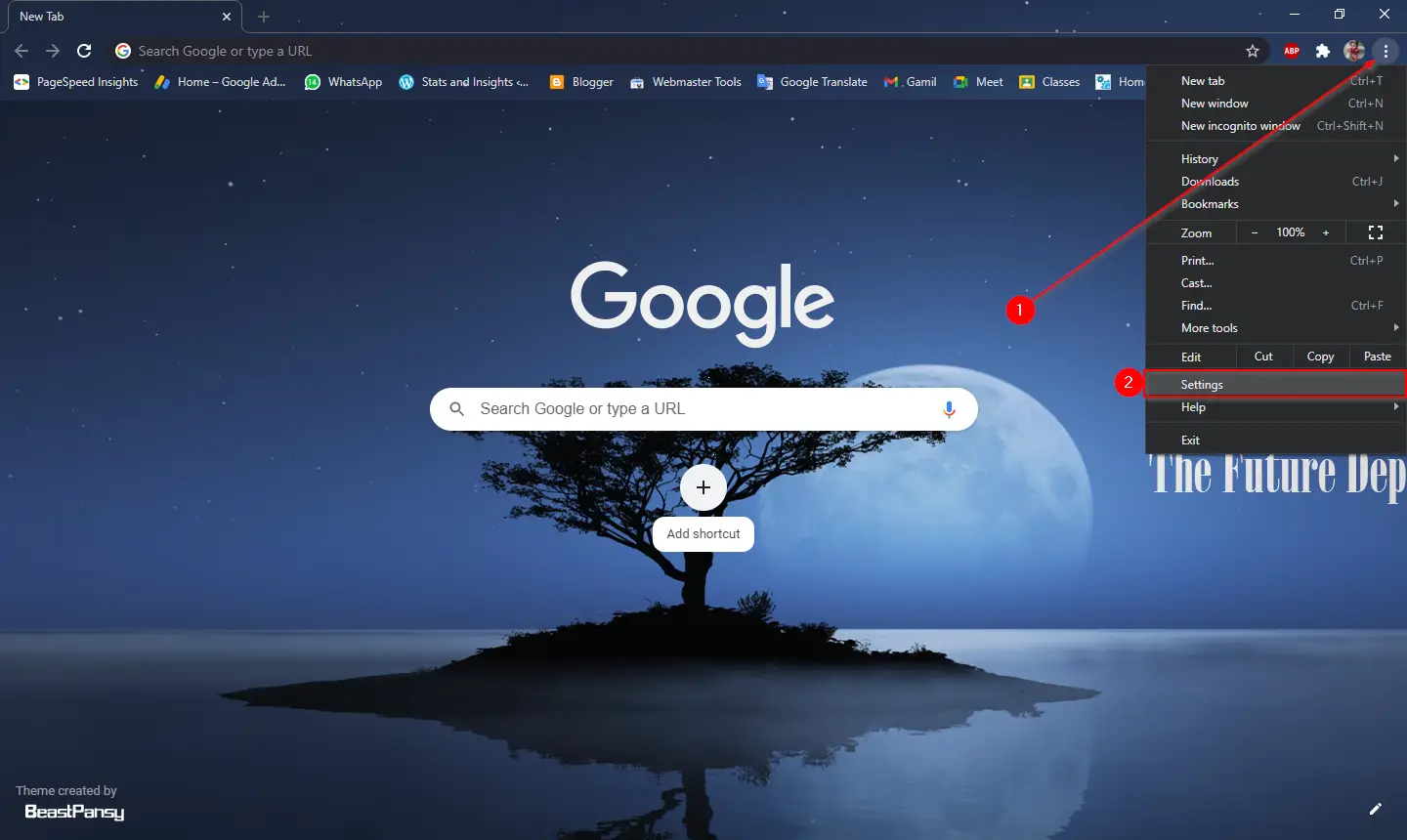
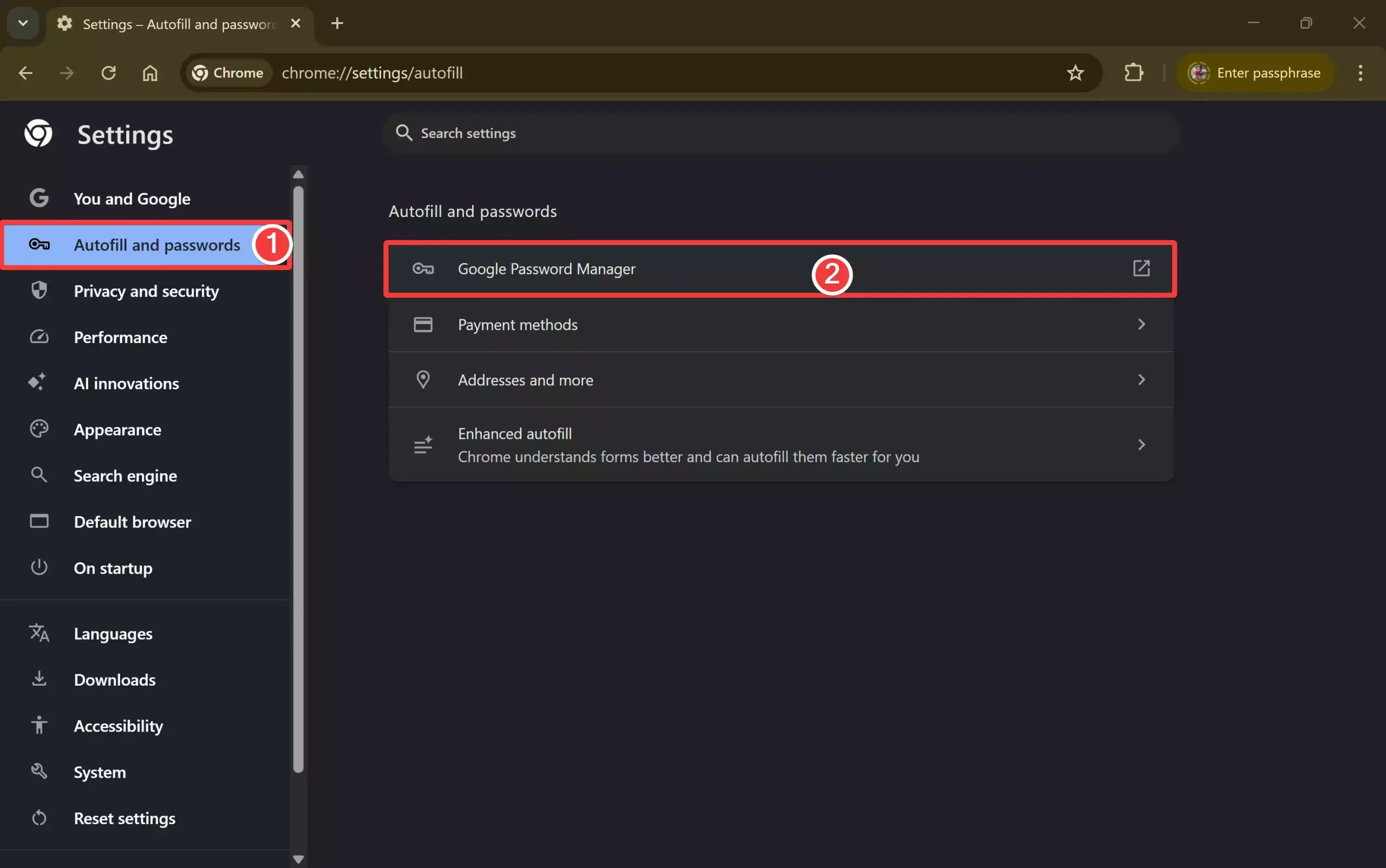
Step 2. Select Autofill and passwords in the left sidebar and then click Google Password Manager on the right.
Step 3. Under “Password Manager,” click Settings in the left sidebar.
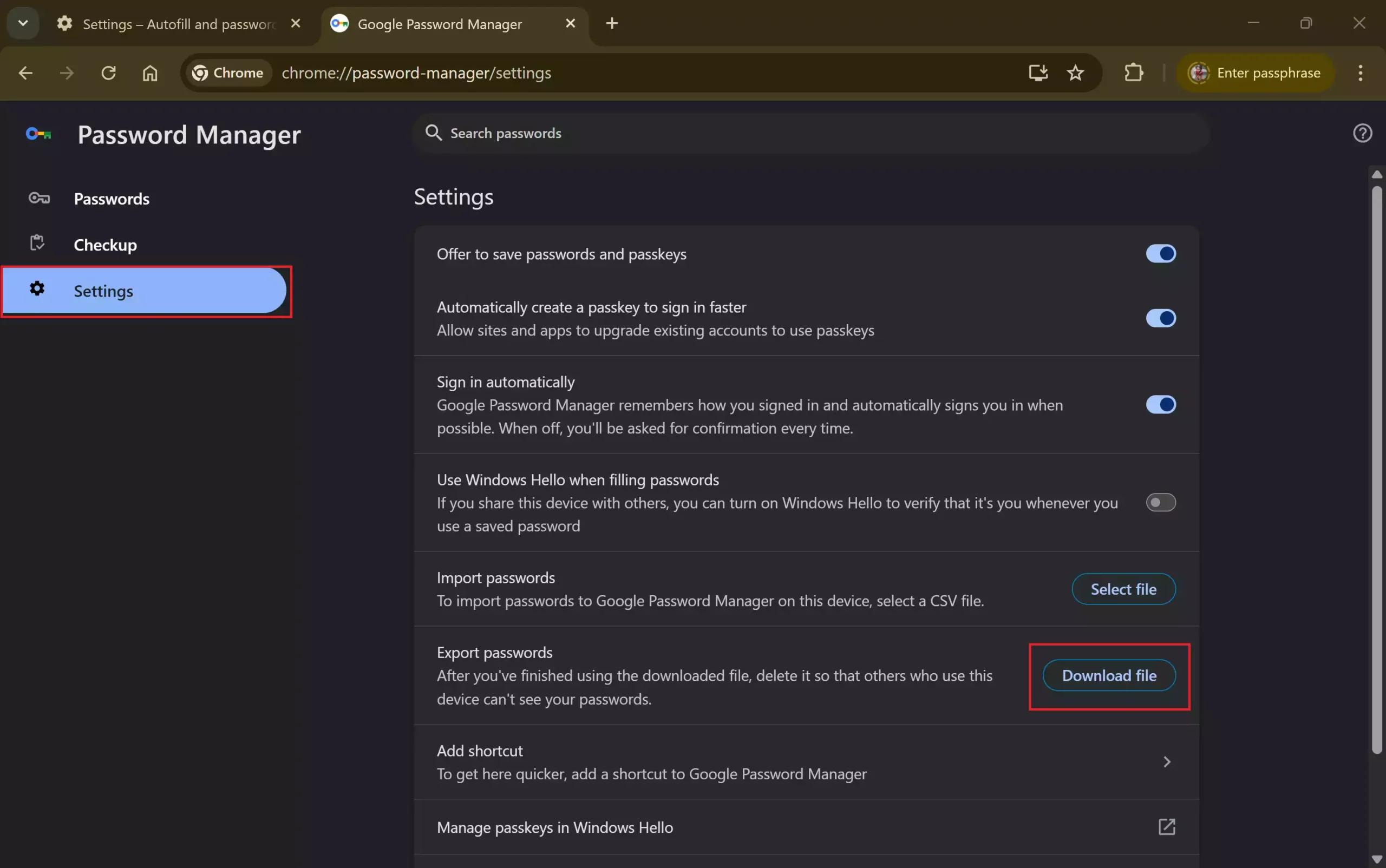
Step 4. On the right, click the “Download file” button inside the Export passwords option.
Step 5. Chrome will prompt you to enter the current Windows login password.
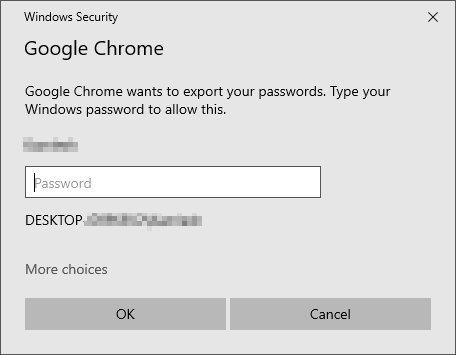 Step 6. Once you enter the Windows password, the Save as dialog box opens.
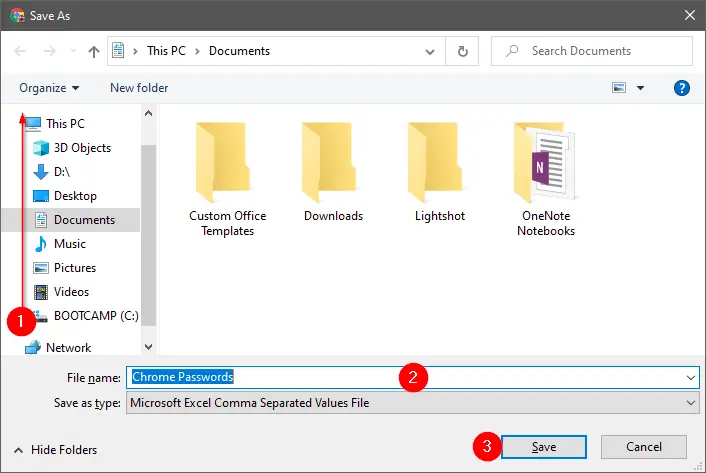
Step 7. Select the file location where you want to save, write a file name, and click the Save button.
All the saved passwords in the Google Chrome browser will be stored in a file. Google Chrome uses Microsoft Excel Comma-Separated Values File format to save exported passwords. You can view the saved file using the Microsoft Excel program.
To import the saved password into the Google Chrome browser, do these steps:-
Step 1. Repeat the above steps from 1 to 3.
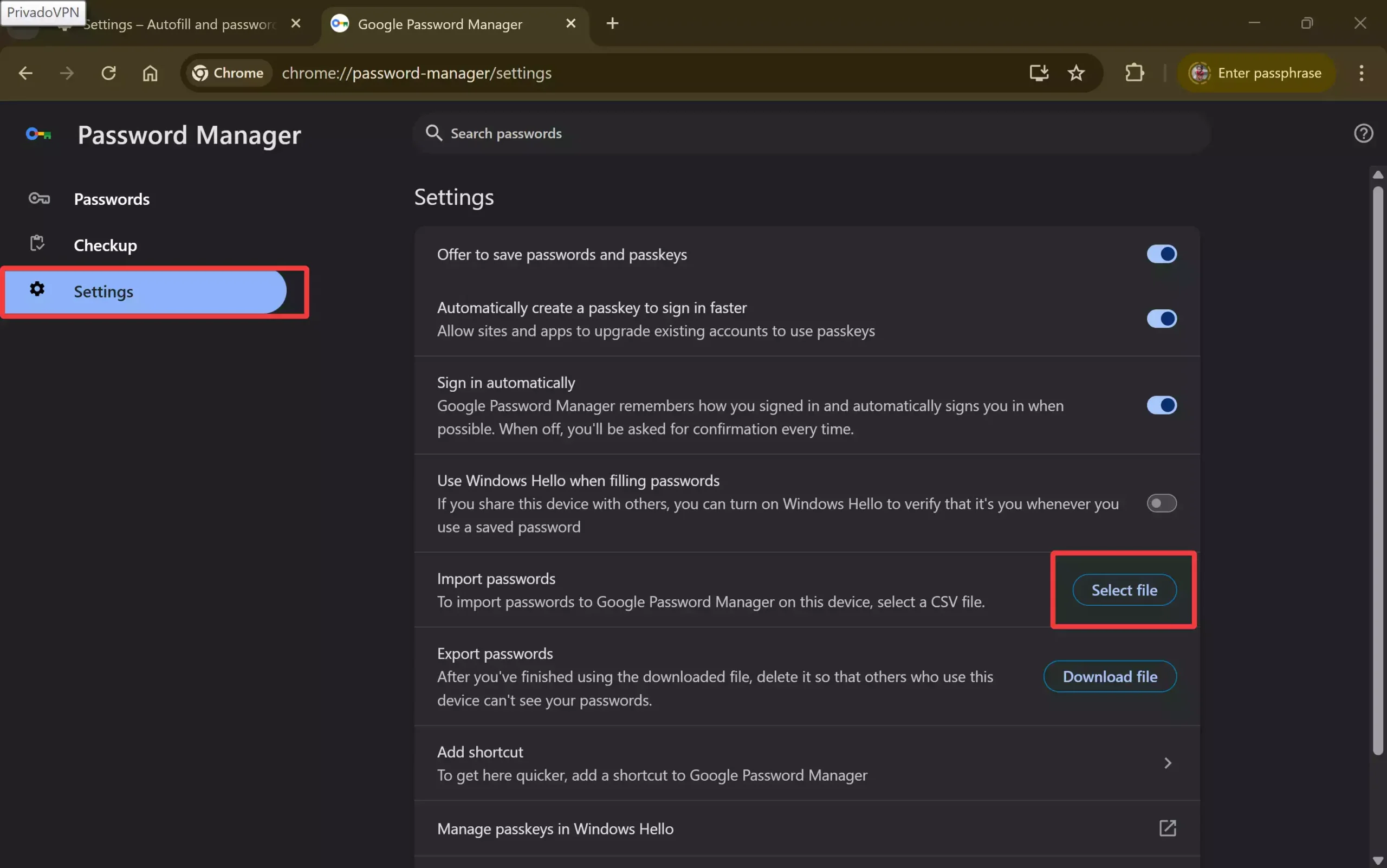
Step 2. Then, click the Select file button under the Import passwords option.
Step 3. Select the CSV (backup file) and click Open.
Chrome will immediately load and update the built-in Google Password Manager.
How to Backup Chrome Passwords using a Third-party Tool?
If you don’t prefer to use the built-in option of the Chrome browser to import files, you can use a third-party tool to accomplish this task. ChromePass is a freeware tool that lets you back up Chrome passwords in Windows XP, Vista, 7, 8, 10, and 11.
To back up and restore Chrome passwords using the ChromePass tool, use the following steps:-
Step 1. Download the free portable tool ChromePass.
Step 2. Extract the downloaded file using 7-Zip or WinRAR.
Note: The password of the zip file is chpass9126*.
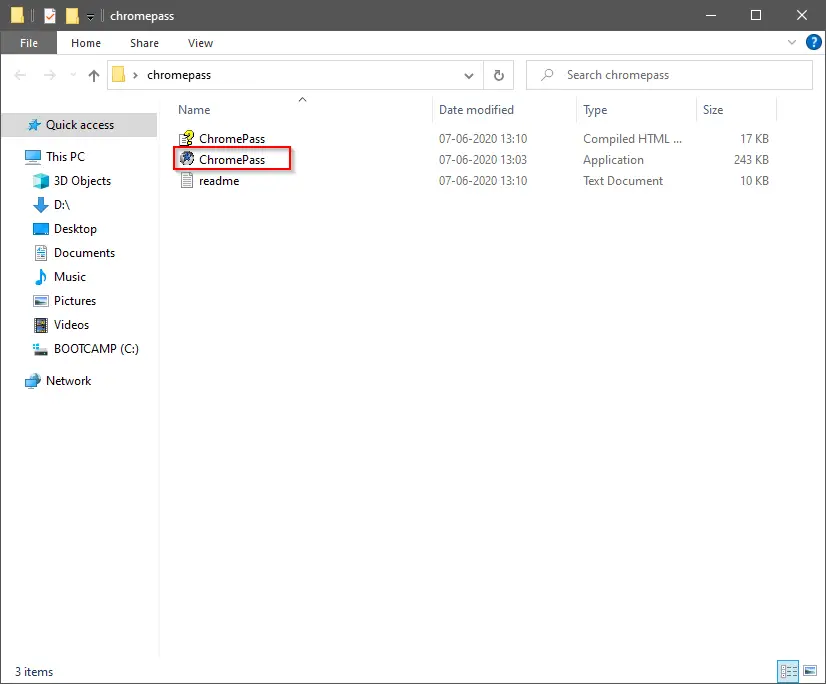 Step 3. Double-click ChromePass to open it.
Step 4. You can view all the stored passwords in the Google Chrome browser, including the password strength.
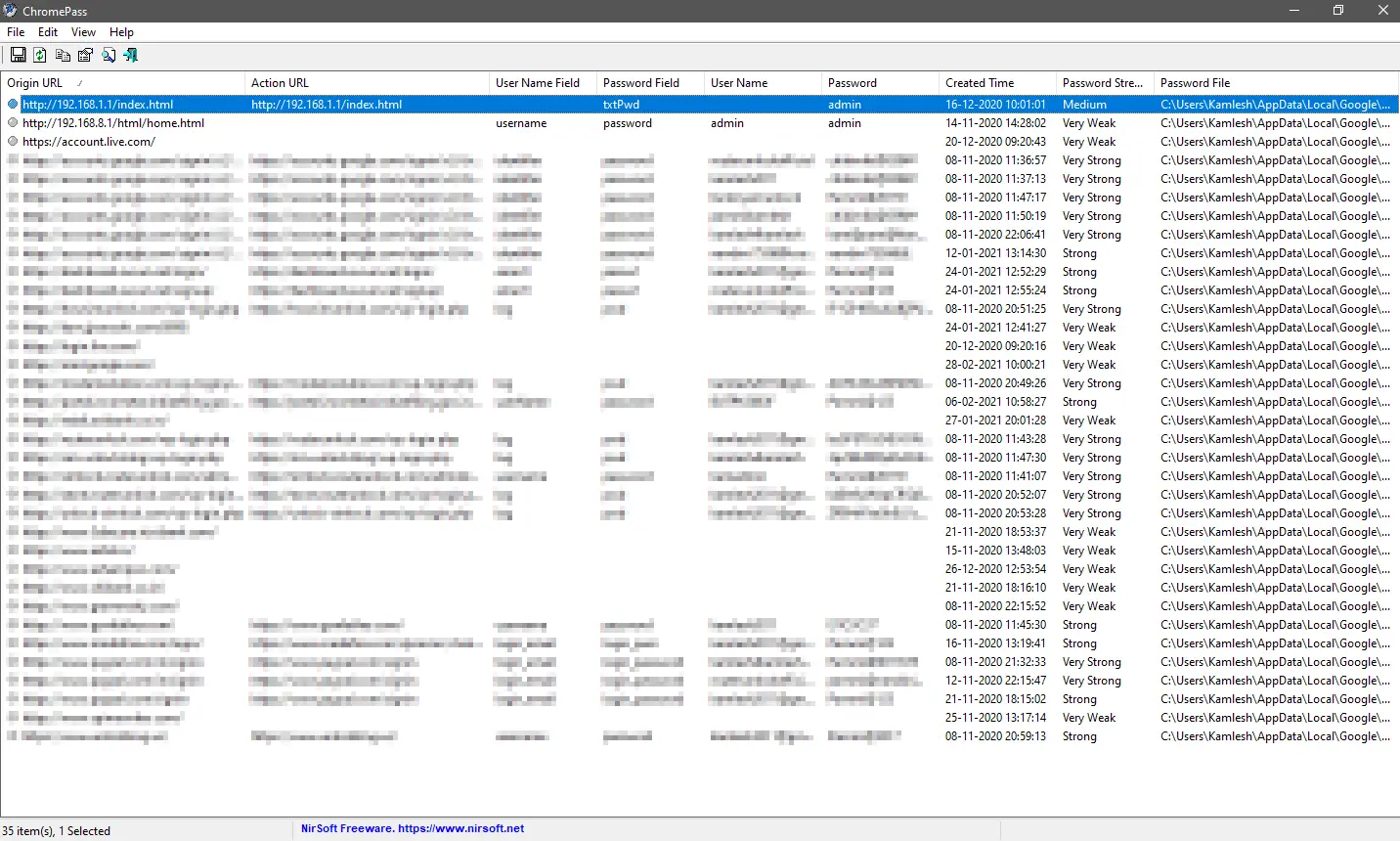 Step 5. Select the desired entry for which you want to save the passwords. Right-click and select the option Save Selected Items or press Ctrl + S keyboard shortcut to save the stored password in the Google Chrome browser in a .txt file.
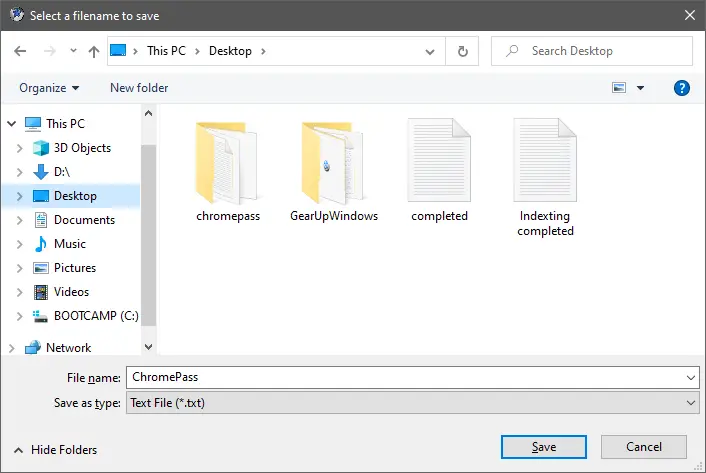
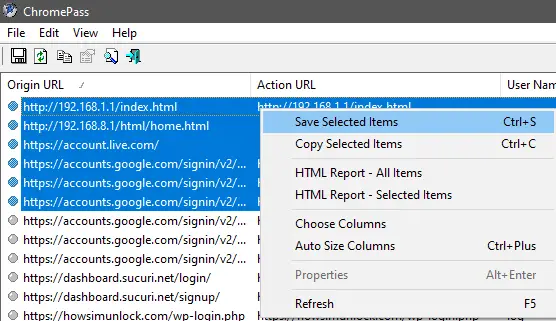 Step 6. Select a location, type the file’s name, and click the Save button.
 Above are the two methods to import or export passwords in the Google Chrome browser.
Conclusion
In conclusion, Google Chrome offers several ways to back up and restore saved passwords. Users can choose from the built-in option Settings or use the third-party tool ChromePass to accomplish this task. By following the steps mentioned in this post, users can easily export saved passwords to a file and import them on a new computer or the same computer. It is always recommended to keep a backup of saved passwords to avoid losing them in case of system crashes or accidental deletions. However, it is essential to keep the exported file secure and encrypted to prevent unauthorized access to sensitive information.
Download Backup and Restore Google Chrome Offline from [ Microsoft Store Website -https://www.microsoft.com/store/apps/9N0LRCXDW2ZM ] [ Microsoft Store Store App – ms-windows-store://pdp/?productid=9N0LRCXDW2ZM]
You just need to create a backup file on the old computer and restore the backup on the new computer. The following shows the advanced features of Backup and Restore Google Chrome Offline
Backup and restore all bookmarks, cached, cookies, history, settings, etc.
Backup and restore all Accounts and Passwords
Backup and restore all Profiles
Backup and restore all Extensions
Backup and restore all logged in website and extension includes Facebook, Google Account, Metamask wallet
Backup and restore your latest working sessions
Work Offline, No Internet requirement, Keep it in your way.
Backup and Restore Google Chrome Offline works like a charm