

Since Windows 7, Microsoft has allowed users to customize the Logon screen background color. To change the Logon background, users can download and use the Login Screen Background Changer freeware. Additionally, changing Windows folder icons is easy without third-party tools, as Windows includes a built-in feature for this purpose. However, there is no default option to change the color of a folder.
How to Change the Windows Folder Icon?
Here are the steps to change the Windows folder icon:-
Step 1. Right-click on the folder and select “Properties.”
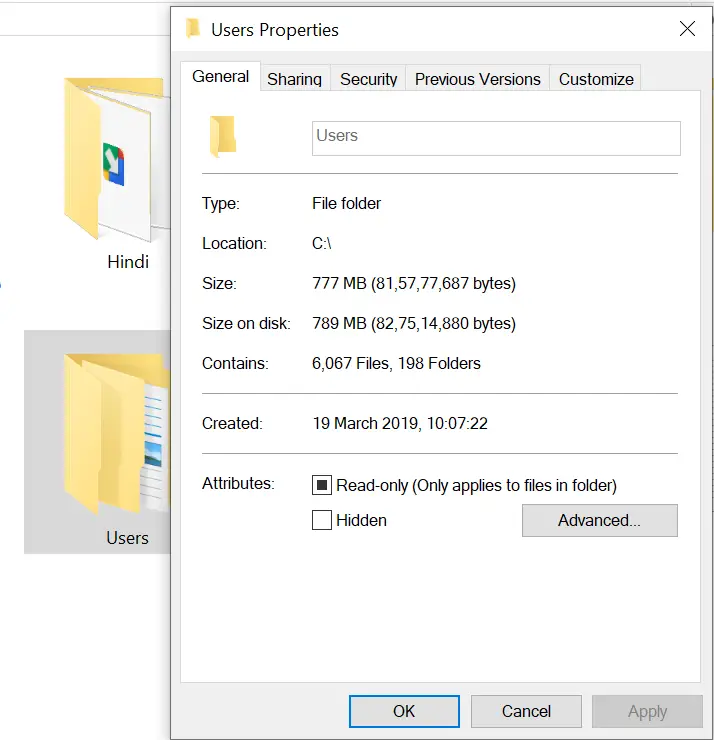
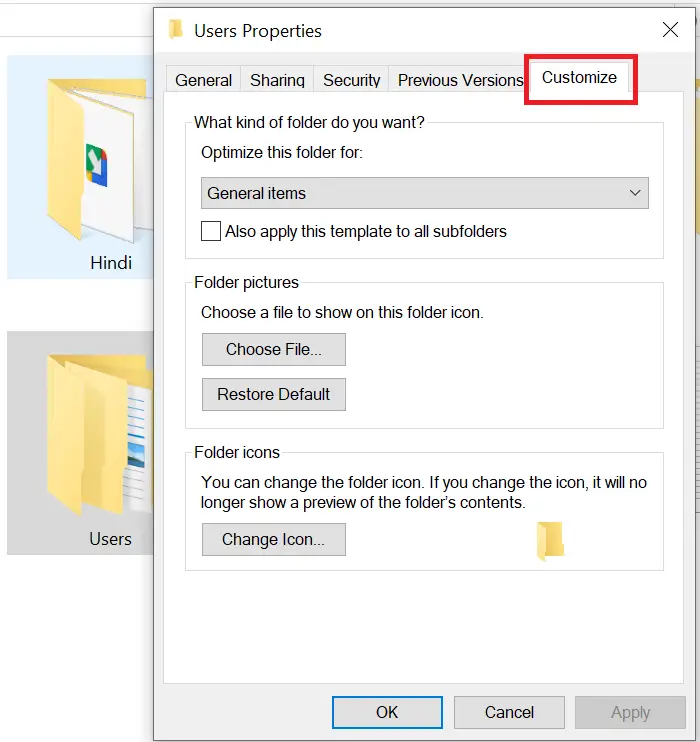
Step 2. Click the “Customize” tab.
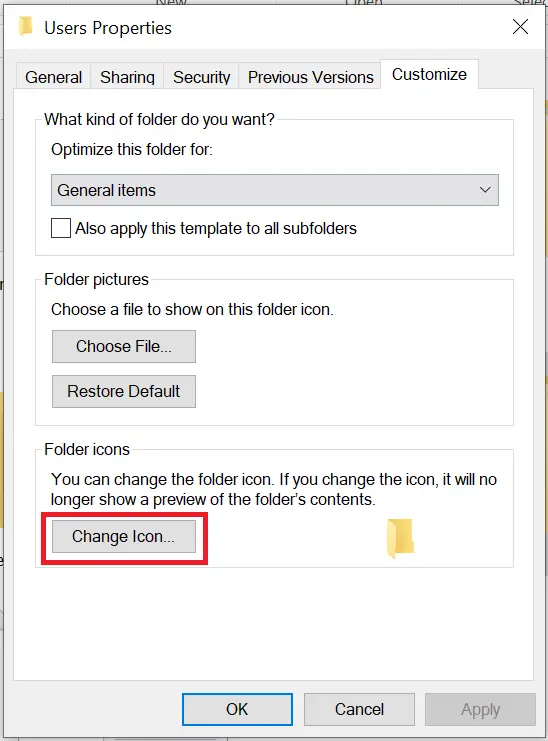
Step 3. Click the “Change Icon” button.
Step 4. The system’s default icon folder will open.
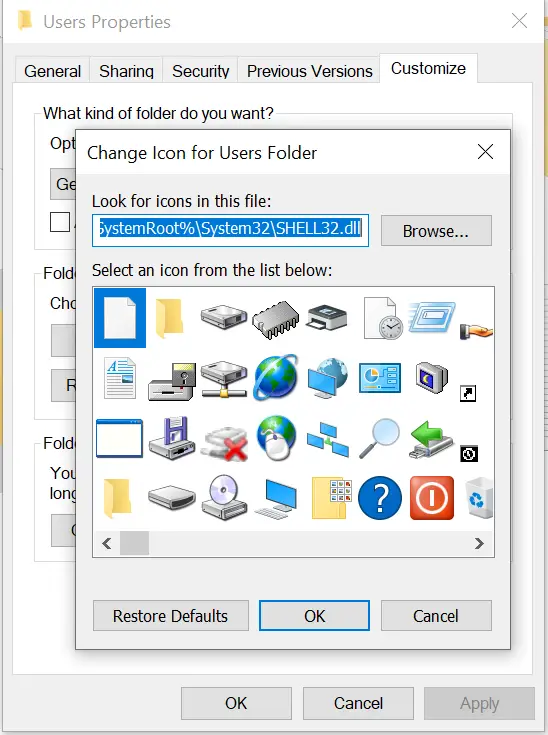
Step 5. Select any icon you want to apply and click “Apply” and “OK” to see the effect.
Since there is no built-in option to change a folder’s color, you will need third-party software. One of the best free tools for this purpose is Rainbow Folders. It is lightweight, easy to use, and works on Windows 11 and 10 despite being originally designed for earlier versions.
How to Colorize Windows 11, 10 & 7 Folders with Rainbow Folders?
Here are the steps to colorize folders in Windows 11, 10, and 7 using Rainbow Folders:-
Step 1. Download and install Rainbow Folders from its official website.
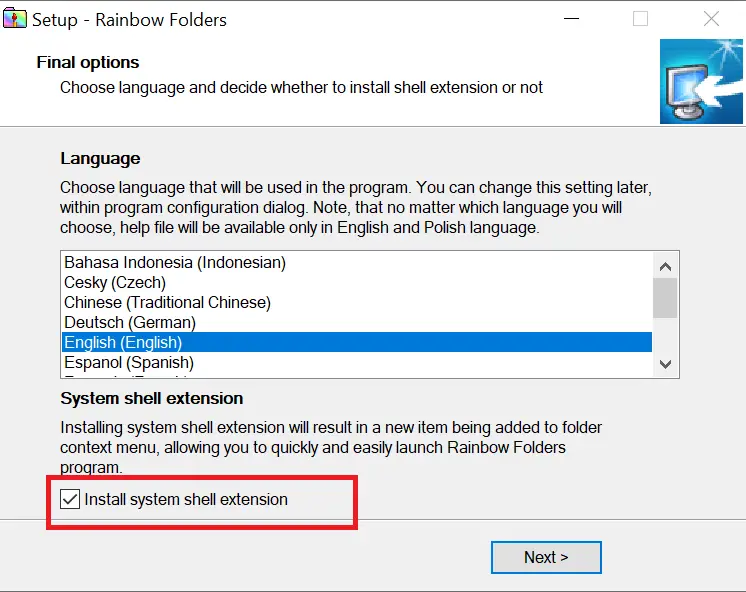
Step 2. During installation, make sure to check the “Install system shell extension” option.
Step 3. Right-click on the folder you want to colorize.
Step 4. Select “Rainbow Folders” from the right-click context menu.
Step 5. The “Rainbow Folders” window will open.
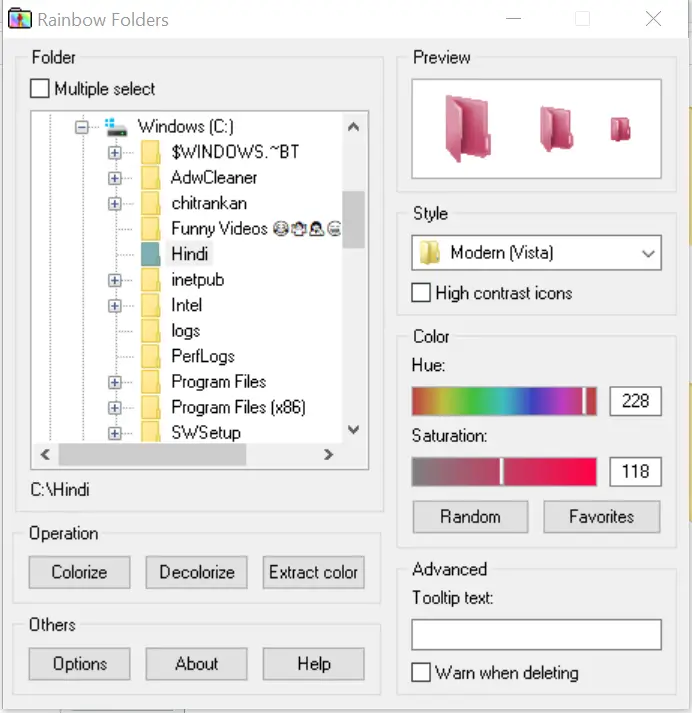
Step 6. Choose the color you want to apply and click “Colorize” to see the changes.
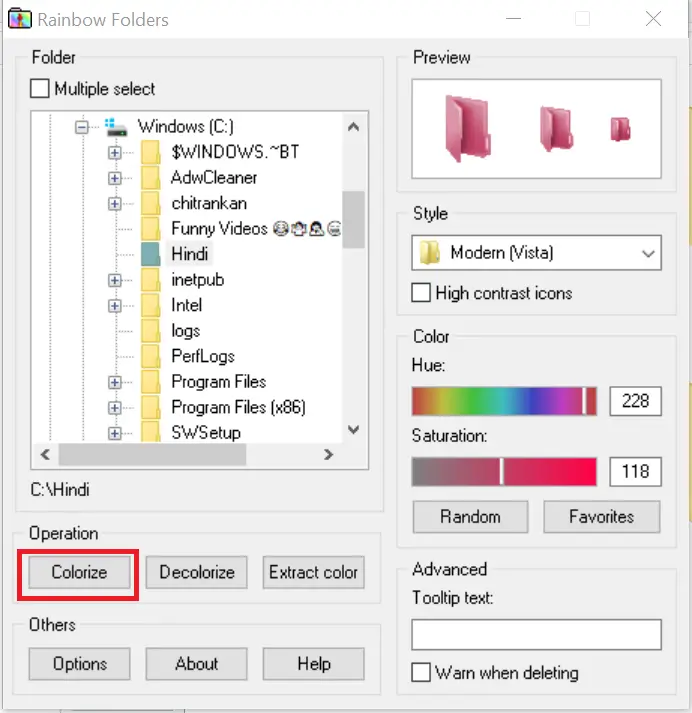
Step 7. Refresh the screen or restart your PC to apply the effect.
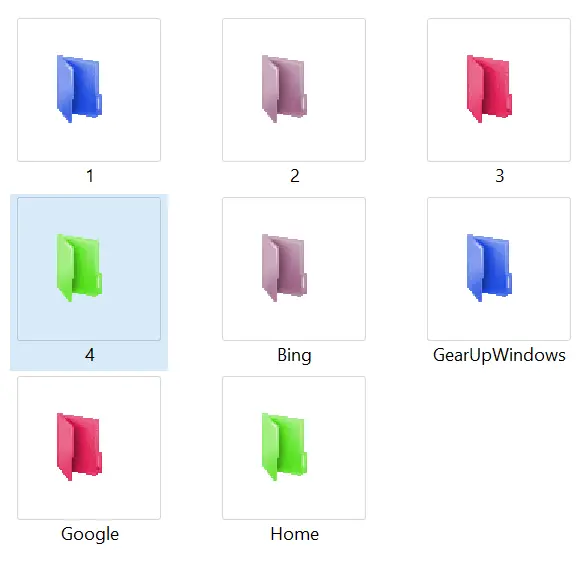
If you want to color multiple folders at once, select “Multiple Select” at the top. Rainbow Folders also allows rebuilding the system icon cache quickly and easily via the Options menu. It offers three folder styles: Classical, Typical, and Modern. To remove a folder’s color, select the folder and click “Decolorize“.
Other Free Tools to Change Folder Colors
If you’re looking for more free options, you can try these popular tools reviewed on Gearupwindows:
- CustomFolders – Change folder colors and add emblems easily.
- Folder Painter – Assign different colors to frequently used folders.
- Folder Marker – Color-code folders by priority or project type.
- FileMarker.NET Free – Mark files and folders by priority with custom labels.
FAQs
Can I change folder colors in Windows without third-party software?
No. Windows does not include a built-in option to change folder colors. You can change folder icons using built-in tools, but to add colors, you’ll need third-party software like Rainbow Folders, Folder Painter, or CustomFolders.
Is Rainbow Folders free?
Yes. Rainbow Folders is completely free to use and works on Windows 11, 10, 8, and 7, despite being originally designed for older versions.
Will changing folder colors slow down my computer?
No. Folder color changes are purely cosmetic and do not impact system performance.
Can I revert a folder back to its default color?
Yes. Rainbow Folders and other similar tools include an option to remove the applied color (often called “Decolorize”) so the folder returns to its default look.
Which is the best free folder color changer?
The best tool depends on your preferences. Rainbow Folders is lightweight and simple, Folder Painter offers quick right-click color changes, and CustomFolders adds both colors and emblems for more customization.
Conclusion
While changing Windows folder icons is a straightforward process, changing a folder’s color isn’t possible by default. However, Rainbow Folders provides an easy, free, and effective way to add color to folders in Windows 11, 10, and 7. With its support for multiple styles and cache rebuilding, it’s one of the simplest solutions available. For more customization, explore our guide on the best free folder color changer tools for Windows and how to change folder icons in Windows.
ok