

Modern web browsers like Google Chrome, Microsoft Edge, and Mozilla Firefox make browsing easier by automatically filling in your saved passwords, addresses, and payment information. While this feature is convenient, it can also be a privacy concern—especially if you share your computer with others or use a public system. In this guide, you’ll learn how to disable autofill in Chrome, Edge, and Firefox step by step.
What Is Autofill in Web Browsers?
The autofill feature automatically remembers your previously entered data, such as login credentials, addresses, and payment card details. The next time you visit a similar form, your browser suggests this data so you can fill it in with one click.
Although handy, this also means that anyone using your computer can view or misuse the stored information. That’s why turning off autofill is a good security practice, particularly on shared or work devices.
How to Disable Autofill in Google Chrome
Here’s how you can stop Chrome from saving and automatically filling passwords, addresses, or payment details:
Step 1. Open Google Chrome on your PC.
Step 2. Click the three-dot menu (⋮) at the top-right corner and select Settings.
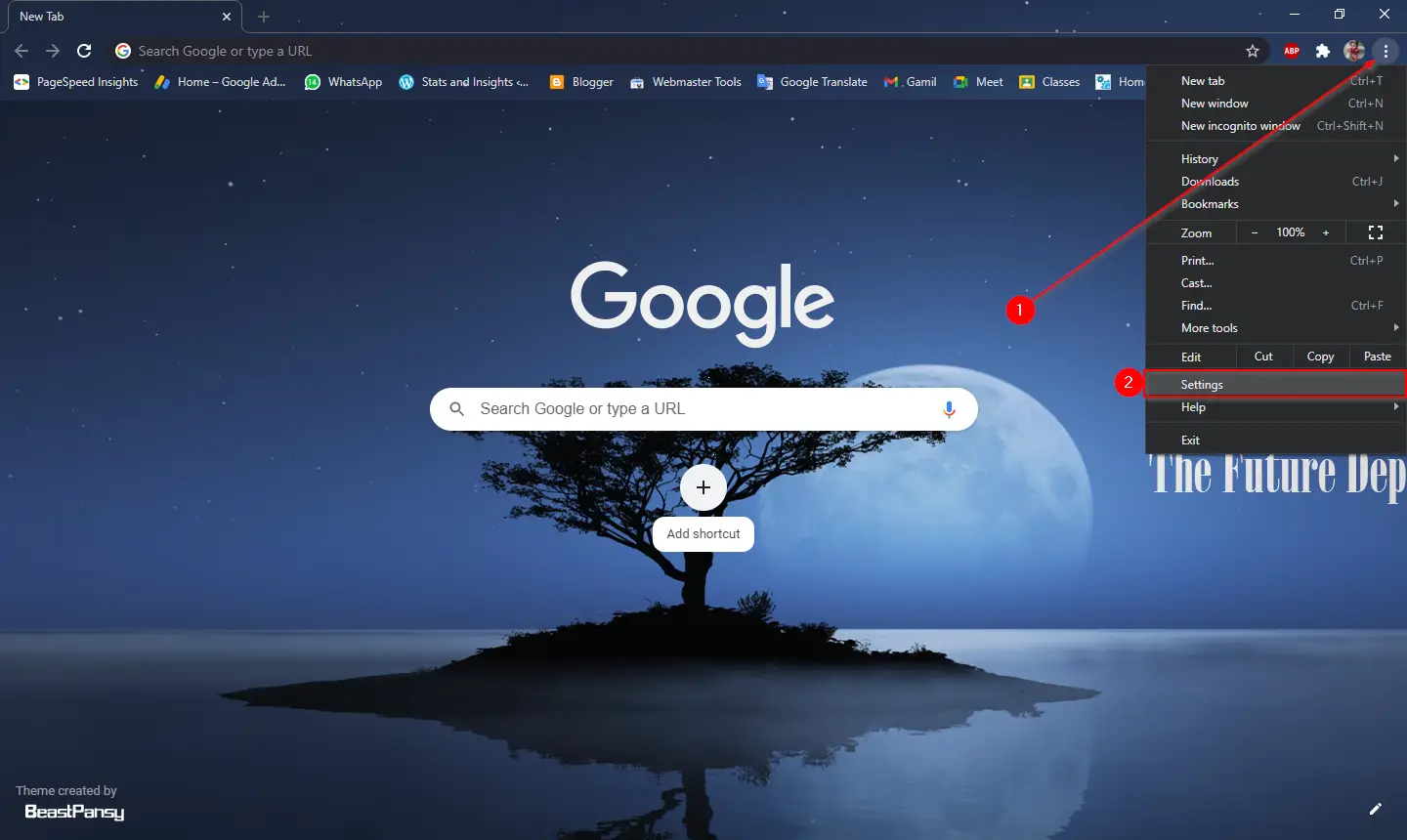
Step 3. From the left sidebar, choose Autofill and passwords.

Step 4. Now, disable the following options as needed:
- Passwords: Toggle off “Offer to save passwords and passkeys” and “Sign in automatically.” To do this, navigate to “Google Password Manager” >> “Settings.”
- Payment methods: Turn off “Save and fill payment methods.”
- Addresses and more: Switch off “Save and fill addresses.”
- Enhanced autofill: Turn off “Enhanced autofill.”
That’s it! Chrome will no longer automatically fill or suggest your personal information.
For a detailed guide on cleaning up old autofill suggestions, check this post on how to remove autofill entries on Google Chrome.
How to Disable Autofill in Microsoft Edge
Like Chrome, Microsoft Edge also remembers passwords, addresses, and payment info by default. Here’s how to turn it off:
Step 1. Launch Microsoft Edge and click the three-dot menu (⋯) in the upper-right corner.

Step 2. Go to Settings > Passwords and autofill.
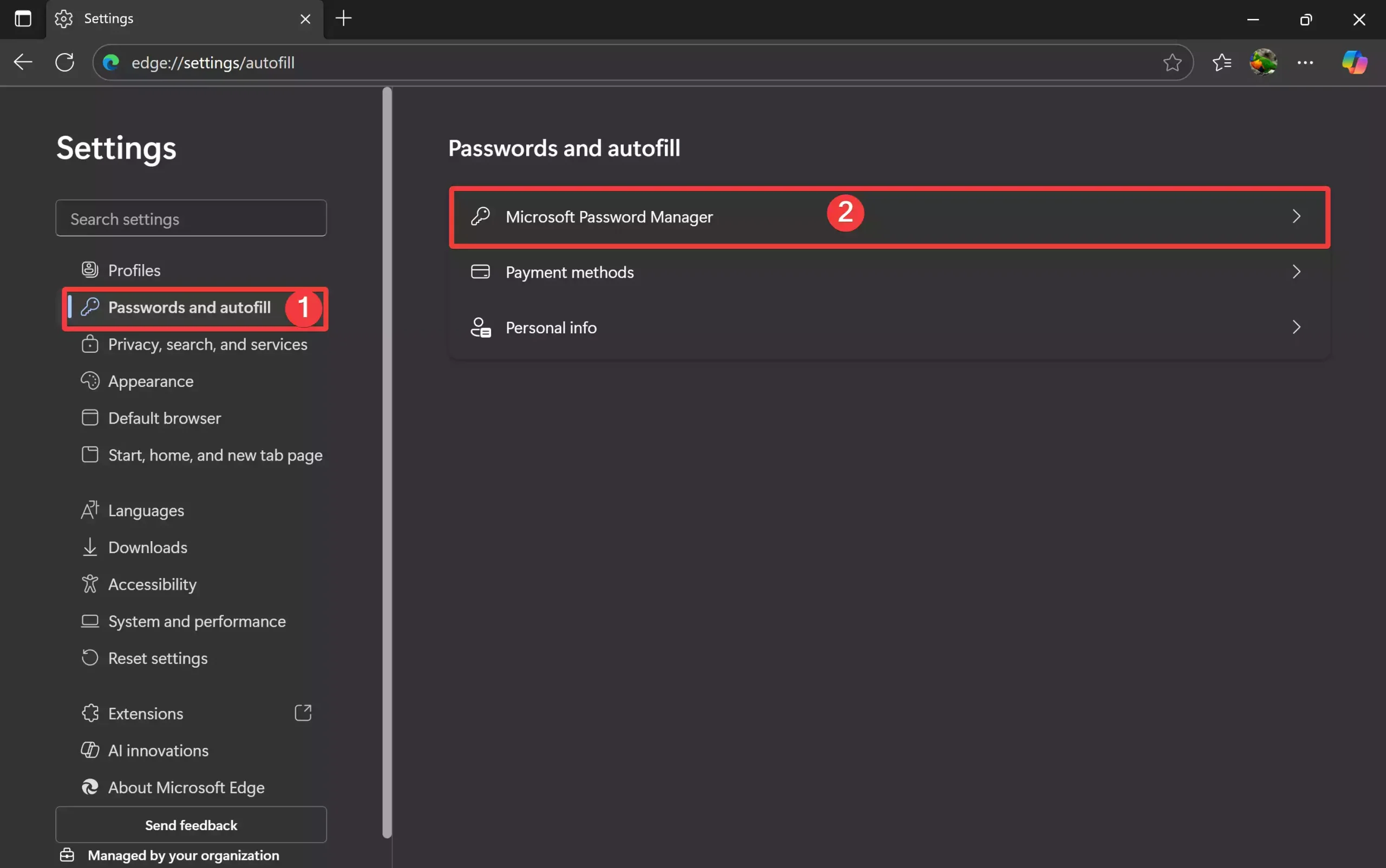
Step 3. Click on Microsoft Password Manager and then select “More settings.
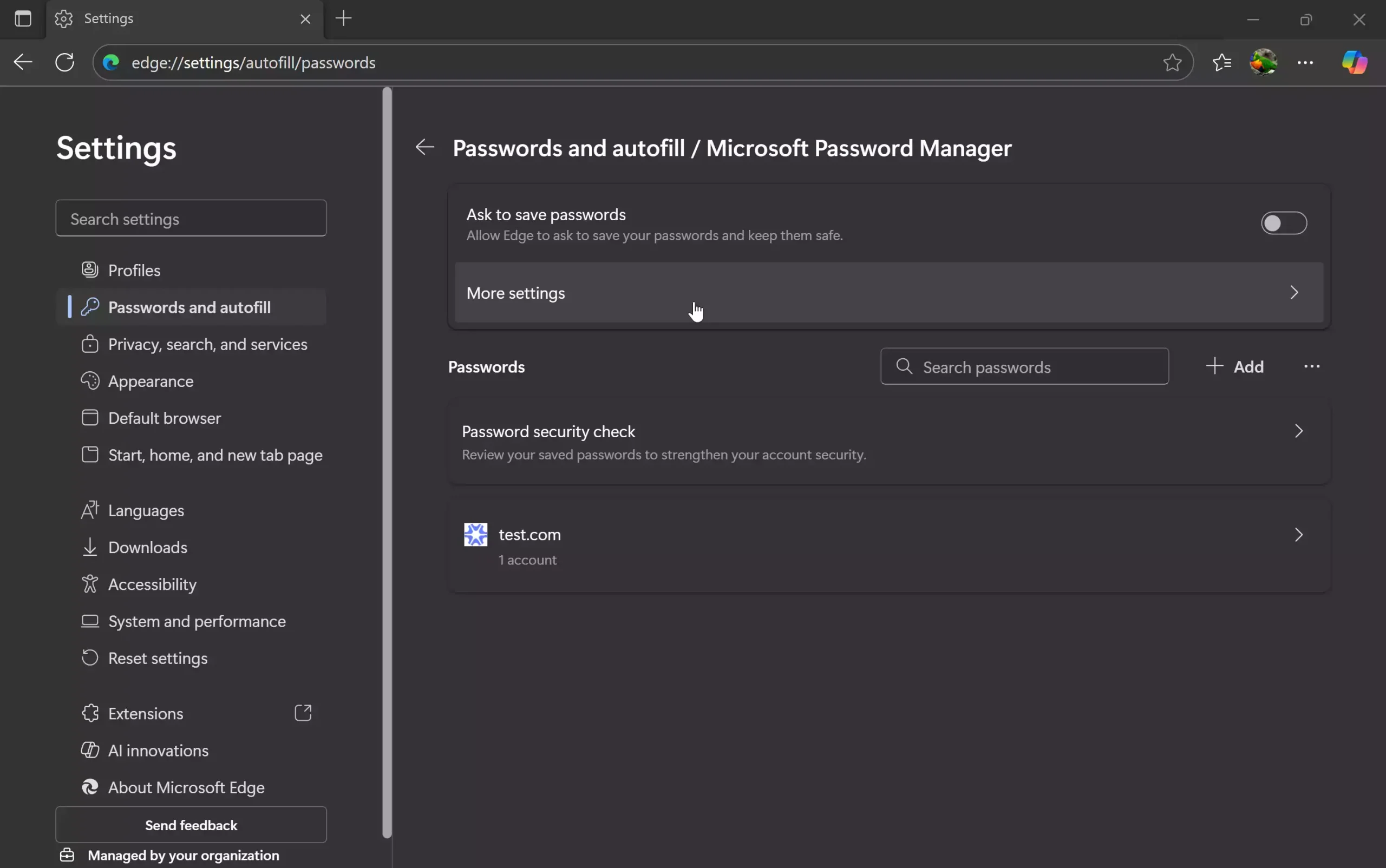
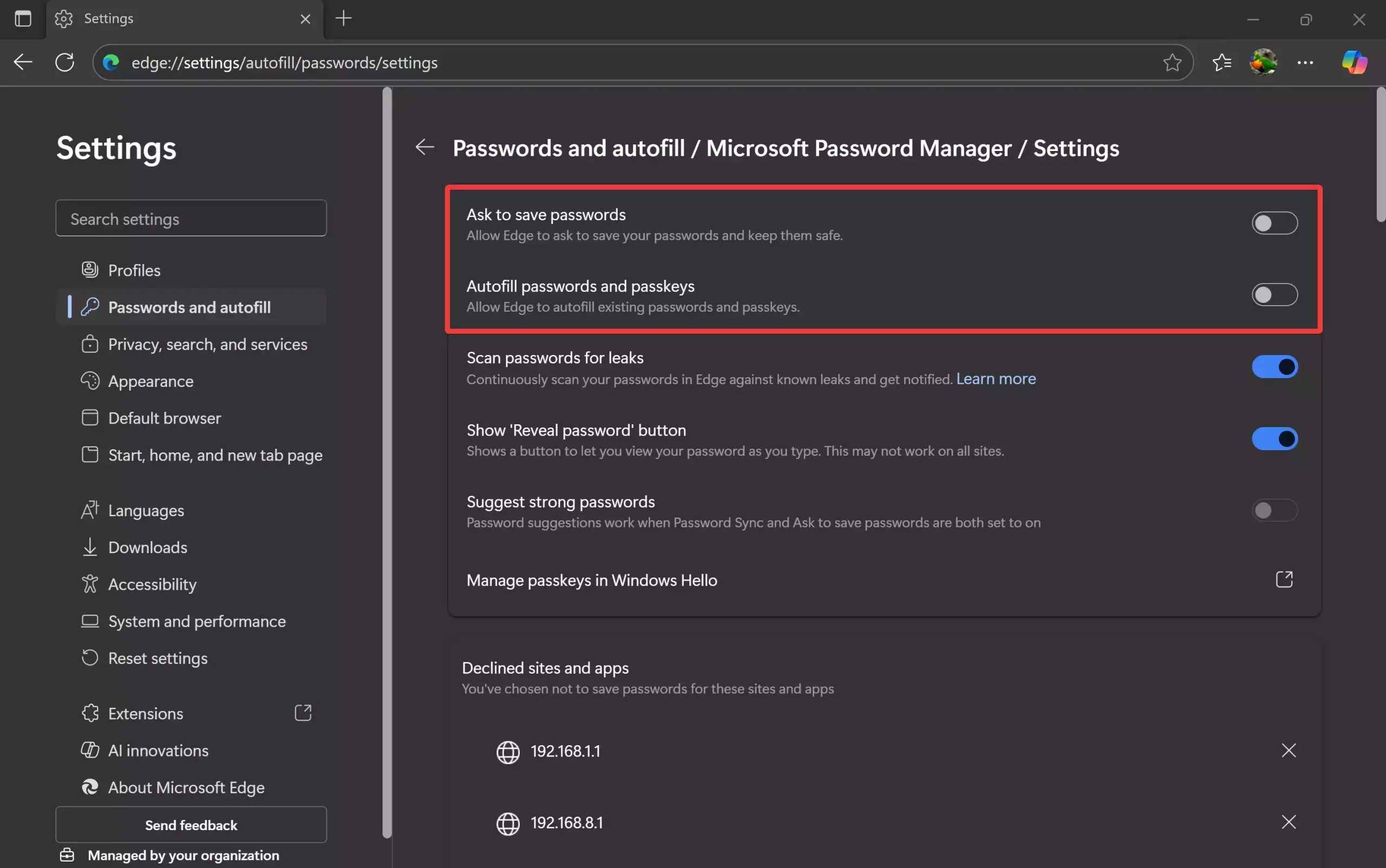
Step 4. Toggle off “Ask to save passwords” and “Autofill passwords and passkeys.”
Step 5. Go back to the “Passwords and autofill” section and click the “Payment methods.” Toggle off “Save payment info” and “Save security codes.”

Step 6. Go back to the “Passwords and autofill” section and click the “Personal info.” Toggle off “Save payment info” and “Save security codes.” Under Addresses and more, turn off “Save and fill addresses.”
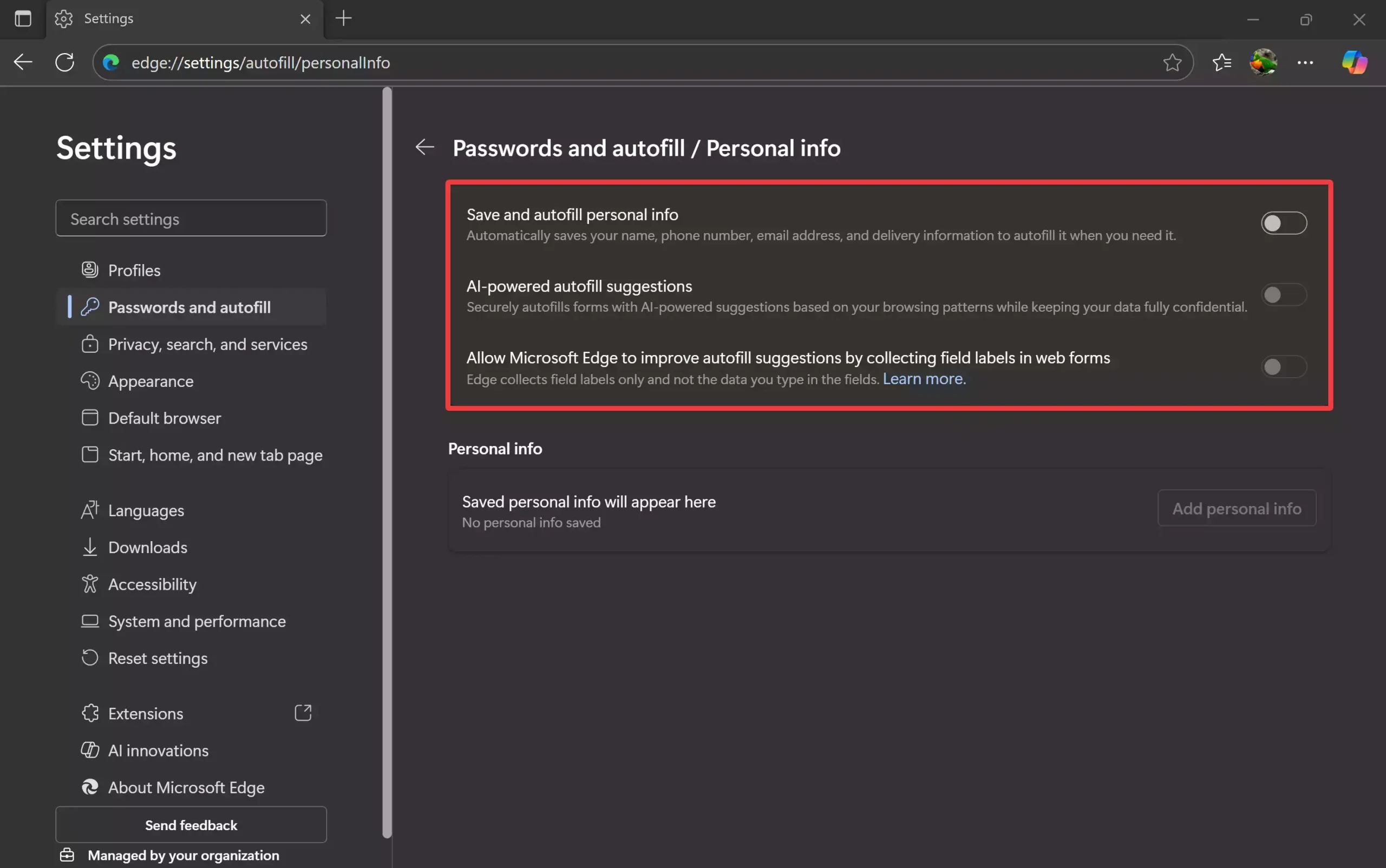
This will stop Edge from suggesting saved data whenever you fill out a form.
To further manage privacy, you can also stop Edge from saving browsing history and data or view and delete saved passwords on Edge.
How to Disable Autofill in Mozilla Firefox
Firefox also includes built-in form and login management. You can disable it as follows:
Step 1. Open Mozilla Firefox.
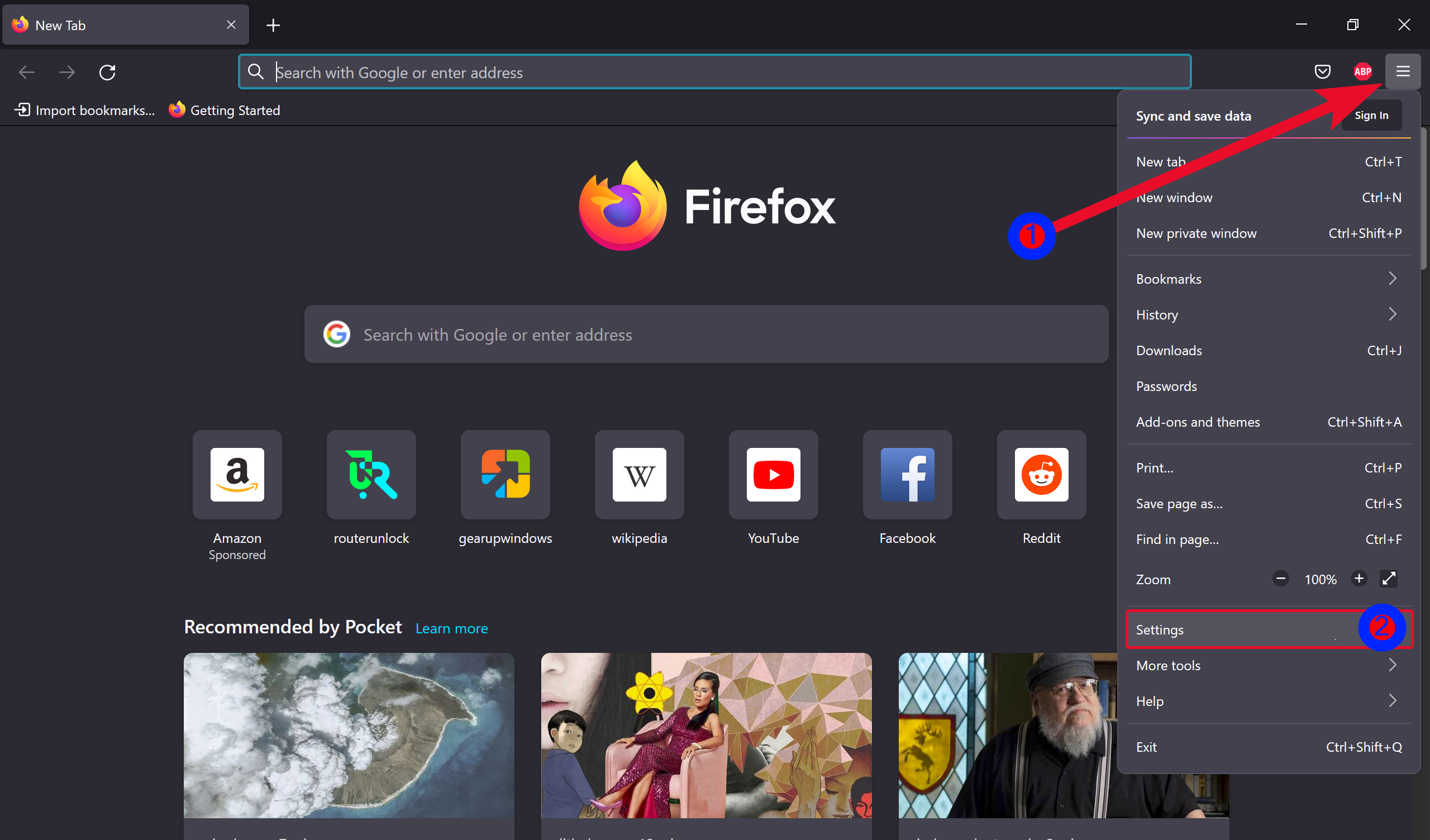
Step 2. Click the three-line menu (☰) and choose Settings.
Step 3. Go to the Privacy & Security panel.
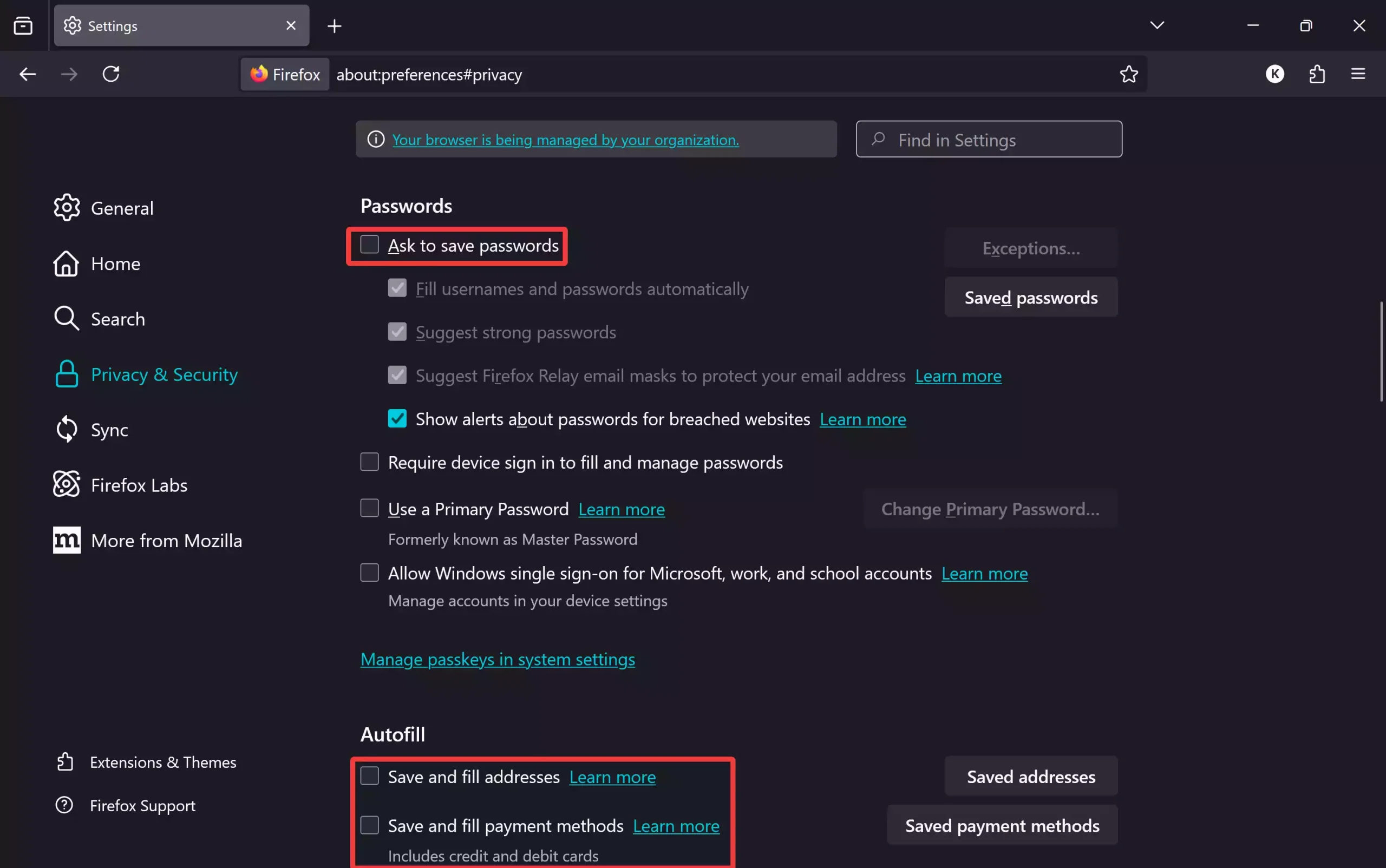
Then, under the following sections, disable:
- Passwords: Uncheck “Ask to save passwords.”
- Autofill: Uncheck “Save and fill addresses” and “Save and fill payment methods.”
This prevents Firefox from saving or suggesting personal data in future form fields.
If you’d like, you can also stop the Save Password prompt in Firefox entirely.
When Should You Disable Autofill?
You might want to disable autofill if:
- You share your PC or account with others.
- You use a public computer at a school, café, or library.
- You prefer to use a dedicated password manager for better security.
- You want to prevent unauthorized access to saved personal data.
Bonus Tip: Disable the Built-in Password Manager Too
Each browser includes a built-in password manager, which can store your credentials automatically. If you prefer privacy or use a standalone password manager, you can disable that feature as well. Follow this related guide to disable the built-in password manager in Chrome, Edge, and Firefox.
FAQs
Does disabling autofill delete my existing saved data?
No. Disabling autofill stops the browser from suggesting data in the future. You’ll need to manually delete saved information from browser settings if you want it gone completely.
Is autofill the same as password saving?
Not exactly. Autofill includes general form data like names, addresses, and payment cards, while password saving is specifically for login credentials. Both can be managed separately.
Can I re-enable autofill later?
Yes. You can turn it back on anytime by toggling the same settings back on in your browser.
Is it safer to use third-party password managers?
Yes, dedicated password managers like Bitwarden or 1Password generally offer more robust encryption and portability across devices compared to basic browser storage.
Conclusion
Disabling autofill in Chrome, Edge, and Firefox is a simple yet effective way to enhance your online privacy. While the feature can save time, it may expose sensitive data if others use your device. Taking a few minutes to turn it off ensures better security and control over your personal information.
For further reading, check out: