

Windows 11 offers a range of exciting features, and one of the handy additions is the ability to display weather information directly on your lock screen. This convenient feature allows you to quickly check the current weather conditions without having to unlock your computer. If you prefer to see weather at a glance in other places, too, you may also want to learn how to display weather info in the Windows 11 taskbar.
Watch: How to show weather on Lock screen (YouTube)
How to Show Weather on the Lock screen on Windows 11?
To display the weather on the Lock Screen on Windows 11, follow these easy steps:-
Step 1 To begin, click on the Start button in the taskbar to open the Start menu. From there, click on the gear-shaped icon labeled “Settings” to access the Windows 11 Settings.
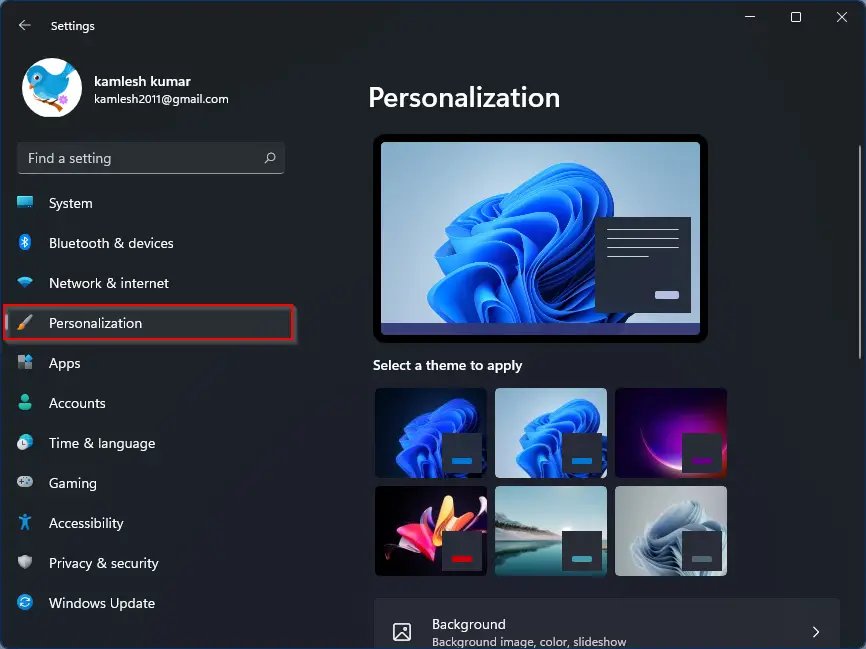
Step 2. In the Windows Settings window, you will find various categories on the left-hand side. Click on the “Personalization” category to proceed. For more lock screen personalization tips, see our full guide on how to customize the lock screen on Windows 11.
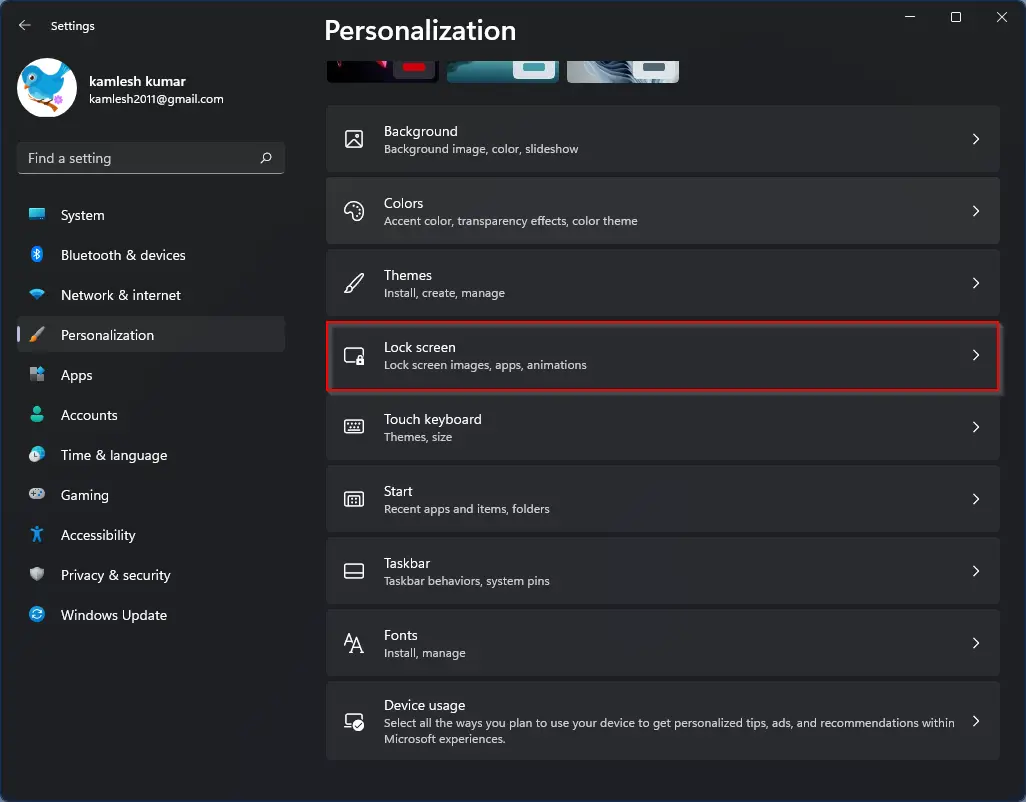
Step 3. Within the Personalization settings, you will see several customization options. Locate and select the “Lock screen” tab from the list on the right. (If you want to control the lock screen background separately, check our tutorial on enabling or disabling the lock screen background picture on sign-in.)
Step 4. Here, you can select the “Weather” option from the drop-down menu “Lock screen status” to enable the weather display on your lock screen. Once enabled, you will see the current weather information, including temperature and weather conditions, whenever your computer is locked.
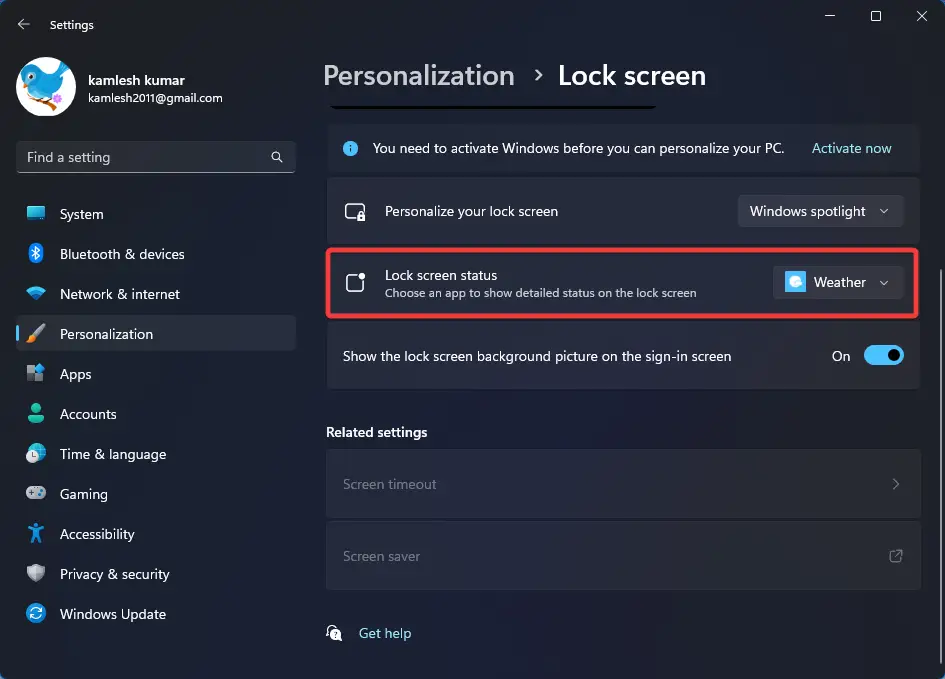
Step 5. If you don’t see the “Weather” option in the drop-down menu “Lock screen status,” you need to download the “Weather” app from the Microsoft Store. After installing the Weather app, open it to set your preferred location and temperature unit (Celsius or Fahrenheit); the lock screen will use those settings.
Tips & related personalization tweaks
• If you like visual tweaks for the lock screen and system UI, consider checking settings such as transparency and animations. Learn how to enable or disable transparency effects in Windows 11 to match the look you want.
• For smoother overall visuals, you can also manage animations — see our guide on how to enable or disable animation effects in Windows 11.
Conclusion
Windows 11 makes it easy to glance at the current weather without unlocking your PC by adding the Weather option to the Lock screen status. Follow the steps above to enable it, and if the Weather option is missing, install the Weather app from the Microsoft Store. For more customization ideas, browse the related guides we’ve linked above to fine-tune your lock screen and system visuals.