

Windows 11 brings a fresh visual experience with its Mica effect, which adds a touch of elegance to your browsing experience in Microsoft Edge and Google Chrome. The Mica effect creates a translucent, frosted glass-like appearance in the title bar, giving your browser a visually appealing look. If you prefer to customize the Windows interface further, you can also learn how to make Windows 11 look like Windows 10 for a more classic appearance.
In this guide, we will walk you through the steps to enable or disable the Mica effect in both Edge and Chrome browsers.
How to Enable the Mica Effect in Microsoft Edge?
Follow these easy steps to turn on Mica Effect in Microsoft Edge:-
Step 1. First, you need to have Microsoft Edge Canary installed on your system. Edge Canary allows you to explore experimental features before they are released in the stable version. You can also enable or disable built-in browser features like this in other browsers, such as Opera GX.
Step 2. Right-click on the Microsoft Edge Canary shortcut icon on your desktop or File Explorer and select “Properties” from the context menu.
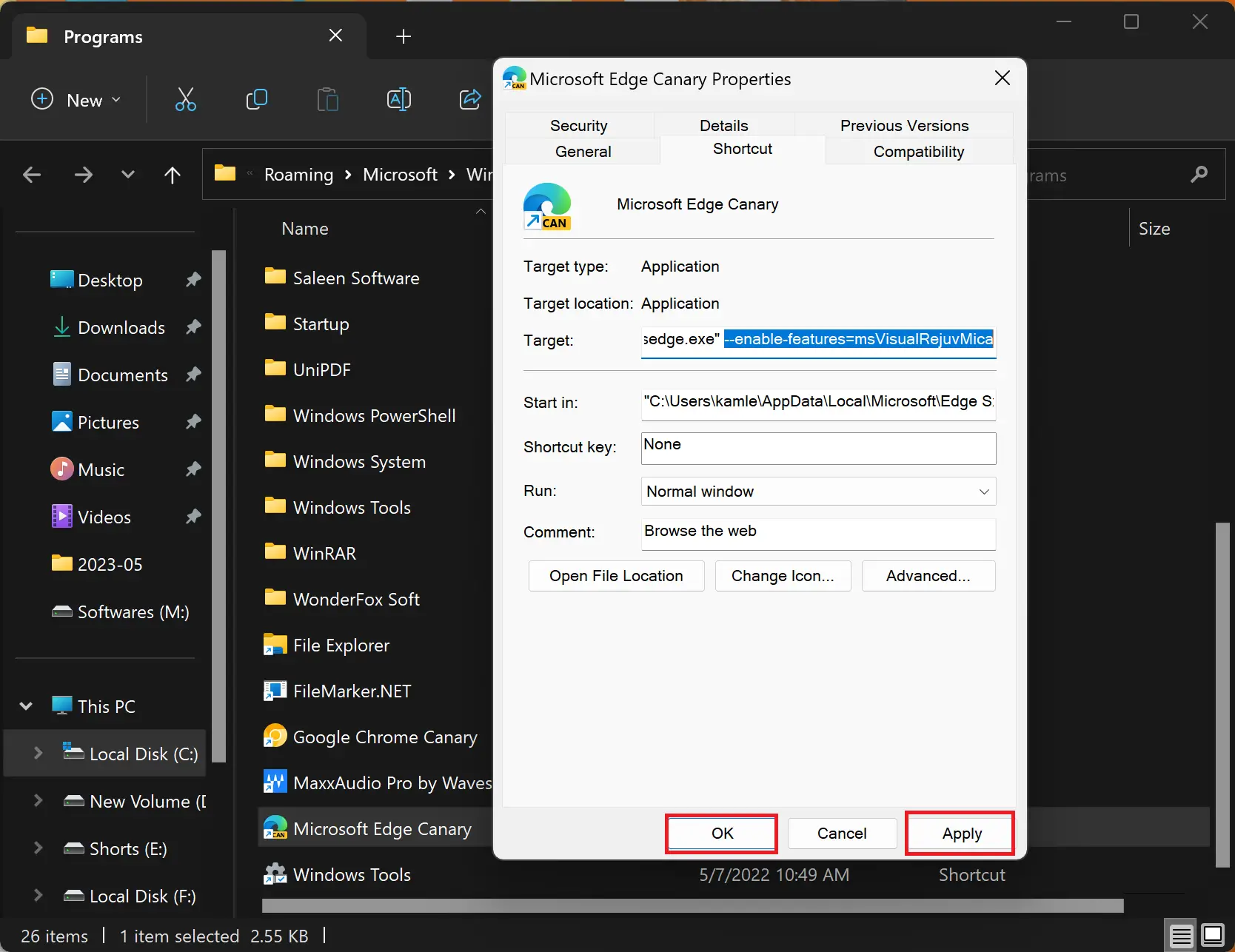
Step 3. In the Properties window, switch to the Shortcut tab.
Step 4. Locate the Target box and place your cursor at the end of the path after “msedge.exe.”
Step 5. Add a space, then enter the following command:-
--enable-features=msVisualRejuvMica
Step 6. Click “Apply” and then “OK” to save the changes.
Step 7. Launch Microsoft Edge Canary.
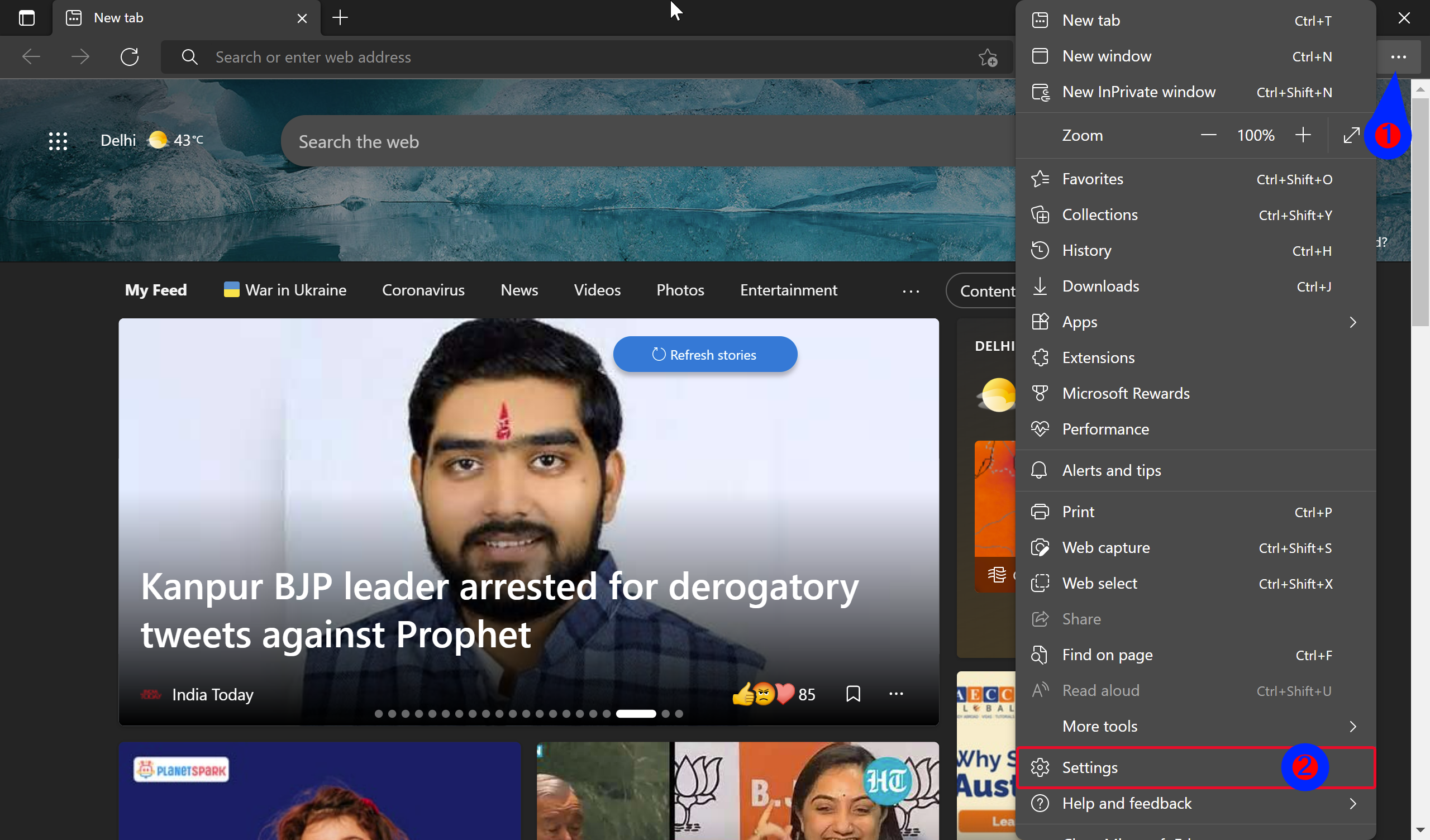
Step 8. Click on the three-dot menu button (Settings and more) in the top-right corner and choose “Settings.”
Step 9. Switch to the “Appearance” tab.
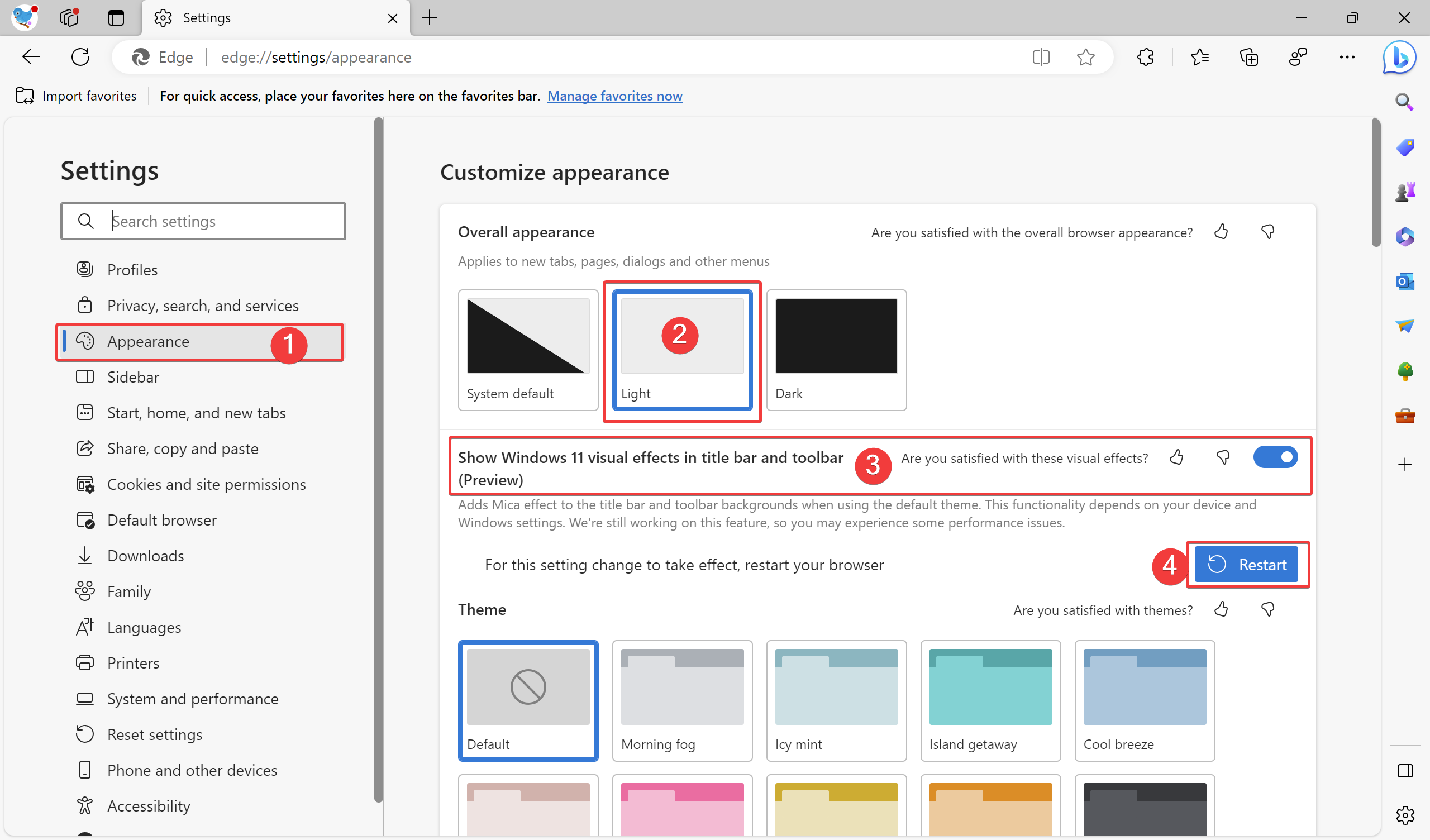
Step 10. Select the Light theme for the Mica effect to work. You can also enable or disable dark mode in Windows to coordinate your theme across apps.
Step 11. Enable the “Show Windows 11 visual effects in title bar and toolbar (Preview)” toggle.
Step 12. Edge Canary will prompt you to restart the browser to apply the new Mica effect. Click on the “Restart” button to relaunch the browser.
The title bar of Edge Canary will now feature the Mica effect.
How to Disable the Mica Effect in Microsoft Edge?
Follow these easy steps to turn off Mica Effect in Microsoft Edge:-
Step 1. To disable the Mica effect in Edge Canary, follow the same steps mentioned above.
Step 2. In the “Appearance” tab, disable the “Show Windows 11 visual effects in title bar and toolbar (Preview)” option.
How to Enable the Mica Effect in Google Chrome Canary?
Google Chrome Canary is an experimental version that allows you to test upcoming features. Download and install Chrome Canary from the official Google Canary download page. Once installed, launch Chrome Canary. By default, the Mica effect should already be enabled in the title bar. You can also customize the taskbar appearance on Windows 11 for a consistent, polished look across your desktop environment.
How to Disable the Mica Effect in Google Chrome Canary?
Follow these easy steps to turn off Mica Effect in Google Chrome Canary:-
Step 1. Right-click on the Chrome Canary shortcut icon on your desktop and select “Properties” from the context menu.
Step 2. In the Properties window, move to the Shortcut tab.
Step 3. Locate the Target box and place your cursor at the end of the path after the Chrome Canary browser.
Step 4. Add a space, then enter the following command:-
--disable-features=Windows11MicaTitlebar
Step 5. Click “Apply” and then “OK” to save the changes.
Step 6. Close Chrome Canary and relaunch it.
The Mica effect will now be disabled in the title bar.
Conclusion
Windows 11’s Mica effect adds a touch of sophistication to your browsing experience in Edge and Chrome. By following the steps outlined in this user-friendly guide, you can easily enable or disable the Mica effect to customize your browser’s appearance. For more personalization, you can also use WinPaletter to colorize Windows accents and create a stunning, cohesive Windows 11 theme. Enjoy the enhanced visual appeal that Windows 11 brings to your favorite web browsers!