

Nothing’s more frustrating than your browser crashing on startup — no window, no settings, no buttons. This guide shows safe, beginner-friendly methods to reset a browser without opening it, so you can recover bookmarks, clear corrupt profiles, and get back online fast.
What this guide covers
This post covers methods that work when the browser won’t open or keeps crashing: using Windows Settings, file & profile cleanup, PowerShell commands, deleting extension data, and restoring bookmarks & passwords. Examples reference Microsoft Edge, Google Chrome, and Firefox, where applicable.
Before you start — backup important data
If possible, back up saved passwords and bookmarks from the browser profile folder or a synced account. For Edge specifically, use our backup walkthrough before making changes. How to back up saved passwords in the Edge browser.
Method 1 — Repair Microsoft Edge in the Latest Windows 11 Versions
In recent Windows 11 builds, the old Reset and Repair buttons for Microsoft Edge are no longer available in Apps → Installed apps. However, you can still fix Edge without opening it by using the new repair method built into Windows.
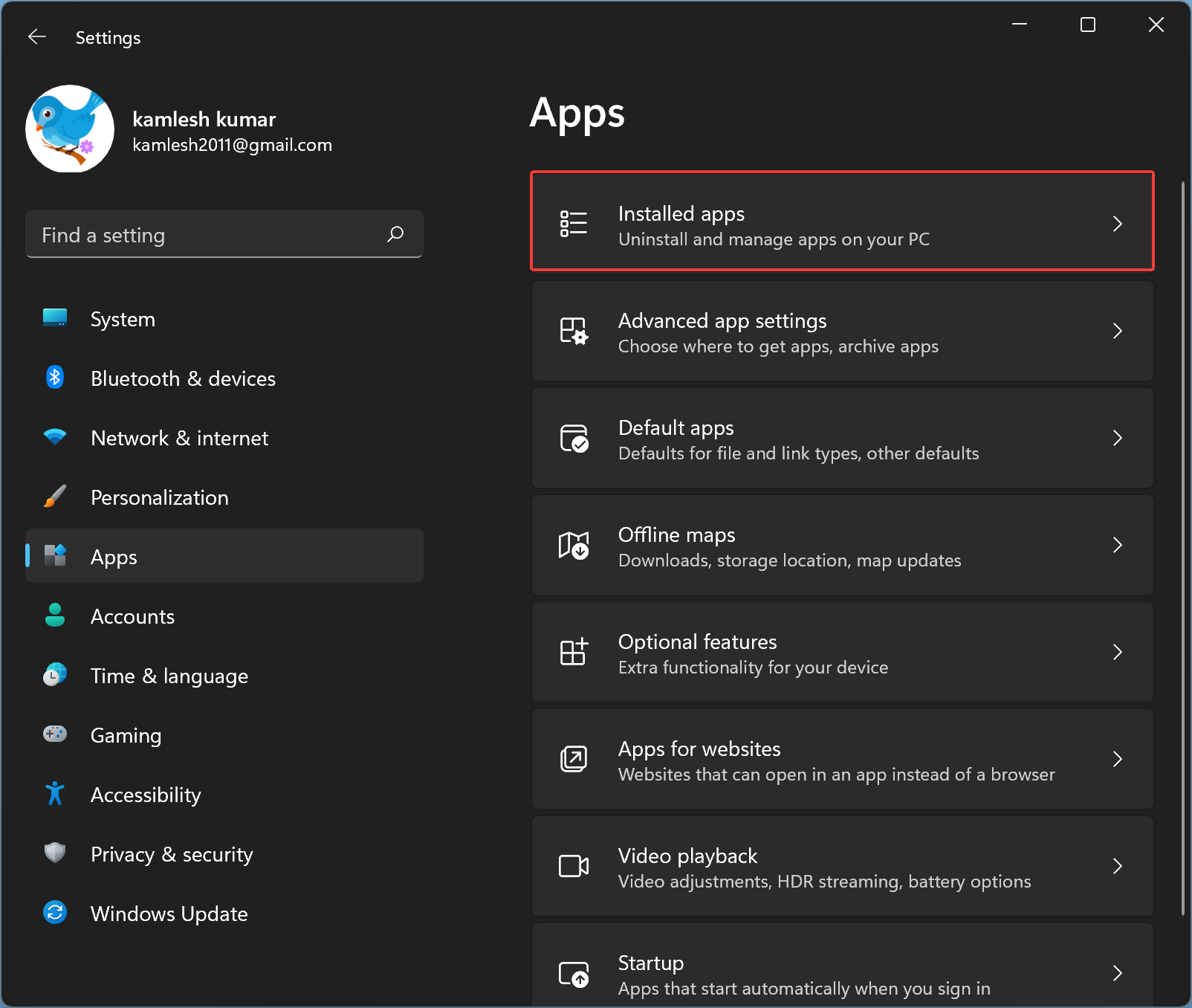
Step 1. Open Settings → Apps → Installed apps.
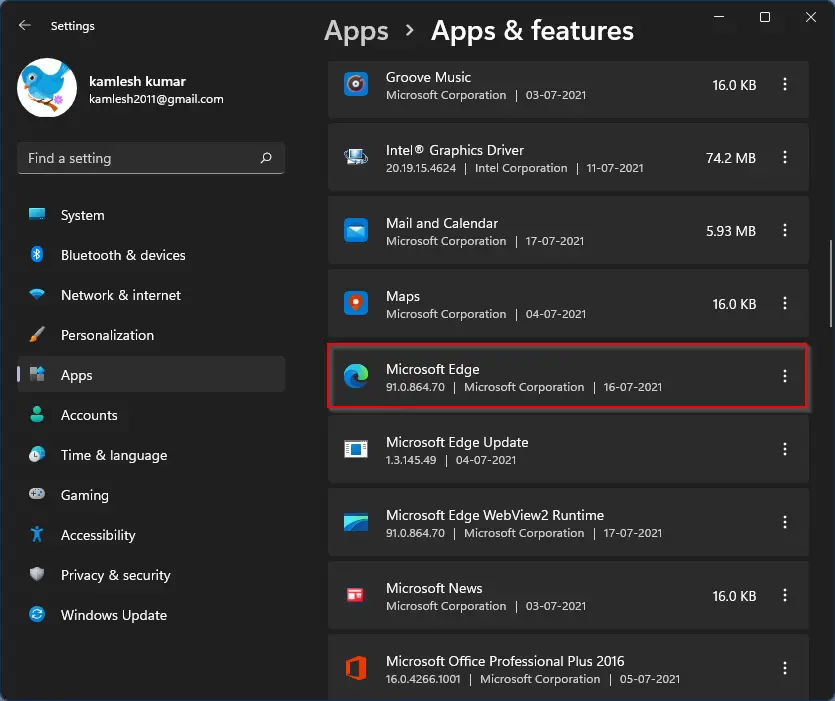
Step 2. Search for Microsoft Edge.
Step 3. Click the three-dot menu beside it and choose Modify.
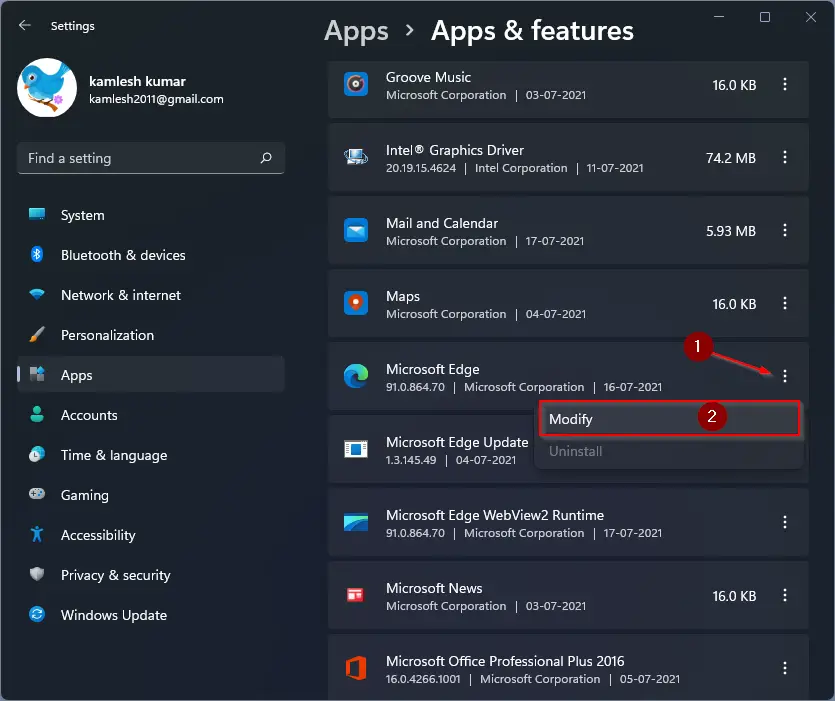
Step 4. When prompted for permissions, allow it.
Step 5. Click Repair. Windows will download a fresh copy of Edge and replace damaged or missing files.
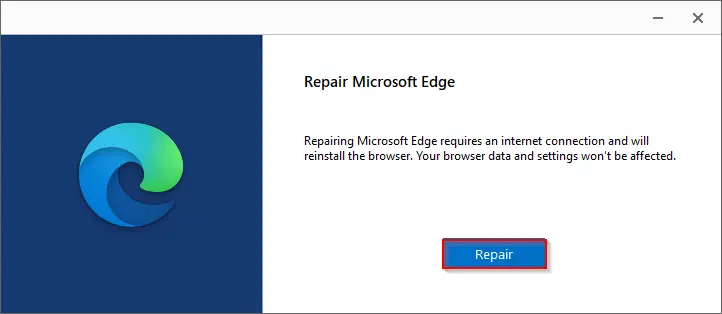
This process reinstalls Edge cleanly without removing bookmarks, passwords, extensions, or browsing data. If Edge is corrupted beyond repair or missing completely, follow the full uninstall/reinstall method here: How to uninstall and block Edge on Windows 11.
Method 2 — Remove or rename the browser profile folder (works when browser crashes on load)
Most crashes are caused by corrupted profile files. Renaming the profile folder forces the browser to recreate a clean profile. Location examples:
Chrome/Edge (Windows): %LOCALAPPDATA%\Google\Chrome\User Data\ or %LOCALAPPDATA%\Microsoft\Edge\User Data\
Firefox: %APPDATA%\Mozilla\Firefox\Profiles\
Step 1. Close all browser processes in Task Manager.
Step 2. Rename the profile folder (e.g., add “_old”).
Step 3. Start browser — it should create a fresh profile. If you renamed the folder, you can later copy specific files (like bookmarks) from the old folder.
Method 3 — Clear problematic caches (Edge host cache + other caches)
Some problems come from a corrupted host or network cache. For Edge, clearing the host cache can resolve startup network-related crashes. See the GearUpWindows guide to clear Edge host cache for the exact file locations and steps. How to clear host cache in Microsoft Edge.
Method 4 — Remove or disable extensions without opening the browser
Extensions sometimes make a browser unusable on launch. You can remove extension folders from the profile (Chrome/Edge/Brave/Opera use similar locations) or start the browser in a safe mode where extensions are disabled. For Chrome extension management guidance that applies to this approach, see GearUpWindows instructions on how to manage Chrome extensions.
Method 5 — Reinstall or uninstall, then reinstall (useful if files are missing)
If resetting/profile cleanup doesn’t work, uninstall and reinstall the browser. For built-in Edge, you might need the uninstall/repair flow described in our Edge uninstall guide before reinstalling.
Method 6 — Recover tabs, bookmarks, and passwords after reset
After profile recreation, you can recover bookmarks and recently closed tabs by copying the appropriate files from the old profile or by using sync. GearUpWindows covers restoring tabs for Chrome, Firefox, Opera, and Edge.
Quick PowerShell trick: reinstall Edge (when Edge won’t uninstall easily)
Step 1. Open an elevated PowerShell.
Step 2. Use package management or direct install commands (only if you understand PowerShell). If you prefer the UI route, follow the GearUpWindows Edge uninstall/reinstall guide above for the safe steps.
Pros
• You can recover a non-starting browser without losing all data (backup first).
• Many fixes don’t require reinstalling Windows or third-party tools.
• Methods are reversible if you keep the original profile folder (rename, don’t delete immediately).
Considerations
• Always back up saved passwords and bookmarks before deleting profile files. See the Edge password backup guide earlier.
• Some enterprise or managed devices use policies that block reinstall/reset — check Group Policy or IT policy first.
• If a browser is heavily modified by malware, prefer a clean reinstall and run a malware scan.
FAQs
Will I lose my passwords if I reset the profile folder?
Not if you back them up first or use browser sync. Copy the password/key files from the old profile (or export via sync) before wiping the folder.
Can I reset Edge without an internet connection?
Yes — profile renaming and cache clear are local operations. Reinstalling may need an internet connection unless you have an offline installer.
What if the browser is missing from Apps → Installed apps?
It might be a Store/UWP version, or files removed. Follow the above uninstall/reinstall guide for Edge, which explains the correct steps for built-in vs installed variants.
Is it safe to delete the user profile folder?
Only after backing up important files. Prefer renaming the folder first so you can restore data easily.
Conclusion
Resetting a browser that won’t open is usually a matter of backing up key data, renaming or cleaning the profile, clearing caches, and—if needed—reinstalling. Start with non-destructive steps (backup, rename) and only delete once you verify recovery. Use the linked GearUpWindows how-tos above for exact file locations and step-by-step screenshots.