

Windows 10 comes with several customization options. It lets you customize the Lock screen of Windows 10 to display a slideshow in place of a single image. One can configure Windows 10 to show only Tiles on the Start Menu. In the latest update, Windows 10 offers to set custom Colors for the Mouse Pointer. The latest offering from Microsoft allows showing/hiding/resizing the Desktop Icons, too. There is no third-party tool required to resize/hide/show Desktop Icons from the Windows 10 desktop.
Windows 10 provides various customization options to users, and one of them is the ability to show, hide, or resize desktop icons. You can change the size of desktop icons or hide them entirely if you want a cleaner look for your desktop. To show or hide desktop icons, right-click anywhere on your desktop and hover over the “View” option. You can then select whether you want to show or hide desktop icons. To resize the desktop icons, right-click anywhere on your desktop and select “View,” then choose the size you want. You can also use the scroll wheel on your mouse to resize desktop icons. With these simple steps, you can easily customize the look and feel of your Windows 10 desktop.
How to Show, Hide, or Resize Desktop Icons in Windows 10?
Follow these steps to show, hide, or resize Desktop Icons on Windows 10:-
Step 1. Right-click on free space on the Windows 10 Desktop.
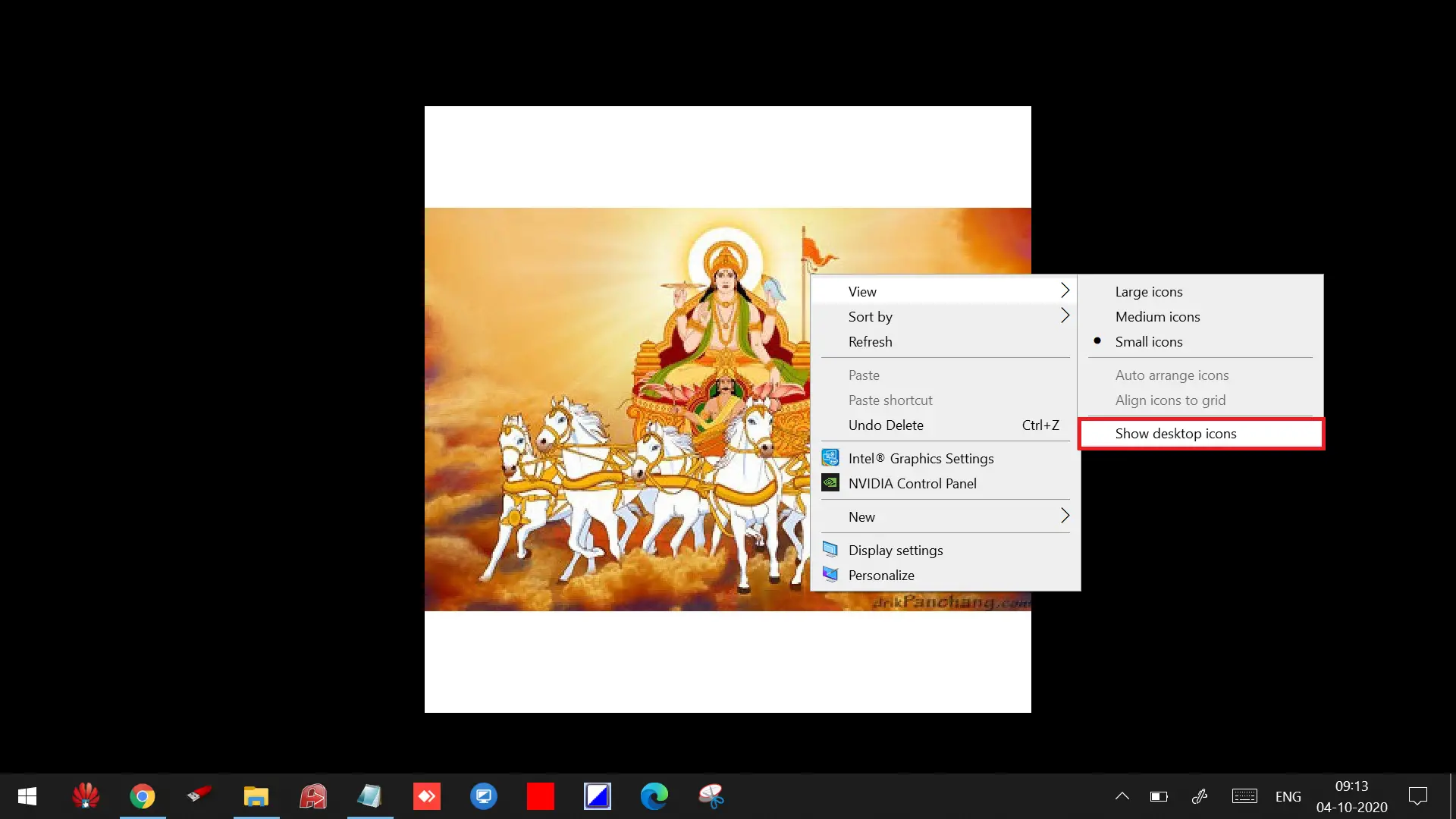
Step 2. From the context menu, uncheck View > Show desktop icons. It will hide all Desktop Icons.
Step 3. To show the desktop icons, right-click on free space on the Windows 10 Desktop.
Step 4. From the context menu, check View > Show desktop icons. It will display all Desktop Icons in their original position.
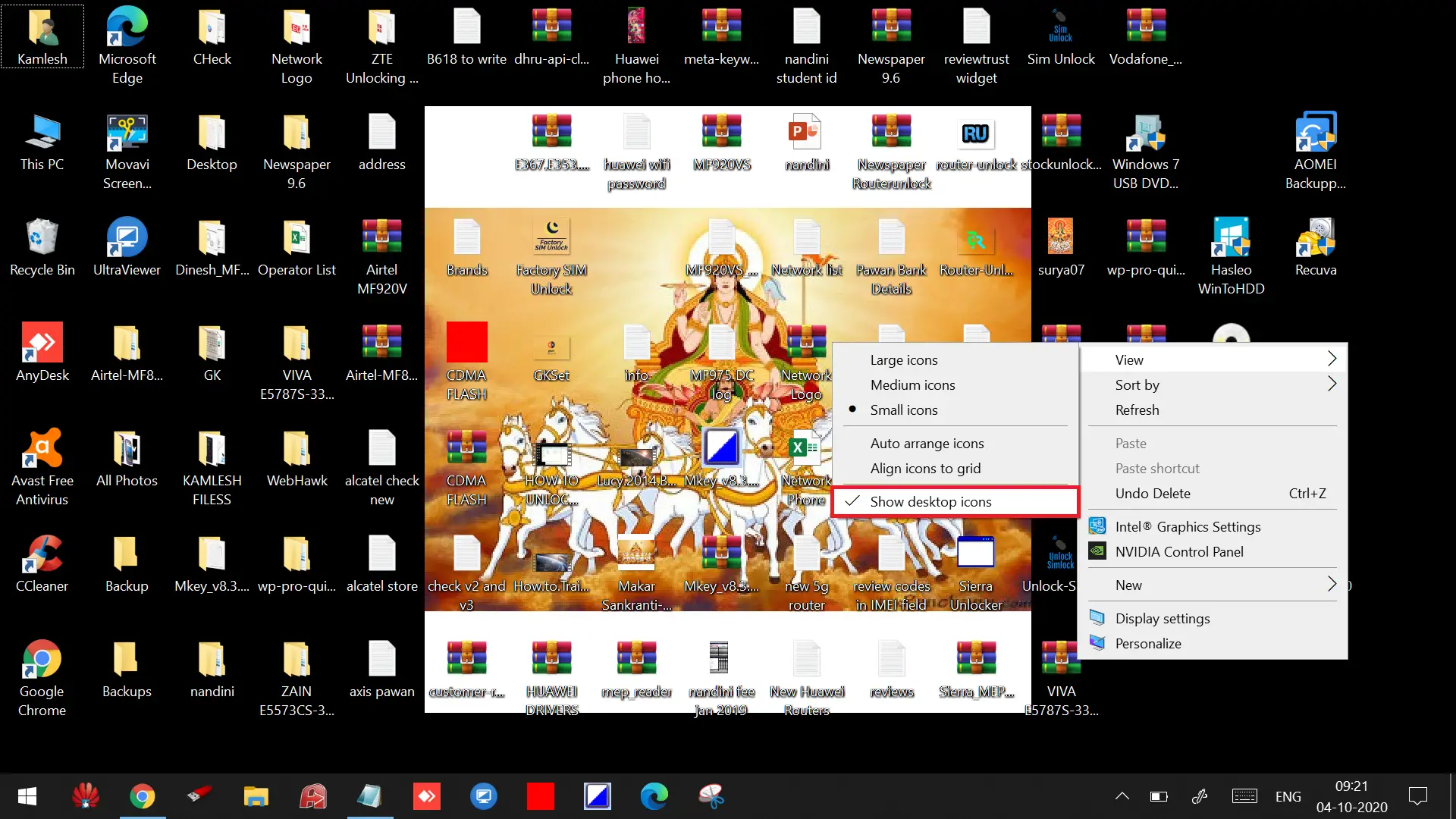 Step 5. To resize desktop icons in Windows 10, right-click on free space on the desktop.
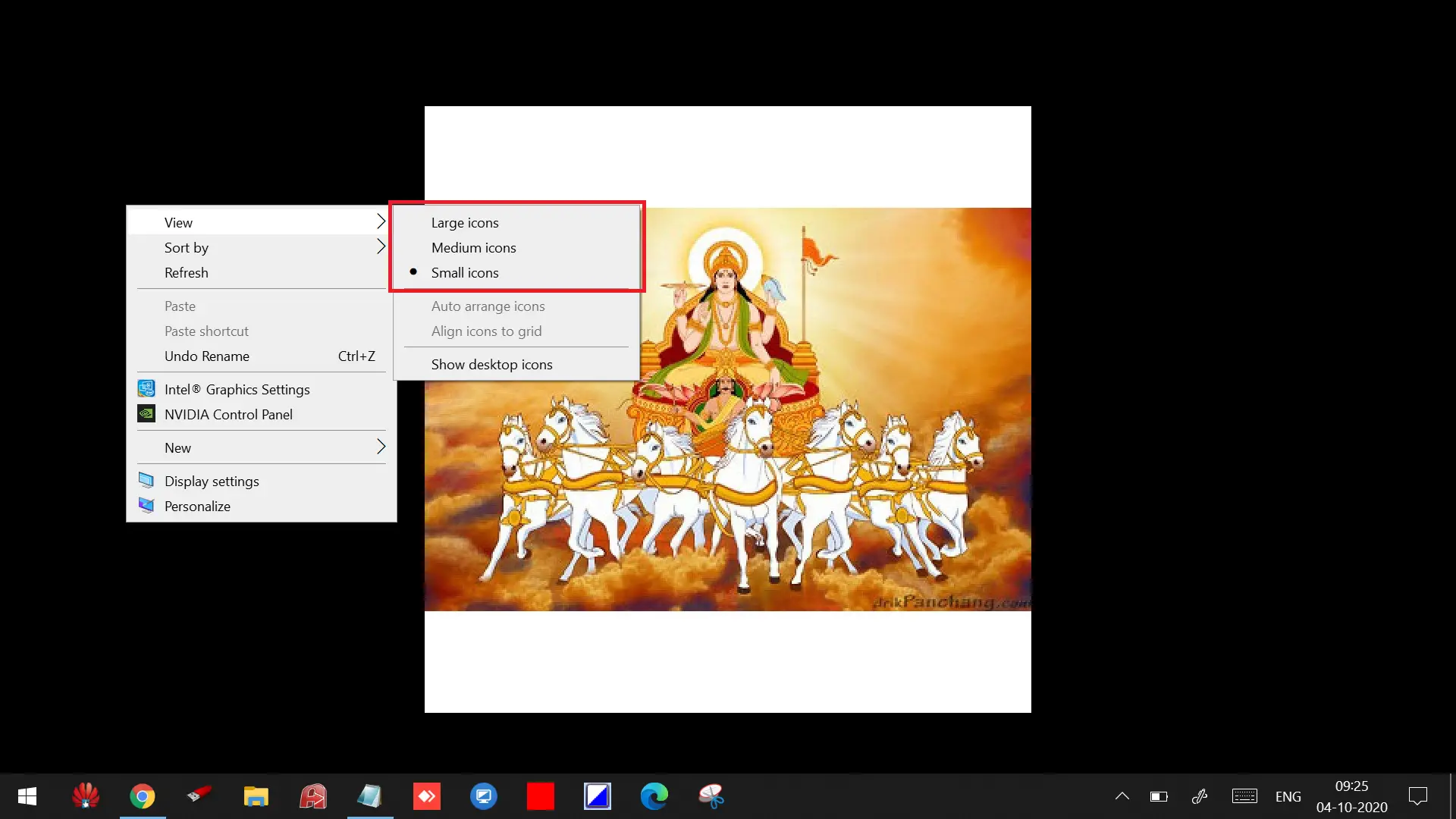
Step 6. Select from three options: Large icons, Medium icons, or Small icons.
Ultimate Tips to Resize Windows 10 Desktop Icons
The best way to resize the Windows 10 Desktop Icons is to press and hold the Ctrl key and scroll the mouse wheel to make icons larger or smaller. Leave the scroll when you see the desired size of Desktop Icons.
FAQs
How can I quickly hide all desktop icons in Windows 10?
Simply right-click anywhere on the desktop, go to View, and uncheck Show desktop icons. All icons will instantly disappear without affecting your files.
How do I show my desktop icons again?
Right-click on the desktop, select View, and check Show desktop icons. Your icons will reappear in the same positions.
Can I resize desktop icons without using the right-click menu?
Yes. Hold Ctrl on your keyboard and scroll the mouse wheel up or down. This adjusts icon size with much finer control than the preset sizes.
Why are my desktop icons too large or too small?
This usually happens if the mouse wheel was scrolled while holding Ctrl. You can fix it by right-clicking the desktop, opening View, and choosing the size you prefer.
Will hiding desktop icons delete anything?
No. Hiding icons only removes them visually from the desktop. The actual files and shortcuts remain safe and accessible through File Explorer.
Conclusion
Customizing the desktop in Windows 10 is simple and offers plenty of flexibility. Whether you want a clean, minimal look by hiding icons, need larger icons for better visibility, or prefer compact icons to maximize workspace, Windows 10 gives you quick controls right from the desktop’s context menu. Using the Ctrl + mouse wheel shortcut provides even more precise resizing. With these easy methods, you can instantly personalize your desktop to match your workflow and visual preference.