

If you want to install, reinstall, or clone your Windows 11/10/8.1/8/7/Vista & Windows Server without a CD/DVD/USB Drive, WinToHDD is the best freeware tool. However, WinToHDD does not allow the installation of any third-party software during the Windows installation. Ninite can be used as a supplementary tool to WinToHDD. Once you have installed or reinstalled the Windows operating system, you need to perform many tasks, such as searching for and installing your favorite apps from the internet. Here, Ninite becomes very handy, as it allows you to install all your favorite software in one go, and it also skips the reboot process during software installation.
Why Ninite?
Ninite includes a variety of software categories, such as:
- Web browsers: Chrome, Opera, Firefox
- Messaging apps: Zoom, Discord, Skype, Pidgin, Thunderbird, Trillian
- Media apps: VLC, AIMP, foobar2000, Winamp, MusicBee, Audacity, K-Lite Codecs, GOM, Spotify, CCCP, MediaMonkey, HandBrake
- Runtimes: Java (AdoptOpenJDK) x64 8/11, .NET 4.8, Silverlight, Air
- Imaging apps: Krita, Blender, Paint.NET, GIMP, IrfanView, XnView, Inkscape, FastStone, Greenshot, ShareX
- Document apps: Foxit Reader, LibreOffice, SumatraPDF, CutePDF, OpenOffice
- Security apps: Essentials, Malwarebytes, Avast, AVG, Spybot 2, Avira, SUPERAntiSpyware
- Online storage apps: Dropbox, Google Backup and Sync, OneDrive, SugarSync
- File sharing: qBittorrent
- Other apps: Evernote, Google Earth, Steam, KeePass 2, Everything, NV Access
- Compression apps: 7-Zip, PeaZip, WinRAR
- Utilities: TeamViewer 15, ImgBurn, RealVNC, TeraCopy, CDBurnerXP, Revo, Launchy, WinDirStat, Glary, InfraRecorder, Classic Start
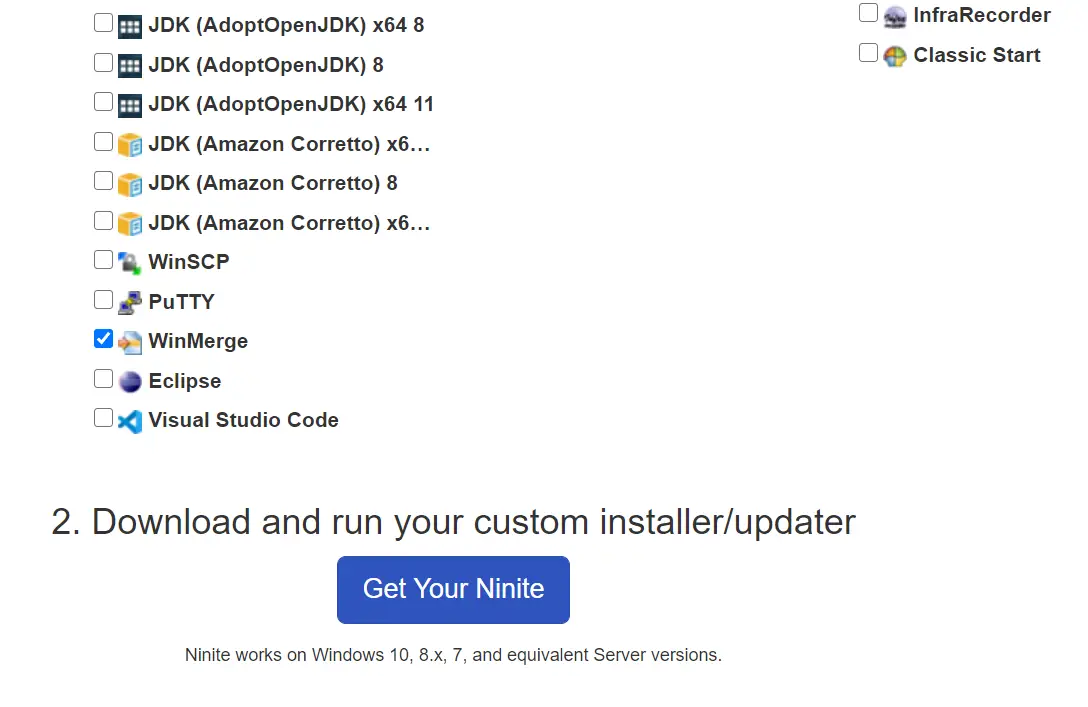
Apart from these, Ninite also allows you to install developer tools like Python (x64/3), FileZilla, Notepad++, JDK (AdoptOpenJDK and Amazon Corretto), WinSCP, PuTTY, WinMerge, Eclipse, and Visual Studio Code.
When you need to install multiple apps on your PC with a single click, Ninite can be your first choice. You don’t need to download and install the latest software one by one, as Ninite will manage everything for you. It downloads all the required apps on your behalf, and the app installer is a quick and easy way to download bulk applications reliably and securely.
Ninite stores the official download link in-app, and when you trigger the installation, it downloads all the software at once for you and then starts the installation process. It also takes care of optional adware during installation, as adware is blocked by Ninite.
How to Use Ninite on Windows 11/10?
If you want to easily install multiple software applications on your Windows 11/10 PC with just one click, Ninite is the perfect solution. Here’s how to use it:
Step 1. Visit the Ninite website.
Step 2. Choose the software applications you want to install on your PC.
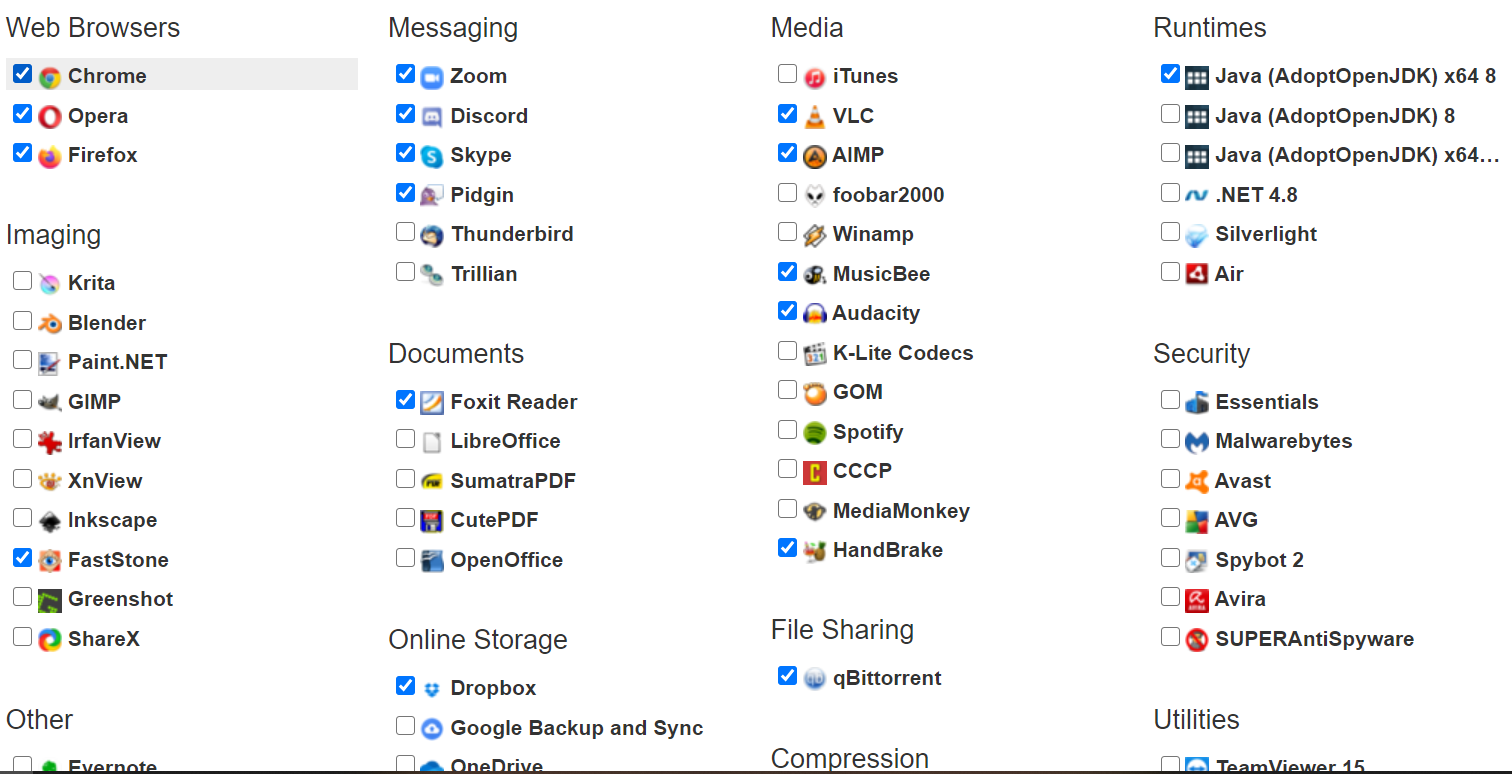
Step 3. Click the “Get Your Ninite” button after you have selected all of the required applications.
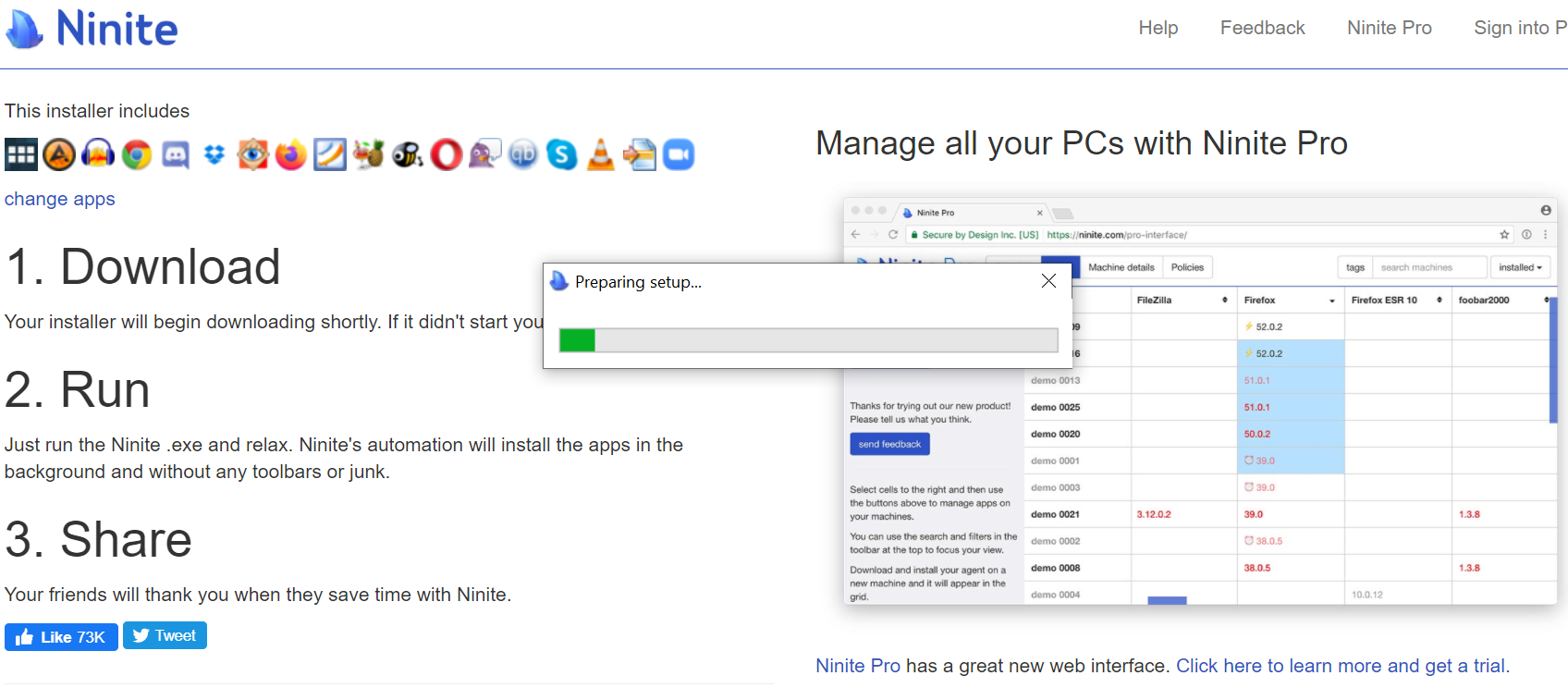
Step 4. Ninite will begin downloading the customized installer.
Step 5. Once the installer is downloaded, run it and let Ninite handle the rest.
What are the benefits of using Ninite?
- Ninite automatically installs applications using default settings and default locations.
- It detects and ignores adware during software installation.
- The app automatically detects the 32-bit/64-bit system and installs only the relevant program.
- Ninite detects your PC language and downloads apps in that language.
- It is compatible with Windows 11/10/8.1/8/7/Vista & Windows Server.
- It automatically ignores any apps that are already installed unless they require updating.
- Ninite is easy to use.
- It always downloads the latest version from the official websites of the respective applications.
FAQs About WinToHDD and Ninite
Can I use WinToHDD without losing my files?
Yes, you can use the “Reinstall Windows” option in WinToHDD without formatting your entire drive, which keeps your personal files safe. However, it’s always recommended to back up important data before any OS installation.
Is Ninite free for personal use?
Yes, Ninite is completely free for personal use. A paid Pro version is available for IT professionals who need bulk deployment features.
Does Ninite install the latest versions of apps?
Yes, Ninite always fetches the latest version of each selected application directly from its official source.
Can WinToHDD install Windows without a USB drive?
Yes, that’s the main advantage of WinToHDD — it installs or reinstalls Windows directly from an ISO file stored on your hard drive without using a USB or DVD.
Conclusion
In conclusion, WinToHDD and Ninite are two powerful tools that can simplify the process of installing and reinstalling Windows operating systems and multiple software applications on your PC. Pair Ninite with proven free tools like VLC, 7-Zip, and ImgBurn to set up your Windows PC faster and more efficiently.