

How do you fix a video that won’t play? What is the best video repair software? Almost all Windows users watch videos online or offline. Some of us prefer to download the video file and then watch it uninterrupted. Suppose you have downloaded a movie or your colleague has sent an important video, and after downloading, you cannot play it as the downloaded video is incomplete or corrupt. You lose both your time and bandwidth. Here, a video repair tool becomes handy.
If you have an important video and cannot play or watch it, you have come to the right webpage. In this gearupwindows article, we will see some of the best free Video Repair software for Windows 11/10.
Free Video Repair Software for Windows 11 and 10
Here is the list of some free video repair software that works up to the Windows 10 operating system:-
- VLC Media Player
- Meteorite
- DivFix++
- DivXRepair
- Get My Videos Back
- Digital Video Repair
VLC Media Player
VLC Media Player is a free video media player that accepts a wide range of video file formats. Although this software is built to watch a video, it features the repair of damaged video files in AVI format.
These are the steps to help you repair your broken video through VLC Media Player:-
Step 1. Download, install, and launch VLC Media Player from its official website.
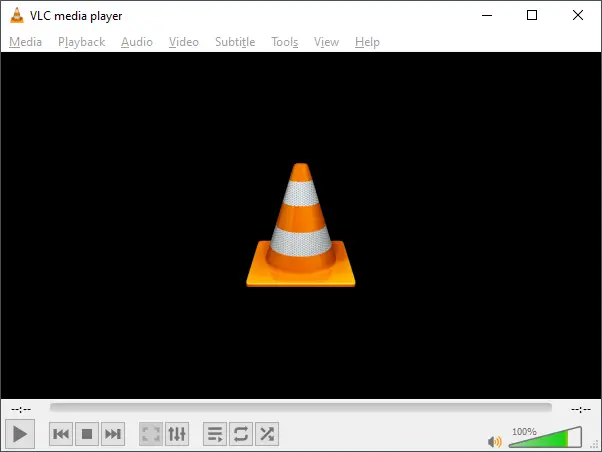
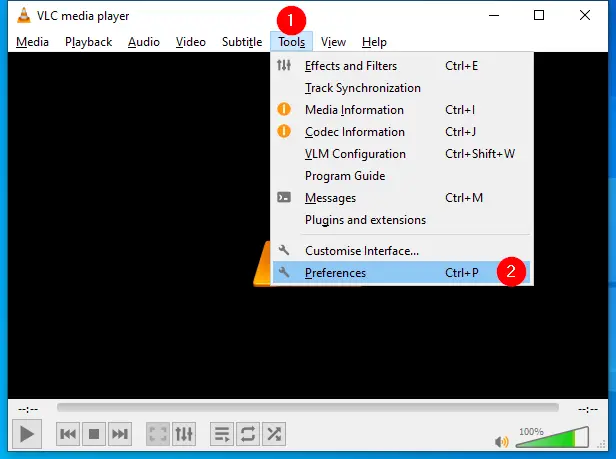
Step 2. Click the Tools menu, and select Preferences from the drop-down list that pops up.
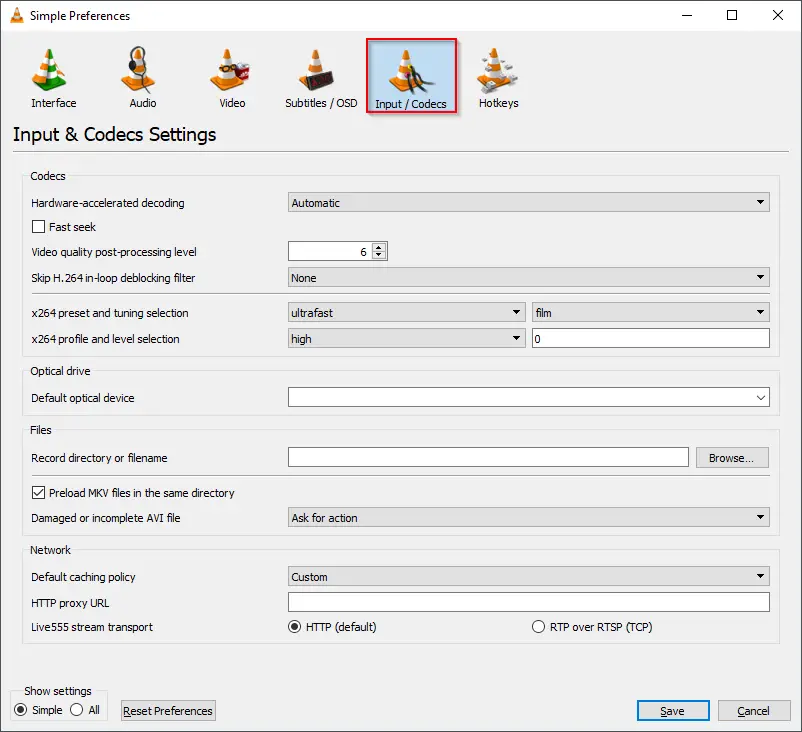
Step 3. In the next window that appears, click the Input / Codecs.
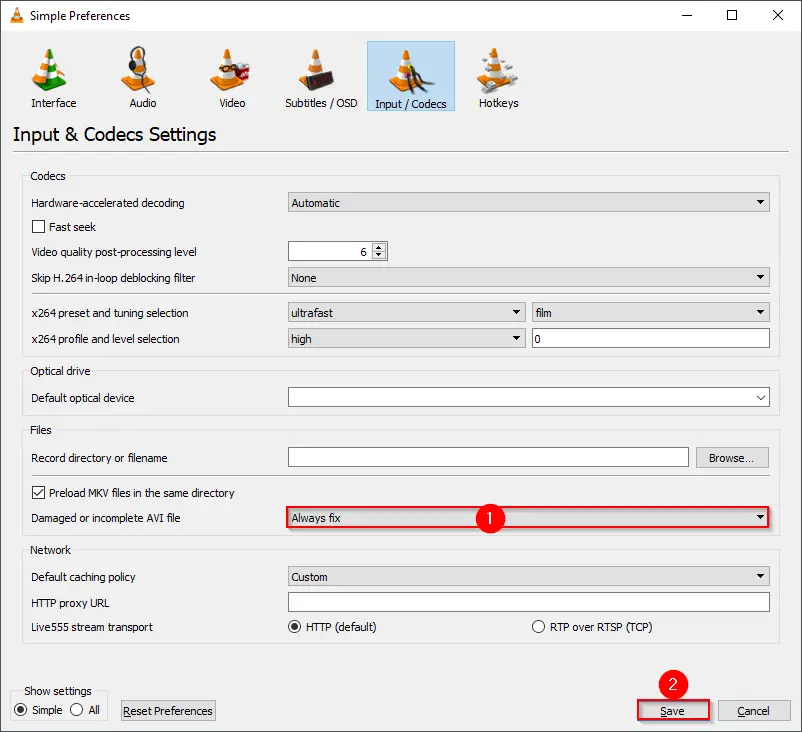
Step 4. Scroll down to see the option that says Damaged or incomplete AVI file. Click the drop-down menu and select the option Always Fix. Finally, click the Save button. Now, you should be able to play your video without any errors. VLC will fix the corrupted file automatically, and you should watch the video.
Meteorite
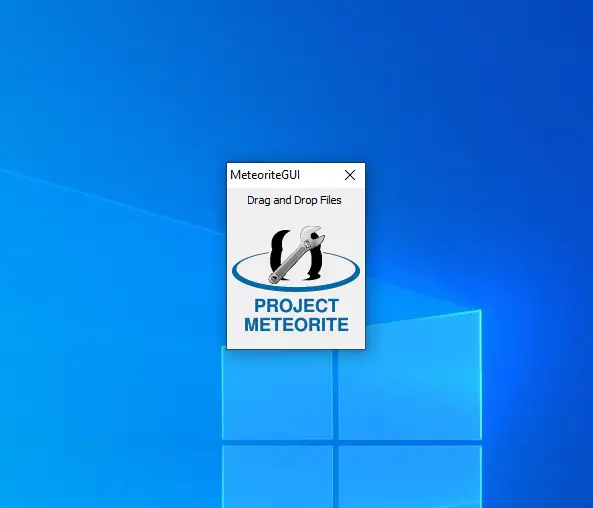
Meteorite is an open-source project that deals with corrupted or damaged MKV files. It repairs an MKV file that is corrupt, and you cannot play it on any video player. It has a basic layout, and all you have to do is drag your videos to the interface of Meteorite. This portable tool will repair the file automatically if any defect is found. It is free and easily compatible with Mac OSX, Windows, and Linux.
DivFix++
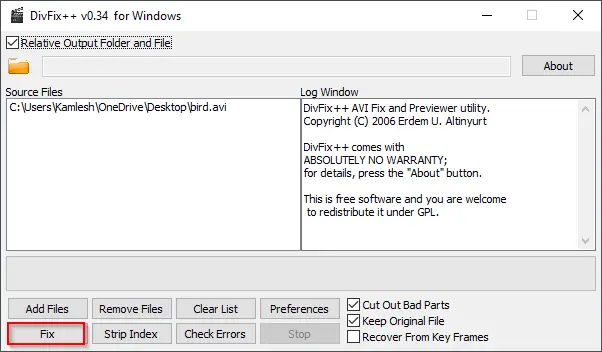
If you cannot repair and watch AVI video files using the VLC media player, you should try the DivFix++ freeware tool. DivFix++ is a dedicated video repair tool, and it is one of the best on the market, especially if you want to repair AVI files.
Using this video repair software is easy. Download and unzip this tool using any achiever—double-click on the setup files to launch it. Now, just drag and drop your file into its interface or click the Add Files option to add numerous AVI files to repair them simultaneously. To begin repairing your files, just click the Fix button after adding the file to this portable application. The Check Errors button quickly checks the file after fixing it, and you can alternatively cut out the damaged sections. With the default configuration, it will save your repaired AVI files in the same location; however, there is an option available to choose a different folder.
DivXRepair
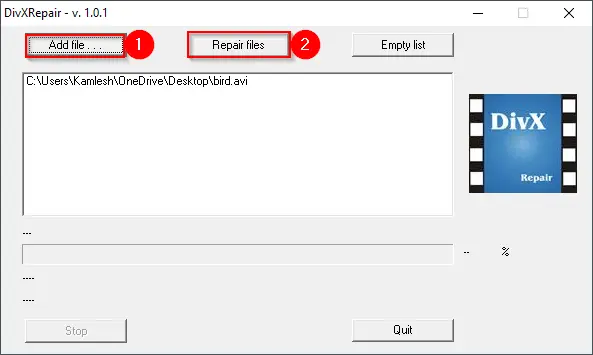
DivXRepair is a free video repair tool with a simple UI that can effortlessly fix your AVI file. If you cannot watch or play an AVI video file due to a virus or corruption, this freeware will help you repair it. Luckily, the DivXRepair video repair software deals with such issues and, at the same time, addresses related issues such as audio loss, image freezing, or pixel discoloration. After adding the damaged files, the tool searches for errors and efficiently resolves them. You can add multiple files simultaneously to get it fixed, and a final report is given after the process is over.
To start the repair process, download and extract the zip file. Launch it by double-clicking on the setup file. Click on Add file, select the broken AVI file, and click on Repair file to fix it.
Get My Videos Back
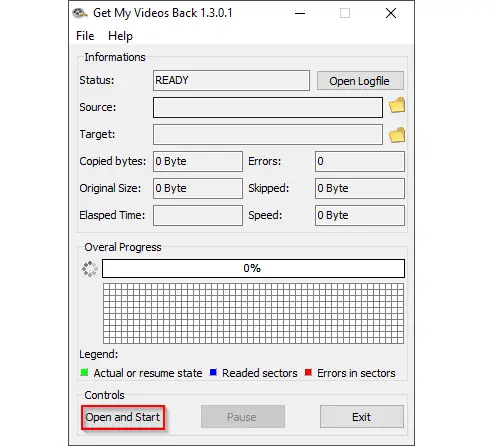
Get My Videos Back is another free and portable utility on our list to repair video files. To start using the application, you need to download and run it on your PC. Click on the Open and Start button to get started with the procedure.
It is one of the simplest applications on this list and supports almost all file types. You can download Get My Videos Back from here.
Digital Video Repair
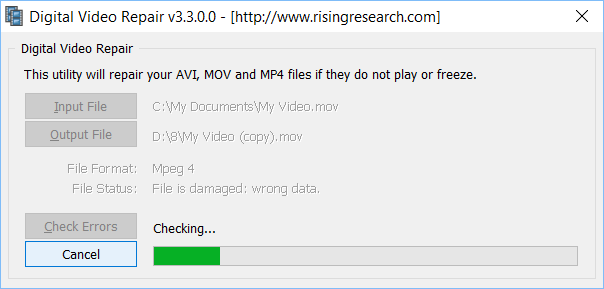
Digital Video Repair is a free application to repair MPEG-4 and AVI video files. It fixes broken MP4, MOV & AVI files encoded with Xvid, DivX, MPEG4, 3ivx, and Angel Potion codecs, helping achieve a perfectly smooth viewing experience. Playing corrupted AVI files can result in blotchy or jerky playback, lockups, visual artifacts, and audio-video desync. It repairs AVI file structures carefully, re-encoding bad segments if required to ensure smooth, uninterrupted playback and full conformance to the original MOV, MP4 & AVI specifications.
It stands out from others in this list as it supports multiple languages and caters to large files that even surpass the 2GB mark. The fixing process is yet simple. Just click and select the Input File button, and add the corrupted videos. Then click the Output File button and select the repaired file location on your PC.
Frequently Asked Questions About Video Repair
How do you fix a video that won’t play?
If a video won’t play, try using a reliable video repair tool like VLC Media Player, which can fix damaged AVI files by enabling the “Always Fix” option in its preferences. For MKV or MP4 files, you can use dedicated freeware like Meteorite or Digital Video Repair. Always make a backup of the original file before attempting repairs.
What is the best video repair software?
The “best” software depends on the video format and type of corruption. VLC Media Player is great for quick fixes on AVI files, Meteorite works well for MKV files, and DivFix++ or DivXRepair are excellent for repairing heavily damaged AVI videos. For MP4, MOV, and large files, Digital Video Repair is a reliable choice.
Can I repair a video for free?
Yes. Many free tools can repair corrupted videos without needing a paid upgrade. Options like VLC Media Player, Meteorite, DivFix++, and DivXRepair are completely free and work well for common video formats.
Will repairing a video reduce its quality?
In most cases, repairing a video restores its original quality without visible loss. However, if some parts of the file are too badly damaged, the software might skip or replace those segments, which can cause minor quality differences. Tools like Digital Video Repair handle this process carefully to preserve as much quality as possible.
Conclusion
In conclusion, if you encounter a video that won’t play due to corruption or incompleteness, there are several free video repair software options available for Windows 11 and 10. VLC Media Player can repair damaged AVI files by selecting the “Always Fix” option in the preferences. Meteorite is an open-source tool specifically designed for repairing corrupted MKV files. DivFix++ is recommended for repairing AVI files and offers a simple drag-and-drop interface. DivXRepair is another tool for fixing AVI files, addressing issues like audio loss and image freezing. Get My Videos Back is a user-friendly utility that supports various file types. Lastly, Digital Video Repair specializes in repairing MPEG-4 and AVI files, including large files exceeding 2GB. Each software has its own unique features and can help you salvage and play your videos smoothly.