

In today’s screen-heavy world, dark mode has become a must-have for many users. It offers a modern look, reduces eye strain, and can even help conserve battery life on laptops. Google Chrome, one of the most popular browsers worldwide, makes enabling dark mode quick and easy. On Windows 11 and Windows 10, there are three simple methods to switch Chrome to a sleek dark theme—whether you want to do it from the browser itself or sync it with your system settings.
In this guide, you’ll learn three easy ways to enable dark mode in Google Chrome—through the Chrome Side Panel, the Chrome Settings menu, and by syncing with Windows’ dark mode. Each method works on both Windows 11 and Windows 10, so you can choose the one that fits your workflow.
How to Enable Dark Mode for Google Chrome?
Method 1. Leveraging the Chrome Side Panel
The Chrome Side Panel serves as a gateway to quick customization, including dark mode.
Step 1. Open Google Chrome on your Windows 11 or 10 device.
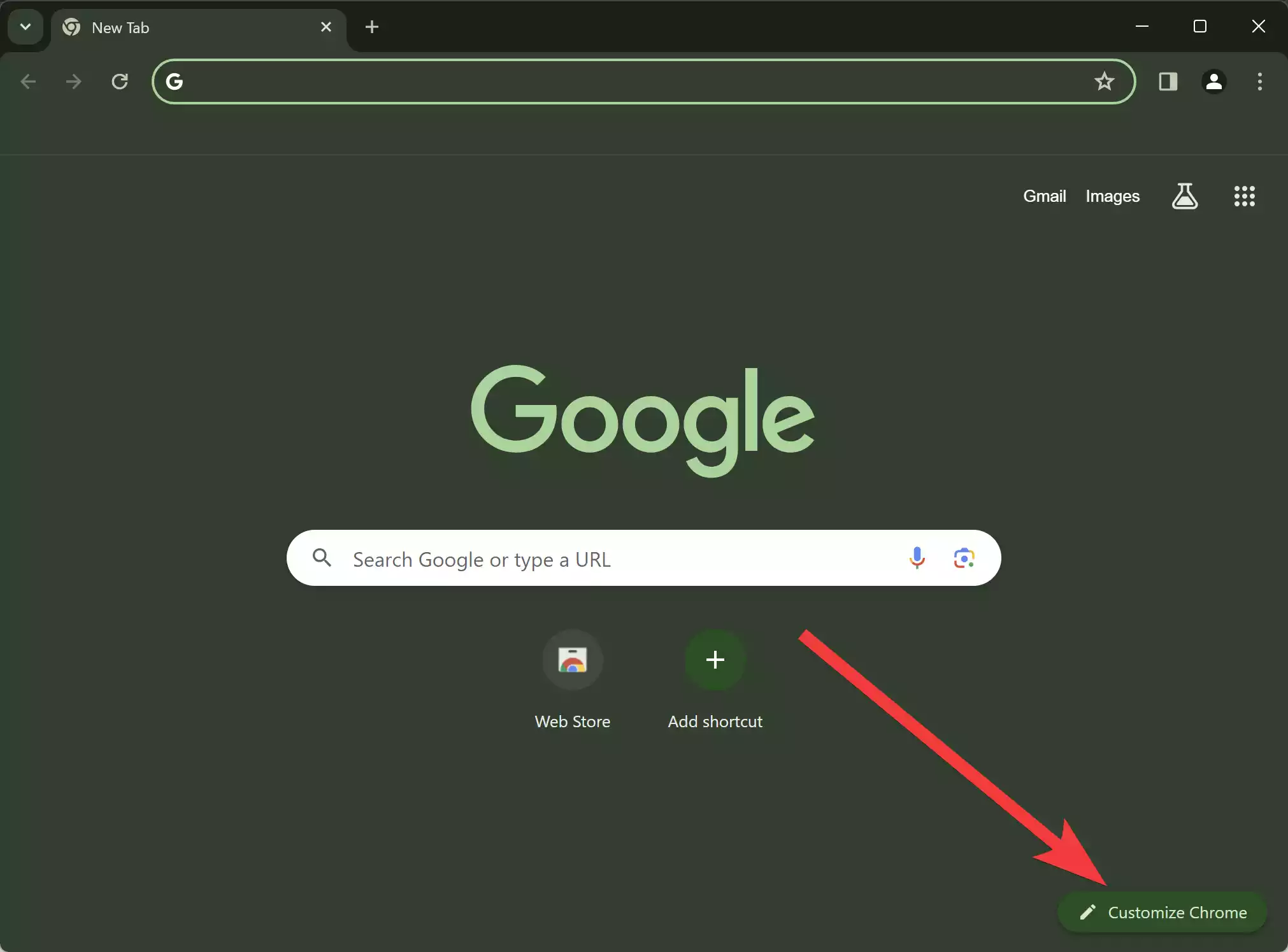
Step 2. Click the Customize Chrome button at the bottom-right of a new tab page to reveal the Side Panel.
Step 3. In the Side Panel, select Dark to apply a dark theme instantly.
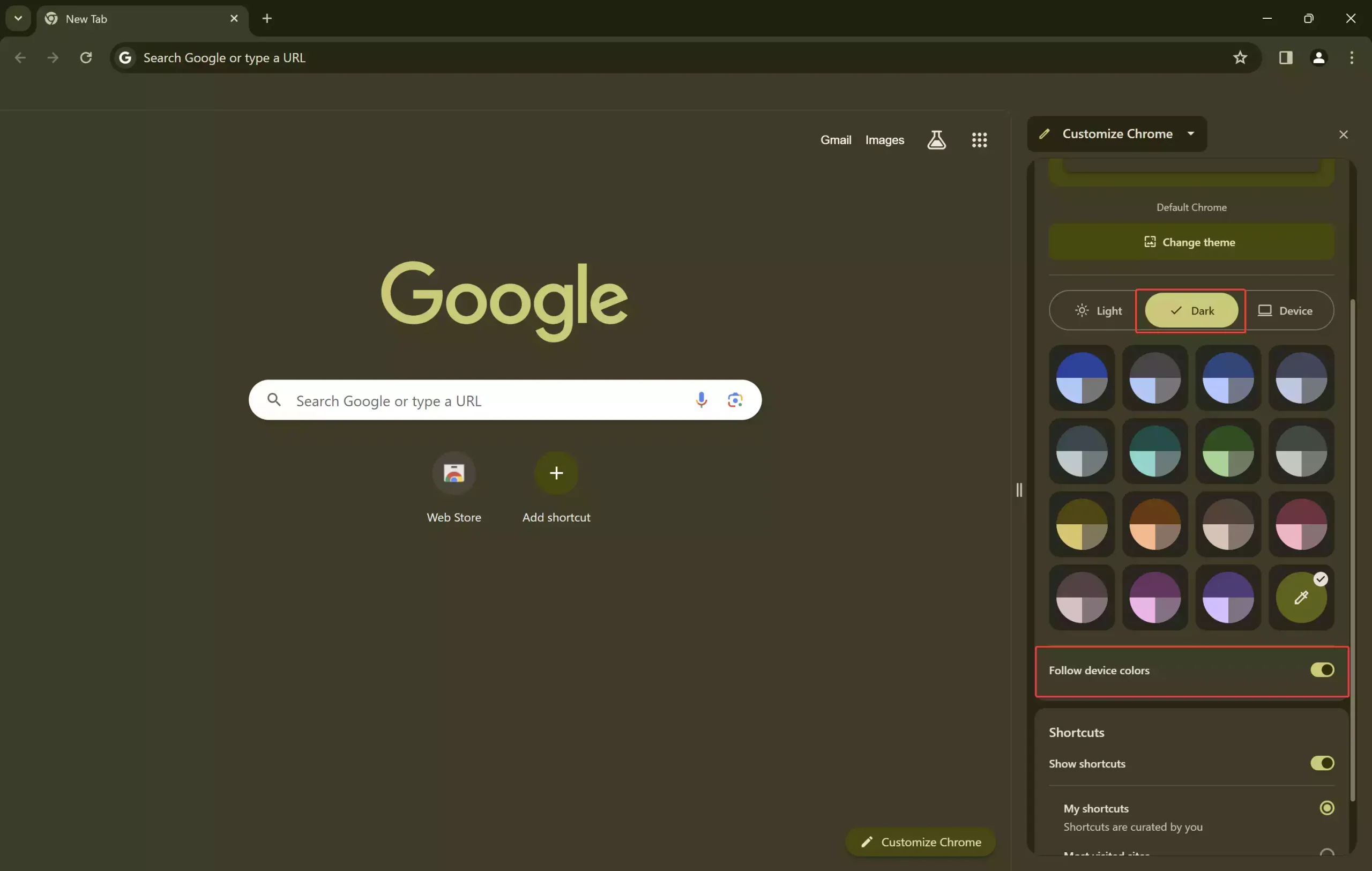
Step 4. Optional customizations: explore color options or enable Follow device colors to sync with your Windows theme.
Method 2. Navigating Through Chrome Settings
Google Chrome’s settings menu also lets you switch to dark mode quickly.
Step 1. Launch Google Chrome.
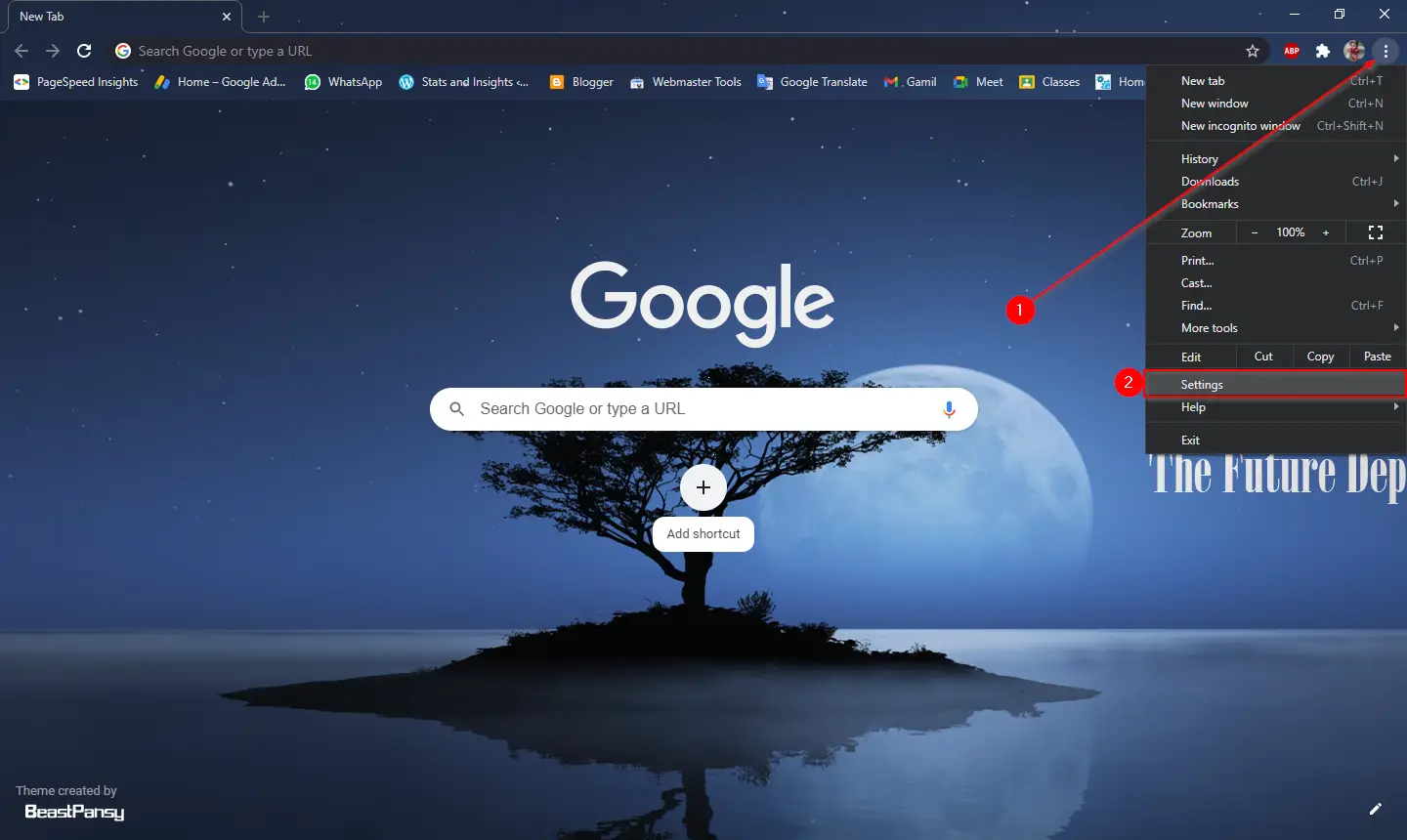
Step 2. Click the three-dot menu at the top-right, then choose Settings.
Step 3. Click Appearance in the left sidebar.
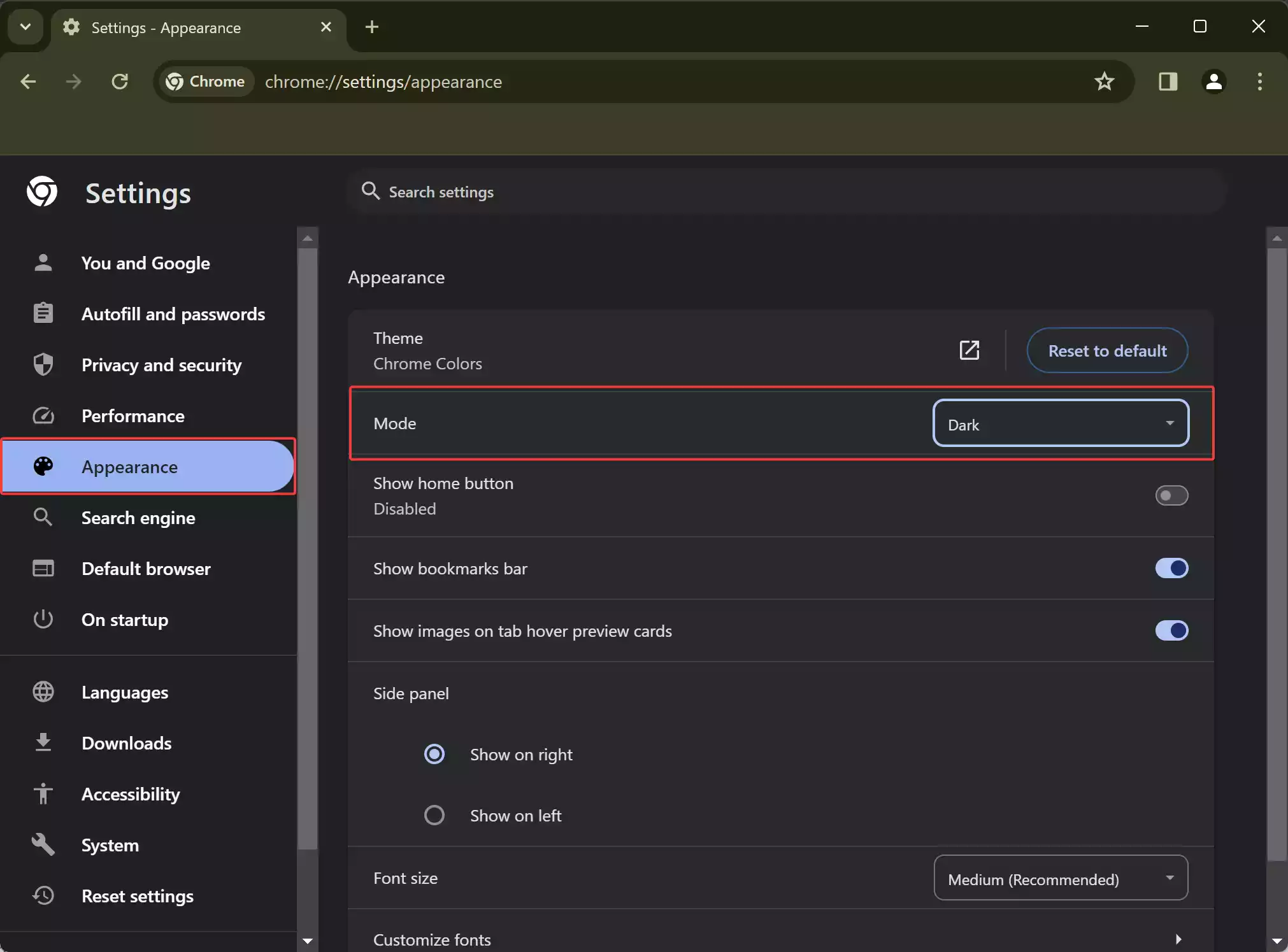
Step 4. Under Mode, select Dark. Chrome will switch immediately.
Method 3. Syncing with Windows 11 Settings
Let Chrome follow your system-wide dark mode so it changes automatically with Windows.
Step 1. Open Google Chrome.
Step 2. In a new tab, click Customize Chrome and choose Device in the Side Panel.
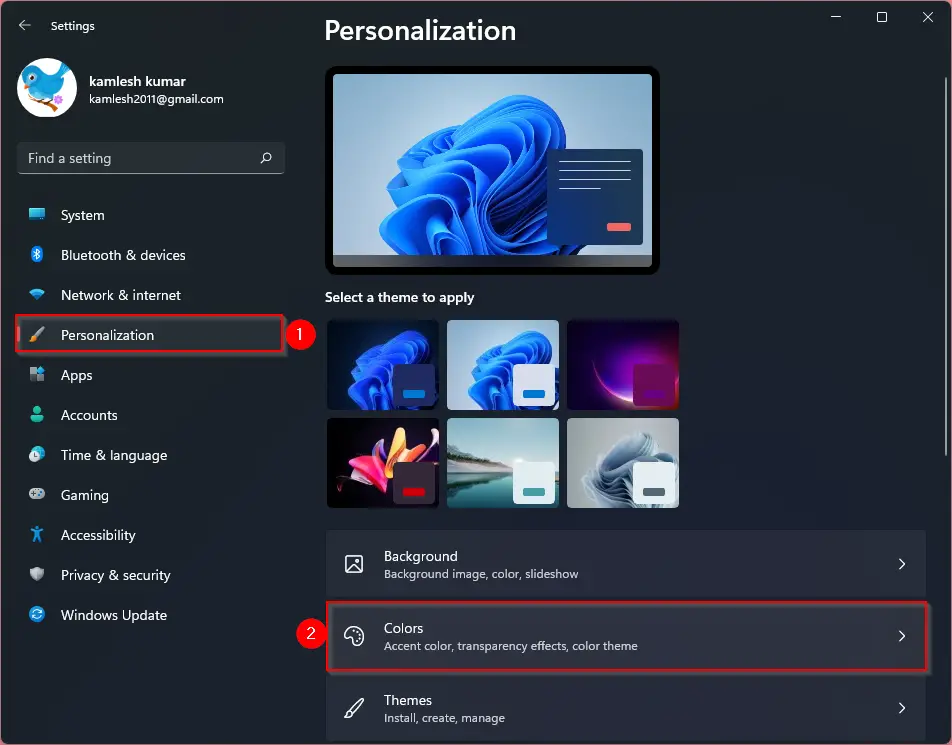
Step 3. Open Windows Settings from the Start menu.
Step 4. Go to Personalization > Colors.
Step 5. Under Choose your mode, select Dark. Windows switches to dark mode, and Chrome will follow automatically.
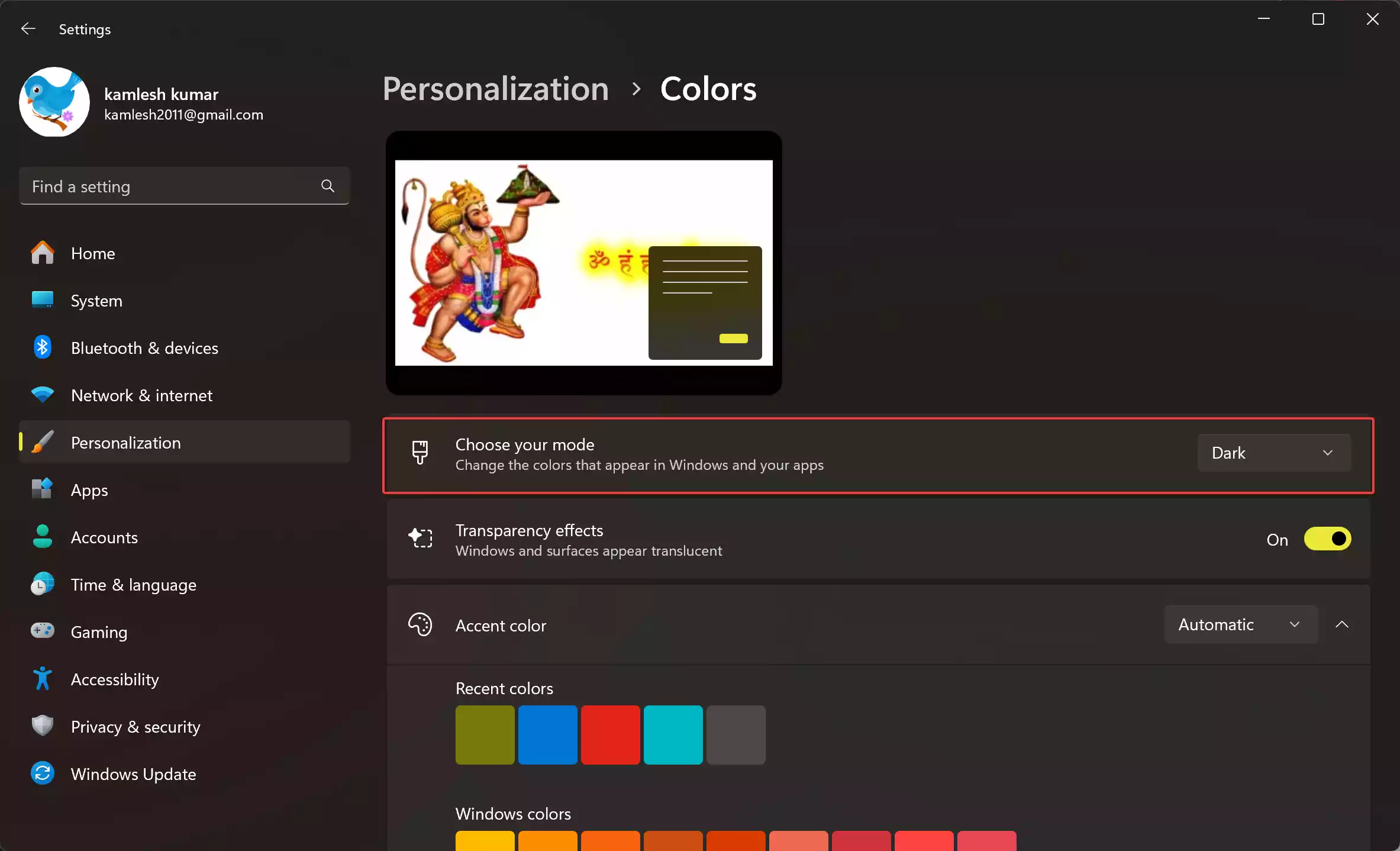
Note: Windows 10 users can do the same via Settings > Personalization > Colors, with slightly different labels.
Benefits of Using Dark Mode in Chrome
• Reduced eye strain in low-light environments.
• Better focus thanks to a less glaring interface.
• Potential battery savings on OLED/AMOLED displays.
• A cleaner, modern aesthetic that matches Windows’ dark theme.
• System-wide consistency when paired with Windows 11 dark mode.
Pro Tips for a Deeper Dark Experience
• Force dark mode on websites: advanced users can enable Chrome’s experimental flag to invert light pages—see Force Dark Mode for Web Contents in Chrome.
• Auto-schedule dark mode: set Windows to switch themes automatically with time/location using a helper app—see Automatically Switch Between Light and Dark Mode on Windows 11/10.
• Quick toggle for Windows theme: create a keyboard shortcut to flip dark mode on/off—see Create a Keyboard Shortcut for Dark Mode.
Troubleshooting Chrome Dark Mode
• Dark option missing in Chrome: update Chrome to the latest version and relaunch. If needed, set Mode to Device in the Side Panel so it follows Windows.
• Windows is dark, but Chrome stays light: in Chrome, open Customize Chrome > Device and ensure it’s set to follow system colors. Verify Windows is actually set to Dark.
• Websites still appear bright: many sites ignore browser theme; consider using the flag to force dark web contents (may slightly alter colors/images).
• Prefer Edge in dark: here’s how to switch Edge to dark or even force dark web content—see Enable/Disable Dark Mode in Microsoft Edge.
Frequently Asked Questions
Can I make Chrome switch to dark mode automatically at night?
Yes. Let Chrome follow Windows, then set Windows to auto-switch using a scheduler—see Auto Dark Mode on Windows.
Will dark mode affect the look of websites?
Chrome’s interface goes dark immediately. Website content depends on each site. If you want all sites to appear dark, use Chrome’s experimental Force Dark Mode for Web Contents flag—see our guide above.
How do I turn dark mode off in Chrome?
Open Customize Chrome and choose Light, or in Settings > Appearance, change Mode back to Light. If Chrome follows Windows, switch Windows to Light.
Does dark mode save battery on laptops?
It can help on OLED/AMOLED displays because black pixels draw less power. On standard LCDs, savings are smaller, but dark mode can still be more comfortable for your eyes.
Conclusion
Enabling dark mode in Google Chrome on Windows 11 or Windows 10 is simple with these three methods. Whether you choose the Side Panel, Chrome’s settings menu, or syncing with Windows, you’ll get a more eye-friendly, modern browsing experience. For a deeper dark experience, explore the force-dark flag and automatic scheduling on Windows—and enjoy browsing that matches your style and setup.