

In this article from gearupwindows, we’ve rounded up the top 8 FAT32 format tools for Windows 11/10 that you can use to format your HDD, SSD, memory card, or any other external media. These tools include Windows File Explorer, EaseUS Partition Master Free, AOMEI Partition Assistant Standard Edition, DISKPART, MiniTool Partition Wizard Home Edition, Macrorit Disk Partition Expert Free, DiskGenius Free Edition, and IM-Magic Partition Resizer Free.
Top 8 Free FAT32 Formatting Tools for Windows 11/10
Here are the best FAT32 format tools for Windows 11/10:-
Windows File Explorer
If you’re looking to format a drive in FAT32 format, you can use the default Windows File Explorer tool, regardless of the version of Windows you’re using. Follow these simple steps:-
Step 1. Open “This PC” and right-click on the drive you want to format.
Step 2. Select the “Format” option from the context menu.
Step 3. Expand the “File system” drop-down menu.
Step 4. Choose the “FAT32” option.
Step 5. Click the “Start” button.
Once complete, your drive will be formatted to the FAT32 format. Note that this method works well with HDDs, SSDs, USB flash drives, and external hard drives.
EaseUS Partition Master Free
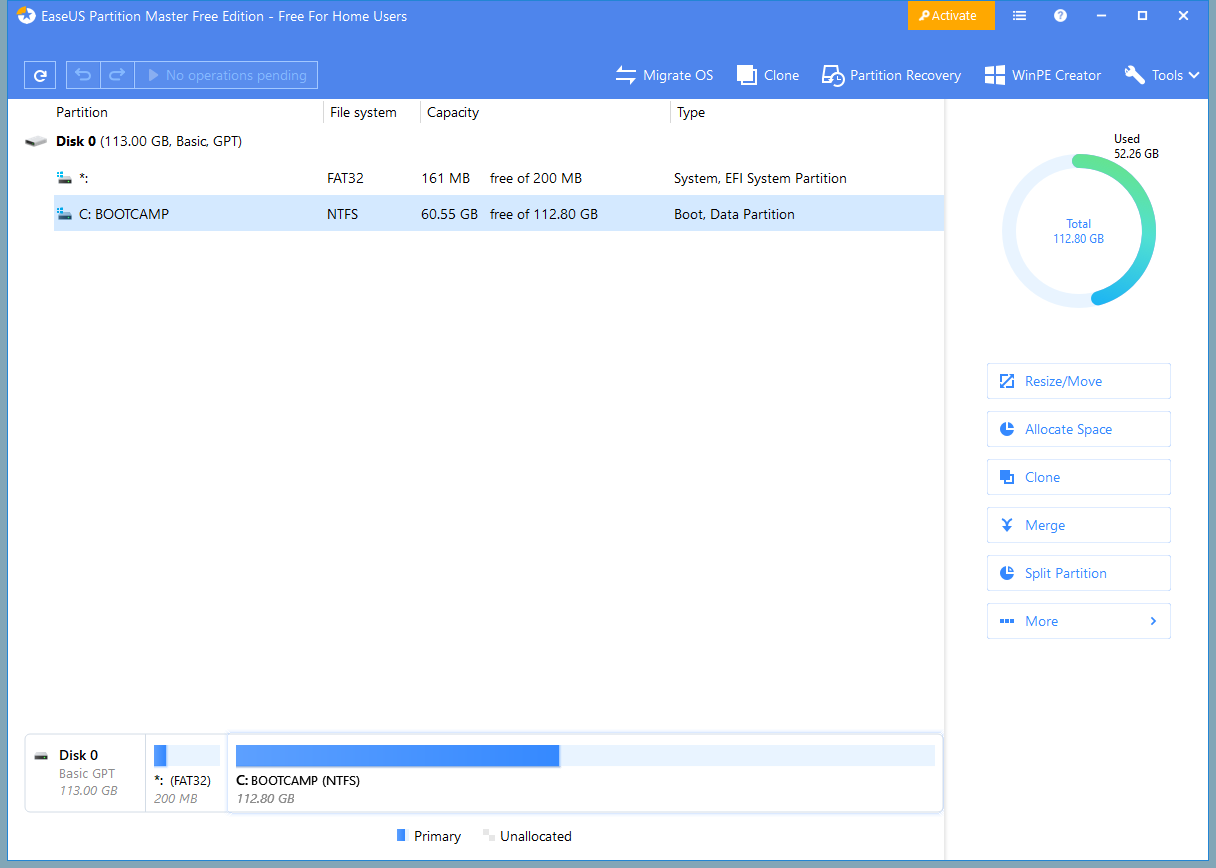
EaseUS Partition Master Free is a reliable freeware utility compatible with Windows 11 and 10. It lets you format external drives, USB flash drives, memory cards, HDDs, or SSDs in FAT32, NTFS, or exFAT—with an intuitive interface and clear options.
To format a drive to FAT32 using EaseUS Partition Master Free, follow these steps:
Step 1. Download and install the free edition from the official website.
Step 2. Launch the application and locate the drive or partition to format.
Step 3. Right-click the target volume and select “Format Partition“.
Step 4. Choose “FAT32” from the file system dropdown menu.
Step 5. Click “OK” to confirm, then hit “Execute 1 Operation” (or similar), and finally select “Apply” to complete the formatting.
EaseUS offers fast formatting, compatibility with large volumes, and a user-friendly wizard that guides you at every step. This makes it ideal for beginners or those managing external media.
AOMEI Partition Assistant Standard Edition
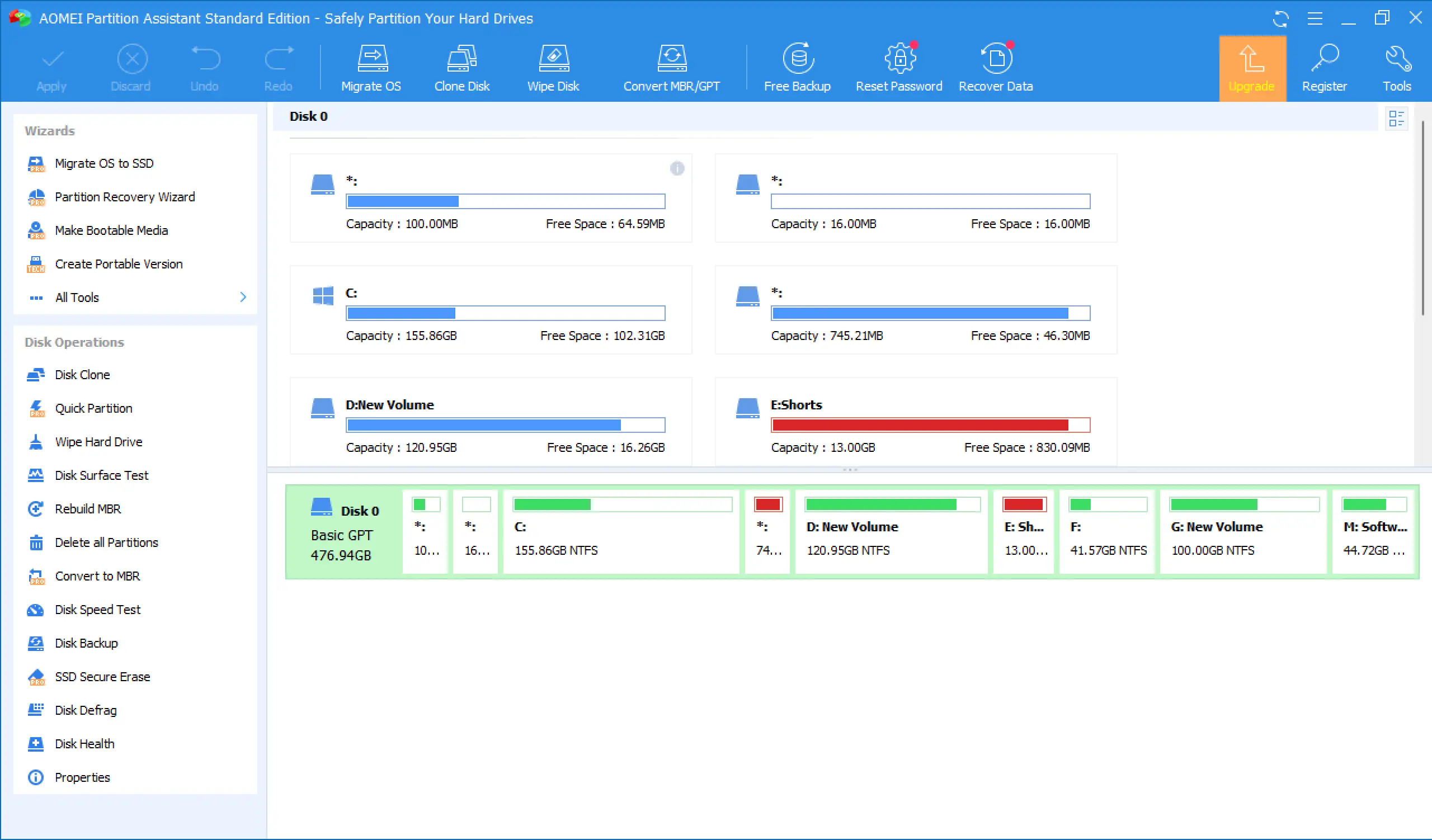
AOMEI Partition Assistant Standard Edition is a comprehensive, wizard-driven partition manager that supports FAT32, NTFS, exFAT, and more on Windows 11 and 10.
To format a drive to FAT32 using AOMEI Standard Edition, follow these steps:
Step 1. Download and install the free Standard Edition.
Step 2. Launch the app and select the disk or partition you wish to format.
Step 3. Choose “Format Partition” from the context menu or toolbar.
Step 4. From the filesystem dropdown, select “FAT32”.
Step 5. Confirm by clicking “OK”, then apply the pending operation (“Apply” or “Execute”).
AOMEI offers safe formatting, supports large volumes, and queues multiple operations before execution. It also includes features like conversion between NTFS and FAT32, partition resizing, cloning, and MBR recovery—all in a free edition.
DISKPART
To use DISKPART to format a drive in FAT32, follow these steps:
Step 1. Press Win + X and select Command Prompt (Admin) or Windows Terminal (Admin).
Step 2. Type diskpart and press Enter.
Step 3. Type list disk and identify your drive.
Step 4. Type select disk X (replace X with your drive number).
Step 5. Type list partition and then select partition X.
Step 6. Type format fs=fat32 quick and press Enter.
MiniTool Partition Wizard Home Edition
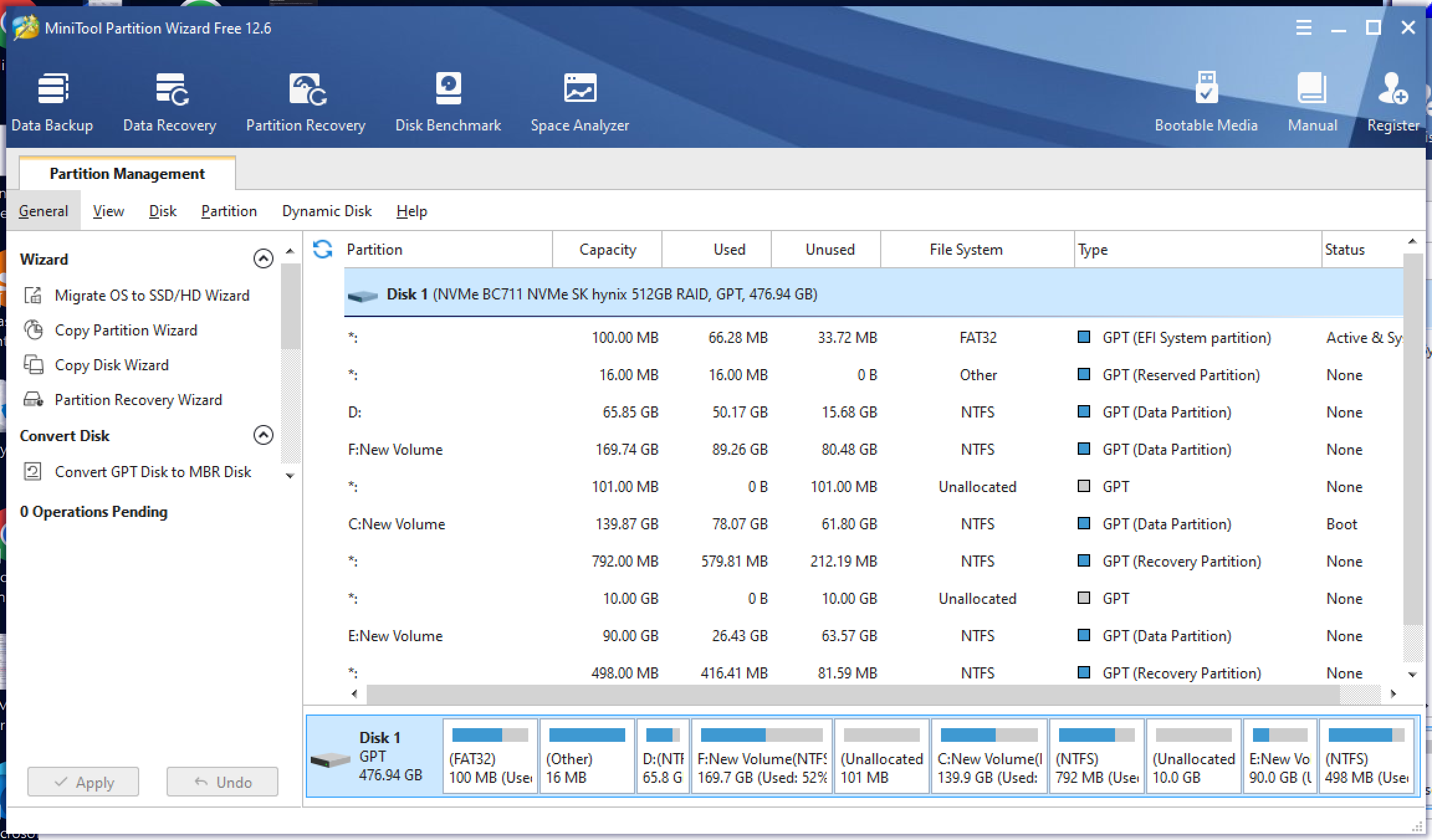
MiniTool Partition Wizard Home Edition is a feature-rich, beginner-friendly tool compatible with Windows 11 and 10. It lets you format drives, resize partitions, migrate OS, and manage file systems including FAT32, NTFS, and exFAT.
To format a drive to FAT32 using MiniTool Partition Wizard Home Edition, follow these steps:
Step 1. Download and install the free Home Edition.
Step 2. Open the program and select the target drive or partition.
Step 3. Click the “Format Partition” option from the action panel or right-click menu.
Step 4. Select “FAT32” as the file system, and name your volume if needed.
Step 5. Click “OK”, then click the “Apply” button in the toolbar to start the formatting process.
MiniTool Partition Wizard is fast, reliable, and packed with useful features like data migration and partition recovery—making it a great choice for managing external drives or internal partitions.
Macrorit Disk Partition Expert Free
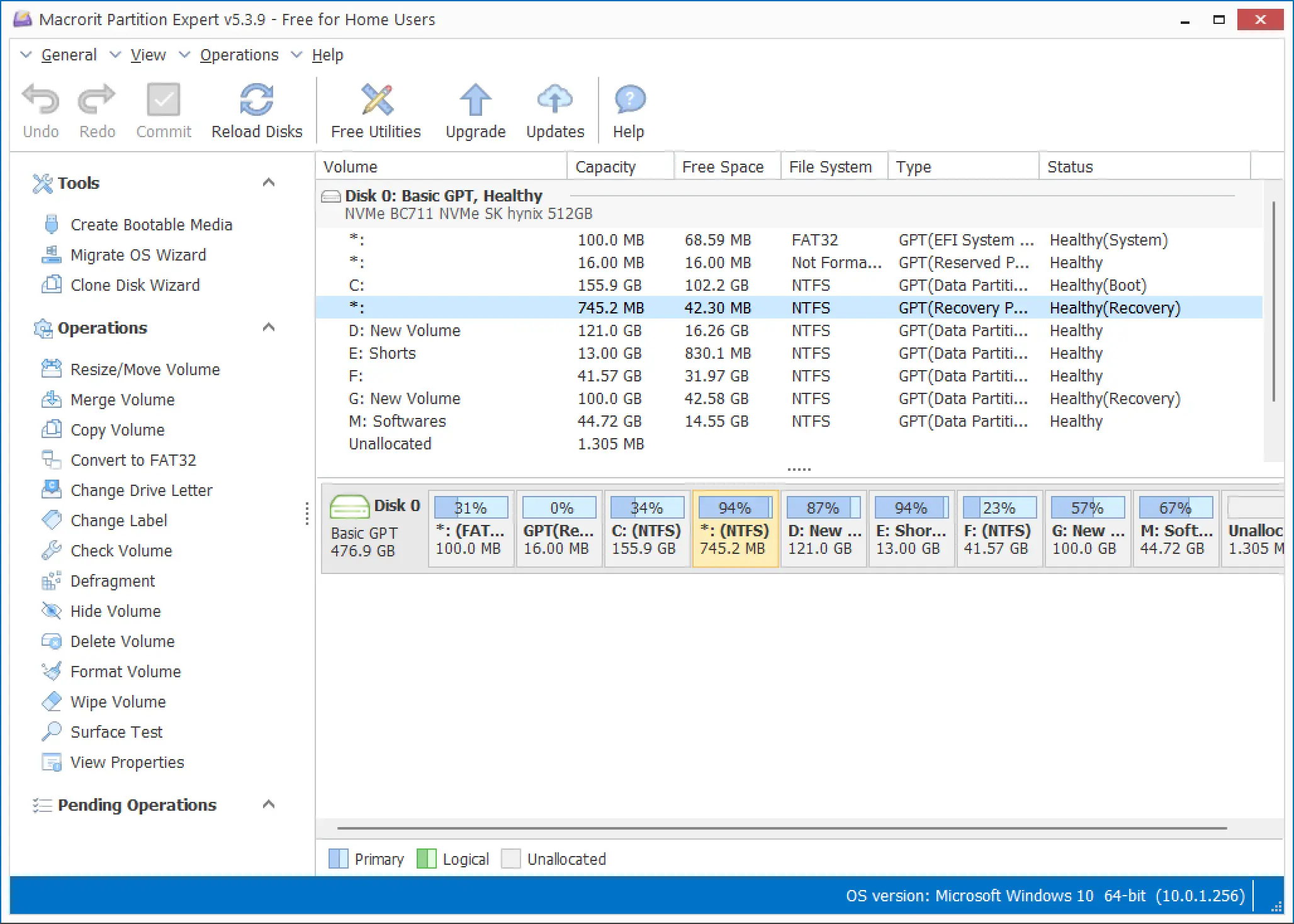
Macrorit Disk Partition Expert Free is a lightweight, user-friendly tool designed for managing hard disk partitions in Windows 11 and 10. It supports all popular file systems, including FAT32, NTFS, and exFAT, allowing you to format USB flash drives, memory cards, or external hard disks with ease.
To format a drive in FAT32 using Macrorit Disk Partition Expert Free, follow these steps:
Step 1. Download and install the free version from the official website.
Step 2. Launch the program and select the drive or partition you want to format.
Step 3. Right-click on the target volume and choose the “Format Volume” option.
Step 4. From the file system dropdown, select “FAT32“.
Step 5. Click “OK“, then hit the “Commit” button at the top to apply changes.
Macrorit offers fast formatting, supports large drives, and ensures data integrity during operations. It’s a perfect alternative when other tools fail to format drives in FAT32, especially those larger than 32GB.
DiskGenius Free Edition
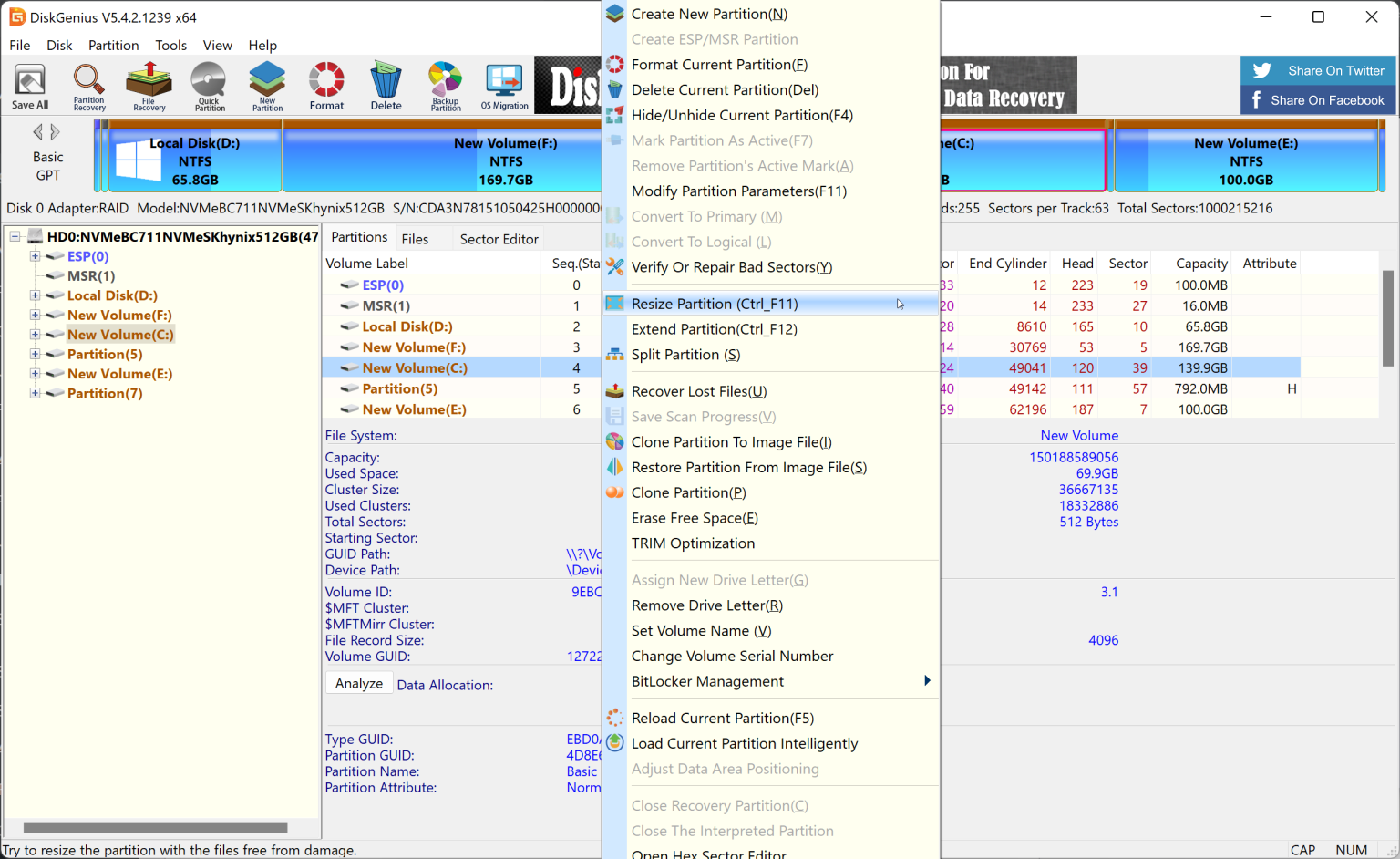
DiskGenius is another reliable partition management software that supports formatting drives in FAT32, NTFS, and exFAT. It works well with Windows 11 and 10 and is ideal for users who need a clean, functional interface with powerful tools for disk and partition control.
To format a drive in FAT32 using DiskGenius, follow these steps:
Step 1. Download and install DiskGenius Free Edition from the official site.
Step 2. Launch the application and select the target partition or drive.
Step 3. Right-click on the selected partition and choose “Format Current Partition“.
Step 4. Select “FAT32” from the file system dropdown menu.
Step 5. Click “Format” to begin the process.
DiskGenius is useful not only for formatting but also for partition recovery, data backup, and partition resizing. It’s an excellent all-in-one solution for managing external and internal storage on Windows PCs.
IM-Magic Partition Resizer Free
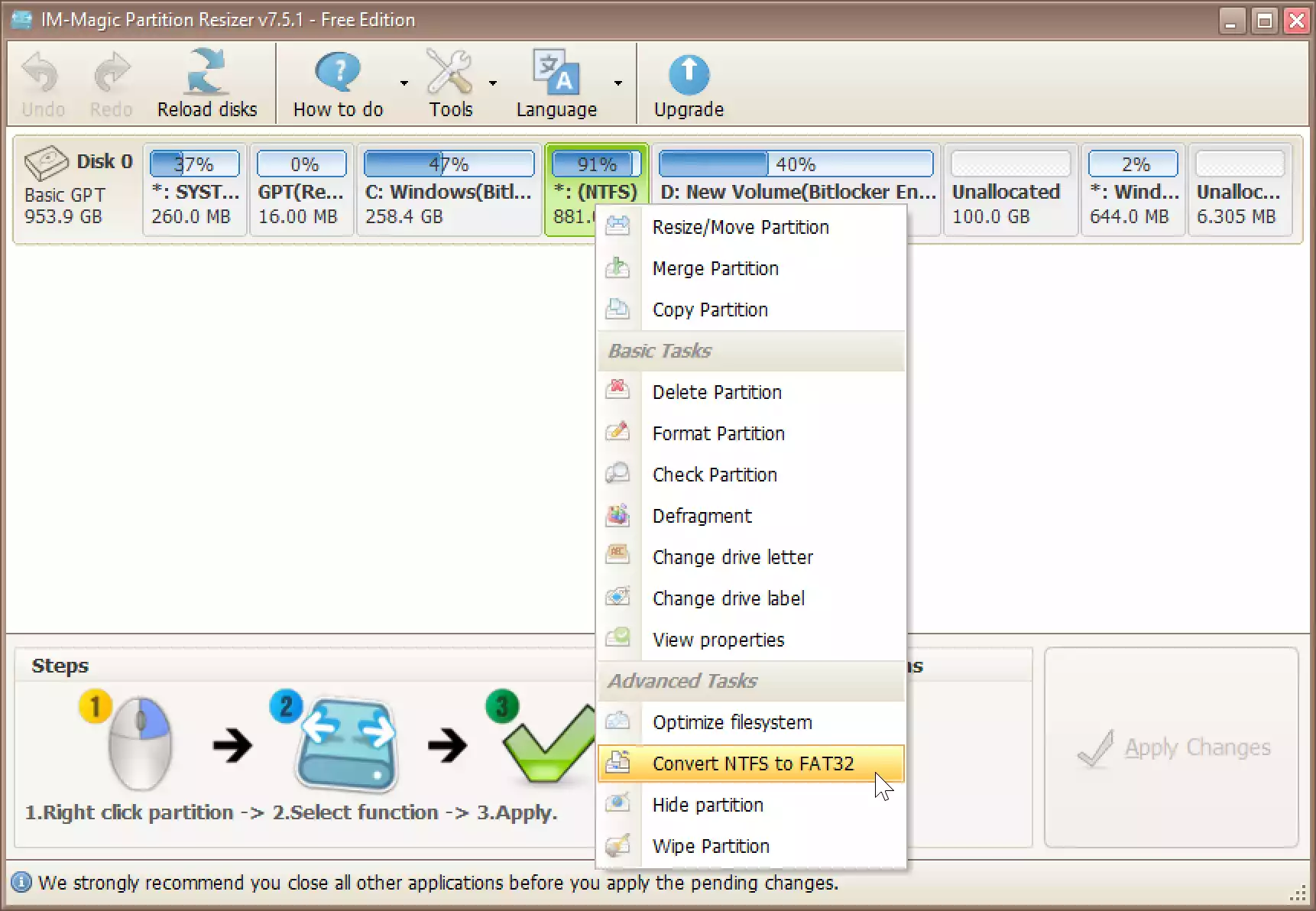
IM-Magic Partition Resizer Free is a simple yet powerful partition tool that allows you to format partitions in FAT32, NTFS, and other file systems without losing data. It is compatible with Windows 11 and 10 and offers a beginner-friendly interface that makes partition management easy.
To format a drive in FAT32 using IM-Magic Partition Resizer Free, follow these steps:
Step 1. Download and install the free version from the official website.
Step 2. Open the program and locate the drive or partition you wish to format.
Step 3. Right-click on the selected volume and choose the “Format Partition” option.
Step 4. Select “FAT32” as the file system from the dropdown menu.
Step 5. Click “Apply Changes” to start the formatting process.
This tool is ideal for users who want a straightforward solution to resize or format partitions without the complexity of advanced disk management tools.
Conclusion
Formatting drives to FAT32 on Windows 11 or 10 doesn’t have to be complicated. Whether you’re working with an HDD, SSD, USB drive, or memory card, there’s a free tool suited for the job.
For quick tasks, built-in options like Windows File Explorer or DISKPART are more than enough. However, if you’re handling larger drives or want advanced features such as partition resizing, conversion, or data recovery, third-party tools like EaseUS Partition Master, AOMEI Partition Assistant, and MiniTool Partition Wizard offer more control and flexibility.
All the tools mentioned in this gearupwindows guide are free, beginner-friendly, and compatible with Windows 11 and 10. Choose the one that best fits your needs and enjoy smooth, hassle-free FAT32 formatting—no matter the device or capacity.