

Nowadays, most modern PCs come without a physical CD/DVD drive. That’s where Virtual CloneDrive becomes useful for users who need to mount image files virtually.
Although Windows 8 and 10 include a built-in option to mount ISO disc image files, it offers limited functionality. Most users prefer third-party tools because the inbuilt option allows mounting only a single virtual drive.
What Is Virtual CloneDrive?
Virtual CloneDrive is a free tool that lets you mount ISO, IMG, BIN, UDF, DVD, and other image formats on a Windows PC. It acts like a physical CD, DVD, or Blu-ray drive—even though it only exists virtually.
You can mount image files from your hard disk or network drive by simply double-clicking the file. It works just like inserting a real disc into a physical drive.
This software supports up to 15 virtual drives at the same time. Whether your image file is 700 MB or 7 GB, Virtual CloneDrive handles it without issue. It integrates into the Windows Explorer context menu, letting you right-click any image file to access mount options.
Additionally, you can launch its settings from the system tray icon. Once installed, the tool becomes part of your system tray for quick access.
Virtual CloneDrive is compatible with all major Windows versions, including Windows XP, Vista, 7, 8, and 10 (both 32-bit and 64-bit systems).
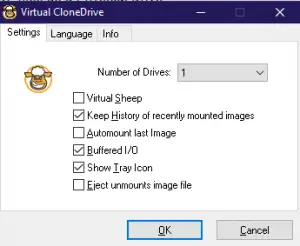
If you need to mount multiple image files, increase the number of virtual drives and mount each file in a separate drive. By default, the software creates only one virtual drive after installation.
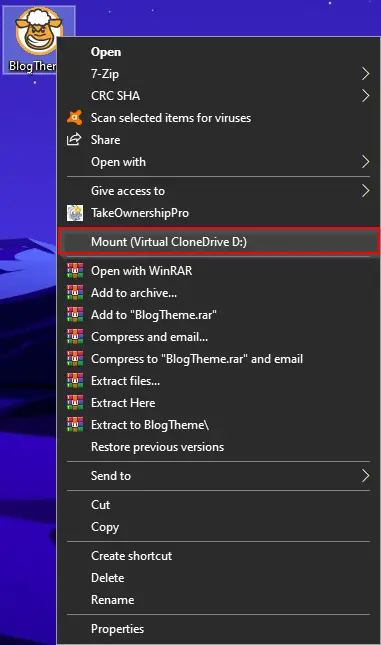
Mounting an image file is simple. Right-click the image file and select the Mount option from the context menu.
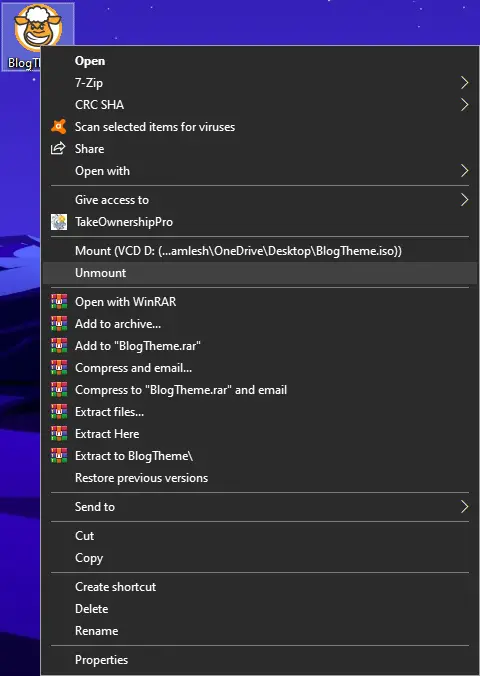
Once you’re done, right-click on the file again and choose unmount to dismount it.
The tool also keeps a history of recently mounted files for quick access. You can control these options through the Settings menu, where you can enable or disable history, show or hide tray icons, toggle the sheep icon in the drive, and turn on/off eject on unmount.
Key Features
- Mounts image files as a virtual drive
- Supports up to 15 virtual drives simultaneously
- Handles ISO, BIN, IMG, UDF, DVD, CCD formats
- Emulates CD, DVD, and Blu-ray drives
- Maintains a history of recently mounted images
- Automatically mounts the last used image
- Supports eject button functionality
- Fully integrates into Windows Explorer context menu
- Double-click to mount image files
- Completely free to use
You might also want to check out WinCDEmu, another free CD/DVD emulator that supports ISO, CUE, BIN, and more formats.
Download Virtual CloneDrive
You can download the latest version of Virtual CloneDrive from its official website.
Conclusion
In conclusion, Virtual CloneDrive is a powerful and easy-to-use solution for mounting image files on Windows PCs. With support for various formats and up to 15 virtual drives, it offers a smooth user experience. The tool integrates seamlessly with Windows Explorer, stores a history of mounted images, and provides flexible settings.
If you frequently work with ISO, IMG, or BIN files, this tool is a must-have. It helps you access your data just like a physical disc without needing actual hardware.